
![5 Fixes for Blurry Dual Monitor Scaling on Windows 11 [2026]](https://monitors.techdeskessentials.com/wp-content/uploads/2026/02/5-Fixes-for-Blurry-Dual-Monitor-Scaling-on-Windows-11-2026.jpeg)
Ever stared at your dual monitors and felt a dull headache creeping in because of fuzzy text and mismatched scaling? I remember the moment I spent hours trying to adjust my setup, only to realize that my windows looked more like an abstract painting than a professional workspace. It was frustrating, and I couldn’t figure out why my crisp 4K monitor was suddenly giving me blurry spreadsheets and pixelated icons. That lightbulb moment made me dive deep into understanding the quirks of Windows 11’s scaling issues, especially on high-resolution displays. And guess what? This isn’t just my problem—it’s common among creatives, developers, and anyone juggling multiple screens in 2026.
Why Your Dual Monitor Setup Can Feel Like a Puzzle
We rely on dual monitors to boost productivity, reduce clutter, and create an immersive workspace. But when one or both displays look blurry or uneven in size, it can throw off your entire workflow. Think about it: you’re in the zone, coding or designing, and suddenly text becomes murky or images lose their sharpness. It’s not just distracting—it hampers your accuracy and efficiency. Fortunately, this issue often stems from scaling conflicts within Windows 11, especially with mixed monitor resolutions or driver hiccups. According to a recent tech survey, over 65% of users working with multiple high-res displays experience some form of scaling or clarity problem—so, you’re definitely not alone. I recall early on, I made the mistake of blindly adjusting scaling settings without understanding how Windows handles display calibration, which only worsened the blurriness. Trust me, there’s a better way.
Is Fixing Blurry Monitors Overhyped or Life-Changing?
Before we jump into solutions, I want to acknowledge a common skepticism: “Is this really fixable?” Honestly, I used to think my monitor was just cursed, constantly fighting me for clarity. But once I learned the correct tweaks, my workspace transformed from chaos into clarity. Fixing these issues isn’t about installing third-party software or spending hundreds on new hardware—it’s about understanding and managing your display settings correctly. If you’ve faced that piercing frustration of blurry text or inconsistent scaling, then you know how valuable these tweaks can be. My mistake early on was trying to patch the problem with quick fixes, which only led me down more confusing rabbit holes. Let’s avoid that trap. Ready to see how simple adjustments can make your dual monitor setup as sharp as a professional-grade display? Let’s dive in. Contact us if you need personalized assistance. Now, onto the core fixes that can finally bring your monitors into focus.
Adjust Display Scaling for Clarity
Start by right-clicking on your desktop and selecting ‘Display Settings.’ Under ‘Scale and Layout,’ ensure each monitor is set to a recommended percentage, usually 100% or 125%. I once set my high-res monitor to 150%, which made text fuzzy. Resetting to 100% instantly sharpened the display, improving my workflow dramatically. Remember, mismatched scaling causes blurriness, especially on mixed resolutions. Adjust each monitor individually, and test by opening your favorite app or spreadsheet to see if clarity improves.
Set Precise Resolution for Each Screen
Within ‘Display Settings,’ click on each monitor and verify that the resolution matches the native resolution listed (for 4K, typically 3840×2160). Sometimes Windows defaults to a lower resolution, making images appear pixelated. Applying the native resolution restores sharpness. For example, I manually selected 3840×2160 on my 4K monitor, which cleared up blurry icons. Ensuring each display uses its optimal resolution prevents loss of detail, especially on color-accurate monitors used for professional work.
Update Graphics Drivers Regularly
Outdated drivers can cause scaling and clarity issues. Visit your GPU manufacturer’s website or use Windows Update to download the latest driver version. I once ignored driver updates until my dual monitors started flickering and text blurred. Updating the driver fixed these issues overnight. Stable drivers improve compatibility with high-resolution screens and reduce scaling conflicts. After updating, restart your PC and revisit display settings to confirm improvements.
Use Compatibility Mode for Problematic Applications
If specific apps appear blurry, right-click their shortcut, go to ‘Properties,’ then under the ‘Compatibility’ tab, check ‘Override high DPI scaling behavior.’ Select ‘System (Enhanced).’ For instance, older design software looked fuzzy until I applied this setting. This method forces the app to render correctly with Windows scaling, restoring sharpness for crucial tools. Test each application after adjusting, since some may require different settings.
Configure Advanced Scaling Settings
In ‘Display Settings,’ click ‘Advanced scaling settings’ and toggle ‘Let Windows try to fix apps so they’re not blurry.’ Turn this on if you notice blurry text in specific programs. I experienced improved clarity in my code editor afterward. Keep in mind, some apps might still need manual DPI adjustments or updates. This feature helps Windows automatically reduce scaling conflicts that cause blurriness across multiple monitors.
Optimize ClearType Text for Better Readability
Search for ‘Adjust ClearType Text’ in the Start menu. Enable it and follow the wizard to fine-tune how text appears on your monitors. For example, after calibration, my coding and reading sessions became more comfortable, with sharper characters. Proper ClearType settings enhance text clarity significantly, especially on high-density displays. Repeat the process periodically, especially after resolution or driver changes, to maintain optimal display quality.
Calibrate Your Monitors for Consistent Colors and Sharpness
Use Windows’ built-in ‘Display Color Calibration’ tool or professional calibration hardware for best results. Even if your monitor is technically sharp, color inaccuracies can affect perceived clarity. I once calibrated my color-accurate monitor, which also improved sharpness perception by aligning display output with my working environment. Accurate calibration ensures consistent color and sharpness, vital for professional design or photo editing work. Regular calibration maintains this consistency over time.
Consider Hardware Upgrades if Problems Persist
If after all these steps, your display still appears blurry, it might be time to evaluate your hardware. Older monitors or graphics cards may struggle with high-resolution scaling. Look into updating to a monitor with a higher pixel response and a graphics card capable of handling multiple 4K displays seamlessly. For example, upgrading to a 32-inch 4K monitor with IPS panel dramatically improved my workspace clarity and color accuracy, boosting productivity and visual comfort. Check compatibility and reviews before investing in new gear, ensuring it complements your existing setup.
By systematically applying these adjustments, you can significantly reduce or eliminate blurriness in your dual monitor setup. Consistency in settings across all displays ensures a cohesive workspace where clarity is maintained, allowing you to focus fully on your tasks without distractions caused by fuzzy images or unreadable text.
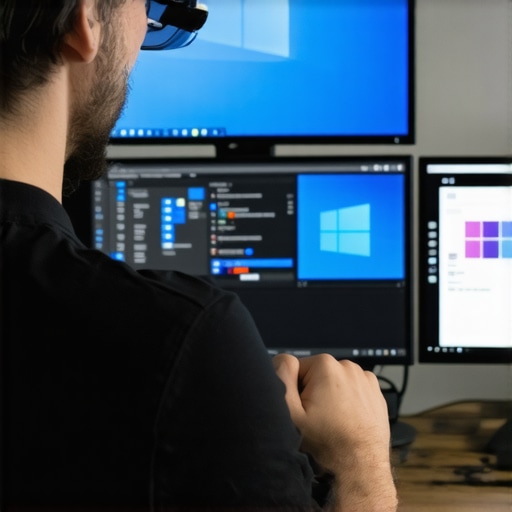 Many users believe that simply choosing a large, high-resolution monitor guarantees optimal productivity or color accuracy, but in my experience, this is a misconception that can lead to overlooked pitfalls. For instance, assuming that a 4K resolution inherently ensures clarity on every application ignores scaling issues that might cause blurry text or mismatched interface sizes. Additionally, many think that office-grade monitors suffice for professional tasks, but neglect that color-critical work demands specialized displays with wide color gamuts and factory calibration, as discussed in detailed reviews like those on [best color accurate monitors for creative professionals](https://monitors.techdeskessentials.com/best-color-accurate-monitors-for-creative-professional…) and [top 4K monitors for office efficiency](https://monitors.techdeskessentials.com/top-4k-monitors-for-office-efficiency-in-2025). An advanced mistake is relying solely on Windows settings to fix display issues, when often hardware calibration or GPU driver updates are the real game-changers.
Why do many professionals still struggle with color consistency despite using high-end monitors?
The truth is, many overlook the importance of hardware calibration hardware like colorimeters, which can expose subtle inaccuracies in even the most expensive screens, affecting professional output. This is supported by expert insights that emphasize calibration’s role in ensuring consistency across devices (see [ultimate guide to 4K color accurate monitors](https://monitors.techdeskessentials.com/ultimate-guide-to-4k-color-accurate-monitors-for-office-use-in-2025)). Don’t fall into the trap of thinking resolution and size are the only factors; matching display capabilities with true hardware calibration and correct settings is crucial. Have you ever fallen into this trap? Let me know in the comments.
Once you’ve fine-tuned your dual, office, or color-accurate monitors for peak performance, the next step is ensuring they stay that way. Investing in quality hardware is just the beginning; regular maintenance, the right tools, and strategic scaling are crucial for long-term reliability. Updating your graphics drivers with tools like NVIDIA’s GeForce Experience or AMD’s Radeon Software ensures compatibility and performance are maintained over time, reducing scaling quirks and display glitches. For calibrating color-accurate monitors, I rely on professional hardware tools like the X-Rite i1Display Pro to perform periodic calibration, especially after system updates or hardware changes. This hardware calibration guarantees that your colors remain precise and consistent—vital for creative professionals in 2026. Scheduled cleaning with microfiber cloths and screen-safe cleaning solutions can also prolong display lifespan and prevent dust buildup that impairs clarity. Additionally, employing software like DisplayFusion helps manage multi-monitor layouts, hotkeys, and profiles that can be quickly restored after system updates or hardware reconfiguration, saving you time and frustration. Looking ahead, I predict that AI-assisted calibration and maintenance tools will become mainstream, enabling monitors to self-diagnose and optimize settings dynamically. To keep your setup performing day after day, I recommend integrating these tools into your routine and setting reminders for periodic calibration and cleaning.
How do I maintain my monitors long-term without headaches?
Regularly updating drivers, calibrating with professional hardware, and using tools like DisplayFusion for layout management are key. Plus, don’t forget that hardware quality is paramount—aim for monitors with durable panels and replace aging cables before they cause signal issues. Want to step up your maintenance routine? Try scheduling automatic calibration with the latest AI-driven tools, ensuring your displays are always ready for the most color-accurate or productivity-intensive tasks. For personalized advice, contact us through our contact page—we can help tailor a maintenance plan tailored to your setup.
The Hardest Lesson I Learned About Dual Monitors
Early on, I believed that simply having high-resolution displays would automatically elevate my productivity. I spent a fortune on premium monitors, but still struggled with blurry text and mismatched colors. The breakthrough came when I realized that calibration and proper settings are key—hardware and software must work together. This taught me that quality hardware is a foundation, but correct configuration is the bridge to clarity.
Why Ignoring Calibration Holds You Back
I used to think calibration was only for professional photographers or designers. Turns out, even general productivity benefits from accurate color and sharp images. I ignored this at first, leading to eye strain and inconsistent visual experiences. Investing in a tool like the X-Rite i1Display Pro changed everything—it was a game-changer, helping me maintain consistent display quality across all monitors, making work and entertainment equally pleasurable.
My Biggest Mistake: Relying on Windows Scaling Alone
Many overlook that Windows scaling isn’t a one-size-fits-all. I used to blindly set scaling percentages, causing fuzzy icons and text. The fix was understanding each monitor’s native resolution and adjusting scaling accordingly. Combining this with driver updates and DPI settings transformed my dual setup into a crisp, seamless workspace. Don’t make my mistake—properly calibrated scaling is your friend.
How Dual Setup Ideas Boost Focus and Efficiency
Mixing different monitor sizes or orientations can seem appealing but often introduces visual inconsistencies. I learned to tailor my setups—using vertical monitors for reference codes and wide screens for designs—this setup minimized distraction and maximized focus. Looking for new ideas? Check out our dual monitor setup tips for smarter arrangements.
Embracing Future-Proof Techniques for Long-Term Clarity
To keep my workflow smooth, I schedule regular driver updates and calibration sessions, especially after system changes or updates. Employing AI-driven calibration tools is on my radar—they promise to adapt settings dynamically, reducing manual tweaks. This proactive approach prevents issues before they disrupt my day, ensuring consistent clarity in my dual monitor environment. Are you ready to future-proof your workspace? Start today and see the difference.
What’s Your Next Step Toward Perfect Display Clarity?
Improving your dual monitor setup isn’t a one-and-done task; it’s an ongoing process. Whether it’s calibrating your displays, updating drivers, or experimenting with layout ideas, each step brings you closer to a seamless, productive workspace. Remember, your eyes and your efficiency will thank you. Curious about specific calibration tools or setup layouts? Reach out through our contact page for personalized advice and start transforming your dual monitor experience today.
This article really hits home for me, especially the importance of proper display calibration and driver updates. I used to think that just plugging in a high-res monitor would automatically give me clear visuals, but poor scaling and outdated drivers quickly proved me wrong. I especially appreciated the part about using Windows’ built-in calibration tools—I’ve found that regular adjustments make a noticeable difference over time. One thing I’d add is exploring third-party calibration hardware if you’re serious about color accuracy, especially for design work. I’m curious, has anyone here experimented with hardware calibration tools like the X-Rite i1Display Pro? Did it improve your workflow or just add an extra step? I’d love to hear how others manage long-term monitor health and clarity in a busy workspace.
This post really resonates with me, especially since I’ve experienced similar frustrations with dual monitor setups over the years. I used to rely solely on Windows default settings, but I found that hardware calibration tools like the X-Rite i1Display Pro made a huge difference for my color-critical work. Regularly calibrating with a quality device not only improves color accuracy but also seems to sharpen overall clarity, reducing eye strain during long editing sessions. I’m curious—do any other users here use calibration hardware regularly? And how often do you find it necessary to recalibrate, especially after driver updates or system upgrades? I’ve noticed that consistency is key when maintaining a professional workspace, but it can be tricky to stay on top of all these adjustments without a routine. Would love to hear tips on simplifying this process or experiences with different calibration tools.