
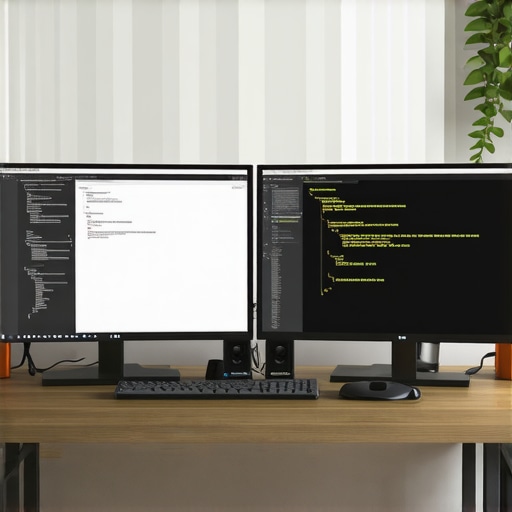
Discovering the Power of Dual Monitors: My First Encounter
As a developer, I vividly remember the day I decided to upgrade my workspace with dual monitors. It was like stepping into a new realm of productivity. I started with a simple setup, but the impact was almost immediate. My coding process became smoother, and multitasking was effortless. This experience made me realize how essential the right monitors are for anyone serious about their craft.
Why I Chose 4K and Color Accuracy for Creative Coding
Over time, I learned that not all monitors are created equal. In 2025, I prioritized 4K resolution for crisp visuals and excellent detail. For creative work, color accuracy became a non-negotiable. I found that color-accurate monitors significantly improved my design and coding workflows, especially when working on projects that demand precise visuals. The integration of these features truly transformed my productivity and output quality.
What Makes a Monitor Setup Truly Effective for Coding?
From my experience, an effective monitor setup combines size, resolution, and ergonomic features. I recommend choosing dual monitors with thin bezels to maximize screen real estate. Adjustable stands helped me reduce fatigue during long coding sessions. I also experimented with different arrangements—side-by-side versus stacked—to find what suited my workflow best. The right setup minimizes distractions and keeps my focus sharp.
Can Monitors Really Boost Your Coding Efficiency?
Absolutely. Having multiple screens allows me to keep code on one display and reference materials or debugging tools on another. It reduces the need to switch tabs constantly, saving time and mental energy. For instance, I often keep my IDE open on one monitor and documentation or design assets on the other. This seamless workflow has made me more productive and less stressed during intense coding sessions. If you’re curious about creating an ideal workspace, check out this dual monitor setup guide.
How do I choose the perfect monitors for my specific needs?
That’s a great question. I found that assessing my workflow and space constraints was crucial. For coding and creative work, I prioritized monitors with high resolution, good color accuracy, and adjustable ergonomics. It’s also worth considering connectivity options and future-proof features like USB-C ports. Reading reviews and expert opinions helped me make informed decisions. For a comprehensive overview, I recommend exploring this guide to choosing office monitors.
Feel free to share your experiences or ask questions in the comments below—I love hearing how others are optimizing their workspaces!
Beyond Basic Setups: How Dual Monitors Elevate Your Workflow
For professionals aiming to optimize their workspace, dual monitors are more than just an ergonomic choice—they are a strategic tool that can transform productivity. By expanding screen real estate, you can manage multiple tasks seamlessly, from coding to creative design. The key is selecting monitors that complement your workflow with features like high resolution and color accuracy.
The Role of 4K and Color Fidelity in Creative and Professional Environments
In 2025, the emphasis on 4K resolution and color precision continues to grow. Creative professionals, such as graphic designers and video editors, benefit immensely from monitors that display true-to-life colors and sharp details. Monitors with high color gamut coverage and factory calibration ensure your visuals are accurate, which is vital for professional work. For detailed guidance on this, check out the best color-accurate monitors for creative professionals.
Designing a Dual Monitor Setup That Works for You
Creating an effective dual monitor workspace involves more than just placing two screens side by side. Ergonomics, size, and arrangement matter greatly. Adjustable stands and thin bezels maximize comfort and minimize distractions. Some professionals prefer a horizontal setup, while others opt for stacking monitors to fit their space constraints. Experimenting with placement can reveal what boosts your focus and reduces fatigue.
Can the Right Monitor Setup Optimize Your Coding and Creative Tasks?
Absolutely. Expert setups often include monitors with high resolution and color accuracy to ensure clarity and visual fidelity. For developers, dual monitors facilitate multitasking—keeping code on one screen and documentation or debugging tools on another. Creative teams leverage this to compare designs side by side or view references without disrupting their workflow. To explore tailored solutions, consider reading the top dual monitors for coding and design.
What should you consider when choosing monitors for specialized tasks?
Assessing your specific needs is crucial. For instance, if you work with color-critical projects, prioritize monitors with wide color gamuts like Adobe RGB and high delta E accuracy. For coding, refresh rates and ergonomic features become more relevant. Connectivity options, such as USB-C or Thunderbolt, streamline your setup, especially when integrating with modern laptops. Reading expert reviews and user feedback helps refine your choice. For a comprehensive overview, visit the guide to choosing office monitors.
To further enhance your workspace, don’t forget to explore dual monitor setup ideas for 2025. Sharing your setup experiences or asking questions in the comments can also spark valuable insights for fellow professionals seeking optimal productivity solutions.
Refining My Dual Monitor Strategy: Embracing Complexity and Personalization
Over the years, I’ve realized that simply having dual monitors isn’t enough—what truly makes a difference is how you tailor your setup to your unique workflow and preferences. I’ve experimented with a variety of configurations, from ultrawide secondary screens to vertical stacking, each offering distinct advantages. For instance, stacking monitors can reduce neck strain during long hours, while ultrawide setups facilitate seamless multitasking across multiple applications. Personalization is key; adjustable stands, color calibration, and even ambient lighting have all contributed to creating a workspace that feels both efficient and inspiring.
Delving into Color Accuracy and Resolution: Beyond the Basics
When I dive into creative projects, I often find myself obsessing over the finer details—like color fidelity and pixel density. High-resolution 4K monitors with wide color gamuts, such as Adobe RGB or DCI-P3, enable me to see every nuance in my work, which is crucial for professional-grade design and editing. However, I’ve learned that calibration is equally important; factory calibration is a good start, but investing in a colorimeter can ensure consistent accuracy over time. The challenge lies in balancing these high-end features with ergonomics and budget constraints, but the payoff—crisp visuals and true-to-life colors—is well worth it. For those interested, exploring the best color-accurate monitors for creative professionals in 2025 can provide valuable insights.
Innovative Ergonomic Adjustments: Making Comfort a Priority
One aspect I’ve come to deeply appreciate is ergonomic fine-tuning. Monitors with height, tilt, and swivel adjustments have transformed my long work sessions, reducing fatigue and preventing strain injuries. I also experimented with monitor arms, which give me the flexibility to switch between sitting and standing positions effortlessly. Additionally, I’ve started integrating anti-glare screens and adjusting ambient lighting to minimize reflections and eye strain. These small but impactful changes make my workflow more sustainable and enjoyable, especially during intense coding sprints or creative marathons. For personalized recommendations, the office monitor selection guide has been a helpful resource.
What Are the Hidden Nuances of Dual Monitor Synchronization?
How do I ensure seamless color and brightness consistency across multiple screens, especially when working on color-critical projects?
This is a question I’ve wrestled with frequently, and the answer lies in both hardware and software calibration. Matching monitors from the same manufacturer and model helps; however, differences in panel technology can still cause discrepancies. Using calibration tools and software to sync color profiles ensures uniformity. Additionally, setting consistent brightness and contrast levels minimizes perceptual differences. I’ve found that dedicating time to calibrate each monitor regularly pays off by maintaining visual fidelity—especially when fine-tuning images or videos. Industry standards like DisplayHDR and high color gamut coverage can also enhance consistency. For an in-depth understanding, the top dual monitors for coding and design offers detailed guidance.
If you’re exploring complex workflows or trying to optimize your dual monitor setup further, I highly recommend sharing your experiences or questions. Connecting with a community of like-minded professionals can unlock new ideas and solutions, so don’t hesitate to reach out through the contact page.
Refining Color Calibration for Precision Workflows
One of the most subtle yet impactful aspects of a high-end monitor setup is maintaining impeccable color calibration across multiple devices. Even the slightest inconsistency can compromise creative projects, especially when working with detailed graphics or video editing. To achieve uniformity, I leverage professional calibration tools like the X-Rite i1Display Pro, which allows me to create accurate ICC profiles tailored to each monitor. Regular calibration—preferably monthly—ensures that color fidelity remains consistent over time, especially with monitors that support wide color gamuts like DCI-P3 or Adobe RGB. This meticulous approach aligns with industry standards, including those outlined by color management best practices, and elevates my workflow from good to professional-grade.
Implementing Advanced Ergonomic Strategies for Long-Term Health
Beyond basic adjustments, I have adopted ergonomic strategies that prioritize long-term health and sustained productivity. Using monitor arms with precision height, tilt, and swivel controls, I position my screens at eye level, minimizing neck strain. I also incorporate sit-stand desks, alternating between sitting and standing during work sessions to promote circulation and reduce fatigue. Ambient lighting, carefully calibrated to reduce glare and reflections, further enhances visual comfort. My commitment to ergonomic excellence has prevented discomfort during extended coding marathons or creative sessions, underscoring the importance of investing in adaptable workspace accessories. For tailored ergonomic solutions, review the recommendations in the office monitor selection guide.
Harnessing Multi-Application Synchronization for Seamless Multitasking
One of my deeper explorations into productivity involves mastering multi-application synchronization. Utilizing tools like DisplayFusion or Windows Snap Assist, I create custom window layouts that facilitate effortless multitasking. For example, I assign dedicated zones for coding, debugging, and documentation, which remain fixed regardless of application or window size. This arrangement minimizes context switching and cognitive load, allowing me to focus more on problem-solving rather than managing window clutter. Additionally, I synchronize color profiles and brightness settings across monitors using specialized software, ensuring visual consistency during complex tasks. This holistic approach extends beyond physical setup, emphasizing software integrations that elevate the entire workflow. For more insights into advanced multi-monitor configurations, explore the dual monitor setup strategies.
How can I optimize my dual monitor setup for color-critical workflows without breaking the bank?
This is a question I often encounter from professionals aiming for precision without overspending. The key lies in selecting monitors with factory-calibrated color accuracy and wide gamuts, such as DCI-P3 or Adobe RGB, which offer excellent baseline performance. Pairing these with free calibration software like CalMAN or DisplayCAL can help fine-tune color fidelity at minimal cost. Additionally, investing in a colorimeter for periodic recalibration ensures ongoing accuracy. For budget-conscious professionals, considering certified pre-calibrated monitors from reputable brands can strike a balance between cost and quality. To delve deeper into cost-effective color management, consult the comprehensive guide to color-accurate monitors and calibration tips.
If you’re eager to push your workspace to the next level, I encourage you to share your experiences or ask questions—connecting with a community of like-minded experts can open doors to innovative solutions and tailored setups. Feel free to reach out via our contact page.
Things I Wish I Knew Earlier (or You Might Find Surprising)
The Hidden Joy of Personalization
Looking back, one of the most overlooked aspects of setting up dual monitors was how crucial personal adjustments are. Customizing height, tilt, and even placement can drastically reduce fatigue, something I only realized after experiencing discomfort during long coding sessions. Making my workspace truly my own turned out to be a game-changer.
The Power of Consistent Calibration
Initially, I thought that buying high-end monitors was enough, but I quickly learned that regular calibration is essential for maintaining color accuracy, especially for creative projects. Using tools like a colorimeter transformed my workflow, ensuring colors stayed true over time and across devices.
Multi-Application Magic
Managing multiple applications seamlessly on dual monitors was a revelation. Employing window management tools helped me organize my workspace, reducing distractions and boosting productivity. It’s a small change with a big impact I wish I had adopted sooner.
Understanding Hardware Compatibility
Not all monitors play well with every setup. I faced compatibility issues with certain ports and resolutions, which taught me to research connectivity options thoroughly—especially when integrating with laptops or docks. Future-proofing my setup with USB-C and Thunderbolt ports proved invaluable.
Ergonomics Beyond the Basics
Investing in adjustable stands and monitor arms paid off in long-term health benefits. I started noticing less neck and eye strain, which kept me productive and comfortable during extended work hours. Ergonomics is an investment in your well-being that pays for itself in comfort and efficiency.
Resources I’ve Come to Trust Over Time
- DisplayCAL: This free calibration software has been my go-to for maintaining color accuracy. Its precision and ease of use make it a must-have for creative professionals.
- X-Rite i1Display Pro: A professional calibration device I highly recommend for achieving consistent, high-quality color profiles across multiple monitors.
- Microsoft PowerToys: For window management and multitasking, PowerToys has simplified my workflow and enhanced productivity.
- TechRadar and PCMag: Their reviews keep me updated on the latest monitor tech and help me make informed decisions.
Parting Thoughts from My Perspective
Reflecting on my journey with dual monitors, I realize that the true power lies in customizing your setup to fit your unique needs. Whether for coding, creative work, or multitasking, the right monitors—and how you set them up—can dramatically elevate your productivity and comfort. Don’t hesitate to experiment with different configurations, prioritize ergonomic and calibration features, and stay curious about new tech innovations. If this resonated with you, I’d love to hear your thoughts. Feel free to share your experiences or ask questions in the comments, and remember: a well-designed workspace is an investment in your success and well-being.