
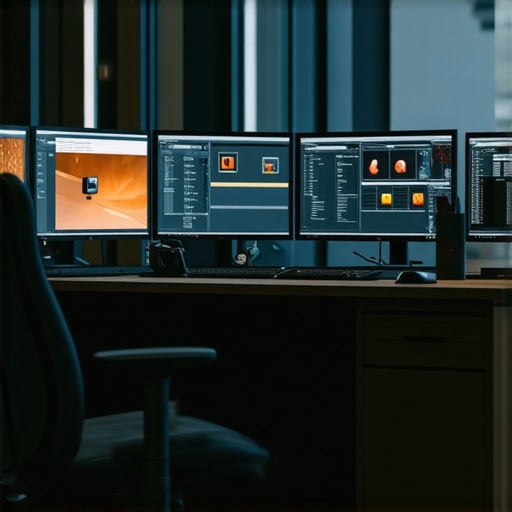
I remember the exact moment I realized my old monitor was holding me back. It was a typical Tuesday afternoon, and I was deep into a coding session. Suddenly, my screen flickered, colors looked off, and I had to squint just to read the tiny text. That frustration was my lightbulb moment. I knew I needed an upgrade, but I also didn’t want to waste money on just any screen that promised the world. It took some trial and error, but I eventually found monitors that truly boosted my productivity and made my work feel seamless. If you’ve ever faced a similar struggle—struggling with blurry images, eye strain, or sluggish performance—then you’re in the right place. Today, I’ll guide you through choosing the best office monitors for 2025, tailored for work, coding, and creative design, so you can avoid my rookie mistakes and set up a workspace that fuels your success.
Why Picking the Right Monitor Matters More Than Ever
In 2025, the right monitor can make or break your workday. With so many options flooding the market—4K displays, ultra-wide screens, color-accurate panels—the choice can feel overwhelming. But here’s the thing: a monitor isn’t just a screen; it’s your window into your work. Whether you’re coding, creating, or just managing multiple projects, your display needs to be sharp, reliable, and comfortable for hours on end. I used to think a decent screen was enough—until I realized how much my productivity and eye health suffered. According to the American Optometric Association, prolonged exposure to poor display quality can lead to digital eye strain, headaches, and even long-term vision problems. That’s why investing in the right monitor isn’t just about aesthetics; it’s about safeguarding your health and boosting efficiency.
So, what’s the secret to choosing a monitor that checks all these boxes? That’s what I’ll unpack today. From understanding key features to avoiding common pitfalls, I’ll share practical tips and real-world insights. Have you ever bought a monitor that looked great but turned out to be a nightmare for your eyes or your workflow? If so, keep reading. We’re about to turn that experience around and find the perfect display for your professional needs.
Is All the Hype About 4K and Color Accuracy Just Marketing?
Early in my journey, I bought a shiny 4K monitor because I thought bigger and sharper meant better. Turns out, I overlooked important factors like color calibration and refresh rate. My mistake was focusing solely on resolution without considering how well the monitor supports color accuracy and smooth performance—crucial for design and creative work. If you want to avoid my blunder, I recommend checking out our comprehensive guide on color-accurate dual monitors. Trust me, the right specs can transform your workspace from frustrating to fantastic, especially when paired with the best features for your specific tasks. Ready to dive into the practical steps? Let’s go beyond the hype and find monitors that truly deliver.
Determine Your Needs and Set Your Priorities
Start by clarifying what you primarily use your monitor for. Do you code for hours on end, create stunning designs, or handle multiple office tasks simultaneously? I once bought a 4K monitor thinking it would be perfect for everything, but I quickly realized I needed a different setup for coding versus creative work. Make a list of your main activities and identify what features matter most — whether it’s resolution, color accuracy, or multitasking capabilities. This upfront step prevents costly mistakes and helps you focus on monitors that truly match your workflow.
Assess Your Space and Ergonomics
Measure your desk space and consider your ergonomic needs. Think of your monitor as a window to your work — it should fit comfortably within your field of vision. I once attempted to squeeze a massive ultra-wide into a tight corner, which caused neck strain and frustration. Use a tape measure or a paper cutout to visualize the size before purchasing. Also, look for adjustable stands or VESA compatibility to fine-tune height, tilt, and swivel, reducing eye strain and physical discomfort during long work sessions.
Focus on Key Features That Make a Difference
Don’t get distracted by bells and whistles that don’t matter for your tasks. Instead, zero in on these core features:
- Resolution: For crisp text and detailed images, aim for at least 4K if your budget allows. This is especially beneficial for design and coding where clarity matters. I upgraded to a 4K monitor and immediately noticed the difference in sharpness, reducing eye fatigue. Check out our top 4K monitors for office efficiency.
- Color Accuracy: Essential for creative professionals. Look for monitors calibrated for color fidelity, with wide color gamuts like AdobeRGB or DCI-P3. I used to settle for standard screens until I discovered the benefits of color-accurate monitors. It transformed my workflow and output quality.
- Refresh Rate and Response Time: Vital for smooth interactions, especially when scrolling through documents or multitasking. A 60Hz refresh rate is standard for office work, but gamers or video editors might prefer higher rates.
- Connectivity: Ensure your monitor has the ports you need—USB-C, HDMI, DisplayPort. USB-C is especially convenient for connecting laptops and peripherals with a single cable, simplifying your workspace.
Choose the Right Setup for Your Workflow
Decide whether a single monitor or a dual setup suits your needs. Dual monitors can boost productivity by allowing seamless multitasking. For example, I set up a dual monitor with one screen dedicated to coding and the other for reference material, which cut my task-switching time in half. Check out dual monitor setup ideas for inspiration.
Matching Monitors for Consistency
When opting for dual screens, prioritize matching models to avoid color and brightness discrepancies. Color calibration tools can help synchronize displays, ensuring a uniform look across your workspace. I made the mistake of mixing different brands, which distracted me during creative tasks until I calibrated them to match.
Test Before You Commit
If possible, visit a local store or use demo units to test monitors. Pay attention to screen glare, viewing angles, and how well the display performs under different lighting conditions. In my case, a quick in-store test revealed a monitor with poor viewing angles, which was a dealbreaker. This step saves you from buyer’s remorse and ensures your monitor performs well in your actual workspace.
Review and Compare Options
Use comparison tools and reviews to narrow down your choices. Focus on monitors that meet your core feature needs and fit your budget. For detailed insights, explore our comprehensive guide to choosing the ideal office monitor.
Many professionals fall into the trap of relying on popular myths or superficial features when selecting a monitor, which can lead to costly mistakes and subpar setups. Let’s dig deeper into what most people get wrong about choosing the perfect office monitor and how you can sidestep these pitfalls to make smarter decisions.
Why the Resolution Hype Can Be Misleading
While it’s tempting to go for the highest resolution available, such as 8K or ultra-wide displays, this isn’t always the best choice for every user. Most mainstream office environments and coding tasks don’t require ultra-high resolutions, and in fact, pushing for the highest pixel count can introduce performance issues or unnecessary costs. For example, a 4K monitor is often sufficient for clear text and detailed work, but going beyond that may lead to diminishing returns unless you’re involved in detailed design or video editing. The real nuance lies in balancing resolution with your hardware capabilities and workflow needs. Trust me, a well-calibrated 4K display often outperforms an 8K in everyday productivity, especially if your system struggles with high-end graphics processing. For more insights, check out our guide on top 4K monitors for office efficiency.
The Hidden Trap of Color Gamut Claims
Color accuracy is crucial for creative professionals, but many overlook the importance of actual calibration versus marketing claims. Monitors boasting wide color gamuts like DCI-P3 or AdobeRGB are impressive, but if they aren’t factory-calibrated or don’t support hardware calibration, they may not deliver the expected results. I once bought a monitor with a claimed 99% AdobeRGB coverage, only to find out it required additional calibration tools and software to truly benefit. The truth is, a color-accurate monitor needs to be calibrated regularly, especially if you’re doing professional work. Relying solely on marketing specs without considering calibration tools and real-world performance can lead to frustrating mismatches in color fidelity. For detailed guidance, visit our article on best color-accurate monitors.
Is Dual Monitors Always the Best Choice?
Many assume that adding a second or third monitor automatically boosts productivity, but this isn’t always true. The key is in the setup — mismatched monitors, poor positioning, or inconsistent color profiles can cause more distraction than efficiency. I made the mistake of using two different brands, which resulted in noticeable differences in brightness and color. It was only after calibration that I achieved a seamless workflow. A better approach is to choose matching monitors with similar specifications and calibrate them for uniformity. For advanced users, consider ergonomic adjustments and the placement of monitors to minimize neck strain and optimize workflow. If you want to explore effective dual monitor strategies, check out dual monitor setup ideas.
Are Higher Refresh Rates Necessary for Office Work?
Contrary to gaming or video editing, most office work doesn’t demand high refresh rates. A standard 60Hz monitor is sufficient for tasks like coding, writing, or spreadsheet management. However, some believe that higher refresh rates improve overall productivity, which is a misconception. Higher refresh rates can reduce eye strain during prolonged sessions, but they shouldn’t come at the expense of resolution or color accuracy. If you’re considering a monitor upgrade, focus on a balance that prioritizes clarity and comfort over unnecessary specs. For instance, a high-quality 60Hz 4K monitor with flicker-free technology offers a significant advantage over a 144Hz gaming monitor for typical office tasks. For more detailed advice, see our article on color-accurate dual monitors.
Have you ever fallen into this trap? Let me know in the comments and share your experiences!
Keeping your workspace running smoothly over time requires the right tools and habits. From monitor calibration to software management, I’ve developed a system that ensures my setup remains efficient and reliable. One of my top recommendations is investing in a high-quality calibration tool like the X-Rite i1Display Pro. I use it regularly to calibrate my monitors, which is essential for maintaining accurate colors, especially when working on creative projects or dual-monitor setups. Proper calibration prevents color drift and ensures consistency across different displays, saving me time and frustration in the long run.
Another essential tool I swear by is a sturdy, adjustable monitor arm. I personally use the Ergotron LX Desk Monitor Arm, which allows me to effortlessly adjust height, tilt, and swivel. This flexibility helps me maintain ergonomic comfort during long coding sessions and prevents neck and eye strain. For those who frequently switch between tasks, a monitor arm also makes it easy to reconfigure your workspace quickly, enhancing overall productivity.
When it comes to software, I rely on display management applications like DisplayHDR and f.lux. DisplayHDR helps me verify my monitor’s true color range and contrast, ensuring I get the most out of my color-accurate monitors for creative work. Meanwhile, f.lux adjusts my screen’s color temperature based on the time of day, reducing blue light exposure in the evenings and protecting my eyes. These tools are simple to set up and have become integral to my daily routine.
For long-term maintenance, I schedule monthly checks of my monitor settings and calibration. This routine prevents gradual color shifts or brightness issues, which can occur due to hardware aging or environmental changes. Additionally, I keep an eye on firmware updates for my monitors, as manufacturers often release improvements that enhance performance or fix bugs. Regularly updating firmware and software ensures my setup stays current and reliable.
Looking ahead, I predict that smart calibration tools integrated with AI will become more common, making it even easier to maintain perfect display settings effortlessly. Future monitors might also include self-calibrating capabilities, reducing the need for manual intervention. Staying proactive with these tools and habits will be key to maintaining an optimal workspace as technology evolves.
How do I maintain my setup over time?
The key is consistency. Regular calibration, firmware updates, and ergonomic adjustments are vital for a long-lasting, efficient workspace. I also recommend keeping a checklist of maintenance tasks to ensure nothing slips through the cracks. Implementing these practices has saved me countless hours of troubleshooting and has kept my workspace in top shape. Don’t forget to explore the latest tools and software updates periodically, as they can significantly improve your setup’s longevity and performance. Ready to take your workspace to the next level? Try integrating a calibration routine with your monitor management today and see the difference it makes in your daily workflow.
Lessons from the Front Lines of Monitor Selection
- One of the biggest lessons I learned was the importance of calibration. A monitor that looks good out of the box can still drift over time, causing color mismatches that frustrate creative workflows. Investing in a quality calibration tool like the X-Rite i1Display Pro saved me countless hours of rework.
- Size really does matter—especially when it comes to ergonomics. I once tried squeezing a massive ultra-wide into a small space, only to realize that adjustable stands and VESA compatibility are game-changers for comfort and productivity.
- More pixels aren’t always better. At first, I thought 8K was the holy grail, but I found that a well-calibrated 4K monitor often beats ultra-high resolutions in real-world work, especially when hardware limitations come into play.
- Don’t overlook color accuracy. A monitor with a wide color gamut is useless unless it’s factory-calibrated or you calibrate it yourself. Otherwise, your creative output might not match your vision.
- Dual monitors can boost productivity—if they match and are calibrated for consistency. Mixing different brands or models can cause visual distractions that slow down your workflow until you calibrate for uniformity.
My Trusted Toolkit for a Killer Workspace
- X-Rite i1Display Pro: This calibration device keeps my colors on point, which is crucial for creative projects and dual monitor setups.
- Ergotron LX Desk Monitor Arm: Ergonomics matter, and this arm allows me to adjust my monitor height, tilt, and swivel effortlessly, preventing fatigue during long work sessions.
- DisplayHDR and f.lux: These software tools help me verify my display’s color range and reduce blue light exposure, protecting my eyes and ensuring color fidelity.
- Regular Firmware Checks: Staying updated with monitor firmware ensures peak performance and longevity of my setup.
Your Next Step to a Better Monitor Experience
Remember, the perfect office monitor isn’t just about specs; it’s about how it fits into your workflow, space, and health. With the right tools, calibration routines, and ergonomic considerations, you can create a workspace that fuels your productivity and protects your vision. The future of monitor technology will likely bring even smarter, self-calibrating displays, so staying proactive now sets you up for success tomorrow.
What’s the one feature you wish your current monitor had? Let me know below and let’s discuss how to upgrade your workspace in 2025!
Reading this post really hit home for me. I’ve been struggling with eye strain and sluggish performance on my outdated monitor, which has definitely impacted my productivity and comfort. I particularly resonate with the emphasis on color calibration and ergonomic setup. I recently invested in a monitor arm similar to Ergotron LX and noticed a significant reduction in neck and shoulder strain, making long work sessions much more bearable. Plus, I didn’t realize how much proper calibration could impact color accuracy, especially for creative work—it’s been a game changer. One challenge I faced was choosing between a dual-monitor setup and a high-quality single display; I ended up going for a dual setup but ensured both monitors matched in size and calibration for a seamless look. Has anyone here successfully transitioned from a single to a dual monitor setup? What tips do you have for maintaining color consistency across screens? Would love to hear your experiences!
This post really taps into my own experience of upgrading my workspace. I used to overlook how much a good monitor could improve not just productivity but also comfort during long coding sessions. One thing I’ve learned is that investing in a monitor with good ergonomics, like an adjustable stand or VESA compatibility, made a noticeable difference in reducing neck and eye strain. I also found that color calibration matters more than most people realize, especially when I started doing some creative work alongside my coding. It’s interesting how so many focus on resolution or size but forget that the true key is how well you can work without fatigue. I’ve had success with dual setups, but keeping the monitors calibrated and matched is crucial. For others considering this, what are some of your go-to calibration tools or methods? Do you prefer single or dual monitors for multitasking, and why? Would love to hear different setups that work well for diverse workflows.