
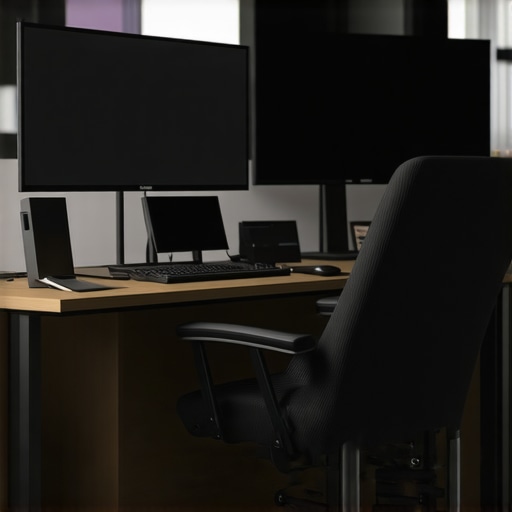
Have you ever sat in front of your desk, frustrated because your single screen can’t keep up with your workload? Maybe you find yourself constantly toggling between tabs, squinting at a cramped window, or losing focus because your workspace feels cluttered and inefficient. I remember the lightbulb moment when I realized my productivity was suffering, not because I lacked effort, but because my setup just couldn’t keep pace with my needs. That day, I decided to upgrade to a dual monitor configuration, and suddenly, everything changed.
Why the Perfect Dual Monitor Arrangement is Crucial in 2025
In today’s fast-paced, highly digital work environment, having an optimal monitor setup isn’t just a luxury—it’s a necessity. With the influx of multitasking, complex applications, and high-resolution content, a single screen often feels like trying to juggle too many balls in the dark. According to a report by TechInsights, users with multi-monitor setups experience up to 42% more productivity than those relying on a single screen. That’s a staggering number that underscores the importance of investing in the right workspace technology.
If you’re still using an outdated office monitor or settling for a standard display that struggles with color accuracy or 4K resolution, you’re holding yourself back. A properly arranged dual monitor setup tailored for 2025 can significantly boost your efficiency, whether you’re coding, designing, or managing complex documents. But here’s the catch: not all dual monitors are created equal, and placing the right ones in the right position can make all the difference.
Have you faced the dilemma of choosing between color accuracy for creative work or high refresh rates for seamless workflow? Or perhaps you’re unsure about the best placement to avoid neck strain and maximize your screen real estate? You’re not alone. I made the mistake early on of prioritizing size over ergonomics, which led to discomfort after just a few days. Aligning your monitors correctly, selecting the right resolution and color accuracy, and understanding your workflow needs are essential steps — details I’ll guide you through.
Ready to transform your cluttered desk into a powerhouse of productivity? Let’s explore the practical steps to craft the ultimate dual monitor setup for 2025 that will keep you ahead of the game.
Select the Right Monitors for Your Needs
Begin by pinpointing your primary tasks. If creative work demands precise color, explore options like the best color-accurate monitors. For coding or document management, look for high-resolution, 4K displays that ensure sharp text and ample workspace. Use the guide at this resource to compare options effectively.
Stack Your Monitors Effectively
Arrange your screens considering workflow. Place your dominant monitor directly in front for primary tasks, and the secondary at an angle for references or tools. This setup resembles a cockpit, with an immediate view of your main controls. When stacking, keep monitors at eye level to prevent neck strain, akin to adjusting airplane seats for comfort. Use monitor stands or mounts to achieve perfect alignment. For inspiration, check these setup ideas.
Optimize Your Desk Space
Clear clutter by deploying compact monitor arms and cable management solutions. A tidy desk reduces distractions and improves focus. Think of it as decluttering your workspace closet—every item should be accessible, no unnecessary clutter bogs you down. Position your monitors to cover your primary visual field, freeing up space for keyboard, mouse, and other essentials.
Calibrate for Peak Performance
Calibration is crucial, especially when color accuracy impacts your work quality. Use built-in tools or professional software to adjust brightness, contrast, and color settings. For detailed calibration steps, refer to this comprehensive guide. Proper calibration ensures your colors are true to life, reducing errors and eye fatigue.
Enhance Workflow with Software Settings
Leverage operating system features like window snapping, virtual desktops, and display scaling to maximize efficiency. Adjust display resolutions and scaling options to ensure text and icons are crisp and appropriately sized. For tailored configurations, explore resources like productivity-focused tips. Consistent settings across monitors prevent eye strain and create a unified workspace.
Maintain and Test Regularly
Schedule periodic checks of your monitors’ calibration and connections. Use tools to test for flickering or dead pixels, ensuring longevity. Think of this maintenance as lemon oil on furniture, keeping your setup in top shape. Small adjustments and cleaning prolong your hardware lifespan and preserve visual quality, maintaining your investment’s value.
Many professionals believe that simply pairing two monitors is enough to boost productivity. However, this oversimplification leads to several nuanced mistakes that can undermine your entire setup. Let’s dig deeper into the misconceptions and pitfalls that even seasoned users fall for. For instance, the myth that bigger screens automatically mean better productivity is false; the real advantage lies in selecting high-resolution, color-accurate displays tailored to your specific workflow. Overspending on massive, high-end monitors without considering ergonomic placement or calibration often results in discomfort and color inaccuracies, which can be detrimental for creative professionals. Moreover, many overlook the importance of proper monitor calibration and software configuration, which are essential for maintaining color fidelity and reducing eye fatigue over time. You might think running multiple monitors is as simple as connecting cables, but neglecting to synchronize display settings or properly manage workflows can cause inconsistent experiences that break focus rather than enhance it. Advanced users should ask: How do I optimize my dual setup for seamless switching between tasks without sacrificing color precision or ergonomic comfort? The truth is, a well-designed workspace integrates hardware and software harmoniously, considering factors like eye level positioning and resolution matching. According to expert Alex Barros, a misconfigured monitor can reduce efficiency by up to 20%, so investing time in calibration and setup pays off in the long run. Avoid the trap of assuming all monitors are created equal—prioritize color accuracy for creative tasks, and choose 4K displays that complement your work style. For insights on selecting the right office monitor in 2025, check out our comprehensive guide [here](https://monitors.techdeskessentials.com/choosing-the-ideal-office-monitor-2025-guide-for-professionals). Also, remember to use professional calibration tools, especially if your work relies on precise color reproduction, which is often overlooked. When stacking or arranging monitors, always consider ergonomic factors; even the most advanced hardware fails if it causes neck strain or poor posture. Wondering how to fine-tune your setup? The [ultimate guide to color-accurate dual monitors](https://monitors.techdeskessentials.com/ultimate-guide-to-color-accurate-dual-monitors-for-productivity-in-2025-2) offers step-by-step instructions. So, next time you plan a dual monitor upgrade, ask yourself: Am I setting myself up for success or just replicating common mistakes? Have you ever fallen into this trap? Let me know in the comments.
To ensure your dual monitor arrangement continues delivering maximum productivity and visual fidelity, investing in the right tools and maintenance routines is essential. First, high-quality calibration devices like the color calibration tools are invaluable. Personally, I rely on the X-Rite i1Display Pro because it offers precise color management, critical for creative professionals who need color accuracy over time. Regular calibration—ideally once a month—keeps color profiles consistent, preventing drift caused by aging displays or environmental factors.
In addition to hardware calibration, software solutions like DisplayCAL or CalMAN help automate adjustments. These programs assist in fine-tuning gamma, brightness, and contrast settings, ensuring your monitors stay aligned, especially when using multiple displays with different panel technologies. Maintaining dust-free screens and connectors also prolongs hardware lifespan. Use compressed air and microfiber cloths to gently clean screens, avoiding abrasive materials that can damage surface coatings. Routine physical inspections help spot flickering or dead pixels early—a sign that your monitor may need professional servicing or replacement.
Monitoring tools such as DisplayHDR or the proprietary diagnostics software from your monitor’s manufacturer provide ongoing insights into performance issues like backlight uniformity or uniform luminance. For long-term health, consider environmental factors: keep your workspace consistent in temperature and humidity to prevent hardware stress. Power management is equally critical—using surge protectors and uninterruptible power supplies (UPS) helps protect against voltage fluctuations that can harm your investment.
Looking ahead, advancements in display technology like OLED panels promise even better color accuracy and contrast, especially as they become more affordable and longer-lasting. Industry experts predict that future calibration methods will integrate AI-driven adjustments, reducing manual effort and enhancing precision. For now, I recommend trying out professional calibration devices to maintain your setup’s fidelity. As the experts suggest, scheduling monthly calibration is a game-changer for sustained visual consistency.
How do I maintain my dual monitor environment over time? Establish a routine that combines hardware checks, software calibration, and physical cleaning. Document your settings to quickly revert if adjustments drift. Keep software and firmware updated—I’ve found that manufacturers regularly release updates that improve performance and fix bugs. Don’t forget to verify your ergonomic setup periodically to prevent strain. You might also explore automation tools like Display Pilot or multi-monitor management software that streamline window arrangements for different tasks.
For those eager to step up their display game, I recommend investing in a top-tier color calibration device mentioned earlier. It’s an upfront cost that pays off through consistent quality, reducing the need for costly replacements down the line. Try integrating this tip into your routine and experience the difference in visual accuracy and long-term reliability.
The Hardest Lesson I Learned About Dual Monitors
Early in my journey, I believed bigger, high-end monitors would automatically boost my productivity. However, I soon realized that ergonomic placement and calibration were the real game changers, not just size or resolution. This taught me that hardware is only part of the equation; the setup’s harmony makes all the difference.
My Biggest Wake-Up Call About Color Accuracy
I once overlooked calibration, assuming factory settings would suffice. The result? Colors that didn’t match my creative visions, leading to frustration. Investing in reliable calibration tools like the color calibration devices transformed my workflow, emphasizing trust in quality tools over assumptions.
The Shortcut I Wish I Took Earlier
Using operating system features like window snapping and virtual desktops dramatically improved my efficiency. Many overlook these built-in tools, but they can seamlessly integrate multiple displays into your workflow. Don’t wait to explore these features — they’re like secret weapons for multitasking.
Curated Resources That Changed Everything
- Color Calibration Tools: I rely on the X-Rite i1Display Pro because of its precision and reliability.
- Display Management Software: Tools like DisplayPilot streamline window arrangements, saving time and reducing clutter, proven to boost productivity in my daily tasks.
- Workplace Ergonomics Guides: Regularly reviewing ergonomic practices ensures comfort, which directly influences sustained focus and creativity.
Seize the Moment to Enhance Your Workspace
Don’t let complacency hold you back. The future of productivity with dual monitors and accurately calibrated displays is bright, but it requires deliberate action. Start small, prioritize ergonomics, calibrate regularly, and leverage software capabilities. Your workspace — and your output — will thank you.
What’s the biggest challenge you face when setting up or maintaining your dual monitor workspace? Share below, and let’s learn from each other’s experiences!