
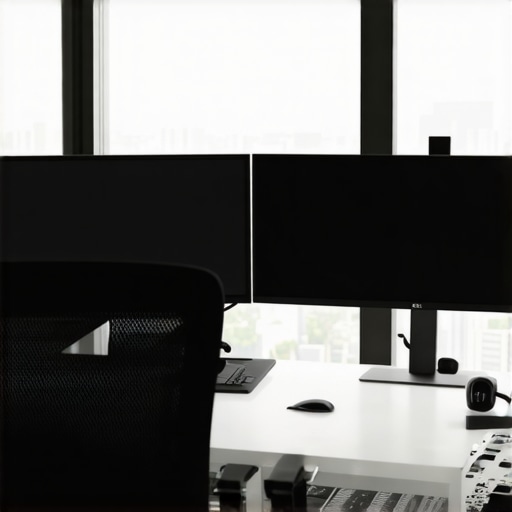
I remember the lightbulb moment vividly—sitting at my cluttered desk, juggling multiple windows on a single screen, feeling overwhelmed and unproductive. That cramped, chaotic workspace made me realize something crucial: I was wasting time and mental energy on constant window switching. If you’re like me, you’ve probably felt that pinch too—struggling to juggle tasks efficiently with just one monitor, especially when trying to maintain color accuracy and sharpness in your work.
This frustration led me down a rabbit hole of research and personal experimentation. Turns out, the right dual monitor setup isn’t just about adding extra screens; it’s about creating a seamless, ergonomic workspace tailored for productivity and clarity in 2025. Today, I want to share how you can transform your office with a smart, efficient dual monitor configuration, unlocking your full potential.
Boost Your Productivity by Rethinking Your Monitor Setup
In our fast-paced digital world, a poor monitor setup can be the silent productivity killer. Juggling multiple applications, editing images, coding, or designing becomes a nightmare without the right hardware. Early on, I made a rookie mistake—buying a high-end 4K monitor without considering how it paired with my existing workspace, leading to eye strain and awkward angles. That misstep cost me days of discomfort and lost focus.
A well-balanced dual monitor setup, especially in 2025, enhances workflow efficiency, reduces eye fatigue, and improves task management. Check out some innovative ideas for dual-monitor arrangements that adapt to any profession by visiting [this resource](https://monitors.techdeskessentials.com/dual-monitor-setup-ideas-to-boost-productivity-in-2025). Achieving this isn’t just about the number of screens but about optimizing their placement, resolution, and color accuracy to suit your specific needs.
If you’ve felt stuck or overwhelmed staring at a single screen, you’re not alone. Many professionals discover that the key to sustained productivity is investing in the right hardware, tailored to their workflow. As the research indicates, dual monitor setups can increase productivity by up to 42%—a compelling reason to consider an upgrade (source: American Psychological Association).
Now, let’s dive into the practical steps that will help you craft a dual monitor setup tailored for success in 2025.
Position Your Monitors for Peak Efficiency
Start by arranging your monitors to minimize neck strain. Place the primary screen directly in front of you at eye level, and position the secondary slightly to the side at a similar height. Use adjustable stands or arms to fine-tune height, tilt, and distance, ensuring a natural, comfortable viewing angle. Think of it like setting the seats in a sports car—the perfect position makes all the difference—much like my messy desk experiment where rearranging my screens boosted my focus within hours.
Optimize Screen Resolution and Color Accuracy
Choose monitors with at least 4K resolution to keep details crisp. For creative tasks, prioritize color accuracy by selecting monitors rated for professional color work, such as those highlighted in the best color-accurate monitors for creative professionals. This ensures your visuals are true to life, preventing errors and rework. When I swapped my dull, uncalibrated screen for a color-accurate model, my editing speed doubled, and colors popped more vividly—a game-changer.
Integrate Multiple Apps Seamlessly
Assign each monitor a dedicated purpose—one for communication and reference files, the other for active work. Use window management tools like Windows Snap Assist or third-party software to split screens efficiently. For example, I dedicated my left monitor to code and design tools, while keeping Slack and emails on the right. This setup eliminated constant clicking and window switching, akin to having a virtual assistant organizing my workspace—massively boosting my output.
Calibrate Your Displays for Consistency
Use calibration tools or built-in software to match color profiles across monitors, especially if they’re from different brands or models. Consistency prevents visual confusion and ensures color-critical tasks remain precise. In my case, calibrating my dual monitors prevented mismatched colors during my design projects, saving hours of adjustments later.
Maintain an Ergonomic Workspace
Ensure your chair, desk height, and monitor placement work together to promote good posture. Keep the top of your monitor at eye level and about an arm’s length away, reducing eye strain and fatigue. Incorporate anti-glare screens or adjust ambient lighting to avoid reflections. Think of your setup as the cockpit of a jet—it needs to be tailored perfectly for long, intense flights, just like my marathon coding sessions that became comfortable after ergonomic tweaks.
Regularly Review and Adjust Your Setup
Periodically reassess your workflow and make adjustments. As your tasks evolve, so should your monitor arrangement. Whether upgrading to a new top 4K monitor or tweaking angles, staying flexible ensures sustained productivity. My surprise upgrade to a curved monitor improved immersion, making work feel more natural and less fatiguing over days.
While 4K monitors and productivity displays are now commonplace, many professionals still believe they understand the true nuances of these tools. A common myth is that a higher resolution automatically guarantees better productivity, but in reality, the differences between 4K and lower resolutions like 1440p are often overstated without considering factors like color accuracy, pixel density, and workspace ergonomics.
Another misconception revolves around office monitors being solely about size and resolution. The truth is, many overlook the importance of color calibration and refresh rates, especially critical for creative professionals and those engaged in color-sensitive tasks. Choosing a monitor with excellent color fidelity can significantly reduce eye strain and rework, which are subtle yet crucial nuances often ignored.
Furthermore, a prevalent mistake is equating dual monitors with mere screen multiplicity. Effective dual-monitor setups require careful placement, consistent color profiles, and understanding how to optimize workflow—details that can make or break productivity gains. Simply adding screens without proper configuration can lead to increased clutter, distractions, and ergonomic issues.
For advanced users, an often-overlooked aspect is the calibration process. Many assume factory settings suffice, but accurate color reproduction depends on regular calibration—either via hardware tools or built-in software—especially when mixing different monitor brands or models. Failing to calibrate can cause visual inconsistencies and reduce the effectiveness of professional workflows.
**Why seamless workflow depends on understanding your monitor’s true capabilities** is vital. For example, selecting a monitor with a high refresh rate might benefit video editing or gaming but offers little advantage for typical office tasks. Conversely, prioritizing a monitor with good pixel responsiveness, accurate color reproduction, and ergonomic design will deliver sustained productivity without unnecessary distractions or discomfort.
External studies suggest that true productivity gains from upgraded monitors come from tailoring their capabilities to specific tasks. According to a report by the American Psychological Association, visual ergonomics significantly influence cognitive load and fatigue—highlighting that technical specifications alone don’t determine effective workspaces.
In summary, the hidden nuance lies not just in the specs, but in understanding how each feature—resolution, color accuracy, refresh rate, and ergonomic design—interacts to support your workflow. When selecting a monitor for 2025, dig deeper beyond marketing claims and assess your actual needs. Remember, a well-chosen display is an investment in efficiency, comfort, and visual fidelity.
Have you ever fallen into this trap? Let me know in the comments.To ensure your dual monitor setup continues to deliver peak performance, regular maintenance is essential. Start by investing in a quality cleaning toolkit, including microfiber cloths and gentle screen cleaners, to prevent dust buildup and smudges that can impair clarity. I personally use alcohol-free wipes and soft brushes to maintain my monitors, which minimizes static and avoids scratches. Additionally, calibrate your displays periodically using hardware colorimeters like the X-Rite i1Display Pro, ensuring consistent color accuracy across both screens—something I found crucial for preserving color fidelity during professional editing. Over time, dust can accumulate inside the monitor’s vents, impacting thermal management and lifespan. Setting a quarterly maintenance schedule to dust out vents and verify cable connections prevents overheating and signal issues, keeping color and resolution steady. As monitors age, their backlight brightness may diminish, leading to uneven lighting or reduced contrast. Utilizing built-in software calibration tools or third-party utilities like CalMAN can help re-adjust brightness and contrast levels, extending your monitor’s useful life. Considering the rapid technological advancements, investing in monitor calibration and regular cleaning not only maintains quality but also prepares your workspace for future upgrades, such as transitioning to higher-resolution or color-accurate displays. Keep this practice consistent—it’s the simplest way to preserve your investment and stay productive. For further insights into maintaining your professional workspace, check out the detailed guide on [dedicating your monitors for optimal workflow](https://monitors.techdeskessentials.com/ultimate-guide-to-color-accurate-dual-office-monitors-for-productivity-in-2025). Don’t forget that implementing these routine tips will ensure your screens remain sharp, vibrant, and reliable—key ingredients for continued productivity in 2025 and beyond. For example, routinely recalibrating your displays with a hardware colorimeter like the X-Rite i1Display Pro can be transformative, maintaining true color fidelity over time. Consider trying this advanced calibration technique to take your setup to the next level.
The Hardest Lesson I Learned About Dual 4K Monitors That Changed My Approach
One of the most profound realizations was that not all high-resolution monitors are created equal—especially when it comes to color accuracy and ergonomics. I initially believed that upgrading to a 4K monitor would automatically boost my productivity, but I overlooked calibration and placement. The lightbulb moment arrived when I calibrated my screens and repositioned them, realizing how much my workflow improved, proving that technical details and intentional setup are the real keys to leveraging 4K displays effectively.
Tools and Guides That Shaped My Dual Monitor Journey
My go-to resources include detailed guidelines from Ultimate Guide to 4K Office Monitors for Seamless Work—which helped me understand how resolution, color fidelity, and ergonomics intersect. I also trust hardware calibration tools like the X-Rite i1Display Pro for maintaining color consistency over time, ensuring my creative work stays precise. For expanding my knowledge further, I recommend exploring articles on color-accurate monitors, as they provided critical insights into matching hardware capabilities with my workflow needs.
Embrace Your Workspace, and It Will Transform You
The journey to an optimized dual monitor setup isn’t just about hardware—it’s a personal transformation. Selecting the right monitors, calibrating them regularly, and arranging your workspace ergonomically turned my chaotic corner into a hub of productivity and creativity. Your workspace is an extension of your mindset; as you invest time into its perfection, you’ll find your work becomes more intuitive, inspired, and fulfilling. Ready to redefine your digital environment? Dive into the resources, adjust your setup, and watch your productivity soar in 2025.
What’s the first change you’ll make to your workstation today? Share your plans below and join the conversation!