
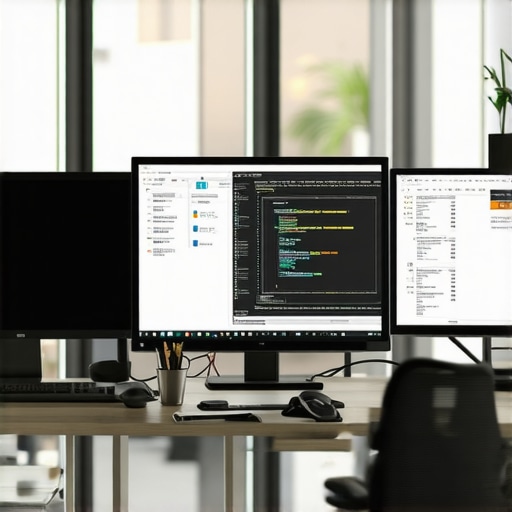
Ever found yourself staring blankly at a flickering, cramped screen, thinking, There has to be a better way? That was me not too long ago—frustrated during a hectic coding sprint, squinting at a modest 1080p display, and feeling the subtle but relentless drain on my focus. Then, the lightbulb went off: my monitor setup was holding me back.
In 2025, with the surge of high-stakes projects, remote collaborative work, and digital creativity, having the right monitor can make or break your productivity. If you’re like I was—juggling multiple windows, battling color mismatches, or enduring eye strain—you know exactly what I mean. So, today, we’re diving into the best monitors suited for work, coding, and design this year, and how to choose the perfect setup for your needs.
Why Your Monitor Could Be the Secret Weapon (or Hidden Enemy) in Your Workflow
Since switching to a high-quality 4K monitor, I noticed a significant boost not just in my efficiency, but in my overall work satisfaction. A well-chosen monitor enhances clarity, reduces fatigue, and even improves accuracy in color-critical tasks. According to a study by the University of Utah, visual comfort directly correlates with increased productivity and reduced eye strain in computer users (source).
But here’s the catch: not all monitors are created equal. Falling into common pitfalls—like choosing a screen without considering resolution, color accuracy, or ergonomics—can undermine your efforts. It’s all about finding that sweet spot where your monitor complements your workflow and enhances your creative or analytical output.
Have you faced the frustration of alt-tabbing endlessly or squinting at a blurry display? If so, you’re not alone—and that’s exactly what I want to help you avoid. In the sections ahead, I’ll share practical insights and recommendations to help you build a workspace that not only meets your needs but exceeds them.
Is a flashy, expensive monitor really worth the hype?
Early in my journey, I bought a high-end, color-calibrated 4K display expecting miracles. Sure, the crispness was impressive, but I quickly realized that without proper calibration and ergonomic setup, I wasn’t unlocking its full potential. The mistake? Assuming a monitor’s specs alone guarantee productivity. It’s a lesson I learned the hard way—quality matters, but so does alignment with your actual work needs.
Now, I focus on tailored solutions, carefully considering parameters like size, resolution, color accuracy, and connectivity. For a detailed guide on selecting the ideal monitor for your professional tasks, check out this comprehensive resource. Up next, let’s look at how to identify your specific needs and find a monitor that truly elevates your work experience.
Select the Right Monitor Size and Resolution
Start by assessing your workspace and type of work. For coding or document-heavy tasks, a 27-inch monitor with 4K resolution offers sharp text and ample screen real estate, reducing the need to switch between windows. When I upgraded from a 24-inch full HD to a 27-inch 4K display, I instantly felt a difference in clarity and multitasking ease. Think of resolution as the detail level—higher resolution like 4K is akin to upgrading from a paperback to a hardcover encyclopedia. For detailed visual work, this clarity is essential. For office tasks and general productivity, 24-to-32-inch screens strike a good balance, but always prioritize resolution over size alone. Use the guide at this resource to determine your optimal size and resolution pairing.
Many professionals and tech enthusiasts, when choosing a 4K monitor or a dual setup, often get caught up in the hype around resolution numbers and bells-and-whistles features. But let’s dig deeper—what most people overlook are the subtle nuances that can significantly impact real-world performance and workflow quality.
One common misconception is that higher resolution automatically translates to better productivity. Yes, 4K displays can deliver incredible detail, but without proper calibration and ergonomic adjustments, they can lead to overlooked color inaccuracies or visual fatigue. For instance, a top-tier 4K monitor won’t serve you well if it isn’t calibrated for color precision, especially for creative tasks where accuracy is vital.
Another pitfall involves dual monitor configurations. While dual setups undeniably boost multitasking, the unintended downside is often neglected: disparity. A mismatched pair of monitors—different brands, resolutions, or color spaces—can cause inconsistency that hampers seamless workflow. It’s akin to trying to dance on uneven ground. To truly capitalize on dual setups, uniformity in calibration and specifications is essential. For comprehensive guidance on setting up effective dual monitor arrangements for coding and design, check out this resource.
Why is color accuracy sometimes overrated for office monitors?
A question I often hear: “Is investing in a color-accurate monitor necessary for everyday office work?” In reality, unless your job involves photo editing, video production, or branding, you might not need the same color gamut coverage as a professional designer. However, an often-overlooked nuance is that even basic office tasks benefit from decent color calibration. Discrepancies can cause eye strain or misinterpretation of visual data over long hours. As reported by the University of Utah study, visual comfort directly impacts productivity. Ensuring your monitor has acceptable color fidelity and proper calibration can improve focus and reduce fatigue, even if you’re not doing creative work.
Furthermore, some users mistakenly believe that resolution alone defines clarity. But the panel technology—IPS vs. TN vs. VA—plays a crucial role in how vivid and stable colors appear, as well as viewing angles. An IPS panel, for example, provides better color consistency, which is beneficial for collaborative work or extended viewing sessions. Learning to prioritize panel type and calibration over resolution alone can lead to smarter, more productive choices.
In the end, mastering these nuanced details—such as calibration, uniformity, panel technology, and ergonomic adjustments—elevates your workspace from average to professional-grade. Whether you’re outfitting a new office monitor setup or building a seamless dual display system, paying attention to these hidden factors ensures you get true value for your investment. Have you ever fallen into this trap? Let me know in the comments.
Ensure Consistent Calibration to Keep Colors Accurate
One of the biggest challenges in maintaining a high-quality monitor setup is ensuring consistent color accuracy over time. I personally use the X-Rite ColorMunki Display calibration tool because it offers precise measurements and user-friendly software. Calibrating your monitor weekly using such tools guarantees that your colors stay true, especially important for creative work where even minor deviations can ruin a project. Regular calibration not only preserves visual fidelity but also reduces eye strain caused by inconsistent brightness or contrast differences.
Invest in Long-Lasting Protective Equipment
Maintaining your monitor also involves protecting it from physical damage and dust. I recommend investing in an anti-glare screen protector tailored to your monitor size, which helps prevent scratches and accidental smudges. Additionally, a high-quality cable management system keeps cables organized, reducing accidental yanks that could damage ports. These small upgrades extend your monitor’s lifespan and keep your workspace tidy, reflecting a professional environment conducive to productivity.
Leverage Software for Long-Term Monitoring and Adjustment
Beyond hardware, software plays a crucial role. Tools like DisplayHDR or monitor-specific calibration dashboards enable you to set customized profiles for different tasks—like color-accurate modes for creative work or eye-friendly settings for late-night coding sessions. I regularly use DisplayCal, an open-source calibration software that integrates seamlessly with my calibration hardware for ongoing adjustments. Setting up automated reminders within these programs ensures you keep your display in optimal condition over months and years.
Scaling Up Your Setup for Future Growth
Thinking about future-proofing your workspace? Modular designs with easily addable dual or even triple monitor configurations can adapt as your workload grows. Whether adding a second color-accurate display for design or a productivity monitor for multitasking, planning your setup with compatible and scalable hardware ensures longevity. Check out this guide to understand how to effectively scale your monitor environment. Remember, maintaining and upgrading your tools is an investment in your long-term success—don’t wait until your setup feels outdated.
Prediction for the future points toward smarter calibration tools that auto-adjust based on ambient lighting and time of day, reducing manual effort. As display technology continues to evolve, staying updated with software that adapts dynamically will become the norm—making your monitor maintenance easier and more effective than ever before.
Ready to take your setup further? Implement automated calibration reminders with your software, and see how your color fidelity and clarity improve over time—making every project look its best, day after day.
What I Wish I Knew When I First Picked a Monitor
One of the most valuable lessons I learned is that a monitor’s brand or price tag isn’t the whole story. The real magic lies in calibration, ergonomic adjustments, and understanding the nuances of panel technology. I used to believe that a 4K display alone would instantly boost my productivity—until I realized that neglecting color calibration and viewing angles was costing me time and eye comfort. Now, I prioritize tools like the X-Rite ColorMunki Display to keep my colors accurate and my eyes happy, saving me headaches after long work sessions.
My Secret Weapon for Seamless Multi-Screen Workflows
Connecting multiple monitors can transform your work, but I learned the hard way that mismatched displays create more chaos than convenience. The breakthrough was discovering the importance of uniform calibration and consistent panel technology—for me, sticking with IPS panels across my dual setup made a huge difference. This harmony allows for smoother transitions and reduces visual fatigue, especially during intensive coding marathons or creative projects. It’s a small shift that significantly elevates your productivity. For a step-by-step on creating a cohesive dual monitor environment, check out this guide.
Why Chasing the Latest Tech Might Hold You Back
In my journey, I was caught in the trap of upgrading to the newest monitor without addressing core issues like brightness uniformity, calibration, or ergonomic setup. The truth is, an expensive monitor can underperform if it isn’t properly adjusted or if you overlook panel technology suited for your tasks—be it IPS for color accuracy or VA for depth in dark scenes. Focusing too much on specs can divert attention from what truly enhances your workflow. The biggest reward came when I learned to select monitors tailored to my specific needs, rather than chasing the hype. Want to see how to avoid unnecessary upgrades? Dive into this resource.
How to Keep Your Colors Sharp and Your Eyes Happy
Consistent calibration was a game-changer in my setup. Investing in a calibration tool like the X-Rite ColorMunki and sticking to a routine meant I could trust my colors across different projects. I found that scheduled calibration, combined with ambient light adjustments, prevents color drift and reduces eye strain—especially important for long hours. Over time, I realized that maintaining your monitor is an ongoing process, not a one-time fix. For detailed guidance on calibration routines, I recommend reading this comprehensive guide.
What Next in Your Monitor Evolution Journey?
Thinking ahead, modular and scalable setups will be crucial for future-proofing your workspace. Whether you’re considering adding a second color-accurate monitor or upgrading to a 4K display with seamless calibration features, planning your hardware around your evolving needs is essential. My advice? Focus on tools and monitors that allow easy calibration, ergonomic adjustments, and consistent panel technology. The future is bright for those willing to fine-tune their workspace—so start today. Curious about how to expand your setup efficiently? Take a look at this detailed roadmap.
Remember, the key to a truly productive monitor setup isn’t just in specs—it’s in the everyday choices that refine your vision and comfort. Invest in understanding your tools deeply, and watch your work transform from good to exceptional. What’s the biggest lesson you’ve learned about creating an effective monitor environment? Drop your insights or questions below—I’d love to hear your story!
,
This post really hits home for me, especially the importance of calibration and consistent panel technology. I used to think that just investing in a high-resolution monitor would drastically improve my workflow, but I quickly realized that without proper calibration, the colors and brightness levels could drift, causing eye strain and inaccuracies. I now make it a habit to calibrate my monitor weekly using tools like the X-Rite ColorMunki, and it’s made a noticeable difference in both my comfort and the quality of my work. I wonder, for those working in shared or multi-user environments, how do you ensure consistent calibration across different setups? It seems like a challenging but crucial step to maintaining color fidelity and reducing fatigue over long hours.