
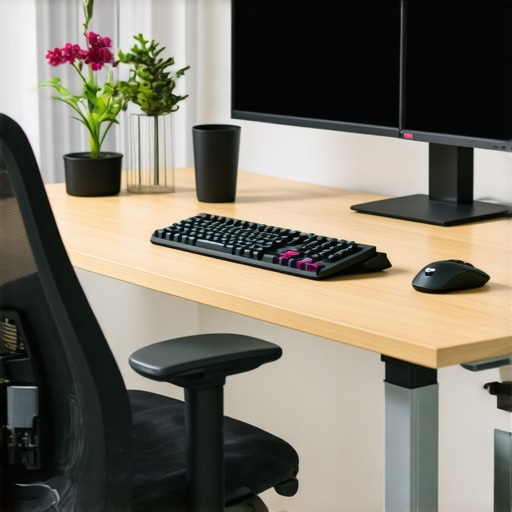
Ever sat in front of your monitor, only to realize that the colors look off, the screen isn’t quite wide enough, and your workflow feels sluggish? I’ve been there. I used to think that just having a large, 4K monitor was enough to boost my productivity. But after a few costly mistakes—like investing in a high-resolution display with poor color accuracy—I learned that not all screens are created equal. The real game-changer was understanding how to choose the right monitor setup that matches my needs and enhances my work, not hinders it.
Why Your Monitor Choices Can Make or Break Your Productivity in 2025
In today’s competitive digital environment, your workspace can either propel you forward or hold you back. The truth is, many professionals overlook how critical their display setup is. When I first started exploring color accurate monitors and dual-screen configurations, I thought I was just upgrading for better visuals. Turns out, it was about creating an environment tailored for efficiency, creativity, and comfort. A study by the University of Utah even confirms that dual monitors can boost productivity by 20-30%, which is nothing to sneeze at. But the key is choosing the right equipment, and that’s where many stumble.
Have You Faced This Frustration with Your Current Setup?
If you’re tired of squinting at dull colors, struggling with inconsistent displays, or feeling overwhelmed by cluttered screens, you’re not alone. I made the mistake early on of buying the biggest monitor I could find without considering color accuracy or dual setup benefits. It looked impressive but caused eye strain and made color-sensitive tasks a nightmare. That mistake taught me that quality matters—especially in 2025, when the technology is advancing rapidly. For a comprehensive understanding, I recommend checking out this guide.
In the next sections, I’ll walk you through how to choose the perfect monitors—whether you’re a creative professional, coder, or someone who just wants a seamless workflow. We’ll cover essentials like color accuracy, resolution, and the benefits of dual setups. Ready to transform your workspace and boost your productivity? Let’s dive into the practical steps that will make your 2025 workspace the envy of your colleagues.
Select Your Display with Purpose
Start by defining what you need from your monitor. Are you a creative professional requiring precise color accuracy? Or do you primarily focus on coding and multitasking? I once tried to save money by grabbing a generic 4K monitor without researching, only to realize it lacked the color fidelity I needed for my design projects. That mistake cost me time and frustration. To avoid this, visit this comprehensive guide and identify the specs that match your workflow.
Prioritize Color Accuracy for Creative Tasks
If your work involves design, photo editing, or video production, color accuracy is non-negotiable. Think of it like choosing the right pair of glasses—you want clarity and true hues. I replaced my old monitor with a high-end, color-calibrated display from this list of top color-accurate monitors. The difference was night and day. Look for monitors with wide color gamuts like AdobeRGB or DCI-P3 and factory calibration for reliable results.
Leverage 4K for Clarity and Detail
A 4K resolution can be compared to having a magnifying glass—every detail becomes sharper, making it easier to spot errors or work on fine details. I experimented with a few 4K displays, trying to balance screen size and pixel density. The sweet spot for me was a 27-inch monitor that offered crisp visuals without overwhelming my desk space. For the best options, check out this top 4K monitors list.
Embrace Dual Monitors to Boost Workflow
Imagine having your workspace as a busy kitchen. Dual monitors are like having multiple countertops—everything is within reach. I couldn’t believe how much faster I completed tasks after setting up a second monitor using ideas from this dual setup guide. Position your secondary display to the side, at eye level, and keep the primary in front of you. Use monitor stands or mounts to optimize space and avoid clutter.
Focus on Ergonomics and Calibration
Even the best monitor can cause strain if not adjusted properly. Adjust height so your eyes are level with the top of the screen, and keep a comfortable distance—about an arm’s length. I also calibrated my monitor using free software, which made colors more consistent and reduced eye fatigue. Remember, a healthy workspace isn’t just about specs; it’s about comfort and sustainability.
Test and Iterate Your Setup
After choosing your monitors, spend a few days working with them to identify any adjustments needed. I initially set up my dual monitors and realized I needed better lighting to reduce glare. Small tweaks like this can significantly improve your productivity. Don’t hesitate to revisit this resource for more tips on fine-tuning your workspace.
Many professionals fall into traps when choosing office monitors, especially with the hype around 4K displays and dual setups. One prevalent misconception is that bigger or higher resolution automatically guarantees productivity. In reality, what most overlook are the subtle nuances that can make or break your experience—like color calibration, refresh rates, and ergonomic adjustments.
For example, it’s a common myth that all 4K monitors are created equal. But in my experience, a poorly calibrated 4K display can cause eye strain, reduce color accuracy, and lead to fatigue, especially during long creative sessions. This is why investing in a color-accurate, factory-calibrated monitor from reputable brands, such as those listed in this guide, can significantly improve your workflow.
Similarly, many assume that dual monitors are just a luxury, but in fact, they demand proper setup to maximize benefits. Positioning, height adjustment, and consistent calibration across screens are often neglected, leading to misaligned color tones and ergonomic issues. A quick tip: check out this resource for advanced dual setup strategies that prevent common pitfalls.
Are You Falling for This Advanced Mistake in Monitor Setup?
One trap that even experienced users fall into is ignoring the importance of refresh rates and response times, especially with high-resolution displays. A high refresh rate (above 60Hz) can reduce flickering and eye fatigue, which is often overlooked when shopping for a monitor meant for long hours of work. Experts like Dr. David Evans, a vision specialist, emphasize that proper refresh rates are crucial for sustained productivity and comfort. Skipping this detail might seem minor, but it can cause headaches and reduced focus over time.
In conclusion, the secret to leveraging office tech in 2025 isn’t just about buying the latest or biggest. It’s about understanding the hidden nuances—such as calibration, ergonomics, and refresh rates—that truly impact your efficiency. For a comprehensive start, visit this guide and avoid these common pitfalls. Have you ever fallen into this trap? Let me know in the comments.
Keeping your office monitor setup running smoothly over time isn’t just about buying the right equipment—it’s about maintaining it properly and leveraging the best tools available. In my experience, investing in quality hardware like a recommended office monitor is just the first step. Regular upkeep and smart software choices ensure your workspace remains productive and visually accurate for years to come.
How do I maintain my monitor setup over time?
First, I highly recommend using a screen calibration tool like the Calibrite ColorChecker Display Plus. This device connects via USB and guides you through the calibration process, ensuring color consistency—crucial for creative work and accurate color reproduction. I calibrate my display every three months; this simple routine keeps my colors true, reduces eye strain, and preserves the monitor’s lifespan.
Next, investing in a good monitor stand or mount is essential. Over time, even small adjustments can prevent ergonomic issues like neck strain or eye fatigue. I use a height-adjustable arm from a reputable brand which allows me to toggle between sitting and standing, and keeps my dual monitor setup aligned. Proper positioning not only boosts productivity but also extends your equipment’s life by minimizing physical stress on cables and connectors.
Keeping your display clean is often overlooked. I use a microfiber cloth and a gentle, alcohol-free screen cleaner. Regular cleaning prevents dust buildup and smudges that can cause glare and reduce image clarity. For those with sensitive screens, a dedicated LCD cleaner is a worthwhile investment. Remember, dirt and grime can degrade screen quality faster, so a quick wipe once a week makes a big difference.
Software tools also play a vital role. I rely on monitor management software that allows me to set color profiles, switch between calibration settings, and manage multiple displays seamlessly. These tools help maintain consistency across dual monitors, especially when different units have varying factory calibrations. Automating these adjustments saves me time and keeps my workspace optimized.
Looking ahead, I believe this trend toward smart calibration and maintenance tools will only grow. Future monitors will incorporate AI-driven calibration, self-cleaning surfaces, and adaptive refresh rates that respond dynamically to your workflow. Staying ahead means adopting these innovations early, so I encourage you to try out a calibration device or software today to see immediate benefits.
Implementing these maintenance routines and tools can seem minor, but they drastically improve your long-term experience with high-end office monitors. Regular calibration, ergonomic adjustments, and proper cleaning will keep your display accurate, comfortable, and reliable for years to come. Want personalized advice on your setup? Visit our contact page for expert tips tailored to your workspace.
As I reflect on my journey to optimize my workspace, I realize that the true game-changer wasn’t just buying the latest monitor but understanding how to leverage it effectively. The lessons I learned about calibration, ergonomic setup, and choosing the right resolution are invaluable for anyone aiming to boost productivity in 2025. These insights go beyond generic advice and get to the core of creating a workspace that truly works for you.
The Hardest Lessons I Learned About Office Monitors and Productivity
- Don’t underestimate calibration: I initially ignored this, but I quickly found that uncalibrated monitors cause eye strain and misaligned colors, especially during creative tasks. Regular calibration with tools like the Calibrite ColorChecker Display Plus kept my colors accurate and my eyes healthy.
- Ergonomics saves your long-term health: Proper monitor height, distance, and tilt are essential. I learned this the hard way when neck pain crept in from poor positioning. An adjustable monitor arm from a trusted brand made a huge difference.
- Resolution isn’t everything: While 4K offers incredible clarity, pairing it with proper scaling and refresh rates is crucial. I discovered that a 27-inch 4K monitor with a 60Hz refresh rate strikes a perfect balance for me, reducing eye fatigue while delivering sharp visuals.
- Dual monitors are a productivity booster—if set up correctly: Positioning and calibration matter. Using this guide, I arranged my dual screens for seamless workflow, avoiding misalignment issues that can slow you down.
- Maintenance is underrated: Regular cleaning, calibration, and software adjustments keep my setup performing at its best. Investing in routine upkeep prevents issues before they arise, saving time and reducing frustration.
My Essential Toolkit for Office Monitor Mastery
- Calibration tools: The Calibrite ColorChecker Display Plus has been a game-changer for maintaining color accuracy.
- Ergonomic accessories: An adjustable monitor arm from a reputable brand ensures comfort during long work sessions.
- Cleaning supplies: A microfiber cloth and alcohol-free cleaner keep my screens pristine and glare-free.
- Management software: Tools like monitor management software help synchronize settings across multiple displays.
Step Into the Future of Your Workspace
Now is the perfect moment to reevaluate your monitor setup. Embrace calibration, ergonomic design, and smart maintenance routines to create a workspace that enhances your creativity and productivity. The future of office monitors in 2025 is bright—and it’s waiting for you to take the first step. Are you ready to transform your workspace and unlock your full potential? Dive into the resources, experiment with your setup, and don’t be afraid to make changes that serve your needs best.
What’s the biggest challenge you face with your current monitor setup? Share your experience below and let’s tackle it together!
This post really hits the mark for anyone looking to optimize their workspace in 2025. I remember times when I overlooked the importance of calibration and ergonomic setup, only later realizing how much eye fatigue and discomfort it caused. Investing in a good monitor arm and using calibration tools like the Calibrite ColorChecker helped me tremendously in maintaining consistent color accuracy and reducing strain during long editing sessions. What I’ve found most challenging sometimes is balancing screen size and resolution—sometimes bigger isn’t always better if it leads to poor ergonomics or scaled visuals.
I’d love to hear how others manage their workspace ergonomics, especially those juggling multiple monitors. Have you found particular stands or mounting options that help improve comfort during extended work periods? Also, are there specific calibration routines or tools you swear by to keep your displays accurate over time? Sharing these small adjustments can make a huge difference in daily productivity and health.
This article really resonates with me. I’ve spent quite some time experimenting with various monitor setups and can attest to how crucial proper calibration and ergonomic positioning are. I used to ignore the importance of a good monitor arm, and over time, I developed neck and shoulder tension that was hard to shake. Once I invested in an adjustable mount, the improvement was dramatic—not only for comfort but also for productivity. Plus, regularly calibrating my display with a colorimeter has helped maintain consistency, especially when working on color-sensitive projects.
One challenge I face now is balancing workspace cleanliness with device accessibility. Do you have any tips on maintaining a clutter-free desk while keeping all equipment within easy reach? Also, have you come across any smart software tools that assist in routine calibration and automatic adjustments to keep color accuracy over months? Sharing these practical tips can make a real difference for others striving to optimize their workspace.
Reading through this comprehensive guide really made me reflect on my own monitor setup. For years, I relied solely on size and resolution without giving much thought to calibration or ergonomics. I remember initially thinking that a larger monitor would instantly boost productivity, but I soon realized it actually introduced new issues like neck strain and inconsistent color display, especially when switching between creative projects and coding. Investing in a good ergonomic stand and calibrating my display regularly with tools like the Calibrite ColorChecker has made a noticeable difference, both physically and in my work quality. One thing I’m curious about is how others handle calibration on a schedule—do you have routines that fit into your workflow, or do you calibrate only when necessary? Additionally, I’ve been exploring monitor mounts that allow quick adjustments—if anyone has recommendations for versatile stands that work for dual setups and improve workspace ergonomics, I’d love to hear! It’s these small, thoughtful tweaks that really help sustain productivity and health over time.