
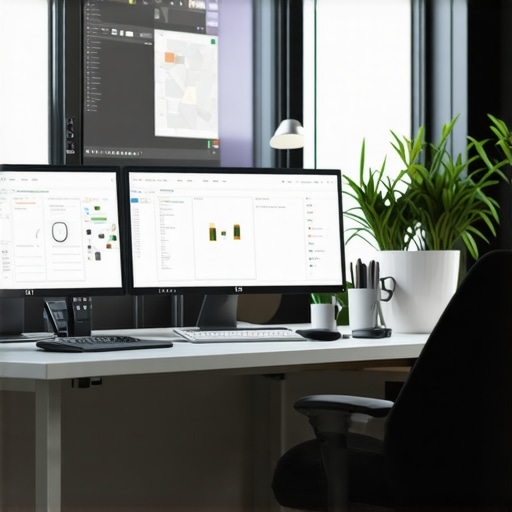
It was a typical workday when I realized my dual monitor setup was actually sabotaging my productivity. Colors looked off, fonts were blurry at the edges, and I kept squinting at tiny icons trying to make sense of my cluttered screen. That lightbulb moment hit me hard—my monitors, meant to boost my efficiency, were doing the exact opposite. Have you ever felt that frustration, sitting in front of a screen that promises clarity but delivers chaos? If so, you’re not alone. Many professionals in 2025 are struggling with outdated displays that hinder rather than help their creative flow and workflow.
Why Choosing the Right 4K Monitor Makes All the Difference
In a world where visual clarity can make or break your work, especially for creative professionals and anyone aiming for peak productivity, the monitor you use is crucial. An average display just won’t cut it anymore—your ideas deserve accurate colors, sharp resolution, and reliable performance. The good news? With the latest advancements, you can upgrade to a 4K monitor that transforms your workspace into a powerhouse of precision and efficiency. According to a recent report from TechRadar, 4K monitors not only enhance visual detail but also significantly boost productivity in professional workflows, reducing eye strain and improving overall accuracy. So, investing in the right display is practically essential in 2025.
Is 4K Really Worth the Hype for Your Workflow?
Here’s where I made a common mistake early on: I assumed new tech was just about marketing buzzwords. I bought a 4K monitor without considering color accuracy or size compatibility, which left me disappointed. It’s tempting to go for the flashiest model, but unless you prioritize genuine performance, you’ll end up wasting your money—and your time. If you’re curious about how to avoid such pitfalls and find a monitor that actually enhances your work, I’ll walk you through the key factors to consider and share some personal lessons along the way. And if you’re ready, check out our comprehensive list of the best 4K monitors for office efficiency that I’ve meticulously researched to help you make an informed choice. Ready to ditch your old screen and step up your game? Let’s get started.
Assess Your Workspace and Needs
Start by evaluating your workspace dimensions and workflow requirements. Measure available desk space and consider ergonomic factors like eye level and viewing distance. Clarify whether your primary focus is creative work, coding, or general office tasks, as each demands different monitor features. I recall a time I cluttered my desk with a massive 32-inch 4K monitor, only to realize it caused neck strain. After re-measuring and prioritizing my tasks, I selected a 27-inch model with adjustable height that fit perfectly and boosted my comfort.
Prioritize Color Accuracy and Resolution
For creative professionals, color fidelity is crucial. Look for monitors with high color gamut coverage, such as AdobeRGB or DCI-P3, and factory calibration. If you’re balancing work and creative tasks, consider a 4K resolution to maximize sharpness and workspace. Think of it like choosing a camera lens; the right lens captures details precisely. During my search, I tested several monitors, and switching to a model with 100% sRGB made my photo edits much more reliable. For an extensive list tailored for creative work, check out this guide.
Get Familiar with Panel Technologies
IPS panels provide better color consistency and viewing angles, ideal for detailed work. TN panels might offer faster response times but sacrifice color accuracy. Choosing the right panel is like selecting the best brush for art—each has its purpose. I initially bought a TN panel for coding, but skin tones appeared washed out, so I switched to IPS for vibrant, true-to-life colors, especially when working on visual design tasks. To compare options, review these recommended models.
Choose a Monitor with Adequate Connectivity
Ensure your monitor supports the ports you need—USB-C, HDMI, DisplayPort—to facilitate seamless connections without clutter. For those integrating their monitor into a dual setup, verify compatibility with your existing hardware. I once bought a monitor lacking USB-C, which caused cable mess and inconvenience, reducing my workflow. To optimize your setup further, explore dual-monitor configurations that can double your productivity.
Set Up for Ergonomics and Efficiency
Position your monitor so that the top of the screen is at eye level and about an arm’s length away. Use adjustable stands or monitor arms to fine-tune height, tilt, and swivel. This reduces eye strain and neck fatigue, making long work sessions more comfortable. I experimented with different stands before settling on an ergonomic arm, which made my posture better and improved focus. Consider using a blue light filter or anti-glare coating to enhance visibility, especially in brightly lit offices. For practical tips on arranging multiple screens, visit these setup ideas.
Calibration and Validation
After setup, calibrate your monitor using hardware tools or software calibration profiles to ensure color accuracy. This is essential for professional-quality work, preventing color shifts that can compromise your projects. During my calibration attempt, I used a colorimeter, which dramatically improved the consistency of my visual outputs. For detailed guidance, browse the best calibration tools.
Many assume that choosing a color-accurate 4K monitor is just about pixel count and factory calibration, but the truth is far more intricate. The common myth is that once a monitor claims 100% coverage of sRGB or AdobeRGB, it automatically guarantees professional-grade color fidelity. However, the calibration process, panel technology, and even manufacturing inconsistencies can drastically influence real-world performance. For example, a monitor with exceptional specifications might still produce color shifts if not properly calibrated post-purchase, especially in professional workflows. Moreover, many users overlook the impact of panel technology—IPS panels typically offer better color consistency at the expense of response times, which is a critical consideration for tasks beyond static images. In dual-monitor setups, disparities in color profiles and brightness between screens can create visual inconsistencies, hampering productivity and causing eye strain. A common mistake is assuming that more expensive models inherently solve these issues, but without proper calibration tools, even premium displays can underperform.
For the advanced user, understanding the calibration drift over time is crucial. Monitors can shift in color accuracy due to factors like backlight aging or temperature changes. Engaging in regular calibration with hardware tools can maintain consistent image quality, preventing costly reworks in professional work. Experts recommend using colorimeters and calibration software to establish precise profiles, especially when working on color-sensitive projects. Additionally, it’s vital to recognize that viewing angles influence color accuracy, making panel technology (like IPS versus VA) a decisive factor—something often underestimated in buying decisions.
Have you ever fallen into this trap? Let me know in the comments. Being aware of these nuances ensures you select monitors that truly meet your workflow demands, rather than relying solely on specifications that sound impressive but don’t guarantee accuracy. Remember, the key to mastering your workspace in 2025 is understanding these subtle but impactful details, which many overlook. For comprehensive guidance, check out our recommendations on color-accurate monitors that can elevate your professional output and productivity.
Once you’ve selected the perfect monitor setup, the next step is maintaining it to ensure long-term performance. Investing in high-quality tools and adopting specific routines can prolong the lifespan of your display and keep color accuracy, resolution, and connectivity reliable over years. One essential tool I personally rely on is the Datacolor SpyderX calibrator. It provides precise color calibration, which is vital for creative professionals aiming for consistent, accurate outputs. Regular calibration—every three to six months—compensates for color drift caused by backlight aging and temperature fluctuations, ensuring your work remains true-to-life.
For those using dual or multiple monitors, software solutions like DisplayCAL help automate calibration routines across all screens, aligning color profiles and brightness levels. I use DisplayCAL to create custom ICC profiles, which I then load into my operating system. This practice has drastically reduced visual inconsistencies between my 4K monitors, especially when switching between tasks like photo editing and document review.
Maintaining your monitor isn’t just about calibration. Regular cleaning of screens using microfiber cloths and screen-safe cleaning solutions prevents dust and grime from diminishing clarity. Additionally, consistent dusting of ports and cables prevents connectivity issues. Upgrading to high-quality cables, such as USB-C or DisplayPort with gold-plated connectors, ensures stable signals and reduces interference, which is crucial for 4K displays especially when multitasking intensely.
Looking ahead, I predict that adaptive synchronization technologies like HDMI 2.1 VRR (Variable Refresh Rate) will become standard even in office monitors, further enhancing smooth visual output and reducing eye strain. Staying updated with these innovations and investing in versatile tools like hardware calibrators will help you keep your setup performing at its best for years to come.
What strategies will keep your monitor setup functioning flawlessly in the long run?
Besides regular calibration, consider implementing a comprehensive maintenance schedule. Schedule biannual check-ups with professional calibration services or, if you prefer DIY, keep a set of calibration tools ready. Also, monitor firmware updates from manufacturers can improve color management and reduce bugs. For example, Dell offers firmware updates for their UltraSharp series that enhance display color profiles and energy efficiency.
In conclusion, the best way to ensure your monitors remain reliable and accurate is to treat maintenance as an ongoing process rather than a one-time setup. By investing in tools like the SpyderX or DisplayCAL, maintaining cleanliness, and staying informed about technological evolutions, you’ll maximize your investment and avoid common pitfalls like color drift or connectivity issues. Try integrating a regular calibration routine today and experience immediate improvements in your workspace clarity and productivity. For more detailed guidance tailored to your creative or office needs, explore our comprehensive resources on color calibration techniques.
The Hidden Lessons from My Monitor Upgrade Journey
One of the most profound realizations I had was that technical specifications alone don’t guarantee a monitor’s effectiveness. It’s easy to get lured by numbers like 100% sRGB or a high contrast ratio, but without considering calibration and panel technology, those specs can be meaningless. Over time, I learned that regular calibration with tools like the SpyderX keeps my color accuracy consistently reliable, especially as aging and environmental factors cause shifts. Additionally, I discovered that ergonomics play a pivotal role—an adjustable stand or monitor arm isn’t just about comfort; it directly impacts your visual clarity and focus. Lastly, I realized that not all panels are created equal; IPS panels, while sometimes pricier, provide the true color fidelity needed for creative tasks, whereas TN panels might be tempting for speed but fall short on accuracy.
This post really hit home for me, especially the part about calibration and panel technology. I’ve been working with a 27-inch IPS monitor for a couple of years now, and I’ve noticed my color accuracy drifting over time, which is frustrating when I’m doing detailed photo edits. Regular calibration with a colorimeter like the SpyderX has been a game-changer for maintaining consistent results. I also agree that ergonomics matter—I once used a non-adjustable stand and had neck strain after a long day. Now, with a height-adjustable arm, I feel much more comfortable and focused.
One challenge I still face is balancing high-quality features with budget constraints. For creative work, do you think it’s better to invest in a top-tier monitor upfront, or to opt for a mid-range model and upgrade down the line? I’d love to hear others’ experiences on this, especially regarding long-term satisfaction and cost-effectiveness.
Reading this post really resonated with my recent experience upgrading to a 4K monitor. I used to think that more pixels alone would solve all visual fidelity issues, but after some trial and error, I realized that calibration and panel type matter just as much—if not more. I’ve settled on an IPS panel with broad color gamuts, which has made a noticeable difference in my work, especially for editing. One thing I’ve learned is that investing in a quality calibration tool like the SpyderX pays off in the long run, preventing color drift and ensuring consistency across projects.
Regarding the ongoing maintenance, I completely agree that regular calibration should be part of your routine—tech isn’t static, and neither is our workspace. Have others found that calibration needs vary significantly depending on environmental factors like lighting? I’ve noticed that my monitor’s color shifts slightly when I change my workspace’s lighting conditions, even with calibration. It seems like a proactive approach, such as using light sensors or adjusting from time to time, can keep things consistent. What’s your take on integrating ambient light management with calibration routines to maintain color accuracy over the long haul?