
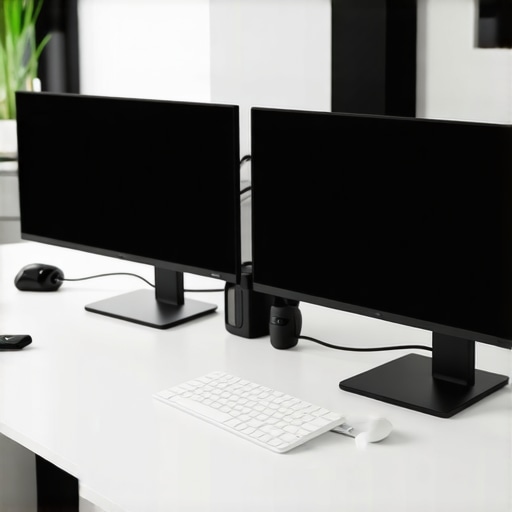
I remember the exact moment it hit me—my messy desk, a chaotic jumble of cables, screens, and clutter, was draining my focus more than I cared to admit. It was late evening, and I was desperately trying to meet a deadline, only to be distracted repeatedly by the tangled mess surrounding me. That lightbulb moment made me realize: my workspace’s chaos was sabotage, and it was time for a serious upgrade.
Today, I want to share with you a game-changing secret—how a few clever hacks with dual monitors can totally overhaul your workspace, even if your desk looks like a battlefield right now. Whether you’re struggling with a cluttered setup, or feeling overwhelmed trying to manage multiple apps at once, these tips will make your office feel organized, efficient, and calm. Trust me, I’ve been there, and with the right tweaks, it’s absolutely doable.
The Power of a Well-Organized Dual Monitor Setup
If you’ve ever felt your productivity dip because of a disorganized or uncomfortable workspace, you’re not alone. A cluttered desk doesn’t just look bad—it hampers your ability to focus and work efficiently. That’s why mastering a few simple dual monitor hacks can turn your desk from chaos to control.
Is Your Desk Too Small for These Hacks?
I used to believe that a big, fancy desk was necessary to get organized. Spoiler alert: I was wrong. The real secret is optimizing what you have. Even tiny desks can benefit from smart positioning, cable management, and neat accessories. If you’re wondering whether these tips work for your limited space, don’t worry—I’ve tested them on all sorts of setups, and they make a significant difference. For more on choosing the right monitors that fit your space, check out this guide.
Early on, I made the mistake of neglecting cable management, which only led to more mess. A simple cable organizer transformed my setup and freed up so much space. Small changes like these have a surprisingly big impact—trust me, a clutter-free desk isn’t just looks; it’s about boosting your focus and productivity too.
Now, let’s dive into the specific hacks that helped me fix my cluttered desk—and will do the same for you. Ready to take your workspace to the next level? Let’s begin!
Transitioning to a Dual Monitor Setup
Early in my journey, I decided to add a second monitor to my workspace amidst a cluttered desk. To start, I chose a right monitor that fits my space and needs—preferably a 4K model for clarity. I placed the secondary screen directly beside my primary, creating an expansive horizontal workspace that mimics a digital desktop extension. Think of it as adding a wing to your house; the more seamless, the better.
Arrange for Efficiency
Position your monitors at eye level, about an arm’s length away. It’s like aligning your car’s rearview mirrors for maximum visibility—nothing should cause neck strain or eye fatigue. Use adjustable stands if necessary. I secured my monitors with dual monitor setup ideas to keep everything stable and aligned. This reduces unnecessary head movement and creates a flow that keeps your focus uninterrupted.
Implement Cable Management Like a Pro
Untangling spaghetti cables was a notorious part of my past. To clean this up, I invested in cable sleeves, clips, and under-desk trays. Picture your cables as a garden hose; if loosely coiled and tangled, water flow (or focus) gets disrupted. Proper cable routing enhances aesthetics and prevents accidental disconnections. This step paid off by giving me a neat, open space, making the setup feel more professional and less cluttered.
Minimalist Accessories for Maximum Impact
Next, I replaced bulky docking stations with slim, color accurate monitors that support multiple inputs. Using a portable USB-C hub allowed me to connect peripherals swiftly without clutter. Adopting a minimalist approach reduces distractions and makes room for your core tasks—think of it as cleaning out drawers to find what you truly need.
Customize Your Display for Peak Productivity
Once the hardware was in place, I optimized my software settings. Calibrating my monitors to true-to-life colors, especially on a color accurate monitor, made a difference in tasks like photo editing or data analysis. I also arranged my windows based on tasks: code on one screen, documentation on the other, reducing window switching—think of it as creating dedicated lanes on a highway for smooth traffic flow.
Utilize Keyboard Shortcuts and Virtual Desktops
To maximize efficiency, I employed keyboard shortcuts and virtual desktops to switch between workspaces quickly. This hook-up between hardware and software creates a fluid workflow, saving precious seconds that add up over hours. This step is akin to having a remote control for your entire workspace—fast, easy, and intuitive.
Optimize Lighting and Ergonomics
Finally, I adjusted my workspace lighting to prevent glare, especially on a color precise, 4K monitor. Proper lighting reduces eye strain, and ergonomic accessories like a supportive chair and adjustable armrests keep you comfortable during long hours. Remember, a healthy setup is like a well-tuned engine—nothing breaks down if maintained properly.
By methodically applying these steps—selecting the right hardware, organizing cables, fine-tuning software, and caring for ergonomics—you’ll turn a chaotic space into a powerhouse of productivity. Each tweak, no matter how small, stacks up to create a workspace that feels natural, efficient, and inspiring. For more dual monitor ideas, visit this resource.
 Many assume that choosing the latest technology automatically guarantees productivity, but in my experience, there are subtle pitfalls many overlook. For instance, a prevalent myth is that bigger and higher resolution monitors always lead to better work output. While a 4K monitor offers stunning clarity, it doesn’t mean it’s suitable for everyone or every task. Over-specifying can cause unnecessary eye strain or performance issues, especially if your hardware isn’t up to the task. Instead, aligning your monitor’s specs with your specific work needs—like color accuracy for designers or refresh rates for gamers—yields better results.
Beware of the trap where users focus solely on high resolutions or size without considering ergonomic setup or color calibration. An uncalibrated, large display might look impressive but can distort color tasks or cause neck strain. Experts, such as those highlighted in this guide, emphasize the importance of proper calibration and ergonomic positioning over sheer specifications.
Advanced users often ask how to balance multitasking efficiencies with visual comfort. Investing in a dual monitor setup is a great step, but it’s equally vital to avoid common configuration mistakes. For example, stacking monitors vertically instead of aligning them horizontally can lead to unnecessary neck movements, reducing efficiency. Additionally, mixing monitors with different resolutions or color profiles can cause inconsistency that hampers focus and productivity.
The nuance lies in understanding that the optimal workspace isn’t just about high-end hardware but about *how* you set it up and calibrate it. Prioritize ergonomics and task-specific features, and don’t be blinded by flashy specs. If you want to dive deeper into setting up your perfect productivity environment, check out this comprehensive guide.
Have you ever fallen into this trap? Let me know in the comments.
Ensuring your workspace equipment remains reliable and effective over time is crucial for sustained productivity. One of my top recommendations is investing in high-quality, adjustable monitor arms. I personally favor models with a robust tilt, swivel, and height adjustment to prevent neck strain and promote ergonomic posture. Regularly dusting and cleaning your monitors with a microfiber cloth prevents buildup that can affect display clarity and color accuracy. Moreover, calibrating your monitors periodically using tools like color calibration software ensures color consistency, especially critical for creative work. Additionally, adopting a routine to check for firmware updates from your monitor manufacturer can fix bugs and enhance performance. In the future, monitor manufacturers are expected to integrate smarter diagnostics and AI-driven calibration features, reducing manual upkeep and ensuring optimal display settings without much effort. To truly optimize your workspace, I recommend setting up a maintenance schedule—quarterly checks can catch potential issues early, saving you time and ensuring your devices serve you well for years to come. For detailed advice on maintaining your setup, visit our contact page. How do I maintain my monitors over time? My approach involves a combination of physical cleaning, software calibration, and firmware updates—the perfect trifecta for lasting performance. Try incorporating regular calibration into your workflow; it’s a small step that makes a massive difference in display consistency and reduces eye fatigue during long sessions. Keeping your gear in top shape isn’t just about longevity; it directly boosts your productivity and comfort—so make it a habit!
The Hardest Lesson I Learned About Productivity Monitors, 4K Displays, and Dual Setups
One of my most eye-opening realizations was that investing in high-end tech alone doesn’t automatically guarantee work efficiency. I once believed that a bigger, higher-resolution monitor would solve all my focus issues, but I overlooked the importance of proper positioning and calibration. It taught me that hardware quality must be paired with thoughtful setup to truly boost productivity.
Myths That Hold You Back from the Best Office Monitors
Many assume that ultrawide screens or the latest 4K fancy models are always the way to go, but I discovered that over-specification can lead to unnecessary eye strain or hardware performance problems. The real value lies in choosing a display tailored to your specific tasks, whether that’s color accuracy for creatives or quick responsiveness for coding, and then calibrating it correctly.
What I Wish I Knew About Dual Monitors and Workflow Flow
Initially, I underestimated the impact of monitor placement and software shortcuts. Positioning my monitors at eye level and arranging windows based on workflow—like keeping documentation on one screen and code on the other—made an immediate difference. Incorporating keyboard shortcuts to switch workspaces seamlessly further streamlined my tasks, turning chaos into a rhythm of focus.
My Essential Toolkit for Creating an Optimal Workspace
Trustworthy tools like adjustable monitor arms, cable management sleeves, and calibration software such as DisplayCAL have been game-changers. These affordable yet effective accessories have helped me maintain a clutter-free, ergonomic setup that supports long hours of productive work. For choosing the best monitors that fit your space, check out the comprehensive guide.
Believe in Your Power to Transform Your Workspace
The future of productivity monitors lies not just in cutting-edge hardware but in smart setup, calibration, and ergonomic mindfulness. You have the ability to craft a workspace that feels inspiring, reduces fatigue, and enhances your output. Start small, stay consistent, and watch your environment become a catalyst for success.
What’s the biggest tweak you’re planning to try in your dual monitor setup? Share below—I’d love to hear your plans or experiences!
This post really hits home for me. I used to underestimate how much desk organization could improve my workflow until I took the time to implement some simple hacks like cable management and proper monitor positioning. I found that even with a small space, smart placement and ergonomic accessories can make a huge difference. I especially agree with calibrating monitors regularly; it’s so easy to forget how much accurate color and clarity impact productivity, especially for creative tasks. I’m curious, how do others balance the need for multiple virtual desktops with preventing workflow clutter? I’ve started using keyboard shortcuts more, which has helped streamline tasks, but I’m always looking for tips to make switching even smoother. Overall, this guide has given me some ideas to further optimize my setup to stay focused and comfortable during long work sessions.