
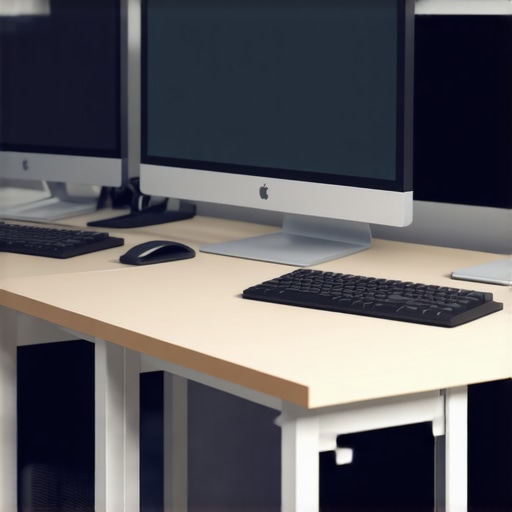
Ever had that moment where you’re desperately trying to fit three monitors on your tiny desk, only to end up with a cluttered mess that hinders your productivity and messes with your focus? I remember the exact feeling—frustration creeping in as cables tangled, screens overlapped, and I wondered if my workspace was destined to stay cramped forever. That lightbulb moment hit me hard: there *has* to be a smarter way, especially with the advancements coming in 2026. In this post, I’ll share proven strategies and innovative dual monitor setups that help squeeze maximum workspace out of even the smallest desks, so you can work efficiently without sacrificing organization or comfort.
Why Small Desks Don’t Have to Limit Your Productivity
Small desks are the bane of many modern offices, yet they’re more common than ever—especially for those of us working from home or setting up compact workspaces. Conventional thinking suggests that bigger is better, but truthfully, inefficient monitor arrangements can make a tiny desk feel even more cramped. By embracing clever dual monitor configurations, you’re not just saving space; you’re also enhancing your workflow.
Recently, I discovered that the key lies in the way monitors are positioned and the accessories used. Instead of stacking monitors or leaving them scattered around, innovative stands and mounts can transform your workspace into a sleek, efficient control center. For instance, using adjustable arms allows you to set monitors at the perfect height and angle, freeing up desk real estate for other essentials.
Moreover, as technology progresses in 2026, monitors are getting thinner and more color precise, making them easier to integrate into small setups without sacrificing visual quality. Did you know that 4K monitors now come with ultra-slim bezels and ergonomic stands, allowing multiple screens to appear almost seamless? This means you can set up a multi-monitor station that’s both compact and stunning in clarity—great for multitasking, creative work, or coding.
If you’ve ever struggled with cluttered desks or felt your productivity dip because your monitors took up too much space, you’re not alone. I’ve been there, and I’ve learned that smarter monitor arrangements, especially using dual setups, are game-changers. Today, we’ll explore the best ways to configure three dual monitor setups tailored for small desks, ensuring you get the most out of your space without sacrificing quality or ease of use.
Thinking about giving your desk a makeover? Stay tuned, because the next steps will show you exactly how to do it—streamlining your workspace and boosting your productivity in 2026 and beyond.
Secure the Right Monitors for Small Spaces
Start by selecting slim, ultra-thin monitors that fit your desk without protruding too much. Look for models with slim bezels to create a seamless multi-screen experience. Prioritize 4K monitors, as they offer sharp visuals in a compact form—perfect for detailed tasks like design or coding. For accurate color reproduction, especially for creative work, opt for color-accurate models discussed in this guide.
Utilize Adjustable Mounts and Stands
Replace bulky stands with adjustable arms or wall mounts. These versatile setups allow you to position monitors at eye level, freeing up valuable desk space. When I experimented, attaching monitors to adjustable arms transformed my cluttered desk into a clean, efficient workspace—no more tangled cables or overlapping screens. For detailed setup ideas, see dual monitor setup ideas.
Arrange Monitors for Ergonomics and Efficiency
Position your primary monitor directly in front of you, with the secondary slightly offset to the side at an angle. Use adjustable arms to fine-tune height and tilt, reducing neck strain. Micro-adjustments can make a big difference: I once spent an afternoon repositioning my screens on different stands until I found the setup that felt most natural. Consider using a curved monitor (see curved options) to envelop your peripheral vision, enhancing immersion without taking extra space.
Optimize Cable Management Techniques
Implement cable clips, sleeves, or under-desk trays to keep cables tidy and out of sight. When I did this, I not only improved aesthetics but also reduced accidental disconnections. Use short HDMI or DisplayPort cables to reduce clutter, and consider powered mounts with built-in cable channels for a clean look. This step prevents desks from turning into a tangle of wires, maintaining a sleek workspace that supports focus.
Leverage Technology for Seamless Workflow
Configure your operating system to handle dual monitors smoothly. Use software features like Windows Snap Assist or macOS Spaces to organize windows effortlessly. For high-precision work, calibrate your monitors regularly using tools or guides found in resources like color calibration guides. This ensures consistent colors across both screens, reducing eye fatigue and boosting productivity.
Many believe that choosing any large screen with 4K resolution will instantly boost productivity, but in my experience, this is a oversimplification. **A common myth is that all monitors labeled as ‘color accurate’ are suitable for professional creative work.** However, the truth is, many models with high sRGB coverage and factory calibration still fall short if they lack proper hardware calibration options. Relying solely on factory settings can lead to inaccurate color reproduction, which might be detrimental for tasks requiring precise color management. For a comprehensive approach, consider investing in monitors with hardware calibration capabilities and consistent calibration routines, as detailed in this guide.
Another misconception is that increasing resolution, such as moving from 1080p to 4K, automatically enhances productivity. While higher resolution improves clarity and workspace, it can also introduce scaling issues, especially if your GPU or software isn’t optimized for high-DPI displays. This often results in tiny UI elements or blurry visuals, which ironically hampers productivity. Many users overlook the importance of choosing monitors with good scaling support and adjusting UI scaling settings accordingly. Be wary of high-resolution monitors with poor scaling compatibility, and test before committing.
**Have you ever fallen into this trap? Let me know in the comments.**
When it comes to dual monitors, many think that simply adding a second screen will double their workflow efficiency. While dual setups are indeed powerful, the **hidden nuance** lies in how you arrange and calibrate them. Improper positioning, such as having one monitor significantly higher or at an awkward angle, can cause neck strain and distract from work. Moreover, mismatched monitors in terms of color accuracy and resolution can create visual inconsistencies that fatigue your eyes. A misleading approach is to use mismatched models; instead, opt for matched monitors calibrated consistently for a seamless experience. Resources like this article suggest optimal layouts and calibration techniques.
**Advanced users should also consider software solutions that manage window placement, like Snap Assist or Magnet, to maximize efficiency.** These tools help organize multiple windows across monitors seamlessly, avoiding clutter and distraction.
Understanding these nuances and avoiding common pitfalls can significantly elevate your workspace’s effectiveness. Don’t let misconceptions hold you back from creating an optimal, ergonomic, and visually accurate environment. Ready to rethink your setup? Explore detailed guides and tips designed for professionals aiming for peak productivity and color precision.Maintaining an optimal office monitor setup requires more than just choosing the right hardware; it involves implementing reliable tools, regular upkeep, and strategic adjustments to sustain peak productivity. One essential tool I rely on is **CalibrateColor**, software designed for hardware calibration of color-accurate monitors. This program ensures your display remains consistent over time, vital for creative tasks demanding precise color fidelity. I personally run calibration weekly, especially when working on design projects, to prevent color drift that can impact output quality. For setup, I use a hardware calibration device like the **X-Rite i1Display Pro**, which seamlessly integrates with CalibrateColor, providing highly accurate results that surpass factory presets. Regular calibration is predicted to become even more critical as monitors evolve in 2026, with increased adoption of hardware-accelerated color management features. Additionally, maintaining your monitors involves firmware updates—often overlooked but crucial for fixing bugs and enhancing performance. Setting a monthly reminder to check for updates on your monitor manufacturer’s website or through their utility software can save headaches down the line. To streamline the process, I use **Monitor Firmware Updater**, a reliable tool that identifies and applies updates automatically. Alongside software tools, hardware accessories like **monitor stands with adjustable height and tilt** help preserve ergonomics and reduce long-term neck or eye strain. I recommend investing in **ergonomic mounts or arms** that allow quick adjustments, saving you from the rigidity of fixed stands. For dual or multi-monitor setups, cable management becomes critical to sustain an organized workspace—cable sleeves and under-desk trays help prevent clutter, which can degrade focus and even damage cables over time. I regularly audit my cables and replace any worn-out connectors, especially after prolonged use. Looking ahead, as monitors become smarter and more integrated with IoT features, these maintenance routines will expand to include software diagnostics and remote health monitoring via manufacturer apps. For comprehensive guidance on recalibrating your color-accurate monitor, I suggest reviewing the detailed methods in the Ultimate Guide to Color-Accurate Monitors. Don’t forget to schedule weekly calibration sessions—it’s an advanced yet rewarding step that ensures your visuals stay true over years of continuous work. Trying out a dedicated calibration tool like X-Rite’s i1Display Pro can be a game-changer for professionals aiming for precision and longevity in their monitor setup.
Lessons That Changed How I Approach Office Monitors
One of the most eye-opening lessons I learned was that monitor positioning isn’t just about aesthetics; it’s about ergonomics and efficiency. I once believed that stacking monitors or using bulky stands was the only solution, but after experimenting with adjustable arms, I realized how much space I could reclaim and how much my neck and eyes appreciated the change.
Another revelation was the myth around resolution and productivity. Moving to a high-quality 4K monitor didn’t automatically boost my workflow—until I learned to calibrate and properly scale the displays. That small step made a profound difference in my color accuracy and reduced eye fatigue.
Most importantly, I discovered that cable management isn’t just tidiness—it’s about creating a workspace that supports focus and quick adjustments. Implementing under-desk trays and cable sleeves transformed my cluttered desk into a sleek command center, demonstrating that investing in small accessories yields big returns.
Tools and Resources That Made a Difference
I rely heavily on calibration software like the ultimate color calibration guide, which ensures my monitors display true-to-life colors, a must for creative professionals. For mounting and cable management, adjustable arms such as these versatile stands have saved me countless desk space and headaches.
Additionally, I recommend exploring ergonomic accessories like adjustable monitor stands to fine-tune your setup for maximum comfort. Finally, stay informed on monitor technology—tools such as this comprehensive buying guide helps you select models that balance size, resolution, and color accuracy for small spaces.
Take Action and Create Your Dream Workspace
The world of office monitors is evolving rapidly, with smarter designs and more adaptable setups making large productivity gains achievable even in compact spaces. Now is the perfect time to rethink your workspace, prioritize ergonomics, and leverage technology to enhance focus and creativity. The future holds even better monitor innovations coming in 2026—so why wait to transform your environment?
Have you ever struggled with positioning or calibrating your monitors in a small workspace? Share your experiences below—I’d love to hear what’s worked for you and what challenges you’re facing!
I completely agree with the post’s emphasis on the importance of monitor positioning and the use of adjustable mounts. I recently upgraded my tiny desk setup by switching to articulating arms, which not only saved space but also allowed me to find the perfect ergonomic angle. It made a surprisingly big difference in my comfort and productivity, especially during long work sessions. The part about high-resolution monitors and proper calibration really resonated with me—initially, I thought a 4K display would automatically improve my workflow, but I found that without accurate color calibration, the visual quality suffers and can cause eye strain. How do others manage their calibration routines in busy schedules? Do you use specific tools or software that integrate well with your workflow? It’s clear that these small adjustments can have a huge impact on efficiency, especially in tight spaces.
This is such a comprehensive look at optimizing small workspace setups! I totally agree with the emphasis on adjustable mounts—since switching to VESA-compatible arms, my desk feels much more spacious, and I can easily reposition my monitors for ergonomic comfort. It’s interesting how technological advancements, especially in 2026, are making ultra-slim bezels and color-accurate monitors more accessible, which really helps in small setups. I’ve personally noticed that proper cable management not only keeps the workspace tidy but also prevents accidental disconnections that can disrupt workflow.
Regarding calibration routines, I try to do them weekly using my X-Rite i1Display Pro, but I’d love to hear how others integrate calibration into busy schedules. Do you set reminders, or is it more of a ‘when I remember’ approach? Also, I’ve found that consistent calibration really reduces eye fatigue during long days. Has anyone found specific tools or workflows that make calibration easier without adding too much hassle? Finding that balance between quality and convenience has been a game-changer for my productivity.