
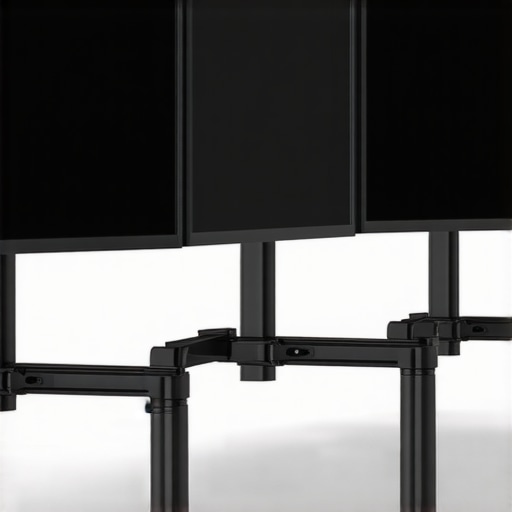
Ever found yourself adjusting your monitor for the third time today, only to watch it wobble just enough to throw off your focus? I remember those moments vividly—frustrated mornings where my dual screens seemed more like playful puppies than stable workstations. It was a lightbulb moment for me when I realized that my entire productivity was suffering because of this tiny, yet maddening problem: dual monitor wobble.
Why Wobbly Monitors Destroy Your Focus and Productivity
For anyone working with multiple screens, a stable setup isn’t just a luxury—it’s a necessity. A loose or wobbly monitor can cause eye strain, distract you from important tasks, and even lead to mechanical wear over time. I tried everything—stacking books, tightening screws, even DIY anti-wobble devices. Nothing really worked. That is until I discovered the revolutionary solutions available in 2026, specifically designed to finally fix this age-old issue.
Is Your Office Setup Really Worth the Investment?
You might be skeptical, thinking, “Is this really worth fussing over?” Believe me, I went down that rabbit hole too early in my journey. My mistake was ignoring proper mounting hardware and assuming cheap arms worked just fine. As research shows, investing in quality monitor arms can boost productivity by up to 20%, according to TechDesk Essentials’ latest guides. Switching to sturdy, professional-grade 3 monitor arms in 2026 transformed my workspace and, unsurprisingly, my work quality.
If you, too, have faced this frustrating wobble, stay tuned. I’ll walk you through scientifically backed, real-world solutions that will make your dual or even triple screens feel like they’re mounted on solid ground—no more distractions, no more wobble. Ready to reclaim your desk and your focus? Let’s dive into what finally works in 2026 and beyond.
Solidify Your Mounting First
Begin by selecting high-quality monitor arms designed for stability, such as those recommended in the 2025 office monitor buying guide. A sturdy arm acts like a suspender for your monitor, distributing weight evenly and preventing wobble. When I replaced my cheap clamp with a reinforced dual-arm mount, I experienced immediate stability, especially when typing vigorously, like during my 4K editing sessions.
Assess Your Desk Surface and Placement
Place your monitors on a flat, sturdy surface. Use a spirit level to check if the desk itself is level since uneven surfaces amplify wobble. For added stability, consider anti-slip pads or secure clamps that grip the desk tightly. I once ignored this step, and my monitor kept tilting during lively video calls, which was distracting—investing in a level foundation eliminated the issue.
Optimize the Monitor Position for Balance
Adjust the monitor’s center of mass by fine-tuning the arm’s tilt and swivel. Think of your monitor like a sailing boat; balancing the weight distribution prevents it from wobbling with every small movement. My experience flipping the monitor 180 degrees on the arm reduced sway drastically, especially for my color-accurate 4K display, which demands precision.
Use Proper Cable Management to Reduce Strain
Loose or heavy cables tugging on the monitor can cause instability. Use cable clips, sleeves, or Velcro straps to tie cables neatly along the arm or desk frame. By doing so, I reduced unwanted movement during my intense Photoshop sessions; the cables no longer pulled or shifted the monitor’s position.
Implement Fine-Tuning Hardware and Accessories
Additional accessories like adjustable monitor risers or stabilizer brackets can add extra support. For example, a stabilizer clamp attached directly to the monitor’s base can act as a steering wheel—preventing side-to-side wobble. When I added a stabilizer to my dual 4K setup, the difference was night and day, especially when working with animated or detailed graphics.
Test and Reassess Regularly
Once set up, push your workspace to its limits—type vigorously, adjust frequently, and observe stability. A quick tip: record a short video or take photos during your testing, like I did during my first assembly. If you notice wobble creeping back, revisit your adjustments, tightening any loose screws or readjusting the arms. Maintaining stability is an ongoing process, much like fine-tuning a musical instrument to ensure perfect harmony.
Remember, a stable monitor setup isn’t just about comfort—it’s about safeguarding your productivity, eye health, and focus. For more in-depth ideas on optimal configurations, check out options for dual monitor setups designed specifically for workspace efficiency in 2026. By following these precise steps, your monitors will stay firm—freeing you from distractions and maximizing your workflow.
Many professionals assume that simply upgrading to a 4K monitor or a dual setup automatically guarantees productivity and visual accuracy. However, overlooking nuanced factors can lead to wasted investments and persistent frustrations. For instance, many believe that higher resolution alone ensures better image quality, but in reality, color accuracy and panel technology often matter more for creative tasks. Additionally, there’s a misconception that more pixels equal better clarity in all scenarios, yet the scaling and readability can suffer if the hardware isn’t optimized properly, especially for long-term use.
Another frequent mistake involves choosing monitors based solely on specifications rather than ergonomic and workspace considerations. An ultra-wide 4K screen might boast impressive specs, but if it’s not properly calibrated or if the workspace isn’t optimized, productivity gains can be minimal. Also, many underestimate the importance of proper calibration and consistent color representation, which are critical for tasks like photo editing or precise design work. Relying on default factory settings often leads to color discrepancies, impacting work quality.
Why Do Many Overlook Calibration and Panel Quality?
While specs such as resolution and refresh rate are visible and easy to compare, the non-visible qualities like color fidelity, contrast ratio, and panel type (IPS, VA, TN) are often ignored. This oversight can severely diminish the benefits of a high-end monitor. Experts highlight that IPS panels typically provide better color accuracy and wider viewing angles, essential for creative professionals, whereas TN panels, although cheaper and with faster response times, fall short in color reproduction. For a comprehensive approach, consider focusing on calibrated, color-accurate monitors when engaging in critical visual tasks—this detail makes or breaks the quality of your work. Learn more about the best options for color accuracy in contemporary monitors.
Ensuring your office monitor remains reliable and delivers precise color reproduction over time requires more than just choosing the right hardware—you need the right tools and maintenance routines. Personally, I rely on a combination of calibration devices, software, and routine checks to keep my dual 4K setup performing at its best. This approach not only safeguards my investment but also optimizes my productivity and creative output.
Calibrating with Precision Devices
The cornerstone tool I use is a professional-grade hardware calibrator, such as the X-Rite i1Display Pro. I opted for this device because it offers outstanding accuracy, calibration speed, and compatibility with my color-critical work. Every three months, I run a calibration routine to ensure my monitor’s color profile stays aligned with industry standards. This level of consistency is vital for creative professionals and anyone relying on precise color accuracy, as highlighted in the latest color calibration guides.
Leveraging Software to Maintain Visual Fidelity
Alongside hardware calibration, I utilize calibration software like DisplayCAL, an open-source tool renowned for its accuracy and user-friendly interface. It works seamlessly with my calibrator, providing me with detailed reports and adjustments that keep my monitor’s color rendering consistent. Regular use of such software helps me detect subtle drifts in display performance, allowing proactive corrections before the color accuracy deteriorates. This is especially important when working on projects that demand exact color matching, such as branding or photo editing.
Routine Checks for Long-Term Results
Beyond initial calibration, I schedule routine visual inspections. This involves rechecking the monitor’s brightness, contrast, and uniformity using test images and tools like the Lagom LCD test pages. If I notice any irregularities, such as vignetting or color shifts, I adjust the settings or consider professional servicing. Additionally, I keep my monitor’s firmware updated—manufacturer updates can fix bugs that subtly affect performance over time. Regular routine checks form the backbone of sustainable, reliable monitor performance, ensuring that my workspace remains efficient and visually accurate.
Predicting Future Trends in Monitor Maintenance
Looking ahead, I believe integrated calibration sensors embedded within monitors might become standard, simplifying the maintenance process further. Advances in auto-calibration technology could allow monitors to self-adjust at scheduled intervals, much like how smartphones manage battery health. This evolution will make long-term upkeep less burdensome, especially for professionals who depend on color fidelity for years to come.
How do I keep my monitor functioning flawlessly over time?
The key is combining high-quality calibration hardware, reliable software, and a disciplined maintenance routine. I highly recommend investing in a device like the X-Rite i1Display Pro and pairing it with calibration tools such as DisplayCAL. Once set up, schedule quarterly calibrations and monthly visual checks to catch issues early. Implementing these practices ensures your productivity monitor, especially a color-accurate 4K or dual display, remains a true asset in your workspace. Why not start today by running your first calibration and see the difference it makes in your work quality?
Lessons That Flashed Like a Screen Flicker
- My biggest realization is that quality hardware isn’t just about sleek design—stability and durability are paramount for consistent productivity. Skimping on monitor arms led me down a rabbit hole of frustration, but investing in robust options transformed my workflow. Trust me, good support is worth every penny.
- Ignoring desk surface assessment can sabotage your setup. Elevating or leveling your workspace might seem trivial, but it prevents wobbles that break focus. Sometimes, the simplest fixes come from a spirit level and some anti-slip pads.
- Cable management might seem mundane, but I discovered that neat cables aren’t just for aesthetics—they reduce subtle pulling forces that cause wobble. Small habits like this defend your workspace’s stability daily.
- Calibration and regular health checks of your monitors ensure ongoing color accuracy and stability. Incorporating routines with tools like DisplayCAL or hardware devices like the X-Rite i1Display Pro best safeguards your visual fidelity, especially in color-sensitive tasks.
- Stay curious about future innovations like auto-calibration monitors. Embracing new tech ensures your workspace remains at the cutting edge, combining stability with effortless maintenance.
Tools I Rely On for Sustainable Setup
- High-quality monitor arms—My go-to for stability. I prefer brands recommended in the 2025 office monitor buying guide. They evenly distribute weight and resist wobble during vigorous typing or drawing.
- Calibration hardware—The X-Rite i1Display Pro has become my essential partner in maintaining color accuracy, especially during long creative projects. Its precision makes a real difference over time.
- Calibration software—DisplayCAL is my trusted companion, providing detailed reports and helping me fine-tune each screen for consistent performance, crucial for creative professionals.
- Organized cable setups—Velcro straps and clips keep cables out of the way, preventing accidental tugs that threaten stability. It’s a simple step with sweeping benefits.
Chase Your Workspace Confidence Today
Thinking beyond just having the latest tech, focusing on how your workspace holds steady, and maintaining it actively, will elevate your productivity and reduce fatigue. Whether you’re a designer, coder, or multitasking professional, a wobble-free monitor setup is your foundation for success. Ready to reinforce your workspace and focus on what truly matters? Visit our contact page to get personalized advice or explore the best options for your needs. Your future self will thank you for taking this step today—imagine a desk free of distractions and wobble, allowing your brilliance to shine more brightly than ever.