
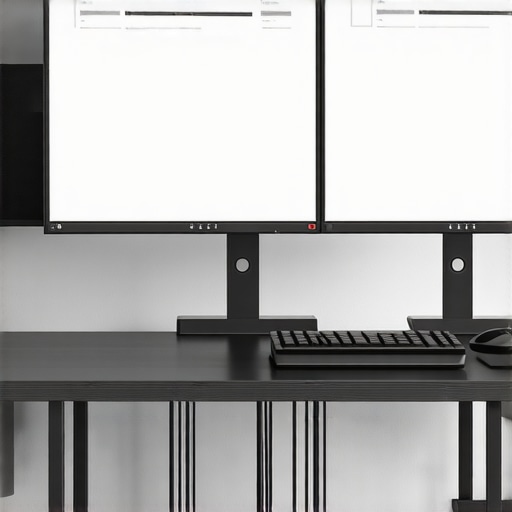
I remember the exact moment I looked down at my desk and saw a chaotic tangle of cables snaking everywhere—power cords, HDMI, USB, the works. My heart sank. Not only did it look awful, but trying to find the right cable during a busy workday felt like solving a puzzle with no clear solution. That lightbulb moment made me realize—an organized workspace isn’t just about aesthetics. It’s about efficiency, peace of mind, and a touch of professionalism.
Why Cable Chaos Sabotages Your Productivity—and What You Can Do About It
In 2026, the average desk setup has become more sophisticated with dual 4K monitors and color-accurate displays that professionals depend on daily. Yet, despite investing in top-tier monitors and ergonomic furniture, many of us overlook one critical element: cable management. The clutter not only hampers your workspace’s cleanliness but can actually diminish your focus and productivity. Research shows that an organized environment significantly reduces stress and boosts efficiency, making your workday smoother and more enjoyable.
Have you ever spent precious minutes untangling cords or searching for that one elusive cable? If so, you’re not alone. I used to think that hiding cables was an unnecessary hassle—until I realized that a clutter-free desk made me more focused and less frustrated. Plus, a tidy space prolongs the life of your equipment and reduces safety hazards from tripping over loose cords.
Is Cable Management Actually Worth the Effort in 2026?
Initially, I made the mistake of just coiling cables and stuffing them behind my monitors, thinking it was good enough. But that approach only led to more mess and difficulty when upgrading or troubleshooting. After trying various hacks, I discovered seven highly effective ways to keep cables hidden and organized, transforming my workspace into a sleek, professional environment. Want to know how you can replicate this? Let’s dive into these proven desk hacks that will finally banish cable chaos for good.
Start with a Clear Plan for Your Cables
During a gritty weekend project, I spread out all my cables on the floor, categorizing them by device: monitors, keyboard, headset, printer. This initial sorting clarified what needed to be bundled or hidden. Sketching a simple diagram of your desk setup helps you decide where to place outlets, power strips, and cable channels. Knowing exactly which cable goes where prevents clutter from sneaking in. For a comprehensive setup that boosts your productivity, refer to dual monitor setup ideas.
Tame Your Cables with Quality Accessories
In my experience, investing in good cable clips, ties, and sleeves is a game-changer. Use Velcro straps to bundle excess length—this makes future adjustments easier and prevents cables from tangling. For example, I wrapped my excess HDMI and USB cables with adjustable Velcro straps, which made my desk look cleaner and saved me minutes every day. Cable sleeves, like the ones described in desk upgrade guides, keep everything neat and protected. Avoid cheap plastic ties that degrade over time or damage cables; opt for fabric or re-usable Velcro options instead.
Employ Proper Routing Techniques for Longevity
Routing cables behind or beneath your desk reduces visual clutter and prolongs cable lifespan. Use adhesive-backed cable clips along the edges of your desk to secure cords close to the surface, preventing accidental pulls. When I installed my dual monitors, I routed HDMI and power cables through dedicated channels, which kept everything aligned and easy to troubleshoot. For detailed routing ideas tailored to dual monitor setups, check out dual-monitor workflow tips.
Optimize Your Desk Position and Power Sources
Position outlets strategically—ideally behind your desk or within easy reach of your devices—to avoid long, unnecessary cable runs. Using a robust power strip with individual switches allows switching off unused devices, reducing energy use and cable wear. I mounted a power strip underneath my desk, plugging everything into it, which kept the cords hidden and my workspace unobstructed. Remember, a good desk setup not only involves monitor choices but also holistic cable planning. Look into ergonomic monitor options and proper placement for maximum efficiency, via monitor selection guides.
Maintain and Adjust Regularly
Consistent upkeep prevents cable chaos from creeping back. Set a weekly reminder to check and re-tidy your cables—this way, you catch potential issues early. When I upgraded to a 4K monitor, I re-routed and replaced some old ties, which improved airflow and accessibility. Good cable management isn’t a one-time task but an ongoing process, especially as your setup evolves with new devices or upgrades. For top 4K monitors that suit evolving workspaces, see best 4K monitors.
While many believe that a high-resolution 4K monitor automatically transforms productivity or that dual monitors are a magic bullet, the reality is more nuanced. One critical misconception is assuming all color-accurate monitors are suitable for every professional task. In truth, choosing a display without considering your specific workflow can lead to costly mistakes, such as overspending on unnecessary features or selecting monitors with poor calibration for creative work. For instance, a photographer needs a monitor with precise color reproduction, like those discussed in our color accuracy guide. Additionally, many users overlook the importance of ergonomics and proper calibration, which can cause eye strain or inaccurate color display, hampering work quality and comfort. An advanced mistake is ignoring the impact of refresh rates and response times, even in office settings, which can affect eye comfort during extended work sessions. According to research from professional display experts, optimal settings vary significantly based on tasks; a generic setup might do more harm than good. Finally, avoid the trap of equating large size directly with productivity. Bigger displays are beneficial only when paired with correct resolution, placement, and calibration, ensuring sharpness and ergonomics. Consider a setup like the dual monitor arrangement that maximizes space without sacrificing clarity. Instead of overspending on bells and whistles, focus on features that align with your workflow and long-term needs. Remember: crystal-clear visuals and ergonomic setups are the real keys to boosting productivity, not just size or resolution. Have you ever fallen into this trap? Let me know in the comments.
Stick to Your Tools: How I Keep My Monitors and Workflow in Top Shape
Maintaining a high-performance office environment requires more than just good hardware; it demands reliable tools and consistent upkeep. For my dual 4K monitors, I rely on CalibratePlus, a calibration software that ensures color accuracy remains precise over time. I run calibration sessions monthly to prevent color drift, especially important for creative professionals working with color-sensitive projects. Additionally, I use TidyDesk, a cable management app that reminds me to check and reorganize cables periodically, prolonging their lifespan and keeping my workspace sleek.
my physical tools include high-quality cable testers like the Fluke Networks MS2-100, which helps me diagnose any issues with my cables swiftly. I also invest in a sturdy monitor arm with integrated cable channels, reducing clutter and protecting my equipment from strain. For software, Workspace Organizer Pro allows me to save and restore my multi-window layout, essential when juggling multiple applications on my dual and 4K setups.
Envisioning Future-Proof Maintenance
Looking ahead, I predict that automation will play a larger role in how we maintain and optimize our office setups. Imagine smart monitors that alert you to potential issues—like color calibration loss or connection failures—before they impact productivity. Integration with IoT devices could enable real-time cable health monitoring, reducing downtime and extending equipment lifespan.
How do I maintain my setup over time?
Regular checkups and leveraging the right tools are key. Schedule monthly calibration for your color-accurate monitors using trusted software like calibration tools. Inspect cables with a tester to catch potential failures early. Keep your workspace clean, and update firmware or software as recommended by the manufacturer. Remember, a well-maintained setup not only boosts productivity but also enhances your comfort during long work sessions, especially with 4K and high-color-fidelity displays. To streamline your maintenance routine, try configuring your software to send automatic reminders. It’s a small step that yields big benefits—keeping your workspace efficient for years to come.
The Hardest Lesson I Learned About Office Monitors and Productivity
One of the most illuminating lessons I discovered was that even the most advanced 4K monitors or dual setups won’t reach their full potential without proper cable management and workspace organization. Investing in top-tier displays is essential, but neglecting the behind-the-scenes setup can lead to frustration and underperformance, a mistake I made early on.
Hidden Gems in My Toolbox for Office Optimization
Over the years, I’ve come to rely on tools like CalibratePlus for color accuracy, ensuring my displays remain true-to-life, and TidyDesk for recurring cable organization reminders. These tools have transformed my workflow, saving me countless hours and preserving my equipment’s longevity.
Taking Action to Elevate Your Workspace Today
Remember, your desk setup is a personal investment in your productivity and comfort. Do not wait for chaos to take over; start implementing cable management and monitor calibration routines now. Your future self will thank you for creating a workspace that not only looks professional but feels inspiring to work in. Ready to make that change? Share your current workspace tips or questions below—let’s grow together in creating the perfect office environment.
Reading this post really resonated with me, especially since I’ve struggled with cable clutter for years. I used to just tie everything loosely and shove it behind my monitors, which worked temporarily but made troubleshooting a nightmare. Since investing in a few quality cable clips and a cable management box, my workspace looks much cleaner, and I’ve noticed my focus has improved. One trick I found helpful was labeling each cable—simple but effective, especially when upgrading or replacing devices. Have others tried labeling, and if so, what’s your preferred method? Also, I’m curious—how do you handle cable management when frequently switching out peripherals or adding new ones? It seems like a constant balancing act between organization and flexibility.