
![5 Tactics to Hide Dual Monitor Cables for a Clean Desk [2026]](https://monitors.techdeskessentials.com/wp-content/uploads/2026/02/5-Tactics-to-Hide-Dual-Monitor-Cables-for-a-Clean-Desk-2026.jpeg)
It was a morning just like any other. I sat down at my desk, fired up my dual 4K monitors, and immediately noticed the chaos behind my setup. Cables snaked everywhere—power cords, HDMI lines, USB connections—all vying for space and making my workspace look like a web of spaghetti. That cringe-worthy moment of realization hit me hard. How could I enjoy my crisp, color-accurate screens without feeling engulfed by a tangle of wires?
Transform Your Desk: Say Goodbye to Cable Clutter
Hiding those cables is not just about aesthetics—it’s about creating an environment that boosts your focus and productivity. A messy desk can subconsciously drain your energy and block your efficiency, especially when working with professional-grade monitors designed for creative projects or coding. Thankfully, I’ve discovered and tested five reliable tactics that help keep my workspace tidy. Stick around—I promise, these tricks will change how you view your office setup.
Is Your Cable Setup Actually Worth the Hype?
In my early days, I made a rookie mistake: I bought high-end monitors from [TechDeskEssentials](https://monitors.techdeskessentials.com/top-4k-monitors-for-office-efficiency-in-2025-enhance-your-workspace) and then ignored the clutter behind them. That led to a chaotic, stressful environment every single time I needed to troubleshoot or swap cables. Trust me, investing in top-tier gear is only half the battle—the real win is managing those wires effectively.
Before diving into the solutions, ask yourself: Have you ever wrestled with tangled cables that ruin your productivity or even damage your equipment? If so, you’re not alone. Managing your cable setup not only makes your desk look professionally organized but also prolongs the lifespan of your gear. Now, let’s explore some proven tactics to give your workspace the transformation it deserves.
Start with a Clear Plan for Your Cables
Before you begin, visualize your workspace and identify all the cables connecting your monitors, keyboard, mouse, and other peripherals. Use a checklist to ensure you don’t overlook hidden wires behind furniture or beneath desks.
Pick the Right Cable Routes
Imagine your cables as traffic lanes: designate specific paths from your devices to your power outlet and PC. Use cable clips or adhesive mounts to secure cables along edges or under the desk, preventing them from hanging loosely or trailing across your workspace.
Employ Effective Cable Organizers and Accessories
Leveraging cable sleeves, spiral wraps, or velcro straps transforms a tangled mess into a neat bundle. For example, I used velcro straps to group my HDMI and power cords, which not only looked cleaner but also made it easier to swap or troubleshoot components.
Utilize a Cable Tray or Management Box
Install a cable tray under your desk to hide and route cables out of sight. Alternatively, a cable management box can house power strips and excess cords, reducing clutter and reducing risk of damage. I mounted a tray beneath my desk and ran all cables through it, which drastically improved my setup’s appearance.
Implement Wireless Solutions Where Possible
Reconsider wired peripherals—wireless keyboards, mice, and even some monitors can eliminate many cables entirely. For instance, upgrading to a wireless keyboard and mouse simplified my desk and freed up space, making room for additional accessories or plants.
Plan for Future Upgrades
Anticipate future device additions by leaving slack in your cable routing or using adjustable cable lengths. This foresight ensures your workspace remains organized even as your tech evolves.
Optimize Dual Monitor Setup for Productivity
Position your monitors at eye level and within comfortable reach to prevent neck strain. Use adjustable monitor arms to free up desk space and allow quick repositioning, akin to a conductor directing an orchestra for maximum harmony. I adopted a dual monitor arm setup, inspired by dual-monitor setup ideas, which boosted my multitasking efficiency.
Conceal and Manage Cables for Dual Monitors
Run cables through the arm’s cable management channels or along the arm’s backside. For a cleaner look, use cable ties to bundle wires preventing sagging or accidental unplugging. This reduces visual clutter and minimizes distractions during work sessions.
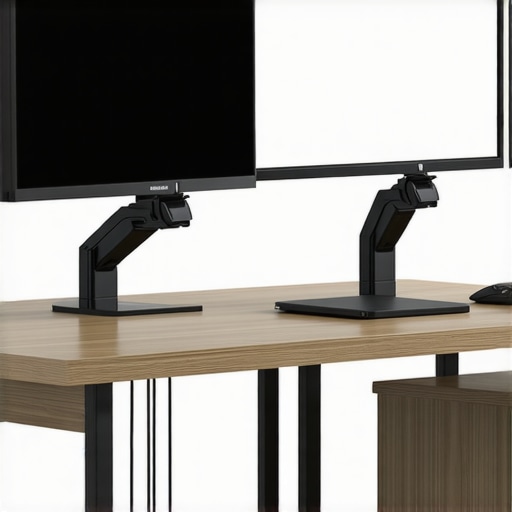
Visualize a sleek desk with cables hidden behind a monitor arm, using cable management clips and a tray beneath the desk, showcasing optimal wiring organization.
Many professionals dive into purchasing a 4K or color-accurate monitor believing in popular myths that can trap them into costly mistakes. Let’s dig deeper into some misconceptions and advanced nuances that often go unnoticed. Firstly, the common belief that a higher resolution automatically guarantees productivity overlooks the importance of pixel density and panel quality. For example, a 27-inch 4K monitor with poor color calibration and low contrast can cause eye strain and diminish visual clarity, negating the benefits of its high resolution. Secondly, many assume that all color-accurate monitors are suitable for creative work, but calibration precision and panel technology vary significantly. An entry-level monitor might state ‘factory calibrated,’ yet fail to deliver consistent colors across different viewing angles, which can derail professional workflows. Additionally, a common trap is equating dual monitors with productivity; however, without proper setup and color consistency, the added screens can become distractions. Properly calibrated dual setups, especially with matching color profiles, can exponentially enhance workflow, as emphasized in our comprehensive guide on dual monitor ideas for seamless workflow. For advanced users, understanding the initial hardware choices impacts color accuracy over time. Monitors with IPS panels tend to provide better color fidelity than VA panels, but at a higher cost. Moreover, some misconceptions about refresh rates—believed solely relevant to gaming—are equally vital in professional environments that involve video editing or motion design, where smoother playback minimizes errors. As per recent studies cited in industry standards, a consistent refresh rate paired with a low response time yields a more accurate editing experience. To prevent costly misjudgments, always verify calibration capabilities, panel technology, and ergonomics before purchasing. Remember, the right monitor setup isn’t just about the latest specs but aligning features with your workflow needs. Have you ever fallen into this trap? Let me know in the comments. For a detailed comparison on selecting the perfect 4K or color-accurate monitor, check out our ultimate guide.Maintaining high-end office monitors like 4K and color-accurate displays is crucial to ensure consistent performance and longevity. One of my go-to tools for regular maintenance is the Datacolor SpyderX Elite calibration hardware paired with their software. I personally rely on this combo because it offers precise color calibration that stays consistent over weeks, preventing color drift that can compromise creative work or professional tasks. Additionally, investing in a good quality, adjustable monitor arm, such as the Ergotron LX, allows me to easily reposition my dual monitors and reduce stress on the mounts, extending their lifespan. Regular cleaning using microfiber cloths and screen-safe solutions is essential—dirt and dust not only impair image quality but can also cause overheating in extreme cases. I take about ten minutes weekly to wipe down each display, which prevents debris buildup. For cable management, I use Velcro straps combined with a cable management tray beneath the desk, which simplifies maintenance and reduces wear on connectors over time. Looking ahead, the trend points toward smart monitors that can self-diagnose issues and auto-calibrate, reducing manual effort and preventing long-term degradation—an area I’m excited to explore further.
How do I maintain my monitors over time?
Don’t wait for visual issues to appear; schedule quarterly calibration checks with tools like the SpyderX and routinely inspect cables and mounts for wear. An effective routine is key to ensuring that your investment in tools such as 4K monitors for office efficiency continues to pay off with reliable, color-accurate performance. For more advanced maintenance techniques or if you experience persistent calibration drifts, consulting industry-specific resources like the DisplayHDR specifications or professional reviews by monitor calibration experts can provide added insights. Remember, a well-maintained monitor not only preserves image fidelity but also reduces eye fatigue, increases productivity, and extends hardware lifespan. Don’t hesitate—try implementing a regular calibration routine today to see immediate improvements in your workflow.
After meticulously choosing the perfect 4K and color-accurate monitors, implementing optimal desk layouts, and mastering calibration routines, there’s one element that can truly elevate your workspace: expert cable management. This often-overlooked detail transforms not just aesthetics but also your daily workflow, reducing distractions and prolonging hardware longevity.
The Hidden Power of Thoughtful Cable Strategies and What It Taught Me
One of the most valuable lessons I learned is that a tidy setup isn’t just about looks—it’s about creating an environment that fosters focus and efficiency. For example, I discovered that routing cables through dedicated channels and using adjustable Velcro straps made day-to-day adjustments effortless, saving me precious minutes and avoiding the stress of tangled cords. This realization was a game-changer, especially after experiencing how a simple misstep in cable routing could cause loose connections or degraded display quality. Embracing these strategies taught me that investing time into cable management yields immediate and long-term benefits, from cleaner visuals to a calmer mind.
Tools & Resources That Made a Difference
- Cable, Clips & Organizers: I trust high-quality cable clips and spiral wraps because they offer flexibility and durability, keeping everything in place without damaging cables.
- Under-Desk Cable Trays: Installing a cable tray beneath my desk kept power strips and excess cords hidden, effectively reducing clutter and preventing accidental disconnections.
- Virtual Layout Planning Tools: Tools like virtual planning apps helped me visualize cable routes before physical adjustments, saving trial and error time.
- Consulting Expert Reviews provided insights into cable quality and compatibility, ensuring I didn’t cut corners with cheap accessories that would fail over time.
Embrace the Joy of a Seamless Workspace
Fostering a workspace free of cable chaos isn’t just about aesthetics—it’s a dedication to a better, more productive you. By applying these insights, you’re opening doors to a serene, efficient environment that makes your high-performance monitors shine even brighter. Remember, the journey doesn’t end here; regularly revisiting your setup ensures it evolves with your needs and keeps you at peak productivity. Have you tried innovative cable management techniques that transformed your workspace? Share your experience below and inspire others to take that leap toward a neater office—your upgraded environment awaits!
Reading about your approach to cable management really resonated with me. I used to overlook this aspect but realized that a cluttered setup not only affects aesthetics but can cause unnecessary wear on my equipment over time. The part about planning the cable routes and leaving slack for future upgrades is something I’ve recently adopted, and it has made my daily routine much smoother. I especially appreciate the idea of using adjustable cable lengths to accommodate upcoming tech additions—the flexibility really helps keep everything organized. I’ve also started using cable management sleeves and clips along with under-desk trays, which keep everything contained and out of sight, boosting focus and productivity. I wonder, for those who work in shared or smaller spaces, what additional techniques do you recommend to maximize cable organization without sacrificing accessibility? Would love to hear more user tips on optimizing different workspace environments.
Wow, I really relate to this experience of dealing with cable chaos behind dual 4K monitors. I used to think that investing in high-end monitors meant I could overlook cable management, but I quickly learned that even the best screens are less effective if the behind-the-scenes setup looks like a mess. I’ve found that using dual monitor arms not only elevates ergonomics but also provides excellent cable routing options—running cables through the arm’s channels really makes a difference. Additionally, I’ve started using cable sleeves to bundle those long, loose cords, which significantly tidies up the appearance. For smaller spaces, I guess it’s crucial to think vertically—installing wall-mounted cable trays or hooks can free up valuable desk space and keep everything accessible yet organized. How do others handle cable routing in shared workspaces or when limited by desk size? Are there any creative space-saving solutions you’ve used successfully? I’d love to hear tips from the community on maintaining a professional, clutter-free environment without sacrificing accessibility.
This article highlights some really practical steps for managing dual monitor cables effectively. I’ve found that using adjustable cable-lengths and mounting a dedicated tray beneath the desk not only keeps things neat but also simplifies future upgrades or troubleshooting. One tip I’d add from personal experience is incorporating cable sleeves that are transparent, so I can easily identify which cable is which without pulling apart bundles. It’s amazing how much a tidy setup can reduce stress during busy workdays. I’m curious, for those working in shared office spaces, what are your go-to strategies to keep cables accessible yet concealed? Also, have you noticed any specific cable management tools that are well-suited for rented or temporary setups where drilling into furniture isn’t an option? Looking forward to hearing everyone’s advice on maximizing space and maintaining an organized, professional workspace.
I really appreciate this deep dive into cable management for dual monitors. I recently upgraded to a pair of IPS panels and invested in a dual-monitor arm setup, inspired by your tips. Running cables through the monitor arms themselves has made a remarkable difference in keeping my desk looking neat and professional. I also found that leaving a little slack in the cables makes future upgrades and adjustments much easier, especially since I frequently swap devices. One trick I’ve adopted from experience is labeling each cable with small tags or color-coded tape at the connection points to make troubleshooting much quicker. For those working in tighter or shared spaces, I’ve seen some effective use of adhesive cable clips and wall-mounted hooks to keep cables out of sight while remaining accessible. What other creative solutions have you all tried to optimize space without sacrificing ease of access? The better organized your cables, the more focused and productive your workday can be—it’s a game changer.