
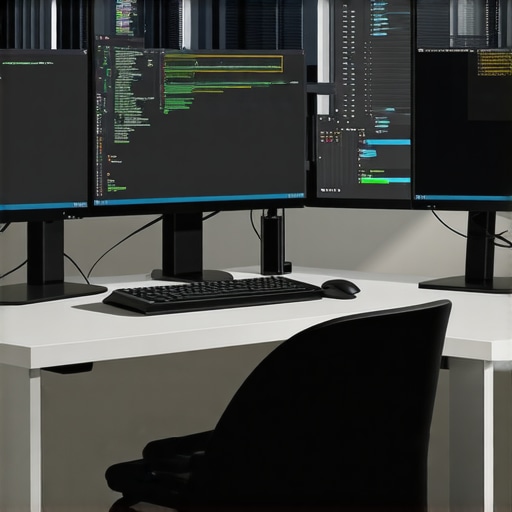
Have you ever sat in front of your computer, frustrated by the constant toggling between tabs, windows, and applications? I remember those days vividly, feeling like I was fighting my own workspace just to get a simple task done. One lightbulb moment changed everything for me: setting up a dual monitor configuration that actually works, not just looks good. Suddenly, my workflow became smoother, my focus sharper, and my productivity skyrocket. If you’ve felt the same pain, you’re in the right place.
Why a Dual Monitor Setup Can Transform Your Workday
Many professionals underestimate the power of having two screens. It’s not just about having more space; it’s about how that space can be optimized to enhance your efficiency. When I first experimented with dual monitors, I made the mistake of choosing mismatched screens, which caused eye strain and disrupted my workflow. That’s a common pitfall, but it’s easily avoidable. Today, I’ll guide you through the essentials to build a setup that’s tailored to your needs, whether you’re coding, designing, or managing multiple projects.
Is Investing in a Dual Monitor Setup Actually Worth the Hype?
Great question! I was skeptical at first—spending extra money on monitors seemed unnecessary. But studies show that dual monitors can boost productivity by up to 42%. That’s not just a number; it’s a game-changer. Early on, I attempted to squeeze everything onto a single screen, which led to constant scrolling and switching. The mistake I made? Not prioritizing screen quality or ergonomic placement. Once I corrected that, my work became notably more efficient. If you want to learn how to avoid my rookie errors and set up a workspace that truly works, keep reading. For more tailored advice, check out our guide to dual monitor setups.
Now, let’s dive into the practical steps to create your ideal workspace and get the most out of your dual monitor investment.
Position Your Monitors Strategically
Start by placing your primary monitor directly in front of you at eye level. Think of it like the cockpit of an airplane—everything you need should be within your line of sight. My first attempt was to position two monitors randomly on my desk, which led to neck strain and constant head-turning. I fixed this by aligning the monitors side-by-side, with the secondary slightly angled towards me. This simple tweak made my workflow smoother and reduced fatigue.
Match Resolution and Size for Comfort
Choose monitors with similar resolutions and sizes to create a seamless visual flow. Mismatched screens are like mismatched puzzle pieces; they distract and slow you down. When I upgraded to two 27-inch 4K monitors, my eyes appreciated the consistent sharpness and scale. For coding, a crisp display reduces eye strain, especially during long sessions. For creative tasks, color accuracy becomes crucial. For that, check out our guide to color-accurate monitors.
Optimize Your Connection
Use high-quality cables—HDMI 2.0 or DisplayPort 1.4—to ensure stable, high-resolution signals. I once used a cheap HDMI cable, and my monitors kept flickering during intense coding marathons. After switching to a premium cable, everything stabilized. Also, ensure your graphics card supports dual 4K outputs if you’re aiming for top-tier clarity. Upgrading your GPU might be necessary; check our guide to selecting the right GPU.
Configure Display Settings for Efficiency
Set your primary monitor as the main display and extend your desktop. Windows users should right-click on the desktop, select Display Settings, and choose ‘Extend desktop.’ I once accidentally duplicated my screens, which limited my workspace. Extending instead of duplicating gave me more room for coding, reference materials, and debugging tools. Adjust scaling so that text and icons are comfortably readable, especially on high-DPI screens. For more tailored advice, explore our dual monitor optimization guide.
Use Productivity-Boosting Tools
Leverage software features like Windows Snap or macOS Split View to organize windows efficiently. During a particularly hectic project, I used Snap Assist to quickly arrange my code editor, browser, and documentation side-by-side. It felt like having a virtual desktop organizer—no more overlapping windows or endless clicking. Additionally, consider specialized tools like DisplayFusion or AquaSnap for further customization. These tools help manage multiple monitors as if they’re a single cohesive workspace, boosting your coding flow and reducing unnecessary distractions.
Implement Ergonomic Practices
Adjust monitor height and tilt to promote good posture. Use monitor stands or arms—think of them as the ergonomic furniture of your digital workspace. I initially left my monitors flat on the desk, which caused neck pain. Mounting them on adjustable arms allowed me to set the perfect eye level, making long coding sessions more comfortable. Remember, comfort directly correlates with sustained productivity. For ergonomic tips specific to office setups, visit our office monitor guide.
Maintain and Fine-tune Your Setup
Regularly clean your monitors and check connections. Over time, dust and dirt can diminish screen clarity. I once ignored my setup for months, resulting in fuzzy images and increased eye fatigue. A quick wipe-down and cable check restored clarity and improved my focus. Also, keep your drivers up to date to ensure compatibility and performance. For ongoing support, don’t hesitate to contact us via contact page.
Many enthusiasts jump into creating a dual monitor setup with enthusiasm, but often overlook some critical nuances that can undermine their productivity gains. As an expert in workspace ergonomics and display technology, I’ve seen countless users fall into traps that could have been easily avoided with a bit of deeper understanding. Let’s dig into what most people get wrong and how to sidestep these pitfalls to truly optimize your multi-monitor experience.
Myth: Bigger Monitors Always Mean Better Productivity
While larger screens can seem appealing, size alone doesn’t guarantee efficiency. In fact, choosing monitors with too high a resolution or oversized displays without considering your desk space and viewing distance can lead to eye strain and discomfort. For example, a 32-inch 4K monitor might seem ideal, but if you sit too close, tiny text becomes harder to read, defeating the purpose. Instead, prioritize resolution and pixel density to ensure clarity and comfort, especially during long hours. For detailed guidance, check out our guide to 4K monitors.
Common Mistake: Ignoring Color Accuracy for Creative Tasks
Many users assume that dual monitors are primarily for multitasking and overlook the importance of color accuracy, especially for creative professionals. Using mismatched or low-quality displays can result in inconsistent color reproduction, which hampers work that requires precision, such as photo editing or graphic design. Investing in color-accurate monitors, like those recommended in our color calibration guide, ensures your work looks consistent across both screens, saving time and reducing frustration. Remember, even the most advanced hardware fails if you neglect calibration.
Advanced Question: How Do You Sync Different Monitor Models for Seamless Workflow?
This is a common concern among power users who want to mix and match monitors for specific purposes. The key lies in matching not just resolution and size but also refresh rates and panel technology where possible. For example, pairing a 144Hz gaming monitor with a 60Hz office display can cause synchronization issues that affect user experience. To mitigate this, use software tools like DisplayFusion to synchronize window management and ensure consistency in color profiles. Additionally, check whether your graphics card supports the combination of different monitors at their native resolutions. For detailed setup tips, review our dual monitor setup guide.
Remember, successful dual monitor setups require more than just plugging in screens; understanding these nuances makes all the difference. Have you ever fallen into this trap? Let me know in the comments, and stay tuned for more expert insights to elevate your workspace.
Once you’ve invested time and effort into creating a perfect dual monitor workspace, the next step is ensuring it continues to perform flawlessly over time. Regular maintenance, smart tool choices, and strategic upgrades can help you keep your setup running smoothly, allowing you to focus on your work rather than troubleshooting hardware or software issues. In this article, I’ll share the specific tools and methods I personally rely on to keep my dual monitor system in top shape and how you can implement these tips to sustain your productivity gains.
Invest in Quality Cables and Connectors
Starting with the basics, I always recommend using high-quality HDMI 2.0 or DisplayPort 1.4 cables. Not only do these ensure stable, high-resolution signals, but they also resist wear and tear better over time. I learned this the hard way when cheap cables caused flickering and connection drops during critical work sessions. Replacing them with premium cables from reputable brands like Cable Matters significantly improved stability and longevity. Regularly inspecting your cables for signs of wear, such as fraying or bent connectors, helps prevent unexpected disconnections that can disrupt workflow.
Keep Drivers and Firmware Up to Date
Outdated graphics drivers can cause display issues, reduced performance, or incompatibility with recent updates. I make it a habit to check for driver updates monthly, using the manufacturer’s tools or the GPU control panel. Additionally, some monitors, especially those with advanced features like color calibration or HDR, have firmware updates that improve stability and compatibility. For example, the latest firmware updates for Dell Ultrasharp series include bug fixes that enhance color accuracy and reduce flickering. Regularly visiting the manufacturer’s support site ensures your equipment stays current, sidestepping many potential issues early.
Utilize Monitoring and Cleaning Tools
Dust, fingerprints, and smudges can diminish screen clarity and contribute to overheating, which affects performance. I use a microfiber cloth and screen-cleaning solution designed for electronics to keep my monitors spotless. For more comprehensive maintenance, I rely on tools like CCleaner to clear unnecessary system files and update system drivers, optimizing overall performance. Keeping your workspace clean not only preserves hardware but also nurtures a professional environment that encourages sustained productivity. Schedule bi-weekly cleaning routines to prevent buildup and keep your workspace inviting.
Optimize Display Settings and Calibration
Periodically recalibrating your monitors ensures color accuracy and consistent display quality. I use calibration hardware like the X-Rite i1Display Pro, paired with calibration software, to fine-tune my displays. This practice is vital for creative professionals but benefits anyone who values clarity and comfort. Proper calibration reduces eye strain during long hours and maintains visual consistency across screens. Revisiting your display settings after hardware updates or environmental changes can prevent subtle issues from creeping in over time.
Predicting Future Trends and Upgrades
Looking ahead, I believe the trend will lean toward AI-powered calibration tools and smarter cable management systems. As monitor technology advances, integrating IoT features may allow remote diagnostics and predictive maintenance, reducing downtime. Staying current with these innovations means investing in adaptable hardware and software solutions that grow with your needs. Regularly reviewing your setup against new products and technologies ensures your workspace remains efficient and future-proof.
How do I maintain my dual monitor setup over time?
My key approach involves routine hardware inspections, updating drivers and firmware, and maintaining a clean, calibrated display environment. Using quality cables and leveraging tools like CCleaner and calibration hardware helps prevent issues before they start. By scheduling regular maintenance and staying informed about the latest tech, you ensure your workspace remains a reliable hub of productivity. Try setting up a bi-weekly maintenance ritual, including cable checks and screen cleaning, to prolong the life and performance of your monitors. For tailored guidance, visit our contact page.
The Hardest Lesson I Learned About Dual Monitors
Initially, I underestimated the importance of matching monitor specifications. I bought mismatched screens that caused inconsistent color and resolution, which hampered my workflow and caused unnecessary frustration. It taught me that investing in similar resolution and size is crucial for a seamless experience. Now, I always prioritize matching displays to avoid visual disruptions that distract from work.
3 Myths About Dual Monitors That Held Me Back
One common misconception was thinking bigger monitors automatically mean better productivity. I found that size without considering resolution and ergonomic placement can lead to eye strain and fatigue. Also, I believed that expensive monitors are always the best choice, but proper calibration and ergonomic setup matter more. Debunking these myths helped me focus on quality and comfort rather than just screen size.
What Experts Won’t Tell You About Maintaining Your Setup
Most overlook the significance of regular calibration and cable management. I learned that dust and poor calibration can subtly diminish display clarity and cause eye fatigue over time. Using tools like calibration hardware and high-quality cables, combined with routine cleaning, keeps my setup performing at its best. These small steps prevent bigger issues and sustain productivity for the long haul.
My Essential Toolkit for Dual Monitors
For reliable performance, I trust high-quality cables like Cable Matters HDMI 2.0 and DisplayPort 1.4. They ensure stable, high-resolution signals. My go-to software includes DisplayFusion for window management and CCleaner for system cleaning. These tools help me customize my workspace and keep everything running smoothly, making my dual monitor setup truly efficient.
Where to Go from Here—Your Next Step
Creating an optimized dual monitor workspace is an ongoing journey. Regular maintenance, smart tool use, and staying informed about new technology will keep your setup top-tier. Remember, the key is consistency and attention to detail. Your workspace can become a powerful tool for your productivity and comfort—so start implementing these lessons today and watch your workflow transform.
Your Turn to Try
Have you ever struggled with matching monitor resolutions or cable issues? Share your experiences below and let’s learn from each other’s workspace wins and lessons. If you’re ready to upgrade, check out our guide to dual monitor setups for expert tips and product recommendations.