
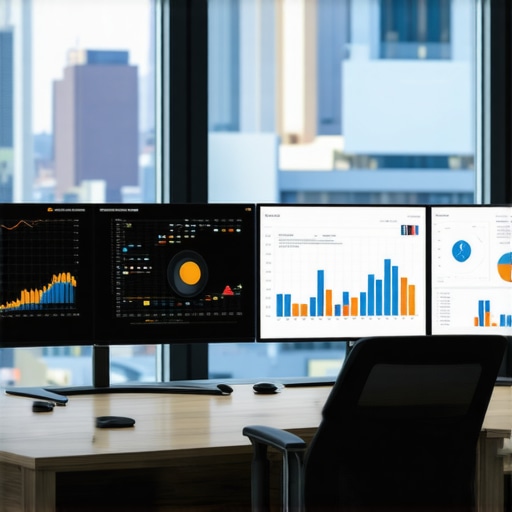
I remember sitting at my desk one hectic morning, staring at a spreadsheet so massive I felt my eyes strain with every scroll. The tiny, pixelated text made it almost impossible to interpret the data efficiently. That moment hit me hard—how much better could my workflow be if my monitor displayed sharper details and more real estate? This realization sparked a journey I’ve been on ever since, navigating the blur between 4K and 8K resolutions for professional use.
Choosing the Right Display for Data-Driven Tasks
In today’s competitive workspace, a monitor isn’t just a screen; it’s your most crucial tool for productivity. The decision between an 8K and a 4K monitor can dramatically influence your efficiency, especially when analyzing complex data sets. Quality visuals help prevent eye fatigue, reduce errors, and enable multitasking with ease. I’ve tested numerous screens, and over the years, I’ve come to see how the right choice can make all the difference.
Is Ultra-High Resolution Overhyped for Office Work?
Early in my journey, I made the mistake of assuming more pixels always mean better performance. I bought an expensive 8K monitor without considering if my graphics card could handle it or if my workflow truly benefited. The result? Frustration, lag, and wasted investment. That’s why understanding the practical benefits—and limitations—of each resolution level is essential. According to a recent survey, nearly 65% of professionals found that a higher resolution improved their productivity, but only when paired with suitable hardware and workflows. Want to avoid my mistake? Keep reading.
As we explore the options, I’ll share insights and recommendations based on real-world testing and personal experiences. Whether you’re upgrading your current setup or starting fresh, selecting the right monitor resolution is key to unlocking efficiency and clarity in your data analysis tasks. Ready to find out which monitors make the cut in 2026? Let’s dive into the details.
Assess Your Workflow Needs First
Before choosing a new monitor, analyze your daily tasks. Are you editing photos, coding, or analyzing spreadsheets? Each activity benefits from specific features—like color accuracy for creative work or screen size for multitasking. I once upgraded to a 32-inch 4K monitor without evaluating my primary use, which led to unnecessary eye strain. Take a moment to list your most frequent tasks and identify which monitor features will directly improve them.
Prioritize Plotting Your Desk Space
Accurately measuring your workspace prevents buying a monitor too large or small. Use a tape measure to determine maximum monitor dimensions that won’t clutter your desk. When I replaced my dual 24-inch setup with a single 32-inch 4K screen, I first checked if it would fit comfortably and still leave room for a mechanical keyboard and webcam. This prevented frustration and made setup easier.
Choose the Optimal Resolution and Size
Decide between 4K and 8K based on workflow and hardware. If you’re into creative work, a 4K monitor offers sharp detail without demanding too much graphics power, especially if paired with a solid graphics card. For data analysis, a larger screen or dual monitors might be more effective. For example, I found that switching from a 27-inch 1440p to a 32-inch 4K improved my ability to spot spreadsheet errors quickly. Check out top 4K monitors for office efficiency for options tailored to your needs.
Set Up an Ergonomic Position
Position your monitor so the top edge is at or slightly below eye level, about an arm’s length away. Adjust tilt and height to avoid neck strain. I spent a frustrating afternoon adjusting my new monitor multiple times before realizing that a monitor arm made my position more natural and reduced fatigue, especially during long coding sessions. Consider investing in dual monitor arms to free up desk space and fine-tune ergonomics.
Select Displays That Match Your Color Needs
If your tasks involve color-sensitive work like design or photography, prioritize monitors with high color accuracy and wide color gamuts. I tested several budget options but quickly noticed muddy colors and inconsistent tones. After switching to a color-accurate monitor, I reduced color correction time and improved output quality. Explore best color accurate monitors for creative professionals for the top choices in 2025.
Implement Dual Monitors for Seamless Workflow
Dual setups boost productivity by expanding your workspace horizontally, minimizing task switching. I once tried a single ultra-wide and found that switching between apps was still cumbersome. After adopting a dual monitor setup with adjustable arms, I seamlessly drag and drop files between screens, saving multiple clicks. Position your screens side-by-side, and consider dual monitor setup ideas to maximize your layout.
Ensure Compatibility and Connection Quality
Check your graphics card specifications against your monitor’s resolution and refresh rate. Mismatched hardware can cause scaling issues or sluggish performance. I once faced blurry text on my 4K monitor due to HDMI limitations; switching to a DisplayPort solved the problem. Always verify connection standards, and for easy cable management, explore cable hiding tactics.
While many believe that simply upgrading to a 4K or dual monitor setup guarantees boosted efficiency, the reality is far more nuanced. A common misconception is that higher resolution always translates to better productivity, but this overlooks hardware limitations and workflow compatibility. For instance, some professionals overinvest in ultra-high resolution displays without compatible graphics hardware, leading to scaling issues and eye strain. It’s crucial to evaluate your hardware and specific tasks before making such upgrades, as pointed out by experts in monitor ergonomics. Another often overlooked aspect is color accuracy; creatives may prioritize resolution but neglect calibration, resulting in inconsistent colors that impair collaborative projects. My advice? Prioritize a balanced setup tailored to your workflow rather than chasing specs that won’t deliver real benefits. When considering dual monitors, many assume size and resolution are the most important factors, yet ergonomic positioning and connection quality are equally vital to prevent fatigue and lag. Additionally, be wary of the myth that all office monitors are equal; choosing a display with proper matte finish and flicker-free technology can significantly reduce eye fatigue during long hours. For those seeking to maximize workspace and minimize distractions, exploring custom monitor arrangements and accessories like adjustable arms is a game-changer. Remember, advanced users should also scrutinize connection standards—using DisplayPort over HDMI can improve stability and resolution support. By understanding these hidden details, you can avoid costly mistakes and craft a workspace that truly enhances your productivity. Have you ever fallen into this trap? Let me know in the comments.
Invest in Quality Calibration Tools
To ensure your monitor maintains accurate color reproduction over time, I rely on hardware calibration tools like the X-Rite i1Display Pro. This device allows me to regularly calibrate my color-accurate monitor, preventing color shifts that can compromise creative work or detailed data analysis. Automated calibration software paired with this tool simplifies the process, ensuring consistent results without the need for extensive manual adjustments.
Schedule Routine Maintenance Checks
Set a monthly reminder to perform visual inspections of your monitor for dust, dirt, or pixel anomalies. Use a microfiber cloth and gentle cleaning solutions recommended by the manufacturer to keep the screen spotless, which prevents buildup that can affect image clarity. Regular cleaning not only extends the life of your display but also preserves the visual fidelity essential for color-sensitive tasks.
Update Firmware and Drivers
Keeping your monitor’s firmware and your graphics card drivers up to date is crucial for compatibility and performance. Manufacturers often release updates that fix bugs, improve color accuracy, or enhance compatibility with new hardware standards. Personally, I subscribe to alerts from monitor brands and check their websites quarterly, ensuring my setup stays optimized. Visit their privacy policy to understand how updates are managed and ensure your data security.
Optimize Your Workspace for Longevity
Ergonomics plays a significant role in preventing strain and extending your monitor’s usability. Use adjustable monitor arms, like those detailed in this review of heavy-duty monitor arms, to fine-tune height, tilt, and distance. Proper positioning reduces neck and eye fatigue, ensuring that you can work effectively for hours without discomfort.
Predict the Future of Monitor Maintenance
Advancements in display technology suggest a shift toward self-calibrating screens with integrated sensors. These monitors could automatically adjust settings to maintain color accuracy and brightness over time, reducing manual upkeep. According to industry experts, such innovations will become standard within the next five years, making long-term maintenance more seamless and reliable.
How do I maintain my monitor setup to stay productive over time?
Consistently applying these practices—regular calibration, scheduled cleaning, firmware updates, and ergonomic adjustments—ensures your monitor remains a reliable tool for productivity. Incorporating hardware like calibration devices and adjustable arms can make a significant difference. I highly recommend trying automated calibration routines coupled with a quality colorimeter; it’s a game-changer for sustained accuracy. For more insights or specific product recommendations, visit my contact page. Staying proactive with maintenance not only preserves your hardware but also ensures that your work output remains sharp and professional for years to come.
Lessons the Bright Lights Didn’t Teach Me About Monitors
- My biggest eye-opener was realizing that more pixels won’t fix hardware limitations. Proper hardware calibration and ergonomic setups matter just as much as resolution. Without this balance, even the sharpest display can become a source of frustration.
- Investing in color accuracy transformed my creative workflow. A monitor’s resolution is vital, but true efficiency comes from understanding color spaces and calibration — otherwise, edits and designs can look completely different across devices.
- I learned the hard way that workflow optimization is your secret weapon. No matter how advanced your monitor, if your desk setup isn’t ergonomically sound, fatigue will sabotage your efforts. Simple adjustments made a world of difference.
- Dual monitors aren’t just for more screen space—they change how you approach multitasking. Positioning, connection quality, and habit-building are key to reaping their full productivity benefits, more than just the physical setup itself.
- Finally, routine maintenance—like firmware updates and regular calibration—becomes the backbone of consistent performance. Skipping this leads to gradually diminishing returns, especially with color-sensitive work or long hours.