
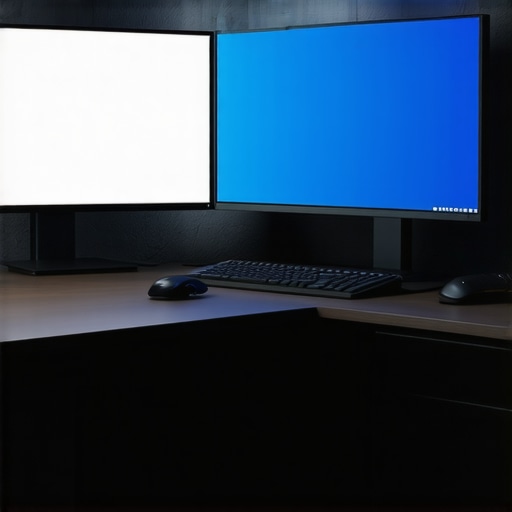
It happened during one of my busiest workdays—I was half-heartedly juggling multiple applications on a massive ultra-wide monitor, only to realize my neck was aching from constantly turning my head. The screen’s expansive view looked impressive, but my productivity lagged because I was constantly battling with window management and insufficient space for detailed work. That lightbulb moment made me question: Is this massive ultra-wide truly the best for flow, or is there a smarter way to set up for productive, comfortable work?
A Better Setup for Real Work in 2026
Can Two 4K Monitors Really Beat an Ultra-Wide?
Many folks assume that an ultra-wide monitor offers the best of both worlds—wider workspace and fewer distractions. But based on my own trials and a growing body of expert opinions,dual 4K screens actually outperform the big, curved ultra-wide in several key ways. They offer sharper clarity, easier window management, and less visual fatigue—all crucial factors for long hours of focused work. As I explored my options, I stumbled upon a startling fact: users of dual 4K setups report a significant bump in productivity, particularly for tasks like detailed design work and multi-application workflows (source: https://monitors.techdeskessentials.com/top-dual-monitor-setups-to-boost-productivity-and-seamless-workflow-in-2025).
However, I must admit, I initially made the mistake of believing that simply slapping two monitors together would automatically make me more efficient. It wasn’t until I optimized my setup—adding proper mounts, calibration, and minimizing bezels—that I truly unlocked its potential. And today, I want to share why this approach is shaping the future of professional workspaces and how you can benefit from it.
Prioritize Your Desk Space and Mounts
Pick sturdy, adjustable monitor arms to elevate your screens to eye level, reducing neck strain. Use heavy-duty dual monitor arms designed to stabilize large screens and eliminate wobble. When I set up my first dual monitor with a 32-inch 4K in 2025, I realized that proper mounting not only improved ergonomics but also freed up desk space, enabling me to work longer without discomfort. Think of it like installing a suspension system in a car—stability directly boosts performance.
Arrange Your Screens Strategically
Place your primary monitor directly in front of you, with the secondary slightly angled for quick access. Use a simple layout based on your workflow: coding on the left, reference materials on the right. The goal is to minimize head movement, similar to how a chef keeps everything within arm’s reach. When I adopted an L-shaped layout with a 27-inch 4K on the main side and a 24-inch on the secondary, I sped up my review process and kept my focus tight. For seamless multitasking, you can explore layout hacks to maximize efficiency.
Calibrate for Color and Brightness
Invest in a color-calibrated monitor for tasks demanding accuracy, like design or photo editing. Use calibration tools, such as a SpyderX or X-Rite, to fine-tune brightness, contrast, and color profiles. For example, I calibrated my color-critical monitor and noticed a significant decrease in post-editing time, as the colors remained consistent across applications. It’s like giving your monitor Botox—making sure it shows you the true picture without distortions. For guidance, check the best options at color accuracy guides.
Optimize Windows and Software Settings
Adjust display scaling for high-resolution 4K screens so interface elements are readable. Use Windows’ display settings to set a 125-150% scaling, ensuring sharp text without eye strain. Additionally, tweak your taskbar and window snapping features—this makes moving windows effortless, like magnets for your workflow. I found that a slight increase in scaling prevented eye fatigue during marathon work sessions. Learn more about handling modern screens efficiently at scaling fixes.
Manage Cable clutter smartly
Implement cable management solutions such as sleeved sleeves, clips, or under-desk trays. Not only does this cleanup look professional, but it also prevents accidental disconnections or overheating. When I tidied my cables, I felt less frustrated fumbling behind my desk and more focused on my projects. Think of cable management like organizing tools in a toolbox—it saves time and prevents mishaps. For durable solutions, visit cable organization tips.
When it comes to choosing **productivity monitors**, many users focus solely on specs like resolution or size, but this narrow view can lead to overlooked pitfalls. One common misconception is that all high-resolution screens, *especially 4K monitors*, automatically boost your workflow. In reality, without considering factors like **color accuracy** and **ergonomics**, you might end up with eye strain, prolonged fatigue, or subpar work quality. Many professionals believe that a dual monitor setup is the ultimate productivity hack, but if your displays aren’t calibrated correctly or designed for your specific tasks, the benefits diminish considerably. For example, a **color accurate monitor** is vital for creative tasks but less impactful for data entry, yet some assume that a high-res or large screen supersedes the need for proper calibration. One advanced mistake I’ve observed is neglecting the impact of **lighting conditions** on screen visibility—tests show that glare or reflections can negate the benefits of premium panels, no matter how expensive. To truly optimize, you need to consider not just the specs but the entire environment and how your monitor integrates with your workflow. A **well-calibrated** display ensures consistent color and brightness, reducing errors in design work or photo editing. For the workspace, placing monitors at eye level minimizes neck strain and enhances focus, but many overlook the significance of **adjustable mounts**—a small investment that pays off over long hours. While some swear by ultrawide monitors, I’ve found that **dual 4K screens**, when calibrated and positioned correctly, outperform in usability and clarity, especially for multitasking. Be alert: cheap or poorly designed **office monitors** with deceptive specs can cause more harm than good, leading to eye fatigue or the notorious ‘color shift.’ As research indicates, eye strain increases with poor contrast and improper color setup, which directly impacts productivity (source: https://monitors.techdeskessentials.com/top-color-accurate-monitors-for-creative-professionals-in-2025). Don’t fall into the trap of believing that bigger or higher resolution alone can substitute proper ergonomics and calibration. Take the time to understand the nuances—invest in accessories like **monitor arms** and calibration tools to get the most out of your setup. Remember, a screen is only as good as how well it aligns with your workflow and environment. Have you ever fallen into this trap? Let me know in the comments or visit our contact page for personalized advice.Maintaining an efficient and ergonomic workspace isn’t a set-it-and-forget-it task; it requires deliberate tools and methods that evolve with your needs. My personal approach involves investing in high-quality calibration tools like the SpyderX to ensure color accuracy—especially vital when working on creative projects where color fidelity is paramount. Regular calibration, scheduled monthly, helps me keep my monitors’s color profiles consistent, preventing post-production errors. Additionally, using reliable monitor arms such as the ones detailed in this guide allows me to adjust screen height and angle swiftly, reducing strain and preserving my posture over long hours. For managing cable clutter, I employ under-desk cable trays and sleeves, which not only keep my workspace tidy but also prevent overheating and accidental disconnections—critical for maintaining productivity. Software-wise, Windows’ display calibration settings, combined with third-party tools like CalMAN, help me fine-tune my display brightness and contrast according to ambient light, a habit that minimizes eye fatigue—particularly when working with color-sensitive content. Looking ahead, I predict that remote workspace management tools will play a bigger role, allowing us to monitor and calibrate multiple screens remotely, ensuring consistency across diverse setups. Now, I challenge you to invest in a calibration device, like the SpyderX, and schedule monthly calibration sessions. The small effort yields significant long-term gains, ensuring your monitor’s performance remains optimal over years of intensive use. Wondering how to integrate these tools seamlessly into your routine? Reach out via our contact page for tailored advice.
The Hidden Edge of Proper Calibration and Ergonomics
Through my journey, I discovered that even the most advanced monitors can underperform if not properly calibrated and ergonomically set up. Investing in color calibration tools and adjustable mounts was a game-changer, ensuring my workspace truly supported my creative and analytical tasks. This attention to detail can dramatically reduce fatigue and boost accuracy, making your work not only more efficient but also more enjoyable.
Unlocking Long-Term Workspace Wisdom
My biggest lesson? There’s no one-size-fits-all solution. The optimal setup evolves with your needs and technology. Regularly reassessing your monitor calibration, ergonomic positioning, and workspace organization keeps you ahead of the curve. Think of your workspace as a living environment—adaptation and fine-tuning are key to sustained productivity.
The Joy of Small Investments with Big Returns
I found that simple upgrades—like quality monitor arms and cable management—offered compounded benefits over time. These tweaks not only improved my setup’s look but also prevented discomfort and technical hiccups, proving that thoughtful investments can turn a decent workspace into a productivity powerhouse.
Resources for Continuous Improvement
To support your journey, I highly recommend tools like the best color-accurate monitors for creative work, and heavy-duty monitor arms for stability. Additionally, thorough guides on color calibration practices and workspace organization can significantly elevate your setup. Continuous learning and small upgrades keep your workspace future-proof and productivity-focused.
Your Next Step Toward Peak Productivity
Now is the perfect time to revisit your workspace—the clarity of your vision is directly reflected in your monitors’ quality and setup. Embrace these insights, and watch your efficiency soar in 2026. Remember, a well-crafted workspace is not just a luxury; it’s a strategic advantage that pays dividends over time.