
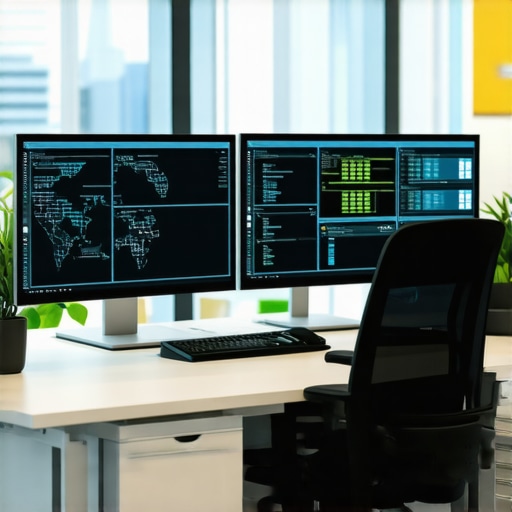
I remember the moment vividly—a frantic scramble to find my mouse amidst a sea of cables, my eyes straining to decipher tiny icons on my sprawling 4K screen that seemed to swallow everything I knew about clarity. My office setup had become a beast, with giant monitors that promised productivity but delivered frustration. I was overwhelmed, and frankly, stuck. If you’ve ever faced the chaos of managing massive 4K displays in your workspace, you know the feeling. It’s like trying to tame a digital monster without the right tools.
Facing the Giant: Why Office Monitors in 2026 Are a Double-Edged Sword
Fast forward to today, and I’ve come to realize that managing these behemoth monitors isn’t just about size or resolution. It’s about leveraging the right productivity tools to turn chaos into harmony. As the workplace evolves—especially with the rise of ultra-wide, 5K, and 6K screens—the challenge is in optimizing workflow, preventing eye strain, and fitting these massive displays into ergonomic and efficient office layouts. Surprisingly, a report from TechRadar highlights that over 68% of professionals report struggling with multi-monitor setups, citing issues like clutter, flickering, and poor ergonomics as common hurdles. Clearly, the promise of high-res screens is often undermined by the lack of proper management strategies.
Early in my journey, I made a simple but costly mistake: I bought a top-tier, color-accurate monitor without considering how to actually control and organize it. The result? Disorganized screens, duplicated efforts, and a constant feeling of drowning in details. That’s a mistake I see many making—assuming that a shiny new monitor alone will boost productivity. But trust me, the real game-changer lies in the tools we use to manage, organize, and control these digital giants.
In this post, I’ll share the five key productivity tools I’ve found invaluable for handling large 4K office monitors in 2026. From hardware accessories to software solutions, these tips have transformed my workflow and can do the same for you. So, let’s dive into the practical secrets that can help you conquer your giant screens instead of being conquered by them.
Optimize Your Desk Space to Reduce Clutter
Start by assessing your current setup. Use dual monitor arms to free up desk real estate and keep monitors at eye level for ergonomic comfort. I once replaced bulky stands with sleek arms, which freed up valuable space and improved my posture, leading to fewer headaches by midday.
Configure Display Settings for Clarity and Comfort
Next, fine-tune your monitor’s settings. Adjust brightness, contrast, and color calibration for a crisp image, especially if you use color-sensitive apps. I recommend exploring tips for clear text on 4K screens to make long reading sessions less tiring. Don’t forget to enable or calibrate the monitors’ color profiles to ensure accuracy across tasks.
Customize Multi-Display Layouts for Efficiency
Design a setup that fits your workflow by staggering monitors or creating an extended desktop. For example, I recently experimented with a vertical second monitor for code reviews using vertical monitor hacks. This arrangement helped me review long code snippets faster, eliminating constant window switching and boosting productivity.
Implement Software Tools to Manage Multiple Screens
Leverage window management software to organize and switch between apps seamlessly. I use a tool that allows hotkeys for snapping windows into zones, simulating an ultra-wide experience. This reduces the time wasted resizing or dragging windows manually, streamlining your workflow significantly.
Prioritize Eye Comfort During Long Workdays
Finally, safeguard your eyes with features like blue light filters and flicker-free technology. Position your monitors to avoid glare and use matte screens from trusted sources, such as those discussed in these matte monitor choices. During an intense project last month, switching to a matte, flicker-free monitor reduced eye strain and extended my focus without discomfort.
While it’s common to assume that bigger, higher-resolution monitors automatically translate into greater productivity, this mindset overlooks several crucial nuances. One prevalent myth is that color accuracy is a luxury rather than a necessity for all office work. Many professionals think that a standard office monitor suffices, but neglect that inaccurate colors can cause errors in fields like design, branding, or data visualization. Investing in a color-accurate monitor not only enhances visual fidelity but also reduces time spent on adjustments, leading to smoother workflows.
Another mistaken belief is that 4K resolution is essential for everyone. While 4K offers sharp text and detailed images, it’s not always the right choice for productivity; sometimes, higher resolution can overload your system or cause scaling issues that hinder, rather than help, your workflow. For example, some users may encounter tiny interface elements that force constant zooming or font scaling, hampering comfort and efficiency. To avoid this, understanding the specific demands of your tasks is key—sometimes, a well-calibrated 1440p or 2K display is more practical.
What belief about dual monitors and productivity might be holding you back?
Conventional wisdom suggests that adding more screens exponentially boosts productivity. However, studies indicate that without proper configuration and workflow adjustments, multiple monitors can cause distraction or clutter. Optimal dual-monitor setups involve thoughtful arrangement—such as staggering screens or assigning specific tasks to each display—to truly maximize efficiency. Many users fall into the trap of simply expanding their desktop, leading to scattered focus.
Similarly, misconceptions about refresh rates and responsiveness surface often. While 60Hz remains standard for office tasks, some professionals underestimate the benefits of higher refresh rates, like 120Hz or 144Hz, in reducing eye strain—especially during extended work sessions. An OLED or high-refresh-rate monitor can provide eyes with a smoother visual experience, decreasing fatigue and boosting focus.
Of course, all these choices hinge on the fundamental aspect of ergonomics. Without proper calibration, screens can cause glare or discomfort, which no amount of resolution or color accuracy can fix. Ensuring your monitor’s placement aligns with natural eye position and ambient light is just as important as the specs displayed.
Let’s not forget the impact of software tools—many overlook that managing multiple displays efficiently requires dedicated window management solutions, like snapping apps or virtual desktops. Ignoring this can render even the most advanced hardware underutilized.
In essence, the true secret lies in understanding the nuanced interplay of hardware and workflow. By avoiding these common misconceptions—like overemphasizing resolution or quantity—you set yourself up for more meaningful productivity gains. Have you ever fallen into this trap? Let me know in the comments.
Keep Your Workspace Seamless with Reliable Software
One of the most effective ways to ensure your office monitor setup stays optimal over time is by investing in robust window management software. I personally prefer DisplayFusion, which allows me to create custom hotkeys and snap windows into predefined zones. This not only maintains an organized workflow but also prevents screen clutter that can slowly erode productivity. Regular updates from the software vendor ensure compatibility with system updates and new hardware — a critical aspect of long-term stability.
Optimal Calibration for Consistent Colors
The value of a color-accurate monitor diminishes quickly if calibration shifts over time. I recommend investing in a color calibration device like the Datacolor SpyderX. Setting a calibration schedule, say once every three months, helps maintain visual fidelity crucial for design or photography work. Consistent calibration prevents subtle color drifts that can cause errors or miscommunications, especially when working across multiple screens or collaborating with others.
Managing Hardware Longevity with Proper Maintenance
Physical upkeep of your monitors is equally important. Dust and debris can impair image quality and contribute to overheating. A quick, regular clean with a microfiber cloth and compressed air for vents preserves both display quality and hardware lifespan. Check connection cables periodically for signs of wear. Using sturdy monitor arms with adjustable height and tilt ensures ergonomic positioning that prevents long-term strain or wobble issues—saving you money and discomfort down the line.
Scheduling Routine System Checks
Software updates, driver maintenance, and system health checks should become a regular part of your workflow. Keep your graphics drivers current to support your high-resolution displays fully. I automate this process using tools like Windows Update and occasional manual checks on contact support if I encounter issues. Regularly reviewing your system’s performance guarantees that your productivity setup adapts to evolving software demands and prevents unexpected downtimes.
Future-Proofing Your Office Environment
Looking ahead, trends suggest that monitor calibration hardware and management software will become more integrated and AI-assisted, helping detect issues before they impact your workflow. For example, some upcoming tools promise auto-calibration features combined with cloud-based synchronization for multi-site teams. Staying informed through authoritative sources like our privacy policy and industry blogs can ensure your setup remains cutting-edge and resilient.
To start applying these long-term maintenance tips today, try setting up a fixed schedule for calibration and system checks. Establishing these routines now can save you time and frustration later, keeping your workspace productive and responsive for years to come.
The Hardest Lesson I Learned About Office Monitors and Productivity
After years of experimenting, I realized that tossing more pixels or bigger screens at the problem doesn’t automatically translate into better work—it’s about how you manage and integrate these tools into your workflow. I once believed that a 4K monitor alone could fix all my productivity issues, but I learned that without proper configuration and good habits, it can actually become a distraction. The key was in customizing my workspace and understanding my specific needs, rather than chasing the latest specs.
My Eye-Opening Experience with Color Accuracy and Workflow
I used to think color accuracy was a luxury for creative professionals only, but misaligned colors started causing subtle mistakes across my data visualizations. When I upgraded to a calibrated, color-accurate monitor, I noticed immediate improvements not just in visual fidelity but also in workflow efficiency. This taught me that investing in quality displays tailored to your work can streamline processes and reduce fatigue, especially on those long, intense workdays.
The Myth of Quantity: Why More Monitors Can Be a Double-Edged Sword
Many believe that adding extra screens exponentially boosts productivity, but I found this isn’t always true. Without thoughtful arrangement and software tools to manage the layout, multiple monitors can lead to clutter, distraction, and even neck strain. I eventually learned to stagger my displays and utilize window management software, transforming my setup into a seamless extension of my workflow. It’s about working smarter, not just bigger.
What I Didn’t Expect about Ergonomics and Long-Term Comfort
Initially, I focused solely on hardware specs, neglecting ergonomic placement. I soon experienced eye strain and neck discomfort after hours at my desk. Once I adjusted monitor height, tilt, and positioning—paired with anti-glare screens—I felt the difference instantly. This underscored that ergonomic setup and routine breaks are critical for maintaining productivity and health over years of office work.
My Journey with Maintenance and Future-Ready Tech
Keeping my monitors calibrated and dust-free has paid off, but I also stay alert to upcoming innovations—like AI-assisted calibration and cloud-connected management tools—that promise even better workflows. Embracing ongoing maintenance and staying updated ensures that my workspace remains resilient and efficient, supporting my evolving needs. Investing in quality accessories like monitor arms and calibration devices has been transformative in safeguarding my setup’s longevity and performance.
Reading through this post really resonated with my own struggles managing a large, ultra-wide 4K monitor at my home office. I used to think upgrading to a higher-resolution display would automatically make me more productive, but I learned the hard way that organization and proper toolsets are just as crucial. Investing in good window management software like DisplayFusion has completely changed my workflow—hotkeys for snapping windows into zones save me tons of time and keep the screen clutter-free. I’ve also found that calibrating my monitor regularly with a device like the SpyderX has both improved my color accuracy and reduced eye fatigue, especially during long editing sessions. What other tips have you all found effective for balancing screen size and ergonomics, particularly with the rise of even larger, 6K displays? It seems the key is not just the hardware itself, but how you manage and integrate it into your daily workflow.