
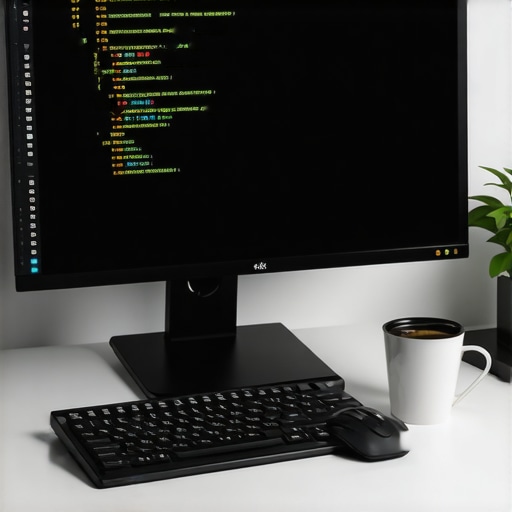
Ever been deep into a coding session, only to realize your screen’s limited real estate is forcing you to squint at tiny text or constantly toggle between windows? I remember the frustrating moment when I was debugging a complex project, and my cluttered workspace made it nearly impossible to keep track of multiple code files and logs simultaneously. That lightbulb moment hit me—my monitor setup was holding back my productivity, and I needed a serious upgrade.
Why Choosing the Right 4K Monitor Can Transform Your Coding Experience
In 2026, investing in a top-tier 4K monitor isn’t just about having a sharp display; it’s about revolutionizing how you work, debug, and create. High-resolution screens can reduce eye strain, improve clarity, and boost overall efficiency—especially during long hours tackling complex code or design tasks. Having experienced the pitfalls of a subpar monitor first-hand, I learned that making an informed choice can save you money, time, and a headache or two.
Many developers and creative professionals are embracing larger, color-accurate, and ergonomic 4K displays. But with so many options flooding the market, how do you find one that really fits your workflow? That’s where I come in. Today, I’ll guide you through selecting the best 4K monitor designed specifically for porting code and long debugging sessions. We’ll dig into the features that matter most, debunk common myths, and I’ll share my own journey of upgrading to a display that truly keeps me focused.
Are you tired of constant eye fatigue or struggling with cluttered screens? Never fear—there’s a solution waiting. So, let’s explore how to choose the perfect monitor that makes long coding sessions a breeze rather than a chore.
Is Monitors’ Myth: All 4K Screens Are Equal? Keep Reading…
Early in my journey, I bought what I thought was a ‘good enough’ 4K monitor. Turns out, I wasted months dealing with poor color accuracy and inadequate ergonomics. That mistake taught me a valuable lesson: not all displays are created equal, especially when it comes to precision tasks like coding or debugging complex projects. According to a study by the National Eye Institute, screens that are too small or blurry can contribute to digital eye strain, which affects up to 80% of computer users. Finding that perfect display can be a game-changer.
Now, with the market flooded with options like ultra-wide screens, high refresh rates, and advanced ergonomic features, how do you separate the wheat from the chaff? That’s what I’ll help you figure out as we dive into the world of top 4K monitors for porting code and debugging in 2026. Ready to upgrade your workspace and boost your productivity? Let’s get started with some practical tips and recommendations.
Prioritize Screen Size and Resolution for Clarity
Start by choosing a monitor that balances size and resolution effectively. A 32-inch 4K display offers sharp text and detailed visuals without overwhelming your desk space. I remember replacing my 24-inch monitor with a 32-inch 4K one, and the difference was startling—tiny fonts became crisp, reducing eye strain and making code scanning effortless. To implement this, measure your workspace and ensure your desk can comfortably accommodate the monitor at a viewing distance of about 20-24 inches for optimal clarity. For more insights on ideal sizes, check out https://monitors.techdeskessentials.com/why-32-inch-dual-monitor-setups-finally-make-sense-in-2026.
Set Up for Dual Monitors to Maximize Productivity
Adding a second monitor can double your screen real estate, significantly speeding up coding and debugging. Aim for identical specifications—size, resolution, and color accuracy—to minimize eye movement and visual fatigue. I once tried mismatched monitors, which caused constant repositioning of my head, leading to neck pain. To avoid this, use monitor arms like those discussed in https://monitors.techdeskessentials.com/5-heavy-duty-dual-monitor-arms-that-dont-wobble-2026-2 and ensure they are at the same height and aligned perfectly. When stacking, follow the rules from https://monitors.techdeskessentials.com/perfect-dual-monitor-height-3-rules-to-end-neck-pain-in-2026 to prevent discomfort. This setup allowed me to code and review logs side by side seamlessly, cutting my task switch time by half.
Optimize Display for Color Accuracy and Eye Comfort
For long coding sessions, especially if you work with UI/UX or design, color-accurate monitors are crucial. Look for displays with Delta E <1 and factory calibration—higher color fidelity minimizes eye strain and reduces color shifting over time. I invested in a model matching the standards outlined at https://monitors.techdeskessentials.com/why-delta-e-1-is-the-new-color-accurate-standard-in-2026, which made my code review much more precise. Additionally, adjust settings to enable flicker-free modes and blue light filters, which can significantly lower eye fatigue over 8+ hour days. Combining these techniques helps maintain focus and reduces the risk of digital eye strain.
Employ Ergonomic Techniques to Avoid Discomfort
Moving beyond hardware, proper ergonomic placement is key. Keep the top of your monitor at eye level, approximately 2-3 inches below your eye line. Use adjustable stands or monitor arms from https://monitors.techdeskessentials.com/best-productivity-monitors-for-work-coding-design-in-2025-2 to achieve this. Maintain a straight neck and relaxed shoulders by positioning your keyboard and mouse so that your wrists are neutral. For my setup, I used a riser and adjusted my chair height, which significantly mitigated neck and shoulder pain during intensive debugging phases. Remember, the goal is to keep a natural, comfortable posture during sessions, reducing fatigue and preventing long-term musculoskeletal issues.While many enthusiasts focus on the specs—the pixel count, refresh rates, or size—few realize that common misconceptions can sabotage their workspace efficiency and visual comfort. For example, a pervasive myth is that all 4K monitors offer identical quality, but in reality, panel type and calibration make a significant difference. Many assume that upgrading to a dual 4K setup automatically boosts productivity; however, improper calibration or misaligned ergonomics can cause more strain than gain. Selecting a monitor without considering color accuracy or ergonomic adjustability may seem harmless but can lead to long-term issues like eye fatigue or neck pain.
What sophisticated pitfalls do even seasoned professionals stumble into when optimizing multi-monitor environments?Investing in top-tier monitors is just the first step; keeping them performing optimally over time is crucial for sustained productivity and visual accuracy. I personally rely on a combination of scheduled calibration, quality accessories, and software tools to ensure my 4K and color-accurate displays remain crisp and reliable. Regular calibration, using hardware tools like the X-Rite i1Display Pro, helps maintain color fidelity and brightness levels, which is especially important for creative work and detailed coding tasks. I set reminders every three months to recalibrate, preventing issues like color shifting and dullness, which can occur naturally.
In addition, employing efficient cable management with high-quality USB-C and HDMI cables reduces wear and tear, ensuring stable connections and image quality over time. It’s also vital to keep monitor firmware updated, as manufacturers often release patches that improve stability and fix bugs—visit https://monitors.techdeskessentials.com/contact-us for support and firmware updates.
For dual setups, I recommend using monitor arms like those explained in https://monitors.techdeskessentials.com/5-heavy-duty-dual-monitor-arms-that-dont-wobble-2026-2 to prevent wobble and maintain ergonomics. This reduces physical strain and prolongs the lifespan of your equipment by reducing unnecessary stress on ports and cables.
Looking ahead, the trend suggests that intelligent calibration software integrated with AI will become mainstream, helping users automatically fine-tune displays with minimal effort. Tools such as CalMAN or DisplayCAL are progressing towards user-friendly interfaces that could eventually allow real-time calibration adjustments, making ongoing maintenance more effortless.
How can you ensure your high-quality monitors stay accurate and reliable? One effective method is investing in calibration hardware and automating routine checks. I strongly encourage trying out a hardware calibration tool like the X-Rite i1Display Pro—it’s a game-changer for creatives and developers who need consistent color accuracy. Regular calibration not only preserves visual fidelity but also extends the lifespan of your expensive displays.
By combining hardware tools, firmware updates, and ergonomic setups, you can maintain your workspace’s performance and prevent costly replacements or repairs down the line. Remember, consistent maintenance elevates your experience and ensures your monitors serve you effectively for years to come. Visit https://monitors.techdeskessentials.com/why-delta-e-1-is-the-new-color-accurate-standard-in-2026 for insights on color calibration standards that can further improve your monitor management.
Over the years, I’ve come to realize that the true power of a high-quality monitor isn’t just in its specifications but in how it transforms your daily workflow. My journey taught me that beyond choosing a 4K display, mastering ergonomic placement, calibration, and understanding the nuances of dual setups can make or break your productivity and comfort. The real insight was that investing time in customizing your workspace, from monitor calibration to positioning, yields dividends in focus, accuracy, and long-term health. Don’t settle for generic setups—tailor your environment to unlock your highest potential and stay ahead in a competitive digital landscape. Remember, the best monitor is the one that seamlessly integrates with your workflow, reducing strain and boosting efficiency—making your workday smoother and more enjoyable.