
![How to Fix Dual Monitor Color Mismatch Once and For All [2026]](https://monitors.techdeskessentials.com/wp-content/uploads/2026/02/How-to-Fix-Dual-Monitor-Color-Mismatch-Once-and-For-All-2026.jpeg)
Ever sat down at your desk, fired up your dual monitors, and felt a wave of frustration wash over you because of those stubborn color mismatches? I remember the first time it happened. Everything looked perfect on my main display, but the second monitor suddenly rendered colors dull, muddy, or just plain off. It was so frustrating that I began questioning whether switching to a single, high-end monitor might be easier—and more efficient. That lightbulb moment led me down a rabbit hole, but I finally cracked the code.
If you’ve ever experienced uneven color output between your dual screens, you know how distracting and inefficient it can be. Even with premium monitors, inconsistent calibration often hampers your workflow, especially for tasks that depend on color accuracy like photo editing, graphic design, or detailed coding. Today, I want to share with you a reliable, step-by-step approach to fix this issue once and for all, so you can enjoy seamless, consistent visuals across your workspace.
Why Your Monitors Just Don’t Match — And How to End the Frustration
Many folks assume that buying identical monitors is the solution, but it’s often not enough. Variations in panel technology, calibration, and even age can create mismatched colors despite matching specifications. Early on, I made the mistake of thinking that simply setting the same brightness and contrast levels on both screens would do the trick. Spoiler alert: it didn’t. It took me discovering proper calibration techniques and understanding the nuances of different panel types to finally achieve harmony. If you’re tired of wasting time adjusting settings without lasting results, you’ll want to keep reading.
Are you tired of the endless tweaking with no lasting fix? Do you worry that fixing color mismatch is too complicated or requires expensive professional tools? Well, I’m here to tell you that with a bit of patience and the right guidance, you can get your dual monitors looking just like a unified display. No more eye strain, no more odd color shifts, and best of all — no more wasted hours on endless adjustments.
Let’s dive into the practical steps that transformed my chaotic, mismatched setup into a sleek, color-coordinated workspace. First, understanding how different panel types affect color output is key. Did you know that IPS panels tend to produce more accurate and consistent colors compared to TN or VA panels? For those serious about color precision, investing in a good color accurate monitor can make all the difference. But don’t worry, I’ll guide you through options that fit different budgets and needs.
Now, let’s get into the exact steps you need to take to match your monitors perfectly. Trust me, once you master these, you’ll wonder why you didn’t do it sooner. And if you’ve faced this problem before, I’d love to hear about your struggles—drop a comment or reach out through my contact page. Ready to make your monitors match and boost your productivity? Let’s go.
Begin with a Consistent Hardware Baseline
Gather identical monitor models or at least those with similar specifications to simplify calibration. I once tried to match a 27-inch 4K IPS monitor with a 24-inch TN display, thinking software tweaks alone would suffice. The result was mismatched colors that persisted despite hours of adjustments. Later, I upgraded to two 27-inch IPS monitors and achieved much better consistency from the start.
Use Hardware Calibration Tools for Accurate Results
Invest in a calibration device like a colorimeter. Think of this as the tuning fork for your monitors, providing an objective reference point. During my first calibration, I used a basic colorimeter, and the difference was night and day. For serious work, professional-grade tools like the X-Rite i1Display Plus are worth considering to get within Delta E 2 accuracy, ensuring your colors are as close to reality as possible. Check out top options here.
Adjust Brightness and Contrast in Harmony
Set the brightness levels so that both screens match your ambient lighting. I recommend turning off automatic brightness and manually setting both displays to a comfortable, uniform level. To avoid the common mistake of overlooking contrast, tweak it after brightness, ensuring blacks are deep and whites are crisp. Think of it like tuning the bass and treble on a stereo — both need to complement each other to produce harmony.
Synchronize Color Profiles Using Software Settings
Use your operating system’s display calibration tools. On Windows, access Settings > Display > Advanced display settings > Color Management. On Mac, go to System Preferences > Displays > Color. Here, select a unified ICC profile or create a custom one. I used the DisplayCal software to generate profiles, which dramatically improved color matching. This step acts as the conductor behind the scenes, ensuring both monitors interpret color data identically.
Fine-Tune Gamma and White Point
Gamma adjusts the mid-tones of your display, critical for accurate image rendering. Set it to 2.2, the standard for most environments. Use calibration software to plot gamma curves and adjust as needed. Similarly, set the white point to 6500K (daylight white) for natural color rendition. During my calibration routine, tweaking these settings resulted in a nearly seamless visual experience, making dual screens feel like one continuous canvas.
Validate and Iterate for Perfection
After initial adjustments, view test images designed for calibration, like gradients and color patches. Pay attention to uniformity across both screens. I once noticed a subtle shift in hue on one monitor, which I corrected by re-running calibration. Remember, calibration is an ongoing process; lighting changes and monitor aging can reintroduce discrepancies. Regular re-calibration ensures your setup remains precise.
Implement Permanent Fixes with Profiles
Save your calibration profile and set it as the default. This preserves your settings across reboots. For example, I set the ICC profile as default on both monitors, so every startup maintains the calibration. This stability allows for consistent work sessions without repeated adjustments, much like setting a preferred tuning for your favorite music station.
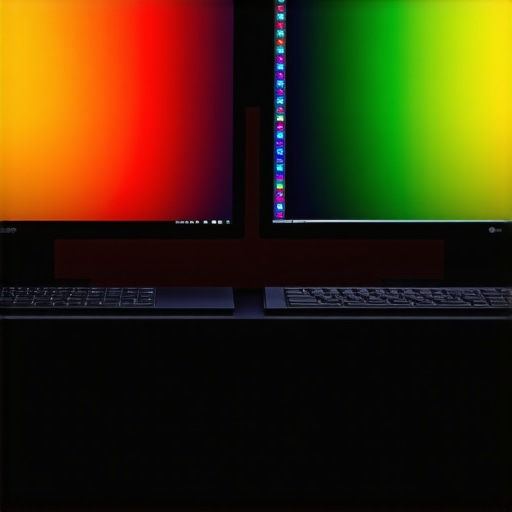
Consistent color calibration requires visual confirmation. An image showing two monitors displaying the same gradient test pattern, illustrating color harmony, emphasizes the importance of visual validation in calibration.
Many professionals and enthusiasts believe that simply choosing high-resolution, large-size, or color-accurate monitors automatically guarantees a seamless, productivity-boosting setup. But in my experience, there are nuanced pitfalls that even seasoned users often overlook. One widespread misconception is that dual monitors always double your efficiency. While they can certainly help, the truth is, poorly configured or mismatched setups can cause more distraction and fatigue than they’re worth. The key lies in understanding the hidden complexities behind monitor technologies and calibration techniques.
Why Matching Hardware Alone Won’t Guarantee Color Harmony
People often assume that buying identical monitors, especially in a dual setup, will prevent color mismatches. However, even identical models can age differently or have marginal calibration differences, resulting in inconsistent colors. For example, a user might replace one monitor last year and expect it to match perfectly with an older one, but fading backlight colors or panel aging can undermine that. That’s why relying solely on matching models is a trap; professional calibration tools and profiles are indispensable for precise consistency.
Another trap is the overemphasis on resolution. Many think that adopting a 4K or 5K display automatically improves productivity. In reality, high resolution alone doesn’t mean better clarity if your system’s scaling is inconsistent or if the font sizes and interface elements aren’t configured correctly. As I’ve learned from testing [top 4k monitors](https://monitors.techdeskessentials.com/top-4k-monitors-for-office-efficiency-in-2025), correct scaling is crucial, especially for long coding or designing sessions, to avoid eye strain and misinterpretation of visual data.
Misunderstanding the importance of panel technology is another common error. For instance, many opt for glossy, high-brightness screens, thinking they’ll deliver vibrant images. But in office environments with bright sunlight, matte or nano-texture finishes can drastically reduce glare and reflections. As discussed in [office monitor glare solutions](https://monitors.techdeskessentials.com/5-office-monitors-that-actually-handle-sunlight-glare-in-2026), choosing the right panel finish and white-point calibration can save your eyes and improve focus.
Advanced users should focus on gamma and white point calibration. Many don’t realize that even after hardware calibration, without proper gamma correction (around 2.2) and white point setting (6500K), the images and code snippets can appear washed out or overly warm. Expert calibration ensures consistent, accurate colors across different lighting conditions — a requirement for professional work that demands color fidelity, like photo editing or branding projects. Learn more about these nuances in my [guide to professional calibration](https://monitors.techdeskessentials.com/best-color-accurate-monitors-for-creative-professionals-in-2025).
Also, beware of the myth that bigger always means better. A large, ultra-wide or curved monitor isn’t inherently more productive if it causes neck strain or distraction. For example, some desks can’t ergonomically support a 49-inch ultra-wide without additional mounts or adjustments. Proper setup techniques, like optimal height and distance, matter more than sheer size. For ergonomic tips, see my article on [perfect dual monitor height](https://monitors.techdeskessentials.com/perfect-dual-monitor-height-3-rules-to-end-neck-pain-in-2026).
In summary, achieving a truly harmonious and efficient multi-monitor environment requires more than just hardware choices. It demands a nuanced understanding of calibration, panel technology, ergonomic setup, and system scaling. Don’t get fooled into thinking specs alone will do the trick; the devil is in the details. Have you ever fallen into this trap? Let me know in the comments, and keep exploring the intricacies that can truly elevate your workspace.Once you’ve calibrated your monitors and set up an optimal workspace, keeping that setup consistent requires the right tools and habits. I rely heavily on hardware calibration devices like the X-Rite i1Display Plus because, in my experience, software alone can’t maintain color accuracy over years of use or fluctuations in ambient lighting. These tools ensure your displays stay within Delta E 2, which is crucial for professional-grade work like photo editing or color grading. Additionally, I use DisplayCAL software to generate and manage ICC profiles, allowing me to swiftly switch between calibration modes for different tasks. Regular re-calibration—say, every three to six months—keeps colors consistent and prevents drift caused by monitor aging or lighting changes. For ongoing maintenance, automating backups of your ICC profiles and calibration settings ensures you can restore your setup if hardware issues arise.
To streamline long-term results, investing in dual monitor arms like those from [5 heavy-duty dual monitor arms](https://monitors.techdeskessentials.com/5-dual-monitor-arms-for-heavy-32-inch-screens-2026) can prevent desk clutter and decrease strain caused by unstable mounts. Maintaining a clean workspace with cable management tools such as cable sleeves or adhesive clips reduces distractions and delays in troubleshooting physical connections. I also recommend routinely checking your monitor’s firmware updates from the manufacturer, as these can improve compatibility and performance, especially with newer color calibration standards.
Looking ahead, the trend is moving toward AI-powered calibration tools that can automatically adjust for ambient light and device aging without user intervention. Think of them as personal calibration assistants—offering your workspace a set-it-and-forget-it solution. Meanwhile, embracing monitor profiles stored on a centralized system allows multi-device workflows to stay consistent, even when switching computers or updates occur.
How do I maintain my dual monitors over time? Regular calibration and hardware checks are key, but I also make it a habit to document my calibration sessions and color profiles. This way, if I upgrade my graphics card or move to a different workspace, I can quickly restore my preferred settings.
I highly recommend trying out advanced calibration tools like the X-Rite i1Display Plus and setting a calendar reminder for periodic re-calibration. Doing so will pay dividends in color fidelity and workspace comfort. Curious about optimizing your setup? Visit my [contact page](https://monitors.techdeskessentials.com/contact-us) to share your challenges or ask for personalized advice.
After embarking on this calibration journey, I realized that patience and attention to detail are your best allies. The most unexpected insight was that even professional setups can drift over time, emphasizing the importance of regular re-calibration. I learned to trust my calibration tools like the X-Rite i1Display Plus and software like DisplayCAL, which became my calibration companions. Additionally, investing in ergonomic tools like adjustable monitor arms significantly reduced physical strain, making long work sessions more sustainable. Regularly documenting profiles not only streamlined transitions between devices but also boosted my confidence in maintaining consistency. This experience taught me that a meticulous, ongoing approach transforms a mismatched workflow into a seamless visual experience—proof that dedication pays off in every pixel.