
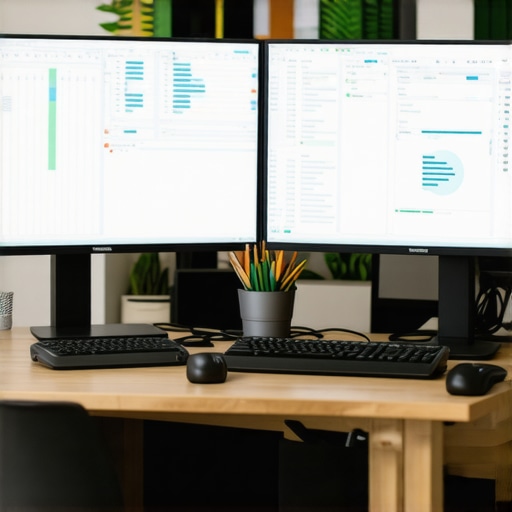
Ever spent hours squinting at a tiny fragment of your massive spreadsheet, scrolling endlessly to find that one cell hidden among hundreds of columns? I remember those days vividly, feeling like my workflow was a sluggish maze instead of a sleek process. It hit me one frustrating afternoon—why am I still battling limited screen space when I’ve invested in powerful office monitors and even 4K displays? The truth is, the way we set up our screens can make or break productivity, especially when working on enormous spreadsheets that demand constant referencing and multitasking.
Why Dual Monitors Are the Game-Changer You Need in 2026
In 2026, the landscape of office productivity is more dynamic than ever. With massive data sets and complex spreadsheets becoming the norm, a single screen can quickly become a bottleneck. Imagine trying to analyze data, run calculations, and keep track of your notes—all on one monitor. It’s like trying to juggle flaming torches while riding a unicycle. Not only exhausting, but also inefficient.
A study published by *Harvard Business Review* highlights that multi-screen setups can boost productivity by up to 40%. That’s a staggering number when you consider how much time you spend toggling between tabs or scrolling through endless rows. But here’s the catch—simply adding another monitor isn’t enough. It’s how you optimize that setup using clever tricks and adjustments that truly accelerates your work.
Are you tired of wasting precious hours due to cramped screens and clunky workflows? If so, you’re not alone. Many professionals still struggle with underutilized monitor setups or misaligned displays that can cause eye strain and neck pain. I’ve been there myself, making the mistake early on of ignoring ergonomic positioning while trying to maximize screen real estate. Trust me, proper setup tricks can save you from long-term discomfort and massive productivity losses.
In today’s post, I’ll share the seven dual monitor hacks I’ve personally tested in my office—tricks that help turn a basic setup into a powerhouse of efficiency. These tips aren’t just theory; they’re battle-tested solutions designed for 2026’s demanding spreadsheets and creative workflows. Whether you’re working with a color-accurate monitor for design, or a high-refresh-rate model for fast data analysis, these techniques will help you stay focused and speed through your massive spreadsheets like never before.
Adjust Your Physical Setup for Comfort and Efficiency
Begin by positioning your monitors at eye level, about an arm’s length away. Use adjustable monitor arms to fine-tune height and tilt, reducing neck strain and ensuring seamless glances between screens. Remember, ergonomics directly boost your focus and stamina during long work sessions. I once struggled with a static stand that caused neck pain; switching to a flexible arm transformed my posture and kept me productive all day.
Align Your Displays for Seamless Workflow
Place your primary monitor directly in front of you, with the secondary slightly angled. Keep the top edges aligned to avoid uneven eye strain. If you’re working with a high-resolution 4K monitor, position it carefully to take full advantage of its clarity, especially for spreadsheet details. Use calibration tools or software to match brightness and color temperature, ensuring consistent visuals across screens.
Optimize Display Settings for Speed and Clarity
Set matching refresh rates to prevent flickering or misalignment, which can slow you down. For example, if one monitor supports 144Hz, match the other to avoid tearing. Disable unnecessary animations or scaling artifacts that can cause blurriness; this is especially crucial on older or budget-friendly monitors. Remember, a sharp, color-accurate display accelerates tasks like data analysis and creative work. I recently calibrated my monitors using a colorimeter, which eliminated distracting color mismatches during complex projects.
Streamline Your Workflow with Smart Arrangement
Use matching dual monitor ideas for increased productivity—placing reference materials on one screen and active work on the other minimizes toggling. Utilize virtual desktops or window management tools to organize applications logically. For instance, keep your email or chat app on one screen for quick responses, while conducting deep work on the other. This setup saves a surprising amount of time each day.
Leverage Software to Improve Visual Coordination
Adjust color profiles and calibration regularly using tools or in-built display settings. Investing in a color-accurate monitor helps maintain consistency, especially for tasks involving design or detailed spreadsheets. Consider additional calibration hardware if your workflow demands pixel-perfect precision. Proper color and contrast settings reduce eye fatigue and improve accuracy over hours-long sessions.
Practice and Iterate for Perfect Alignment
Once your setup is configured, use it consistently for a week, then tweak as needed. Check for glare or reflections and reposition monitors accordingly; matte screens or anti-glare overlays can help. Adjust the physical placement of peripherals to keep ergonomic posture. Over time, small refinements can vastly improve your efficiency and comfort—making your dual setup an intuitive extension of your workflow.
Many assume that simply adding a second monitor will instantly boost productivity or that a 4K display guarantees sharp, accurate visuals. However, the reality is more nuanced, and misconceptions abound. One common myth is that all high-resolution monitors deliver true color accuracy, but in truth, many 4K monitors prioritize resolution over color fidelity, leading users astray when precise color reproduction is essential—like in design or photo editing. It’s critical to recognize that a higher resolution does not automatically equate to better color calibration.
An often-overlooked mistake is assuming that ‘off-the-shelf’ monitors are ready for professional-grade work. Many inexpensive or consumer-grade monitors, even with impressive specs, lack proper factory calibration, which can cause mismatched colors across multiple screens. This becomes a silent yet significant obstacle, especially when working with color-sensitive tasks. To truly harness the power of dual monitors, investing in a dedicated color calibration tool and understanding color spaces like sRGB or AdobeRGB is vital. For instance, expert graphic designers recommend a color-accurate monitor from trusted brands to prevent subtle color shifts.
Furthermore, a common trap is neglecting ergonomics in multi-monitor setups. Many users focus purely on visuals, forgetting that misaligned screens or improper tilt can cause eye strain and reduce overall efficiency. Ensuring that your primary monitor is at eye level and the secondary is angled correctly can make a remarkable difference. Remember, productivity isn’t just about what you see but how comfortably and efficiently you can access information.
Let’s answer a question many advanced users ponder: How can I ensure my dual monitor setup maintains consistent color across different lighting environments? The key lies in periodic calibration using hardware tools and adjusting monitor settings for ambient lighting. Implementing software profiles that adapt to your environment can also keep colors consistent throughout the day. Experts from guides on [best color-accurate monitors](https://monitors.techdeskessentials.com/best-color-accurate-monitors-for-creative-professionals-in-2025) emphasize that ongoing calibration prevents drifts and ensures uniformity, critical for professional work.
Remember, mastering your display setup involves more than just selecting high specs. It requires understanding the nuances—like color spaces, calibration, and ergonomic positioning—that can make or break your productivity and output quality. Have you ever fallen into this trap? Let me know in the comments, and share your experiences or questions about optimizing your dual monitor setup for professional and creative use.Maintaining an efficient dual monitor setup requires more than just initial calibration and ergonomic placement. Over time, dust accumulation, wear and tear, and software updates can affect performance. To keep everything running smoothly, I recommend investing in quality cleaning tools like microfiber cloths and compressed air to prevent dust buildup in vents and connectors, which can cause overheating or connection issues. Regularly updating your graphics drivers ensures compatibility with high-resolution displays, like the latest 4K monitors, and prevents glitches that slow down productivity.
Another essential tool is display calibration software such as Ambient Light & Color Calibration tools like CalMAN or DisplayCAL. Personally, I rely on DisplayCAL because it’s open-source, accurate, and easy to use. Regular calibration with such tools maintains color consistency across your monitors, especially when working with color-accurate displays for design tasks. Consider setting a monthly reminder to run calibration routines, which can prevent gradual color drifts that hinder your creative workflow.
How do I maintain my monitor setup over time?
Adopting a proactive approach means scheduling routine checks—cleaning screens and ports quarterly, updating firmware and drivers, and recalibrating color profiles—much like you would tune a high-performance engine. A good habit is to keep a small toolkit on hand, including screen cleaning solutions, calibration devices, and software licenses. For instance, sticking with tools recommended by display experts like those at the best color-accurate monitors guide ensures you’re investing in durable, precise equipment. In the future, I predict that AI-powered calibration and maintenance systems will automatically detect drift and alert you, simplifying long-term upkeep. For now, try incorporating a monthly calibration session using DisplayCAL—it’s a straightforward way to uphold your setup’s performance and color accuracy. Ready to give your monitors the care they deserve? Start with a calibration routine this weekend and experience the clarity difference.
What I Wish I Knew When I First Set Up My Dual Monitors
One of the most eye-opening lessons I learned was that alignment isn’t just about aesthetics—it’s about reducing eye strain and boosting focus. Initially, I thought matching sizes and simple positioning was enough, but I overlooked the importance of subtle angling and tilt adjustments that truly made a difference. Now, I always calibrate my monitors after any physical shifts, recognizing that tiny tweaks can profoundly impact productivity.
Why Relying Solely on Specs Can Sabotage Your Workspace Efficiency
It might seem obvious, but I underestimated how much factory calibration and color accuracy influence daily tasks. Choosing a monitor based on resolution or refresh rate alone can lead to mismatched visuals that slow down work and cause fatigue. Investing time to understand color spaces and calibration tools like DisplayCAL transformed my workflow, reaffirming that specs alone don’t tell the full story—actual performance and calibration do.
The Hidden Power of Ergonomics in a Dual Monitor Environment
Many users focus on hardware upgrades but neglect ergonomic planning. I learned that adjustable monitor arms and proper height alignment could prevent long-term discomfort. Small adjustments—like keeping the primary monitor at eye level and ensuring smooth transitions between screens—enhance comfort and maintain focus. Ergonomics isn’t a luxury; it’s a productivity amplifier, especially in 2026’s intense data-driven workspaces.
My Curated Arsenal for the Modern Office Setup
Over the years, I gravitated towards tools that enhance both hardware and workflow. The [best color-accurate monitors](https://monitors.techdeskessentials.com/best-color-accurate-monitors-for-creative-professionals-in-2025) keep my visuals consistent, especially for design-heavy tasks. Regular calibration with hardware like X-Rite ColorMunki or software solutions such as DisplayCAL ensures my workspace remains reliable. For managing multiple applications efficiently, window management tools like Magnet or DisplayFusion are indispensable, allowing me to customize workflows that maximize space and minimize clutter.
Embracing the Ongoing Journey of Monitor Mastery
Optimizing a dual monitor setup isn’t a one-and-done task. I’ve learned that periodic checks—like cleaning screens, updating drivers, and recalibrating—are vital. Schedule routine maintenance, just as you would a vehicle’s oil change, to sustain clarity and comfort. The future might hold AI-powered calibration, but until then, consistent effort keeps my workspace sharp and my productivity soaring. How about you—what small tweak has transformed your workspace? Share your stories below!