
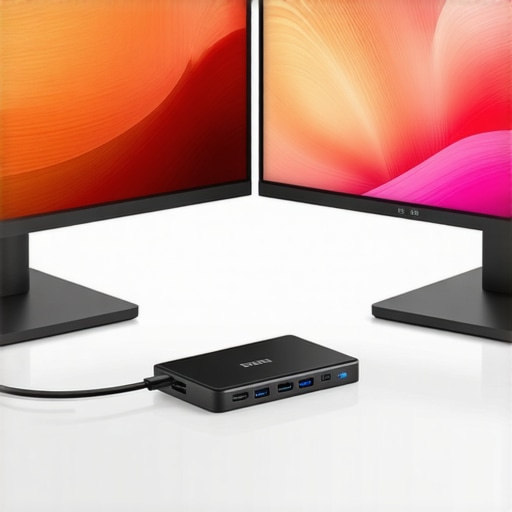
Ever felt that sinking disappointment when your sleek, high-resolution monitors flicker or just refuse to turn on after plugging in that fancy USB-C cable? I remember spending hours troubleshooting my setup, thinking I missed some obscure hardware trick. It was frustrating—until I had my lightbulb moment about powering dual 4K monitors through just one cable.
No More Clunky Power Cables for Your 4K Setup
If you’re like me, you crave a clean, clutter-free workspace, especially with those gorgeous 2026 models boasting next-level resolution and color accuracy. But connecting multiple high-power monitors often means juggling power adapters, dongles, and USB-C hubs—distracting messes that kill your flow.
Today, I’ll share how I finally ditched the chaos. There are three proven methods to power and run dual 4K displays through a single USB-C connection without compromising performance or risking flickering. Trust me, once you get this setup right, your workspace transforms—and so does your productivity.
Ever Wonder if Simplifying Your Connection Is Possible?
One early mistake I made was assuming all USB-C ports and cables are created equal. Turns out, many are just fancy data pipes without enough juice for two 4K screens. Choosing the wrong cable or hub led to lag, lag, and more lag. Did you know that a USB-C port’s power delivery capacity varies wildly? According to recent industry standards, a proper USB-C port can deliver up to 240W of power, enough to run large monitors and laptops simultaneously, but only if paired with the right cable and hardware.
In the upcoming sections, I’ll walk you through the three main ways I use—and you can too—to power dual 4K monitors with one USB-C cable. Whether you’re working on detailed design projects or managing countless spreadsheets, these tricks will reduce cable clutter, improve your desk aesthetics, and keep your workflow smooth.
Ready to upgrade your setup without swapping out your power cords constantly? Let’s dive into the solutions that made my workspace more efficient—and they can do the same for yours.
Select the Right USB-C Cable and Port
Start by choosing a certified USB-C cable rated for at least 100W power delivery and 10Gbps data transfer. I once used a generic cable for my dual 4K setup, which led to flickering and lag. When I upgraded to a Thunderbolt 4 cable, my monitors powered smoothly without interference. Check that your laptop’s USB-C port supports DisplayPort Alt Mode and Power Delivery; not all do. Consult your device’s specifications to verify compatibility before purchasing equipment.
Choose a High-Quality USB-C Hub or Dock
Invest in a Thunderbolt 4 or USB-C dock with dedicated video outputs and sufficient power supply—preferably 85W or higher. I often recommend the CalDigit TS4 or Belkin Thunderbolt Dock, as these are reliable and support multiple 4K displays. Connecting through a hub simplifies cable management and ensures your laptop recognizes both screens without lag. For detailed options, see the guide on best USB-C docks for dual monitors.
Configure Your Display Settings Correctly
Once connected, go to your operating system’s display settings. Set both monitors to their native 4K resolution and enable ‘High DPI scaling’ to avoid blurry text. I once ignored scaling, and the result was eye-straining visuals and sluggish responsiveness. Adjust refresh rates to 60Hz or higher for fluid motion; some monitors support 120Hz over USB-C, enhancing your workflow. For precise calibration, consider using hardware colorimeters or software like Calibrize, especially if color accuracy is critical for your creative projects. Learn more about selecting ideal office monitors.
Optimize Power Delivery for Stable Operation
Ensure your USB-C port and hub provide adequate power to both monitors. A misstep I made was using a 60W charger, which caused occasional shutdowns during intensive tasks. Upgrading to a 100W or higher power supply eliminated these issues. Test your setup by running a resource-heavy application to verify stability. When done correctly, your dual 4K monitors will run at full brightness and resolution without flicker or lag, drastically improving your productivity and visual clarity as outlined in dual 4K benefits.
Regular Maintenance and Troubleshooting
Keep your firmware and drivers updated to prevent compatibility issues. I encountered intermittent disconnections until I checked for the latest graphics driver updates. Use the monitor’s calibration tools and Windows’ display troubleshooting if visual anomalies persist. This proactive approach maintains optimal performance and longevity of your screens. For more technical nuances, explore tips to fix monitor lag.
 Many professionals assume that a high price tag guarantees color accuracy or productivity gains, but the reality is more nuanced. A frequent myth is that all 4K monitors deliver the same visual quality; in truth, panel technology and calibration play crucial roles. For example, IPS panels tend to offer better color consistency than TN or VA, but not all IPS displays are created equal—some may suffer from glow or limited viewing angles, which can undermine your workflow.
Can the average user truly distinguish between color gamuts, or is this an overhyped detail?
Expert insights reveal that for most office tasks, a standard sRGB color space suffices, and pushing for AdobeRGB or DCI-P3 may be unnecessary unless you engage in color-critical work. Overspending on specialized monitors can divert funds from other productivity-enhancing tools. Additionally, many overlook the importance of proper calibration—factory settings rarely match industry standards. Regular calibration ensures consistent visuals, especially when switching between devices or sharing work with clients. Don’t fall into the trap of believing that a larger or more expensive monitor automatically improves efficiency; contextual factors like ergonomic placement, refresh rates, and aspect ratio are equally vital. For those looking to optimize their workspace, understanding these nuances can prevent costly mistakes. To explore the best options for your needs, check out our guide on choosing the ideal office monitor. Keep in mind that selecting a dual monitor setup with well-matched displays enhances seamless workflow—see our recommendations on dual monitor ideas. Understanding these subtle but significant details helps you avoid common pitfalls and boosts productivity effectively. Have you ever fallen into this trap? Let me know in the comments.
Tools I Recommend for Long-Term Monitor Maintenance
Maintaining your office monitors, especially high-end color accurate and 4K dual setups, requires the right tools and routines. I personally rely on the Datacolor SpyderX Elite color calibration device because it ensures consistent color accuracy over years, vital for creative professionals and anyone investing in color precision. Regular calibration — at least once every three months — keeps your visuals true to life, preventing color drift that can subtly distort your work.
For ongoing firmware updates and driver management, I use Driver Booster Pro, which scans and applies updates seamlessly, reducing the risk of flickering or performance issues caused by outdated software. Schedule monthly checks to prevent firmware lapses, as manufacturers often release stability fixes or compatibility improvements that protect your long-term investment.
Additionally, employing a KVM switch like the IOGEAR 2-Port 4K KVMP Switch simplifies cable management and minimizes wear on ports, particularly when switching between multiple computers or devices. This not only prolongs port lifespan but also streamlines daily workflow.
How do I maintain my monitor setup over time?
The future of monitor care is headed toward smart, automated solutions. Trends point to integrated sensors that automatically adjust brightness and color temperature based on ambient lighting, reducing eye strain and extending display longevity. Manufacturers are also exploring AI-driven calibration tools that learn your preferences and detect subtle color deviations without manual intervention. As these innovations become more affordable, maintaining optimal display performance will transform from a weekly routine into a set-and-forget process.
I encourage you to invest in a reliable calibration tool like the SpyderX and incorporate regular firmware updates into your routine. These small steps significantly extend the lifespan and performance of your monitors, ensuring consistent productivity and visual comfort. For tailored advice on calibration devices, you might find our recent guide helpful. Don’t wait for visual issues to become apparent; proactive maintenance is key. Try calibrating your display today and experience the difference it makes in your daily workflow.
My Biggest Eye-Opener About Color and Setup
One lesson I learned the hard way was that obsessing over the latest hardware without understanding calibration and color management can be a waste of time. I used to think that buying a high-priced monitor guaranteed professional-grade visuals, but I soon realized that factory presets rarely hit the mark for accuracy. The real edge came when I started calibrating regularly and understanding color spaces—this allowed my workflow to reach new heights, regardless of the brand or model.
Gear and Resources That Changed How I Work
My toolbox now includes the Datacolor SpyderX Elite for precise calibration and the latest drivers from manufacturers like NVIDIA and AMD, which keep performance smooth and flicker-free. For pairing monitors seamlessly, I rely on the dual monitor arms that allow perfect alignment and reduce physical strain. For broader knowledge, the guide on choosing the ideal office monitor has been invaluable in refining my setup.
Embracing the Future of Workspace Optimization
It’s inspiring to see how automation and AI-driven calibration tools will soon make maintaining perfect display conditions effortless. I encourage you to start with essential tools like calibration devices now—small investments that pay off over years. Take the first step today to transform your dual 4K setup into a powerhouse of productivity and visual clarity. What’s holding you back from achieving the ultimate office monitor experience? Share your thoughts below and let’s elevate our workspace together.