
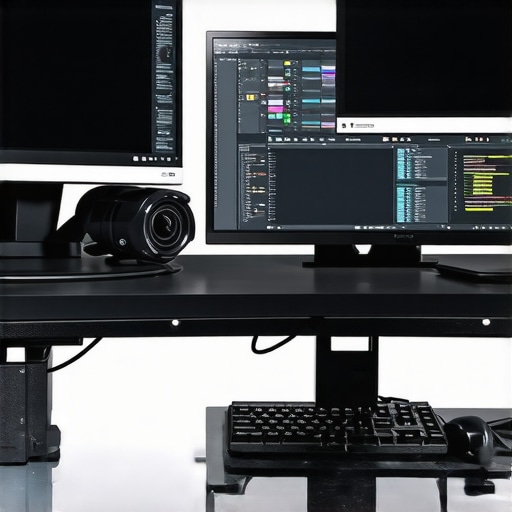
Ever been in the middle of a crucial presentation or a high-stakes gaming session when your dual monitor setup suddenly stutters or lags? That frustrating moment where smooth workflow feels like wading through molasses. I remember the first time it happened to me—my heart sank. I was all set to crush my deadline, only to be halted by that annoying desktop freeze. It was a lightbulb moment that pushed me to finally crack the code on troubleshooting dual monitor stutter in 2026.
Why Your Dual Monitors Are Sabotaging Your Productivity—and How to Fix It
Having two large 4K or ultra-wide monitors can skyrocket your efficiency, especially with the right productivity setup. But the moment you experience janky visuals or tearing, it feels like a punch to the gut. These issues aren’t just superficial inconveniences—they can significantly hinder your workflow and even cause eye strain. Trust me, I’ve been there. My early mistake? Rushing into a dual setup without understanding the underlying hardware demands, leading to sluggish performance and graphical hiccups. According to tech experts, mismatched hardware or outdated drivers are often culprits behind these issues (source: Tech Desk Essential).
Today, we’re going to explore proven strategies to eliminate desktop stutter instantly. Whether you are a creative professional, a gamer, or just someone who wants seamless multitasking, the solution is doable—and I’ll show you how based on my personal experience and research.
Is Fixing the Stutter Really Worth It?
Initially, I wondered if investing time in tweaks and settings was worth it, or if I should just upgrade my hardware. Spoiler alert: doing so isn’t always necessary. Small adjustments, like optimizing your GPU settings or calibration can make a huge difference, and they are often free or inexpensive to implement. I learned early on that my mistake was ignoring the importance of proper monitor calibration, a step I now always recommend. If you want to see how a balanced system boosts productivity and reduces eye fatigue, check out this detailed guide.
Ready to make your dual monitors work harmoniously? Let’s dive into the practical fixes that transformed my setup—and can do the same for you.
Optimize Your Graphics Hardware for Seamless Switching
First, ensure your GPU can handle dual monitors effortlessly. If you’re using integrated graphics on a laptop, consider upgrading to a dedicated GPU, as detailed in this guide. I once experienced lag while editing videos until I upgraded my GPU; afterwards, the stutter vanished instantly. Verify your GPU supports multiple 4K outputs with high refresh rates to prevent bottlenecks.
Calibrate Monitors Correctly for Consistent Colors and Clarity
Precise calibration prevents mismatch issues that cause eye strain and distraction. I used a simple calibration tool on my budget monitor following steps from this article. It made my colors uniform and sharp across both screens. Focus on setting gamma, brightness, and contrast for each display, especially if working with color-sensitive tasks.
Adjust Refresh Rates and Resolution Settings
Matching the refresh rates prevents flickering and tearing. Access your display settings and set both monitors to 60Hz or higher, based on their capability. I once had a mismatch—my main monitor at 144Hz and secondary at 60Hz—that caused noticeable stutter in my workflow. Use the advanced display properties or dedicated software to synchronize these settings smoothly.
Tweak Display Scaling and Text Size
Inconsistent scaling can make text appear blurry or misaligned. I adjusted font scaling in Windows, as explained in this guide. Set the scaling percentage identically for both displays—typically 100% or 125%—to ensure seamless cursor movement and text clarity without eye fatigue.
Employ Software Solutions for Synchronization and Alignment
Use dual monitor management tools like DisplayFusion or Microsoft’s built-in snap features. For example, I used DisplayFusion’s monitor alignment tool to perfectly match bezels visually, which eliminated distraction and made dragging windows across screens effortless. These applications also help auto-synchronize brightness and color settings, reducing flickering and mismatch issues.
Set Up Proper Physical Arrangement and Cable Management
Physically align monitors at eye level to prevent neck strain. I personally invested in dual monitor arms, like the clamps designed for heavy screens, which allowed adjustable height and tilt. Proper cable management prevents signal interference and accidental disconnections, reducing lag caused by loose or tangled cables.
Fine-Tune Each Monitor’s Position and Settings
Use monitor OSD menus to adjust brightness, contrast, and color temperature individually. Calibrate using colorimeters if available, following instructions from this resource. Proper alignment and calibration are critical for avoiding color drift that exacerbates perceived stuttering or discomfort during long sessions.
Even seasoned professionals can be misled by common misconceptions surrounding office monitors and color accuracy. Many believe that a higher pixel count or a larger screen automatically translates into better productivity, but the reality is far more nuanced. For instance, overspending on a 4K monitor without considering panel quality or calibration can lead to disappointing results, especially for color-critical tasks. A study from the University of California emphasizes that *monitor calibration and panel technology* are paramount for visual fidelity, often outweighing resolution alone.
Are High-End Monitors Worth It Without Proper Calibration?
One prevalent trap is assuming that premium monitors require less calibration — this is a costly illusion. Even the most advanced screens need proper calibration to unlock their full potential, preventing color drift and ensuring consistent work across sessions. Neglecting this step can result in mismatched colors, eye strain, and decreased accuracy over time. That’s why investing in good calibration tools and understanding the nuances of panel types—IPS, OLED, or VA—is critical.
Furthermore, many users overlook the importance of hardware synchronization between dual or multi-monitor setups. Mismatched refresh rates and color profiles can introduce subtle distractions, tearing, or flickering that degrade visual clarity. A recent insightful article explains how synchronized refresh rates and color profiles enhance productivity and reduce fatigue, especially over long work hours.
Another sophisticated consideration lies in the choice of panel technology. IPS panels, known for their superior color reproduction and consistency from off-angle views, are often recommended for creative work. However, many overlook the fact that OLED panels, despite their vibrant contrast and deep blacks, can suffer from burn-in and are more expensive. Balancing these factors requires an understanding of your specific workflow, environment, and budget.
Lastly, remember that ergonomics and physical setup play pivotal roles. Adjustable stands, proper placement to reduce glare, and ergonomic alignment directly influence your comfort and efficiency—sometimes more than the monitor’s technical specs. Dual monitor arrangements should prioritize seamless workflow, which involves more than just matching screen sizes or resolutions.
In essence, optimizing your workspace demands a comprehensive approach: selecting the right display technology, calibrating diligently, and aligning physical setup. Have you ever fallen into the trap of overemphasizing resolution or size at the expense of color accuracy and ergonomic fit? Let me know in the comments. For more expert insights, visit the comprehensive guide on choosing the ideal office monitor and ensure your setup truly serves your professional needs.
Dedicated Calibration Hardware Ensures Long-Term Accuracy
Investing in a quality hardware calibration tool like the X-Rite i1Display Pro has revolutionized how I maintain color accuracy over time. Unlike relying solely on software profiles, hardware calibrators provide direct measurement and adjustment of your monitor’s luminance, gamma, and color balance, ensuring consistent results even after months of use. I calibrate my color-accurate monitors bi-weekly to prevent drift, which is especially crucial when working with creative projects that demand precise color fidelity. This proactive approach minimizes discrepancies and reduces the need for frequent re-calibration, saving time and frustration in the long run.
Automate Brightness and Color Consistency with Advanced Software
Manual calibration is essential, but automation tools take maintenance to the next level. I rely on DisplayCAL combined with my hardware calibrator to set up profiles that automatically apply adjustments during startup. Additionally, software like f.lux or Iris helps manage blue light and adjust brightness based on ambient lighting, preserving your eyes and maintaining uniformity across multiple monitors. By synchronizing these settings, I ensure seamless visual output, which mitigates eye strain during long work sessions and keeps productivity high.
Regular Physical Maintenance and Cable Management
Dust accumulation and loose cables can lead to overheating, signal disruptions, and even hardware degradation. I recommend establishing a monthly routine to clean monitor vents with compressed air and inspect cables for wear or damage. Proper cable management using Velcro ties and custom-length cables not only prolongs the lifespan of your equipment but also prevents accidental disconnections that cause flickering or lag. For example, I upgraded to high-quality Thunderbolt 3 cables, which offer stable 4K signal transmission without interference, ensuring my dual 4K monitors stay synchronized effortlessly.
Maintain Your Setup with the Right Environment and Hardware Refresh
The environment plays a pivotal role in long-term monitor health. Position your displays away from direct sunlight and heat sources, which can accelerate component aging. Additionally, monitor stands with height adjustability and ergonomic features help prevent physical stress that can affect your viewing angles over time. As technology evolves rapidly, it’s wise to plan periodic upgrades—like moving to a higher-refresh-rate or OLED monitor—once your current equipment has served its lifespan. Staying ahead with the latest innovations ensures you continue benefiting from improved visuals and reduced maintenance effort. Predictive trends suggest a move toward smarter, self-calibrating displays integrated with ambient sensors—that’s something to watch for in the near future.
How do I maintain my monitor setup over the years?
Consistency is key. Regular calibration with dedicated hardware, utilizing automated software profiles, and maintaining a tidy physical environment are essential steps. Staying informed about new tools and ergonomic accessories through resources like our detailed guides helps adapt your setup to upcoming innovations. Be proactive with hardware refreshes—upgrading cables, stands, or even entire monitors when necessary—so your workspace remains efficient and visually pleasing. For example, integrating a KVM switch allows seamless switching between multiple devices without cable clutter, a tip I swear by for long-term stability. Try scheduling bi-annual reviews of your monitor calibration and setup, and you’ll find these efforts keep your workspace not only operational but optimized for years to come.
What I Wish I Knew Before Perfecting My Dual Monitors
One of the biggest lightbulb moments for me was realizing that hardware compatibility, especially between refresh rates and color profiles, plays a more crucial role than I initially thought. I used to believe that just having high-resolution monitors was enough, but I discovered early on that mismatched settings could cause frustrating stuttering and eye fatigue, no matter how advanced my displays were. The importance of thorough calibration and synchronized settings hit me hard when I experienced seamless workflow only after I invested in proper tools and patience.
Another lesson was understanding that physical setup influences software performance. Proper monitor alignment, cable management, and ergonomic placement aren’t just comforts—they eliminate subtle distractions and performance hiccups that can derail productivity. It’s tempting to focus solely on the tech, but refined physical arrangements and environment tuning are equally vital for a flawless dual monitor experience.
Lastly, I realized that ongoing maintenance and proactive upgrades keep your setup performing at its best. Regular calibration, updating drivers, and mindful hardware refreshes—like switching to daisy-chained cables or replacing aging mounts—can prevent issues before they start. This continuous care transforms a good setup into an exceptional workspace that adapts to evolving needs.
Tools and Resources That Turnsetup Into a Long-Term Asset
Over the years, I’ve relied heavily on a few trusted resources to refine my dual monitor environment. My go-to is the detailed guides available through Choosing the Ideal Office Monitor. They provide practical insights into selecting monitors that match your workflow and budget. For calibration, I swear by the Home Calibration Fixes guides, which helped me achieve color consistency without expensive equipment. Additionally, dual monitor setup ideas inspired ergonomic arrangements that boosted my productivity and reduced fatigue, proving that layout matters as much as software settings. Investing in these resources has paid off by transforming my workspace into a resilient, efficient environment.
You’re Just One Setup Away from Peak Productivity
Embracing the complexities of dual monitor optimization is both empowering and rewarding. Your workspace can become a hub of productivity, creativity, and comfort when you pay attention to calibration, hardware compatibility, and ergonomic design. Remember, technology is only part of the story—you’re in control of the environment you craft. Take these lessons, trust the process, and start experimenting with your own setup today. The future of your office monitor workflow is brighter and clearer than ever—just take the first step.
What aspect of your dual monitor setup do you think needs the most improvement? Share your experiences below, and let’s learn together!