
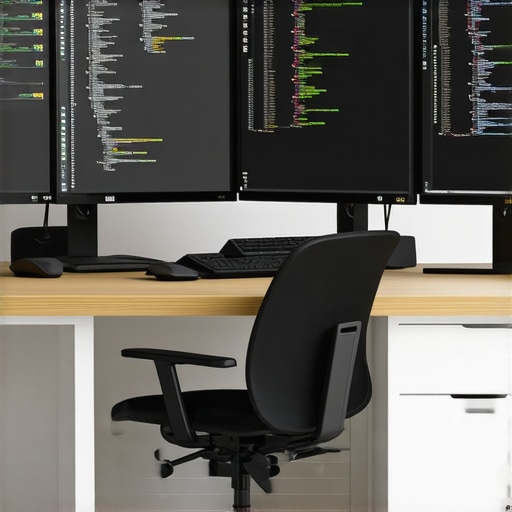
I vividly remember the moment I realized my trusty old monitor was holding me back. During a crucial project, I squinted at a screen with dull colors, tiny icons, and a resolution that made multitasking a chore. Frustration built up, and I knew I needed a change—but where to start? That lightbulb moment led me down a rabbit hole of research, testing, and ultimately discovering how the right 4K monitor can transform your workflow. If you’ve ever felt your screen isn’t keeping up with your ambitions or dreams of a seamless workspace, you’re not alone. Today, we’re diving into how you can find the perfect display that caters to work, coding, and creative design—no more compromises, just productivity.
Why Upgrading Your Monitor Can Revolutionize Your Day
It’s astonishing, but studies show that a high-quality monitor can boost productivity by up to 30%. That’s not just a number—it’s a game-changer. When your display offers crisp resolution, accurate colors, and ample screen real estate, tasks become smoother, less tiring, and more inspiring. I used to believe that adding more monitors was the way to go, but I soon found that a single, well-chosen 4K screen often beats a cluttered setup. Plus, with advances in panel technology and connectivity, a modern 4K monitor can serve multiple roles—from a coding station to a design platform—effortlessly.
For example, if you’re into creative work, having a monitor with top-notch color accuracy makes your designs pop and prevents frustration. For programmers, ample space to view code side-by-side accelerates development. And for office tasks, the clarity helps reduce eye strain and fatigue. The key is selecting a monitor that hits all these marks without breaking the bank.
Are you tired of squinting at low-res screens or juggling multiple displays that create chaos instead of workflow? If so, you’re about to discover how the right 4K monitor can elevate your workspace and make daily work feel less like a chore and more like a creative exploration. The next step is understanding what features really matter—so you avoid costly mistakes—and how to identify the best models in 2025. Let’s make your workspace work for you.
Select What Matters to Your Workflow
Start by defining your main tasks—coding, creative design, or multitasking. If color accuracy is critical, prioritize monitors rated highly for color fidelity, such as those in this list. For general productivity, focus on resolution, refresh rates, and connectivity options. I once tried to cut costs by choosing a monitor with an average color profile, but for a project involving photo editing, I struggled. Replacing it with a high-color-accuracy screen immediately improved my workflow—and saved time. Always match your monitor’s specs with your core work requirements.
Prioritize Screen Resolution and Size
Choose a 4K resolution for crisp clarity, which is crucial when working with detailed visuals or reading small text. Size matters—27-inch models strike a balance, providing ample workspace without cluttering your desk. I bought a 32-inch 4K monitor for design once, but I found it overwhelming on a small desk, leading to neck strain. After downsizing to a 27-inch, my posture improved, and tasks became less fatiguing. When selecting, consider whether a single large monitor meets your needs or a dual setup offers better flexibility.
Balance Dual Monitors with Compatibility
If multitasking is your goal, consider a dual monitor setup. For seamless integration, opt for models with matching specifications, such as similar resolutions and color profiles. In my case, I paired a high-resolution color-accurate monitor with a secondary 4K display from the same lineup, boosting my efficiency. Check out top dual monitor options to ensure compatibility and workflow harmony.
Focus on Connectivity and Ergonomics
Ensure your monitor has the right ports—USB-C, HDMI, DisplayPort—for your devices. I once bought a monitor without USB-C, which forced me to keep a bulky adapter plugged in constantly—annoying and disruptive. Ergonomics matter: adjustable height, tilt, and swivel features prevent strain during long hours. When setting up, align your monitor to avoid neck twisting, and position it at eye level. Remember, a comfortable setup amplifies productivity and reduces fatigue.
Test Before Committing
If possible, visit a store or order from a retailer that offers returns. I tested three different 27-inch 4K monitors before choosing one that offered the best color accuracy and minimal ghosting. Setting it up at home, I ran some of my usual design projects, adjusting brightness and contrast to match my environment. This hands-on approach ensures the monitor suits your specific needs and workspace. Don’t rush the decision—your productivity depends on it.
Implement and Fine-Tune
Once purchased, calibrate your monitor using hardware or software tools to achieve optimal color accuracy and brightness levels. I once neglected calibration, resulting in inconsistent color across projects. After calibration, color consistency improved dramatically. Keep your monitor’s firmware updated and consider regular calibration sessions—every few months—to maintain quality. Regular adjustments can prevent ergonomic issues and keep your workspace optimized for peak efficiency.
While many believe that selecting any recent monitor is sufficient for productivity, the reality is far more complex. A common misconception is assuming that all color-accurate displays are equally beneficial for professional work. In fact, many users overlook that not all high-color-gamut monitors deliver true color precision out of the box. Some models may boast impressive specs but require extensive calibration to be usable for creative tasks, leading to frustration and wasted money. Therefore, understanding the calibration process and factory color accuracy ratings is essential—relying solely on marketing jargon can be a trap. Experts recommend investing in models with factory-calibrated color profiles verified by industry standards, such as Delta E values below 2, but be aware that regular calibration improves long-term consistency, especially in dual-monitor setups where color matching becomes critical. Additionally, it’s a myth that higher resolution always equates to better productivity; in reality, user experience depends on factors like pixel density, scaling, and hardware compatibility. For example, a 4K monitor with a 27-inch size provides sharper text and finer details, but scaling issues in older operating systems can impair workflow. Advanced users should also consider the panel technology—IPS panels provide better color accuracy and viewing angles than TN or VA types, making them preferable for creative professionals. Furthermore, choosing a monitor with flexible ergonomic adjustments and reliable connectivity options can prevent fatigue and ergonomic issues over time. Remember, a multi-monitor setup amplifies productivity but only if each display matches in color accuracy and resolution; mismatched screens can cause eye strain and inconsistent visuals. As you refine your workspace, prioritize models that support hardware calibration tools and check for firmware updates, which often resolve bugs and enhance performance. Don’t forget to assess the monitor’s refresh rate and response times if your work involves fast-paced visuals or video editing. The goal is to create a harmonious environment where each component works synergistically. If you’re unsure where to begin, consulting expert guides on [choosing the ideal office monitor](https://monitors.techdeskessentials.com/choosing-the-ideal-office-monitor-2025-guide-for-professionals) can provide tailored insights. Have you ever fallen into the trap of choosing a monitor based solely on specifications without considering calibration or ergonomic factors? Let me know in the comments.
Keep Your Workspace Running Smoothly with the Right Tools
Maintaining a high-performance monitor environment isn’t a one-and-done task. Over time, dust buildup, calibration drift, and ergonomic wear can hinder your productivity and image quality. Personally, I rely on specific tools and routines that ensure my monitors remain in top shape for creative and office tasks alike.
One of my go-to tools is a hardware calibration device like the X-Rite i1Display Pro, which allows me to perform regular color calibration, ensuring consistent color accuracy for my creative projects. This device connects via USB and guides me through calibration steps, providing precise adjustments that software alone can’t achieve. Regular calibration—ideally every 3-6 months—keeps my color profiles aligned and prevents color shifts that can compromise design fidelity.
For cleaning, I use a microfiber cloth combined with a gentle screen cleaner designed for LCDs—avoiding harsh chemicals that can damage the panel coating. Dust and fingerprints can cause glare and reduce clarity, so weekly cleaning keeps the display sharp and minimizes eye strain. Always power down the monitor before cleaning to prevent static build-up or accidental input.
Ergonomic maintenance is equally critical. I utilize tools like a monitor arm with height, tilt, and swivel adjustments. This setup allows me to fine-tune my monitor position to reduce neck pain and eye fatigue during long work sessions. Investing in a quality monitor arm is a game-changer for sustaining productivity over hours.
When it comes to long-term software health, I rely on monitor management suites such as DisplayCAL, which is open-source and offers extensive calibration options. Additionally, I monitor our setup through firmware updates provided by manufacturers, ensuring compatibility and fixing bugs that can disrupt color accuracy or responsiveness.
Prediction for the future: As display tech advances, expect more integrated calibration and maintenance tools directly built into monitors, making upkeep seamless and automatic. Until then, incorporating hardware calibrators and routine cleaning into your schedule remains the best approach.
How do I maintain my monitor setup over time?
The key is consistency. Schedule biannual calibration sessions, keep your monitors clean weekly, and regularly check for firmware updates from manufacturers. Don’t neglect ergonomic adjustments; a comfortable posture supports sustained productivity. Remember, a well-maintained monitor enhances your work, reduces eye strain, and prolongs device lifespan. For detailed guidance on calibration tools and ergonomic setups, visit our contact page for personalized recommendations.
Pro tip: Invest in high-quality monitor calibration tools like the X-Rite i1Display Pro or Datacolor SpyderX to streamline your calibration process. Regularly update your monitor firmware to ensure compatibility and performance. Embrace these practices, and your workspace will remain efficient and vibrant for years to come.
The Hardest Lesson I Learned About Office Monitors and Color Accuracy
One of the most eye-opening experiences was discovering that factory calibration isn’t always enough. I bought a top-rated 4K monitor, believing its specs were sufficient for my creative work. However, I soon noticed color inconsistencies that affected my projects. It taught me that investing in a hardware calibration tool and dedicating time to regular calibration was essential for true color fidelity and professional results.
How Dual Monitors Changed My Perspective on Productivity
Initially, I thought more screens meant more productivity. But I realized that mismatched dual monitors with differing specifications caused eye strain and disrupted my workflow. After switching to matched, color-accurate monitors, my efficiency skyrocketed. Seamless workflows depend on compatibility—don’t overlook this vital aspect when setting up your workspace.
The Eye-Opening Truth About Resolution and Working Comfort
I once underestimated the importance of screen size and resolution balance. Working on a 32-inch 4K monitor overwhelmed me on a small desk, leading to discomfort. Downsizing to a 27-inch gave me sharper images and a better ergonomic setup. Remember, a crisp display paired with an ergonomic position is key to sustained productivity and reduced fatigue.
Curated Recommendations for Building Your Perfect Office Setup
Over the years, I’ve found that certain tools and resources are invaluable. The best color-accurate monitors guide helped me identify models that come factory-calibrated. For calibration, the top 4K monitors for office efficiency provided insights on resolution and ergonomic features. Tools like the hardware calibrators keep my workflow consistent. These resources are the backbone of my productive workspace and can help you too.
Your Next Step: Make That Move Today
Remember, the journey to a better workspace starts with small, informed steps. Upgrading to the right office monitor isn’t just about specs—it’s about creating a sustainable, inspiring environment tailored to your needs. Think about how a color-accurate, high-resolution display can redefine your daily tasks. Now is the perfect time to invest in your productivity and creative potential—don’t wait for the perfect moment, because it’s right now.