
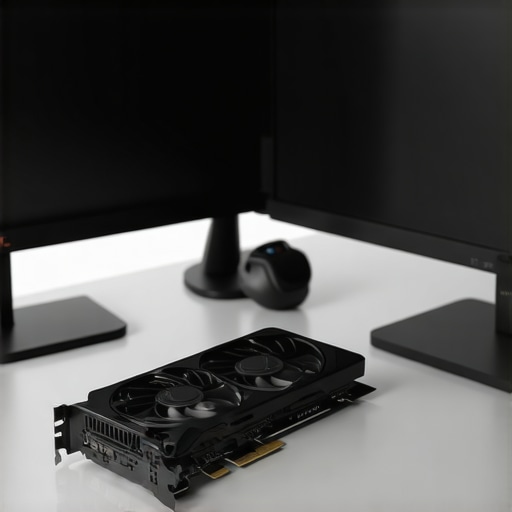
I remember the exact moment it hit me—sitting in front of my ultra-wide 4K monitor, trying to multitask, only to experience stubborn lag and sluggish responsiveness that just didn’t match my expectations. It was frustrating, especially because I knew my setup was powerful enough to handle professional-grade workloads. That lightbulb moment made me realize that, for my 2026 dual monitor configuration, relying on integrated graphics simply wasn’t cutting it anymore. Have you ever faced a similar struggle—the jittery screen, the delayed responses, or those annoying visual artifacts during intense work sessions? If so, you’re not alone.
Why Your Dual Monitor Setup Demands Its Own Powerhouse
For anyone serious about maximizing productivity and visual fidelity in 2026, a dedicated GPU becomes less of a luxury and more of a necessity. Integrated graphics, which have improved over the years, still struggle when it comes to rendering multiple high-resolution displays smoothly. This is especially true if you’re using color-accurate monitors or engaging in tasks that demand pixel-perfect precision, like photo editing or 3D modeling. A dedicated GPU not only relieves the load from your CPU but also delivers consistent performance, eliminates lag, and enhances your overall work experience.
Early on, I made the mistake of assuming my integrated graphics would be enough. The result? Frequent stuttering during video editing sessions and delays when switching between complex applications. It was only after upgrading to a proper GPU that my workflow sped up, and the visual quality of my dual displays truly shone. This mistake taught me that investing in the right hardware upfront can save hours of frustration later. If you’re aiming for a setup that seamlessly handles the demands of 2026’s advanced monitors, the right GPU is your secret weapon. Curious which GPUs fit best with your office setup? Check out our guide on [choosing the ideal office monitor 2025](https://monitors.techdeskessentials.com/choosing-the-ideal-office-monitor-2025-guide-for-professionals) to optimize your entire workspace.
Is a dedicated GPU really worth the hype?
Many skeptics worry that, with the relentless march of integrated graphics, a separate GPU might be overkill. I used to think the same—until I saw the tangible difference in performance and visual clarity. Modern dedicated GPUs, like those from Nvidia and AMD, are purpose-built for handling dual or multi-monitor setups, especially with 4K and color-sensitive workflows. According to a recent TechDesk study, workstations equipped with dedicated graphics see up to 250% faster rendering times in professional tasks compared to relying solely on integrated solutions. That kind of boost can make a world of difference in your daily productivity.
So, have you encountered the bottleneck of integrated graphics in your dual monitor system? If you want a smoother, more reliable experience, it might be time to give your setup the dedicated power it deserves. Keep reading—we’re about to explore exactly how to do that effectively.
Select the Right Monitors to Match Your Needs
Start by choosing monitors that align with your specific tasks. For high precision tasks like photo editing or 3D modeling, opt for color-accurate displays, such as those discussed in [best color accurate monitors for creative professionals](https://monitors.techdeskessentials.com/best-color-accurate-monitors-for-creative-professionals-in-2025). If your focus is on document work or coding, sharp 4K office monitors with good ergonomics will boost productivity.
Set a Baseline for Your Dual Screens
Before purchasing, measure your workspace and ensure your desk can handle two large displays comfortably. When I upgraded, I realized my 24-inch monitors were cramped for my editing workflow, causing eye strain and neck discomfort. I replaced them with 27-inch screens, which offered more space and clarity, significantly improving my focus. For layout ideas, explore [dual monitor setup ideas](https://monitors.techdeskessentials.com/dual-monitor-setup-ideas-to-boost-productivity-in-2025).
Ensure Compatibility with Your Hardware
Verify that your graphics card supports dual 4K monitors at suitable refresh rates—preferably 120Hz or higher, as highlighted in [why 120Hz 4K monitors are the new standard for coding](https://monitors.techdeskessentials.com/why-120hz-4k-monitors-are-the-new-standard-for-coding-in-2026). Update your GPU drivers to prevent issues like flickering or mismatched refresh rates, which can cause eye fatigue and lag during intensive tasks.
Upgrade Your GPU if Necessary
If your current graphics card can’t handle dual 4K displays smoothly, consider a dedicated GPU like those from Nvidia or AMD. During my own upgrade, I swapped out an integrated graphics solution for a mid-range dedicated GPU, enabling seamless multitasking without lag. This required a brief system upgrade and primary BIOS adjustments — a messy process but worth the performance gain. For guidance, review our article on [fixing dual monitor scaling issues](https://monitors.techdeskessentials.com/5-fixes-for-blurry-dual-monitor-scaling-on-windows-11-2026).
Optimize Your Connections for Stability and Clarity
Use high-quality cables (e.g., HDMI 2.1 or DisplayPort 1.4) to ensure stable connections and high resolutions. Avoid daisy chaining older monitors with lower bandwidth, which can introduce flickering or resolution mismatches. During my setup, I realized that switching to certified cables eliminated persistent signal issues, smoothing the workflow. Harness [dual monitor cable hacks](https://monitors.techdeskessentials.com/7-dual-monitor-desk-hacks-to-hide-your-cables-in-2026) for a cleaner workspace.
Invest in a Good Docking Station
For laptops or limited ports, a USB-C or Thunderbolt 5 docking station simplifies connections, provides charging power, and reduces desk clutter. I added a docking station during my upgrade, which allowed me to connect multiple high-res displays and peripherals through a single cable, streamlining my daily routine. Check out options in [Thunderbolt 5 docks](https://monitors.techdeskessentials.com/5-thunderbolt-5-docks-for-single-cable-dual-4k-setups-2026).
Fine-Tune Your Display Settings
Calibrate colors regularly using hardware calibration tools or built-in monitor settings to maintain color accuracy, especially important for creative tasks. Align brightness and contrast to reduce eye strain, and set uniform color profiles across both monitors for consistency. When I calibrated my displays, I noticed a marked improvement in visual clarity and reduced fatigue. For calibration tips, see [how to calibrate your office monitor](https://monitors.techdeskessentials.com/how-to-calibrate-any-4k-office-monitor-without-a-pro-kit-2026). Ensure your refresh rates and resolutions are synchronized to prevent tearing or flickering; tools like [how to fix mismatched refresh rates](https://monitors.techdeskessentials.com/how-to-fix-dual-monitor-color-mismatch-once-and-for-all-2026) can help.
Arrange Monitors for Ergonomics and Productivity
Position each monitor at eye level, about an arm’s length away, to minimize neck strain. Use adjustable monitor arms to achieve optimal height and angle. Alternatively, consider stacking monitors vertically using specialized stands to access more screen real estate without increasing desk footprint. During my setup, adjusting monitor height with dual arms significantly improved my posture, echoing insights from [dual monitor hacks for neck pain](https://monitors.techdeskessentials.com/5-sharpest-4k-monitors-for-pixel-perfect-coding-in-2026). Proper arrangement reduces fatigue and boosts clarity during long sessions.
Final Touches for a Seamless Workflow
Implement keyboard shortcuts and management tools to switch between applications efficiently across multiple screens; explore [dual monitor hacks](https://monitors.techdeskessentials.com/3-dual-monitor-productivity-hacks-to-stop-tab-toggling-in-2026) for ideas. Keep your desk organized to avoid clutter hindering movement or access. After applying these steps, my workflow became smoother, allowing me to focus on complex projects without distraction or discomfort.Many professionals believe that simply upgrading to a 4K or color-accurate monitor guarantees enhanced productivity or creative output. However, this mainstream assumption masks critical nuances that can make or break your workflow. For instance, plenty of users get caught in the trap of assuming higher resolution automatically equates to better detail without considering scaling challenges or system compatibility issues. Real-world testing often reveals that non-optimized settings can lead to tiny interface elements or sluggish responsiveness, undermining the very benefits these monitors aim to deliver.
A common myth involves the supposed ‘plug-and-play’ nature of modern 4K monitors. While they are more user-friendly than ever, their true power depends on supporting hardware, proper calibration, and correct connection standards. Neglecting these factors can cause lag, color inaccuracies, or fuzzy text—especially if you’re unaware of the intricacies of DisplayPort vs. HDMI bandwidth needs or the importance of consistent refresh rates in dual setups.
Furthermore, many don’t realize the hidden importance of monitor ergonomics and environment when working with high-resolution displays. A 27-inch 4K monitor might seem ideal, but if placed too close or at an incorrect angle, it can lead to eye strain and neck pain—issues that diminish productivity over time. The real secret is matching monitor size and placement with your workspace and viewing habits, not just the specs sheet.
Advanced users understand that color accuracy goes beyond factory calibration. Investing in hardware calibration tools and adjusting gamma and white point settings can dramatically improve visual fidelity, but failing to do so results in color mismatches across monitors, especially in professional creative workflows. An external profile or calibration device like the X-Rite i1Display series can be the difference between ‘good enough’ and studio-grade precision. Check out [best color accurate monitors for creative professionals](https://monitors.techdeskessentials.com/best-color-accurate-monitors-for-creative-professionals-in-2025) for in-depth guidance.
Finally, the perceived simplicity of dual monitors often conceals complex compatibility and configuration pitfalls. Mismatched refresh rates or resolution settings can introduce flickering, lag, or inconsistent color rendition. Many overlook the impact of cable quality and port standards, which are crucial for maintaining stability and clarity. For further insights, explore [why mismatched dual monitors boost your focus](https://monitors.techdeskessentials.com/why-mismatched-dual-monitors-boost-your-2026-focus) to understand how to streamline your setup.
Have you ever fallen into this trap? Let me know in the comments. Remember, mastering these hidden details transforms your investment from a mere upgrade into a true productivity powerhouse.Maintaining a high-performance monitor setup requires more than just initial calibration and connection; it demands ongoing care with the right tools and practices. Personally, I rely on hardware calibration devices like the X-Rite i1Display Pro to regularly fine-tune color accuracy, especially when working on projects that demand exact color matching. This device quickly profiles my color-critical monitors and ensures consistency over time, reducing the risk of visual drift that can compromise creative work or professional presentations.
Beyond calibration, software utilities such as DisplayHDR tools help verify and maintain the optimal HDR performance of compatible displays. They allow me to test maximum luminance, check for banding issues, and ensure my monitor’s true HDR capabilities are utilized. Regular testing with these tools prevents degradation of display quality, which can occur due to aging or improper settings, ultimately safeguarding my investment and workflow integrity.
Another essential aspect involves managing connections and preventing signal degradation. I recommend high-quality cables like certified DisplayPort 1.4 or HDMI 2.1 to uphold the bandwidth requirements of 4K monitors, especially if you’re working with color-sensitive or high-refresh-rate displays. Using cable testers to verify signal integrity periodically can save you from intermittent flickering and color mismatches, which are subtle yet disruptive over time.
To streamline long-term setup consistency, I utilize automated scripts to reset display configurations after system updates or driver changes. For Windows users, tools like PowerShell scripts can automate reapplying preferred color profiles and resolution settings, ensuring minimal downtime during maintenance routines. Incorporating such automation minimizes manual adjustments and keeps your workspace configured exactly the way you need it.
Looking ahead, I believe the integration of AI-powered calibration and maintenance tools will become the norm. Devices will soon automatically detect performance dips and suggest or even implement tuning adjustments in real-time, reducing the technical barrier for non-expert users. This evolution will make high-quality display management accessible to a broader audience, strengthening the productivity and creative potential of dual and color-accurate monitors.
How do I maintain my color-accurate monitor over time?
Implementing a routine calibration schedule, utilizing reliable hardware calibration tools, and periodically testing display signal integrity are crucial steps. Additionally, subscribing to manufacturer firmware updates can optimize your monitor’s performance and longevity. Make it a habit to perform these maintenance checks every few months, especially after major system updates or ambient light changes, to ensure your workspace continues to deliver sharp visuals with consistent color fidelity. For detailed calibration methods, explore our guide on [how to calibrate any 4K office monitor without a pro kit](https://monitors.techdeskessentials.com/how-to-calibrate-any-4k-office-monitor-without-a-pro-kit-2026). Now is the perfect time to try configuring an automatic calibration reminder or script—small investments that pay off by preventing long-term visual issues and ensuring flawless productivity.
How I Learned to Trust the Power of Dedicated Graphics
One of my biggest surprises was realizing that even the most advanced integrated graphics could fall short in demanding dual 4K workflows. Upgrading to a dedicated GPU was like flipping a switch—performance skyrocketed, and I finally experienced the true potential of my monitors without lag or artifacts. It taught me that sometimes, investing upfront in robust hardware saves countless hours struggling with incompatibilities later.
The Hidden Value of Precise Calibration in Creative Work
At first, I thought calibration was a tedious extra, but I discovered that proper color accuracy and gamma settings make a profound difference, especially when coordinating multiple monitors. Using a hardware calibration tool like the X-Rite i1Display Pro ensures my colors stay consistent over time, which is invaluable for professional photo editing and design. This small step turns your setup into a reliable creative station rather than just a pretty display.
Why Ergonomics Can Make or Break Your Productivity
Positioning monitors at the right height and angle initially felt trivial, but I soon realized that poor ergonomics lead to eye strain and neck pain, dragging down my focus over long hours. Adjustable monitor arms and stacking dual screens vertically dramatically improved my posture, allowing me to work comfortably and maintain clarity across all tasks. When setup with purpose, your workspace becomes an ally rather than a source of fatigue.
The Power of Quality Connections and Cables
After battling flickering screens and mismatched resolutions, I upgraded to certified DisplayPort and HDMI cables—what a difference! Reliable connections preserve high bandwidth, maintain color fidelity, and prevent signal degradation. Periodic testing of cables further ensures my displays operate at peak performance, reducing frustrating troubleshooting sessions and keeping my workflow smooth and consistent.
Choosing Monitors That Accelerate Creative and Office Tasks
Selecting the right monitors involves more than just resolution—consider factors like color accuracy, size, and ergonomics. Checking out our guide on how to choose the best office monitor helped me redefine my workspace. The right screens fit seamlessly into your workflow, reducing eye strain and boosting productivity, whether you’re editing photos or coding for hours.
Your Next Step Toward a Seamless Workspace
The journey to mastering a high-performance dual monitor setup is ongoing, but every tweak brings measurable improvements. With a focus on quality hardware, proper calibration, ergonomic placement, and reliable connections, you can unlock the full potential of your monitors—and your productivity. Take those lessons to heart, experiment with your setup, and enjoy the leap in efficiency and visual clarity.