
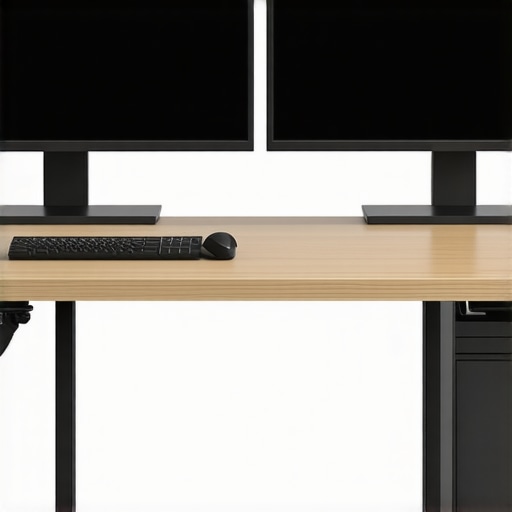
There was a morning when I leaned too close to my dual 4K monitors, trying to decipher tiny text on spreadsheets and design files, only to realize my neck had a slight kink, and my eyes felt strained. It hit me then—my desk setup was fighting me, not supporting me. It’s a lightbulb moment many of us have experienced, especially as our screens get larger and more pixel-dense. Are you tired of constantly adjusting your position, battling glare, or adjusting your chair just to get comfortable? If so, you’re not alone, and the good news is, this common struggle has a surprisingly simple resolution: the right desk depth.
Why Your Desk Depth Truly Matters for Dual Monitors
Could a Few Inches Make or Break Your Productivity?
When I first set up my dual monitors, I thought the bigger the screen, the better. But I overlooked an essential detail—how far the monitors sit from my eyes and how my workspace depth supports my workflow. Research shows that optimal viewing distances, especially for high-resolution screens, are around 24 to 30 inches. That range ensures your eyes aren’t straining and your posture remains natural, reducing fatigue and discomfort. Choosing the right desk depth isn’t just about fitting your gear; it’s about creating a space that promotes health and enhances productivity.
> Anecdotally, I once squeezed a larger desk into my corner, thinking more space equals better comfort. Instead, I found myself leaning forward or stretching awkwardly—a classic mistake that can be avoided with the proper depth. For more nuanced insights on selecting an ideal office setup, check out our comprehensive 2025 office monitor guide.
Is 24 Inches Really Enough or Should You Go for 30?
But Won’t a Larger Depth Clutter My Space?
It’s understandable to worry that a larger desk depth, like 30 inches, might eat into valuable space or be overkill. The key is balance. A 24-inch depth can be adequate for compact setups, but as dual monitors and accessories multiply—think color-accurate, ultra-wide, or 4K displays—the extra inches really come into play. They provide enough room to position monitors at eye level comfortably, prevent glare, and allow for ergonomic accessories without feeling cramped. In my journey, I initially dismissed the importance of this detail—until I realized that investing in the right depth made all the difference in my daily comfort and workflow.
Considering the evolving landscape of office tech, a deeper desk can also support peripherals like docking stations, speakers, and even a multifunctional keyboard tray, making your workspace more efficient. Curious about space-saving configurations? Our article on dual monitor hacks offers practical ideas.
So, have you faced discomfort or clutter due to your desk’s depth? If so, you’re not alone, and choosing the right size could be the game-changer you need. Next, we’ll look into how to identify your specific needs and pick the ideal desk dimensions and accessories to optimize your dual monitor setup for 2026.
Measure Your Space Before Buying
Start with precision
First, grab a tape measure and note the width and depth of your workspace. Think of your desk like a stage — you need clearance for all players (monitors, keyboard, and accessories). Use masking tape to outline the intended desk position on your floor. Once you know your available area, line up the dimensions with the size of your monitors and peripherals. This prevents surprises later, like discovering your monitor won’t fit or your chair blocks access.
Choose the Right Desk Depth for Your Monitors
Determine eye-to-screen distance
Set your monitors at eye level and at the recommended 24-30 inch distance, depending on resolution. For 4K monitors, closer to 24 inches is ideal because of pixel density, but for color-accurate editing, keep enough space to comfortably view. Remember, a desk that’s too shallow will force you to lean forward, causing neck strain. Conversely, a too-deep desk makes reaching peripherals tedious. My own setup started with a 24-inch desk, but after upgrading my monitors to 32-inch 4K displays, I moved to a 30-inch deep desk, which dramatically improved my comfort, especially during long coding sessions.
Adjust Monitor Position and Angle
Align for ergonomic efficiency
Place your monitors so the top edge is roughly at eye level. Use monitor stands or adjustable arms to fine-tune height and angle. An analogy: think of your monitor as a newspaper on a table — you want it in your line of sight with the headline (the main content) centered. For dual monitors, angle each slightly inward to reduce head turning, which minimizes neck fatigue. I found that adjusting both monitors to a slight outward tilt—forming a gentle V—kept me from craning my neck and helped keep focus intact over hours. For the best support, consider ergonomic accessories like dual monitor arms.
Prioritize Glare Reduction and Lighting
Create an environment that prevents eye strain
Position your desk perpendicular to windows to avoid direct glare on screens. Use matte screens or add anti-glare filters if necessary. Think of your workspace as a stage lighting setup: you want the light to enhance, not hinder, the show. I once faced a bright window creating glare on my 4K monitor, causing constant adjustments. Installing blackout curtains and choosing matte display options significantly improved visual comfort, especially when editing color-sensitive work. Visit this guide for options on matte screens suitable for office use.
Implement Cable Management Solutions
Keep your workspace tidy and functional
Use cable ties, clips, or sleeves to route cables along the edge of your desk. Consider a monitor with built-in cable management features. Imagine your cables as a garden hose: neatly coiled, they prevent tripping hazards and make upgrading easier. During my initial setup, tangled cords haunted me, but after installing simple cable clip organizers, my workspace looked cleaner, and I spent less time troubleshooting connectivity issues. Good cable management also helps maintain optimal airflow to your electronics, reducing overheating risks during extended work sessions.
Optimize Your Posture and Ergonomics
Maintain comfort through correct positioning
Adjust your chair height so your feet rest flat on the ground, knees at 90 degrees. Your keyboard and mouse should be positioned so your elbows are close to your torso, preventing shoulder strain. Think of your body as a well-oiled machine — proper alignment ensures smooth operation. I began using ergonomic chairs and taking short breaks every hour, which reduced fatigue and improved my focus. For detailed ergonomic tips, explore this comprehensive guide.
When it comes to selecting monitors for professional work, many assume more advanced specs automatically translate into better productivity. However, this mindset often leads to overlooking critical nuances that can diminish your efficiency. For example, a common myth is that 4K resolution alone guarantees accurate visuals for creative tasks. In reality, without proper calibration and color management, even a flagship 4K monitor can produce misleading colors, compromising your work quality.
Is Higher Resolution Always Better for Your Workflow?
Many professionals believe that bumping up to 6K or even 8K displays will exponentially boost productivity. Yet, studies show that unless your workflow involves pixel-precise editing or scientific visualization, higher resolutions can cause scaling issues, eye fatigue, and require more powerful hardware—leading to diminishing returns. As, well-known experts in ergonomics and visual technology suggest, matching your monitor’s resolution to your actual needs avoids unnecessary strain and expense.
Beware of the Color Calibration Trap and How It’s Often Overlooked
Everyone knows that color accuracy matters for creative fields, but few realize how critical proper calibration is. A monitor that claims 99% sRGB coverage may look fine in-store, but without a hardware calibration tool, colors can drift over time, especially in office lighting conditions. This subtle inaccuracy can lead to inconsistent branding, retouching errors, or simply frustrating mismatches. Investing in professional calibration tools and understanding Delta E standards ensures your monitor maintains precision, saving you from costly reworks later. For professionals dealing with images and video, choosing a monitor from our list of color-accurate options can prevent these pitfalls.
Beware of the Dual-Monitor Matchmaking Issue
Many underestimate how mismatched dual monitors—differences in brand, panel type, or color profiles—can sabotage workflow. The tiny inconsistencies may seem negligible initially, but over time, they cause eye strain, hinder color grading, and require constant adjustments. Ensuring uniformity by selecting monitors with similar specifications or calibrating them collectively is a crucial step often missed. High-end professional setups often include matching monitors designed for synergistic operation to streamline visual coherence.
Have you ever fallen into this trap? Let me know in the comments. Recognizing these nuances helps you make smarter choices, ensuring your workspace supports—and not sabotages—your productivity goals. Remember, a well-chosen, properly calibrated monitor setup is a cornerstone of efficient work. If you’re ready to upgrade your office tools with expert insights, feel free to reach out for tailored recommendations.
Tools I Recommend for Seamless Productivity
Maintaining an efficient workspace requires reliable tools that can adapt to the demands of high-resolution monitors, dual setups, and color-sensitive tasks. My go-to software includes DisplayCal for precise calibration, ensuring that your color-accurate monitors stay true to their specs over time. For managing multiple apps and workflows, I rely on Magnet on Mac or PowerToys FancyZones on Windows, which help organize windows effortlessly, keeping your workspace tidy and accessible. Regularly updating your graphics drivers is non-negotiable; I recommend setting up automatic updates or using manufacturer tools like NVIDIA GeForce Experience or AMD Radeon Software—these ensure your monitors perform optimally, especially when handling 4K or high-refresh-rate displays.
Implement Routine Maintenance to Protect Your Investment
Monitor calibration isn’t a one-time setup; it’s an ongoing process. Schedule monthly calibration checks using tools like professional calibration tools to keep colors consistent. Keep your monitors clean using microfiber cloths and specialized cleaning solutions—dirt and fingerprints can degrade image quality and color accuracy over time. Additionally, ensure your workspace’s ambient lighting remains steady; fluctuations in light can affect how you perceive screen colors and contrast. Using bias lighting behind monitors can also reduce eye strain and improve perceived contrast, prolonging your monitor’s lifespan.
Plan for Long-Term Results and Scaling
As your work evolves, so should your monitor setup. Investing in advanced productivity tools like adjustable monitor arms or dual cable management solutions can make scaling easier without cluttering your desk. Be cautious of technology fatigue; monitor hardware can wear out or become obsolete, so set regular review points—every 2–3 years—to evaluate whether your equipment still suits your needs. Also, consider software solutions that help track display health and calibration status, preventing performance dips before they impact your workflow.
Choosing the Right Accessories for Longevity
Invest in high-quality monitor stands and mount arms designed for your specific screens—especially for large, color-accurate 4K displays. For instance, adjustable arms with sturdy grip and smooth articulation reduce strain and wobble, preserving your monitor’s neat appearance and lifespan. Proper cable management accessories, like sleeves and clips, prevent undue stress on ports and cables, extending their usability. Remember, a well-maintained workspace isn’t just about aesthetics; it directly correlates with sustained productivity and health. For example, the best dual monitor arms are designed to hold heavy screens securely for years.
How do I maintain my monitors over time?
Establish a routine that includes monthly calibration, regular cleaning, and consistent ambient lighting. Keep firmware and driver updates current, and periodically review your physical setup to prevent wobbling or damage. Employ tools like DisplayCal for calibration and monitor health tracking software to preempt issues. Ultimately, proactive care and using specialized tools ensure your investment continues to serve your productivity needs at a high level, much like professionals who specify hardware with longevity in mind. To implement these tips effectively, try setting a calendar reminder for monthly calibration, and consider investing in a quality monitor arm to adapt as your workspace scales—check out our dedicated heavy-duty monitor arms guide for options.
The journey to an ergonomic, efficient workspace often feels like a series of small compromises—adjusting chairs, hunting for glare, or wrestling with tangled cables. But the true game-changer I discovered revolves around one often overlooked detail: your desk depth. It may seem mundane, yet it profoundly influences your productivity, comfort, and even your eye health. Investing just a few inches to optimize your desk size can transform your entire work experience, especially when managing high-resolution dual monitors that demand perfect positioning. So, why settle for discomfort when the secret lies beneath your fingertips?
The Hidden Wisdom of Desk Depth: Why Size Truly Matters
Discover how your workspace dimensions shape your daily grind
When I first set up my dual 4K monitors, I underestimated the importance of desk depth. I thought a standard 24-inch surface would suffice, but I soon found myself leaning forward or straining my neck. The truth is, an optimal desk depth of about 30 inches provides enough room to position monitors at eye level within the recommended 24-30 inch viewing distance, reducing fatigue and promoting healthy posture. This simple adjustment prevented countless minor discomforts and made my workflow noticeably smoother. Remember, your workspace should adapt to your needs, not the other way around. For tailored advice, check out our 2025 office monitor guide.
Is a Deeper Desk Always Necessary, or Is Comfort a Balance?
Navigating space concerns without sacrificing ergonomics
The idea of a 30-inch deep desk might raise eyebrows—will it clutter your space? The answer depends on your priorities. A slightly deeper surface allows for better placement of monitors, peripherals, and lighting, creating a clutter-free zone that enhances focus. In my experience, moving from a 24-inch to a 30-inch deep desk eliminated the need to stretch or lean to reach accessories, especially with larger 4K displays. If your workspace feels cramped, consider tailored solutions or adjustable stands that expand your options without sacrificing room. Want ideas? Our dual monitor hacks can help you adapt any layout seamlessly.
Refining Placement and Angle for Maximum Comfort
Mastering monitor positioning for prolonged productivity
After settling on the right desk size, the next step is positioning. Elevate your monitors to roughly eye level and angle them inward to create a gentle V-shape, minimizing neck turning. During my adjustment phase, I discovered that this alignment drastically reduced shoulder and neck strain, especially during extended coding sessions. Pair this with ergonomic accessories like adjustable arms and dedicated stands for the best results. For expert-recommended options, explore heavy-duty monitor arms.
Beyond Size: Managing Glare and Lighting
Creating an environment that protects your eyes
Even the best desk setup falls short if glare and ambient lighting aren’t managed. Position your desk perpendicular to windows, utilize matte screen coatings, and install bias lighting behind monitors to reduce eye strain. I once struggled with harsh sunlight bouncing off my glossy screens, causing frequent adjustments. After switching to matte displays and setting up indirect lighting, visual comfort improved dramatically. Enhancing your workspace’s lighting setup is a straightforward step that yields immense benefits. For specific luminance tips, see our matte monitor recommendations.
Keeping Cables Tidy and Electronics Healthy
Smart cable management to support your workflow
Messy cables are more than an eyesore—they can cause connectivity issues and even damage your gear. Use cable clips, sleeves, and dedicated docks to route cords neatly along the desk edges. I once overlooked this, leading to accidental disconnections during critical moments. Implementing a streamlined cable system not only declutters but also extends device lifespan by preventing wear. Our guide on top cable management solutions can set you on the right path.
Prioritizing Ergonomic Care for Long-Term Success
Establish rituals that keep you comfortable and healthy
Adjust your chair height so feet are flat, and take short breaks regularly—this is key to long-term health. I found that ergonomic chairs combined with consistent stretching routines significantly reduced fatigue. Regular check-ins on your setup—like revisiting monitor height or lighting—ensure your workspace evolves with your needs. For actionable routines, explore our ergonomic tips.
Real Lessons from My Setup Evolution
- Underestimating space requirements leads to discomfort: My initial setup was cramped, and adjusting became a daily hassle—don’t make the same mistake. Planning ahead with precise measurements and considering future upgrades saves headaches.
- Monitor placement beats size: A well-positioned, calibrated monitor outperforms a larger but poorly aligned one. It’s not about having the biggest screens but the right arrangement.
- Fine-tuning ergonomics is ongoing: No setup is static; regularly calibrate, adjust, and optimize to maintain comfort and productivity. Small tweaks can lead to big gains.
Gear Up for Your Best Workspace Yet
Equipping yourself with quality tools like software for calibration and window management helps sustain your high standards. Investing in sturdy monitor arms and thoughtful cable solutions protects your setup and your health. Remember, your workspace is an extension of your focus—make it a haven for productivity and well-being. Explore our detailed guides to find the perfect accessories that match your unique needs.
Your Canvas Awaits: Take the Next Step Today
Imagine a workspace tailored precisely to your workflow, where comfort meets efficiency seamlessly. Small changes—like adjusting your desk depth—can unlock new levels of productivity and ease. Are you ready to reassess your current setup and seize the benefits of a truly ergonomic workspace? The tools and knowledge are within reach; all you need to do is take action. For personalized advice, don’t hesitate to reach out—your perfect setup awaits.