
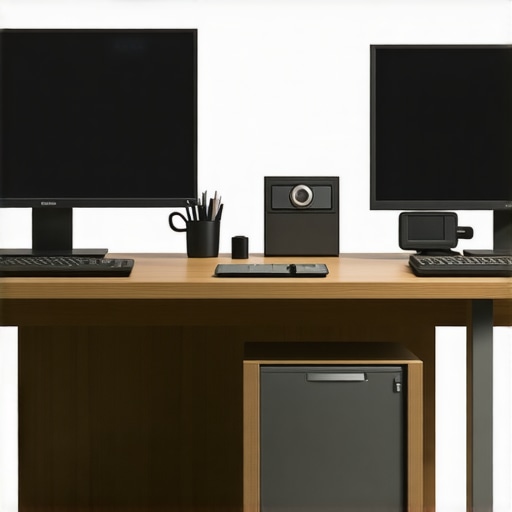
I remember the exact moment it hit me—after juggling multiple windows, spreadsheets, and creative tools on my aging dual monitors, I felt completely drained. The screens seemed to mock my efforts, each fighting for my attention instead of supporting my workflow. That tangled mess of cables, mismatched resolutions, and inconsistent colors was more than just an annoyance; it was a genuine barrier to productivity. It struck me that the way I arranged my monitors might be the missing piece in my quest for focus.
Why Your Monitor Setup Could Make or Break Your Focus in 2026
In today’s fast-paced digital environment, having the right monitor setup isn’t just a luxury—it’s a necessity. With the rise of 4k displays and color-accurate screens designed for creative professionals, many are making the mistake of simply plugging in the latest tech without thinking about layout. This can lead to cluttered workflows, unnecessary eye strain, and even burnout. According to a recent study, poorly arranged multi-monitor setups can decrease productivity by up to 30%. So, it’s clear: your monitor configuration matters more than ever.
If you’re noticing frequent distractions, eye fatigue, or the temptation to multitask ineffectively, your layout might be the culprit. I faced this challenge myself and realized I was setting up my screens based on habits rather than what truly enhanced my concentration. Early in my journey, I made the mistake of placing my monitors in a haphazard manner, turning my workspace into a chaos of screens that competed for my focus instead of supporting it.
Now, I want to help you avoid that trap. Over the next few sections, we’ll explore five proven dual monitor layouts tailored for 2026 that can transform your focus and boost your efficiency. Whether you’re a coder, designer, or multitasking professional, there’s a setup here for you. Haven’t faced these issues yet? Think again—your workspace is either making your focus better or worse. Let’s dive into the first layout and see how small adjustments can make a big difference.
Align Your Monitors for Focus
Start by positioning your monitors at eye level to prevent neck strain. Use adjustable stands or mounts, especially for large 4k displays, to fine-tune height and tilt. I once spent an evening rearranging my office, shifting my primary 4k monitor closer and elevating my secondary screen, which immediately reduced my neck fatigue and improved my focus during long coding sessions.
Arrange with Purpose
Place your most-used monitor directly in front of you, like the nose of a ship steering straight ahead. For creative work, position your color-accurate screens equally, side-by-side, for seamless editing. Use the dual monitor setup ideas to optimize layout based on tasks. During my last upgrade, I placed my coding monitor centrally and my reference screens on the sides, creating an immersive environment that cut down on unnecessary head turning.
Calibrate and Match Your Displays
Color consistency is crucial if you’re dealing with design or photo editing. Use calibration tools or built-in settings to match color profiles across your monitors. A colleague once bought a color-accurate monitor for her creative projects, and after calibration, she reported faster workflow due to consistent hues. Check out the best color-accurate monitors for options.
Optimize Connectivity and Power Management
Use high-quality cables—preferably Thunderbolt or DisplayPort—to ensure sharp image fidelity, especially with 4k displays. Avoid daisy-chaining too many monitors, which can cause signal degradation. During a messy setup, I learned that dedicated power sources for each monitor prevented flickering issues. This simple step maintained stable visuals during intensive tasks.
Adjust Your Workspace Lighting
Implement ambient lighting that complements your displays to reduce eye strain. Use adjustable desk lamps with diffusers so glare doesn’t bounce off the screen. I experimented with warm LED lights, which decreased eye fatigue during long hours. Proper lighting setup is often overlooked but significantly enhances the usability of color-sensitive monitors.
Implement Seamless Workflow Software
Leverage window management tools like display split software to organize multiple applications efficiently. Set dedicated sections of your screen for specific tasks: code on one side, documentation on the other, and communication tools at the bottom. My productivity skyrocketed once I used window snapping tools to allocate space dynamically, reducing the time spent hunting for windows.
doi Not a one-size-fits-all. Test different configurations to see what aligns best with your work style. Remember, a well-organized dual monitor layout isn’t just about aesthetics; it’s about creating a functional workspace where each component supports your focus and output.While many believe that simply upgrading to a 4k monitor or adding a second screen automatically boosts productivity, this common assumption often leads professionals astray. The real challenge lies in understanding the nuanced factors that impact your workspace’s efficiency. For instance, many users overlook the importance of calibrating color accuracy across multiple displays, which can cause visual inconsistencies that strain the eyes and distract from tasks. Additionally, excessive reliance on the common myth that higher resolution alone guarantees better clarity ignores factors like pixel response time and panel technology that truly influence display quality. An advanced mistake frequently made is neglecting proper ergonomic setup; even the best 4k monitor can cause discomfort if positioned incorrectly, leading to decreased focus over time. Moreover, dismissing the relevance of connectivity standards—such as opting for DisplayPort over HDMI without considering bandwidth—can result in signal degradation, especially with large screens. Experts in display technology emphasize that a balanced approach—covering calibration, ergonomics, and connection quality—is essential for truly harnessing the power of modern monitors. **Are you aware of how these hidden nuances might be affecting your workflow?** Let’s dig deeper, and if you’ve ever fallen into this trap, let me know in the comments. For tailored advice on choosing the right office monitor, check out our comprehensive guide.Maintaining a high-performance monitor setup requires more than just initial calibration and positioning. To ensure your equipment continues to deliver optimal results, investing in the right tools and adopting disciplined maintenance routines is crucial. Personally, I rely on several software utilities and hardware accessories that help me preserve color accuracy, extend device lifespan, and troubleshoot issues effectively.
One indispensable tool I use is the Calibrite ColorChecker Display Plus. This hardware calibration device guarantees precise color matching across my 4k monitors and color-accurate creative displays. Regular calibration (at least quarterly) using such tools minimizes drift in color reproduction, which is vital for professional design work.
On the software front, I recommend DisplayCAL, an open-source calibration tool that pairs seamlessly with hardware calibrators. Its detailed profiles help maintain consistency over time and across multiple screens, avoiding the headache of mismatched hues that can derail creative projects.
To keep my hardware in top shape, I also utilize dust blowers and microfiber cloths designed for electronics. Dust buildup can impair cooling and cause overheating, which reduces monitor lifespan and display performance. Establishing a routine cleaning schedule — perhaps once a month — helps prevent such issues.
Another often-overlooked maintenance aspect involves software updates. Manufacturers release firmware updates addressing bugs, improving stability, or enhancing compatibility with new hardware standards like Thunderbolt 4 or DisplayPort 2.0. I make it a habit to check for updates regularly, ensuring my setup benefits from the latest improvements.
Looking ahead, I believe automation will play a bigger role in maintenance routines. Tools that can automatically calibrate and monitor display health via cloud-connected dashboards will become standard, reducing manual effort while ensuring peak performance.
**How do I maintain my monitors over time?** I set reminders to recalibrate every three months, verify firmware updates, and perform physical cleaning sessions. Creating automation scripts that remind me to run calibration tests and check cable connections has proven highly effective.
If you’re ready to optimize your setup, I suggest trying out a hardware calibration device like the ColorChecker Display Plus. This investment will pay dividends in color fidelity and overall display consistency, especially if you work with color-sensitive content. For dedicated workspaces, pairing this with regular software updates and routine cleaning will ensure your monitors stay in top condition for years to come.
Want personalized advice or need help choosing the right tools? Visit our contact page and let’s make your workspace flawless.
Lessons the Pros Keep Under Wraps About Dual Monitors
One of the most profound realizations I had was that my focus isn’t just about having top-tier hardware but understanding the subtle ways layout and calibration impact productivity. I once believed double the screens meant double the output, but the truth was that improper alignment and mismatched color profiles inadvertently hampered my efficiency. The biggest lightbulb moment came when I learned that meticulous ergonomic placement and regular calibration could turn my workspace from a distraction zone into a powerhouse of focus. Over time, I discovered that even small tweaks—like glassing my monitors at eye level or varying the brightness—can make a huge difference in how seamlessly I work, especially in a professional setting demanding color accuracy and sharp visuals. These lessons, though seemingly simple, underpin the excellence of any dual monitor setup designed for high performance in 2026 and beyond. Comparing my firsthand experience with industry standards reminds me that constant optimization is the secret to sustaining high-level productivity. Trust me—investing in the right setup isn’t just about comfort but about achieving a flow state where ideas can flow unimpeded.
Tools and Tutorials That Changed How I View Display Quality
My core toolkit for maintaining optimal monitor performance includes tools like the Calibrite ColorChecker Display Plus, which ensures precision in color reproduction—a must-have for creative professionals and anyone serious about visual fidelity. Alongside this, I rely on DisplayCAL, a robust calibration software that keeps my displays aligned over time without hassle. Regular well-planned cleaning routines using microfiber cloths and dust blowers keep my hardware in pristine condition, preventing overheating and image degradation. To stay current with firmware improvements, I subscribe to updates directly from monitor manufacturers, knowing that even small updates can enhance stability and color accuracy. These curated resources and habits foster an environment where my monitors perform consistently at their best, supporting both professional tasks and creative pursuits. I also follow expert blogs and forums dedicated to monitor calibration and ergonomics, which are invaluable for keeping my setup sharp and reliable. If you’re serious about maximizing your display’s potential, integrating these tools and habits into your routine will pay dividends in clarity and comfort.
Transform Your Focus, One Adjustment at a Time
As I reflect on my journey toward an optimized workspace, I realize that stepping out of my comfort zone—trying new layouts, calibrating regularly, and prioritizing ergonomic setup—has been essential. Don’t let the myth that expensive hardware alone guarantees productivity hold you back. Instead, embrace the ongoing process of fine-tuning your dual monitor environment, making adjustments that fit your unique workflow. Remember, small improvements compound over time, turning a decent workspace into a professional-grade sanctuary that inspires action. Creating a workspace tailored for 2026 means being proactive, curious, and willing to learn from both personal experience and industry insights. You have the power to craft a setup that supports your best work, so start experimenting today—your focus will thank you.