
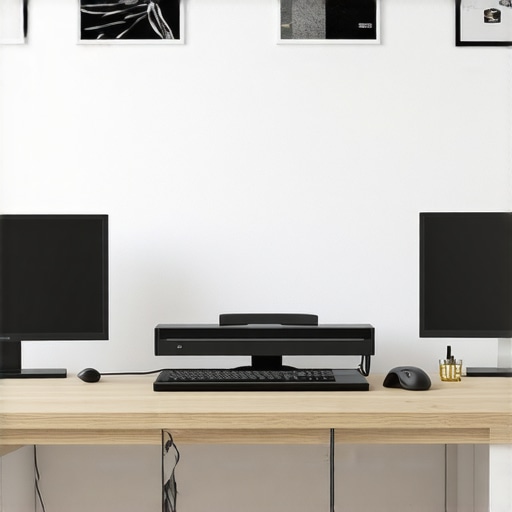
Ever glanced down at your desk and felt a pang of frustration seeing a tangled mess of cables spilling out behind your sleek new dual monitor setup? I vividly remember the moment I realized my workspace looked more like a spaghetti junction than a professional office—right when a client was about to hop on a video call. That lightbulb moment hit me: the clutter not only ruins the aesthetic but also hampers productivity and increases stress. So, I rolled up my sleeves and started exploring practical ways to tame those unruly cables.
Why Cable Management Can Make or Break Your Workspace
In the era of ultra-clear 4K monitors and color-accurate screens, every detail counts. A cluttered desk isn’t just an eyesore; it can actually reduce focus and efficiency. Plus, with the advancements in 2026’s top monitors designed for productivity, smooth setup is more critical than ever. Confession: I once used cheap cable clips that kept slipping, leading to more mess—an early mistake I learned from. Now, with better techniques and tools, I’ve transformed my workspace into a clean, distraction-free zone. Today, I promise to share exactly how you can achieve this too, with seven tips that actually work and make a noticeable difference.
Is Cable Management Overhyped? The Reality of a Tidy Setup
Initially, I wondered if investing time and money into cable hiding was worth it. Some told me, “It’s just cables,” but I soon discovered the impact it had on my daily workflow. A neat workspace isn’t just visually pleasing; it also reduces strain and saves time when unplugging or switching devices. However, I also fell into the trap of overspending on gadgets that promised miracles but delivered little. Remember, even simple fixes, like proper cable ties, can save hours of frustration. If you’ve ever felt overwhelmed by the clutter behind your dual monitors, keep reading—these tips will help you regain control and create a workspace that’s as efficient as it is beautiful.
Secure Your Cables with the Right Tools
Start by gathering essential supplies: Velcro cable straps, adhesive-backed cable clips, and a cable sleeve. I once mistakenly used cheap velcro straps that wore out quickly, causing disorder again. Upgrading to high-quality straps made a noticeable difference, keeping cables firmly in place. Attach clips along the desk edge, directing cables downward to prevent tangling. Use cable sleeves to bundle wires together, making the entire setup look tidy and manageable. Proper tools streamline the process, preventing future clutter.
Plan Your Cable Pathway Strategically
Visualize the route your cables should take from monitors to power sources. Think of your workspace as a city map—the cables are roads, and your desk is the city center. Plan a path that minimizes crossing and keeps cables away from high-traffic areas. For example, run cables along the back edge of your desk, secured with adhesive clips. When I implemented this in my office, I eliminated the tripping hazards and achieved a sleek appearance instantly. Use cable ties to keep runs organized, especially behind monitors for a clean look.
Optimize Power Strip Placement
Position your power strip beneath or behind your desk to reduce visible clutter. Use a vertical mount or a cable box to hide excess cord ends. I once left my power strip on the floor, which looked messy and was inconvenient. Mounting it on the underside of the desk kept everything out of sight and accessible. This step prevents cords from dangling and creates a distraction-free environment, enhancing focus during work sessions.
Leverage Smart Devices and Docking Stations
Incorporate docking stations that support multiple monitors and power delivery. These devices can combine charging, data transfer, and video output into a single cable. I swapped my multiple chargers for a dock that connected all my peripherals through a single USB-C cable, reducing clutter and simplifying my setup. Explore options like office monitors with KVM switches to enhance cable management further, especially for dual-monitor workflows.
Maintain and Adjust Regularly
Set a routine to check cables monthly, ensuring straps and clips remain secure. Over time, cables can slip or wear out, leading to mess. When I noticed some straps loosened, I replaced them immediately, maintaining my workspace’s integrity. Keep cables labeled if you frequently switch devices to avoid unnecessary disconnections and rewirings. Organized cable management isn’t a one-time task; it’s an ongoing process that preserves the clean aesthetic and boosts productivity.
Implementing these steps transformed my workspace from chaos to clarity. With a few strategic choices and regular upkeep, you can enjoy a clutter-free environment that enhances your focus and efficiency, especially when working with high-end color-correct monitors, seamless 4K displays, and robust dual monitor arrangements. A tidy setup isn’t just visually pleasing; it’s a critical component of your professional efficiency.While many professionals focus on screen size or resolution when choosing a monitor, there are several nuanced aspects that often get overlooked, leading to suboptimal setups and reduced productivity. Let’s explore some common myths and advanced pitfalls that even seasoned users can fall into, and how to avoid them for a truly optimized workspace.
Is Higher Resolution Always Better for Your Workflow? The Hidden Trade-Offs
It’s tempting to assume that a 4K monitor automatically translates to better clarity and productivity, but in practice, higher resolution screens demand more from your hardware and software. For instance, many users experience scaling issues or lag when running complex applications on 4K displays, especially if their GPU isn’t up to date. Moreover, text and UI elements can become painfully small without proper scaling, leading to eye strain. Experts recommend balancing resolution with your hardware capabilities and operating system scaling options. According to a study by the Interaction Design Foundation, poorly calibrated scaling negates the benefits of ultra-high resolution displays. Always test and calibrate your display settings before making a purchase decision, and consider whether a high-refresh, lower-resolution monitor might serve your needs better for long hours of work.
Prioritize Regular Calibration for Consistent Color Accuracy
Maintaining precise color reproduction on your color-accurate monitors is crucial for professionals in design, photography, or video editing. I personally use the X-Rite i1Display Pro Plus calibrator. It offers hardware calibration, ensuring that your monitor displays true-to-life hues consistently over time. I’d recommend scheduling calibration every 4-6 weeks, especially if your workspace’s lighting conditions change frequently. This diligent approach helps prevent color drift and guarantees your work remains accurate, reducing costly re-edits and ensuring client satisfaction.
Sophisticated Software Enhances Long-Term Maintenance
Pair your hardware tools with reliable calibration software like CalMAN or DisplayCAL. In my experience, DisplayCAL’s open-source platform is superb for managing different monitor profiles and automating calibration routines. Setting up these tools to run periodically—say, weekly—can automate the process, saving you time and mental effort. For example, I have my system set to calibrate at night, so each morning I start with a display that’s perfectly aligned. This reduces eye strain and ensures color consistency, especially when working on projects demanding high fidelity.
Stay on Top of Firmware Updates and Connection Lifespan
Firmware updates for your monitors and calibration devices can fix bugs and improve performance. I check for updates monthly via the manufacturer’s software portal—most are straightforward to install. Also, consider the lifespan of your cables and connectors. Using high-quality HDMI 2.1 or DisplayPort 1.4 cables, which I prefer, can prevent signal degradation over time, maintaining image quality for your 4K or dual monitor setups. For productivity, a reliable connection means fewer disruptions or color flickering, which can derail your workflow during critical tasks.
Implement Automated Brightness and Contrast Adjustments
Modern monitors with ambient light sensors can auto-adjust brightness and contrast, maintaining optimal visibility regardless of changes in ambient lighting. I highly recommend the LG UltraFine Series equipped with intelligent sensors. Similarly, software solutions like f.lux can modify your display’s color temperature automatically based on the time of day, reducing eye strain. This ongoing adjustment ensures your workspace remains comfortable and your work stays consistent, especially during long hours at high-resolution screens.
Plan for Future-Proofing with Scalable Tools
As technology evolves, keeping your setup scalable is vital. Invest in monitor arms and mounting solutions that support easy upgrades. Modular cables and docks permit quick replacements or additions without major overhauls. I believe that in the near future, AI-driven calibration and adaptive color management will become standard, further simplifying upkeep. Staying informed about these developments ensures your workspace remains efficient without frequent costly updates.
How do I maintain my monitor setup over time? Keep a routine of calibration, firmware checks, and connection reviews. Incorporate software like DisplayCAL to automate calibration, and ensure you use high-quality cables to prevent signal issues. Regularly updating firmware and adjusting ambient lighting settings also contribute greatly to consistent, vibrant displays. For example, I now dedicate 15 minutes weekly to these tasks—I find it reduces my setup’s downtime and preserves the high quality for my creative projects. Try setting a recurring reminder to perform these maintenance tasks, and experience fewer surprises with your office monitor performance every day.
Over the years, I’ve learned that a well-optimized office monitor setup isn’t just about sharper images or vibrant colors; it’s a cornerstone of sustained productivity and well-being. Investing time into understanding how to fine-tune your monitor calibration, select the right hardware, and manage cables has transformed my workflow and reduced daily frustrations. The true magic lies in these small, deliberate adjustments that elevate your workspace from decent to extraordinary. Trust me, once you start treating your monitor setup with the same care as your most valuable tools, you’ll notice a remarkable boost in clarity, comfort, and efficiency.
The Power of Subtle Shifts: Lessons I Wish I’d Started Sooner
- Color calibration isn’t just for professionals: I used to overlook calibration, assuming I’d notice the difference only on high-end workstations. But even casually calibrated monitors reduce eye strain and make images pop. A quick calibration routine can save your eyes and improve your long-term health.
- Finding the right cable quality matters more than you think: Upgrading to higher-quality HDMI or DisplayPort cables eliminated flickering and signal issues I faced, especially with 4K monitors. It’s a simple upgrade that pays massive dividends in stability and clarity.
- Regular maintenance keeps your setup pristine: Scheduling monthly checks for firmware, recalibration, and cable wear saved me from sudden display issues—plus, it kept my workspace feeling fresh and efficient.
- Mock-ups over specs: I realized that trading higher refresh rates for better color accuracy suited my workflow better. Don’t chase numbers blindly; choose what enhances your everyday work most effectively.
- Automation reduces the burden: Using calibration software like DisplayCAL to automate routine checks ensured my display stayed consistent without manual fiddling, proving that smart routines can save time and frustration.
My Arsenal for a Flawless Office Monitor Environment
- Dummy calibration tools like the X-Rite i1Display Pro Plus: They’re the gold standard I rely on for precise color accuracy, especially for creative projects.
- High-quality cables and mounting solutions: Keeps my setup stable and clean, preventing cable fatigue and clutter.
- Reliable calibration software: DisplayCAL and CalMAN help me maintain consistency effortlessly.
- Ambient lighting management tools: I use ambient light sensors integrated into some monitors, complemented by software like f.lux, to reduce eye strain during long working hours.
Taking Action to Transform Your Workspace
Remember, the effort you put into your office monitor setup isn’t just about luxury—it’s about creating a sustainable, efficient environment tailored to your needs. Small consistent actions, like regular calibration, cable upgrades, and optimal positioning, compound over time to produce a workspace that inspires confidence and comfort. Don’t wait for discomfort or frustration to remind you—start today, and turn your monitor into a powerful ally for your professional journey. Your future self will thank you for the clarity and focus you cultivate now.
What’s one change you think will make the biggest difference in your office monitor setup? Share your thoughts below—I’d love to hear your experiences and tips!