
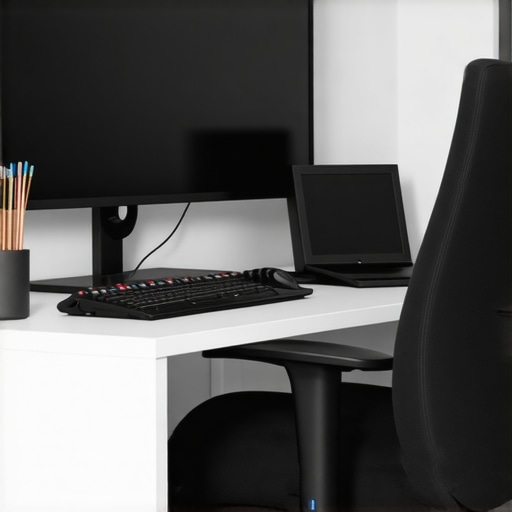
I remember the moment all too well—staring at my new 4K office monitor, hoping it would boost my productivity, only to be met with a relentless ache in my eyes after just a few hours. It was like my vision had turned into a aching, pixelated mess, and I couldn’t focus anymore. That lightbulb moment made me realize something: despite their stunning clarity and color perfection, these high-resolution screens can seriously strain your eyes if not properly managed. Have you faced the same frustration, feeling your productivity drops because of eye fatigue? Well, I’ve been there. Over the years, I’ve discovered practical and effective tactics to combat eye strain, even with the latest 2026 tech like dual 4K setups, color-accurate displays, and curved screens. Today, I want to share those insights with you, so you can work comfortably and stay sharp longer.
Why Your Eyes Suffer on 4K Monitors
There’s no denying that 4K monitors deliver incredible detail and vibrant colors, making even the dullest spreadsheets and lengthy coding sessions a visual delight. But, unfortunately, all that beauty comes with a catch: eye fatigue. According to a recent study by the American Optometric Association, prolonged exposure to bright, high-resolution screens can cause digital eye strain, leading to discomfort, headaches, and blurred vision. The sheer pixel density in 4K displays means your eyes are constantly adjusting focus, especially if you’re working with dual monitors or color-critical tasks. Early on, I made the mistake of ignoring monitor calibration, assuming brightness and contrast weren’t that crucial. That oversight caused my eyes to feel exhausted by midday, and I nearly had to switch back to my old TN panels. If you want to prevent this, understanding the root causes of eye strain is essential.
Is Tech Just Overhyped? Here’s Why it’s Not
Many skeptics argue that advanced monitors are just overhyped luxury gadgets. I used to believe that myself, until I learned that proper ergonomics and display settings could significantly impact eye health. Implementing just a few simple tactics—like adjusting brightness, optimizing color profiles, and using proper positioning—transformed my workday from hell to harmony. And trust me, it pays to avoid the mistake I made early in my setup—ignoring the importance of ambient lighting and proper calibration. Want to learn how to do it right? Explore more about choosing the best office monitors for your workspace.
In the next sections, I’ll walk you through the 7 proven tactics I swear by—these are game changers for anyone juggling multiple high-res screens, whether you’re a creative professional or deep into data analysis. Ready to make your monitor work for your eyes—and not against them? Let’s dive in and turn your workspace into a haven of comfort and productivity.
Adjust Brightness and Contrast Immediately
Start by setting your monitor’s brightness to match the ambient lighting in your workspace. Imagine your screen as a window; if it’s too bright compared to the room, your eyes strain trying to adapt. I once pushed my brightness to maximum, thinking it would make colors pop, but within an hour, my eyes felt exhausted. Toning down the brightness to a comfortable level—around 120-130 cd/m²—made a noticeable difference. Also, tweak the contrast settings to ensure blacks are deep and whites are crisp without being harsh. Use your monitor’s auto-calibration feature or a colorimeter if available. Proper calibration reduces eye stress and makes working longer more sustainable.
Position Your Screen for Less Eye Strain
Place your monitor about an arm’s length away, with the top of the screen just below eye level. Think of your monitor as a dashboard view—if it’s too high or low, your neck and eyes put in extra effort. I once used a stack of books to elevate my 4K display, which initially helped, but it wasn’t stable. Upgrading to a quality adjustable monitor arm—like the ones reviewed in this guide—made a huge difference. It allowed me to fine-tune the height and angle, reducing muscle tension and preventing eye fatigue over long sessions.
Leverage Screen Protective Features and Software
Utilize blue light filters, night modes, or software like f.lux to reduce eye-damaging wavelengths. During a busy project, I forgot to activate these features, resulting in headaches and blurred vision mid-afternoon. When I finally enabled them, my eyes felt less strained, and I could focus better. Modern operating systems have built-in options—I recommend scheduling these to turn on automatically during work hours. Additionally, consider enabling flicker-free technology and high refresh rates, which can be the difference between eye comfort and fatigue, especially with high-res displays and dual monitor setups.
Calibrate Your Color Settings for Consistency
Color consistency prevents your eyes from constantly adjusting to different hues. I initially assumed that factory settings were good enough until I noticed subtle variations in color calibration, making certain tasks more tiring. Investing in a colorimeter or using calibration tools like DisplayCAL can bring uniformity. Focus on achieving a Delta E below 2 to ensure minimal color discrepancy—crucial for creative work or detailed data analysis. Once calibrated, I noticed multitasking became less stressful, because my eyes could operate seamlessly across screens without adjusting focus constantly.
Manage Ambient Lighting Effectively
Control the lighting around your workspace to avoid glare and reflections on your monitor screen. I once worked late in a brightly lit room with a window direct behind my monitor, causing glare that’s as blinding as looking into the sun. Using blackout curtains and positioning my monitor perpendicular to windows greatly reduced glare. Adding bias lighting behind your screen—like a soft LED strip—further reduces eye strain by lowering contrast between monitor and the room. For detailed guidance, see this article on ambient lighting strategies for high-quality monitors.
Adopt the 20-20-20 Rule and Micro Breaks
Every 20 minutes, look at an object at least 20 feet away for 20 seconds. Set a timer or use software reminders—like those discussed in this resource—to keep your eyes from overworking. During a particularly intense coding marathon, I ignored this rule and ended up with blurry vision. Implementing micro breaks allowed my eyes to reset, reducing dryness and fatigue, and improving focus. Over time, this habit becomes second nature, especially when combined with ergonomic adjustments.
Use Display Management Tools and Accessories
Invest in dual monitor arms, monitor hoods, or anti-glare films to enhance visual comfort. I used to have cluttered cables and unstable mounts, which caused distracting wobble and uneven angles. After switching to sturdy, adjustable arms highlighted in guides like this article, setup became cleaner and more stable. A clutter-free desk with well-positioned monitors keeps your focus sharp and minimizes accidental movements that can introduce eye strain. Also, consider matte screen coatings or filters to diminish glare from ambient light sources. These accessories directly improve your visual environment, helping sustain long work sessions without discomfort.
While it’s tempting to think that investing in the latest 4K or color-accurate monitor will automatically boost your productivity, the reality is far more nuanced. Many professionals assume that bigger, brighter, or higher-resolution screens inherently lead to improved efficiency. However, this overlooks critical details that can make or break your setup. For instance, most users neglect the importance of *calibration* over just resolution. A common myth is that factory presets are sufficient—that’s simply not true. Proper calibration ensures color consistency and reduces eye strain, especially when working on color-sensitive tasks. Skipping this step can lead to subtle discomfort and even long-term visual fatigue, as highlighted by recent studies emphasizing the significance of color accuracy in professional workflows.
Another misconception revolves around *dual monitors*. Many believe that simply adding a second screen doubles productivity. But without thoughtful arrangement, this can cause more harm than good. For example, improper ergonomics—like mismatched heights or excessive bezel gaps—forces your neck and eyes into awkward positions, leading to fatigue and decreased focus. An advanced mistake is ignoring the *setup’s internal calibration*; even two identical monitors can display slight color differences if not properly synchronized. This inconsistency can strain your eyes over time, particularly when editing images or videos. To truly harness the potential of dual setups, consider using high-quality monitor arms that support precise positioning and alignment, ensuring a seamless workspace.
When it comes to 4K monitors, many job seekers overlook *scaling and UI element sizing*. High resolutions can make text and interface elements ridiculously small if your system isn’t properly configured, causing eye fatigue from constant zooming and scrolling. Windows and macOS offer scaling options, but improper use can lead to blurry visuals or uneven interface sizes. The key is understanding the *sweet spot* for scaling based on your monitor size and eyesight acuity—usually around 125%-150% for 27-inch 4K displays. In my experience, neglecting this causes unnecessary eye strain, which could be avoided with a simple adjustment.
For office monitors intended for long hours, a prevalent mistake is choosing displays with glossy finishes. While glossy screens might seem more vivid initially, they are notorious for reflecting ambient light, creating glare that increases eye strain. Matte-finished monitors, on the other hand, diffuse reflections, reducing discomfort during prolonged work sessions. Also, many overlook the importance of *color accuracy* for productivity. A common assumption is that color profiles are only important for designers, but accurate colors help your eyes interpret visuals more naturally, reducing fatigue. Investing in a color-accurate monitor and properly setting your display’s ICC profile—something covered extensively in our guide on the *best color-accurate monitors for creative professionals*—can significantly improve comfort and performance over time.
Lastly, I want to address a frequently missed nuance that even savvy users often overlook: *ambient lighting and monitor contrast*. Relying solely on monitor settings without considering room lighting can nullify any calibration efforts. Bright rooms or direct sunlight reflecting off screens can make even perfect color profiles feel off, compelling your eyes to overcompensate. Using bias lighting behind your monitor, combined with window treatments to control glare, creates a stable visual environment that minimizes eye strain and maximizes the benefits of your high-end display. Want to refine your workspace further? Check out the latest tips on achieving *optimal monitor positioning and ambient lighting* in our comprehensive setup guides.
Remember, understanding these subtle, often overlooked factors can mean the difference between eye fatigue and sustainable productivity. By paying attention to calibration, ergonomics, visual environment, and system settings, you ensure your investment truly pays off. Have you ever fallen into this trap? Let me know in the comments.
Optimize Your Workflow with Reliable Tools
To maintain peak productivity and ensure your high-resolution monitors continue delivering their benefits, investing in the right tools is essential. I personally rely on a combination of software and hardware that not only streamline my daily tasks but also safeguard my investment. For instance, I use DisplayCAL for routine calibration checks, which helps me maintain color accuracy across my dual monitors without the need for costly recalibration equipment. Regular calibration ensures your displays stay consistent, reducing eye fatigue and preventing color drift over time.
On the hardware front, heavy-duty dual monitor arms have been invaluable. They keep my setup stable, adjustable, and aligned, making long work sessions far more comfortable. These arms also free up desk space and prevent wobble that can cause eye strain, especially with large 4K screens. Incorporating cable management tools helps keep my workspace tidy, reducing distractions and accidental pulls that could disrupt calibration or cause hardware wear.
From a software perspective, color profiling tools and screen management software like f.lux or Night Light help me adapt my display environment to ambient lighting conditions, preventing harsh contrasts that strain my eyes. These tools automatically adjust color temperature based on the time of day, which protects my vision during extended use.
Consider Long-Term Monitoring to Sustain Performance
For those serious about longevity, I recommend periodic health checks like assessing Delta E values to ensure color fidelity remains within professional standards. Although this might sound technical, many calibration tools now include user-friendly interfaces to help track performance over time. This proactive approach prevents subtle issues from evolving into significant problems that could compromise the integrity of your visual workspace.
Looking ahead, I predict that integrating AI-powered calibration and adaptive display management will become standard, further simplifying maintenance. For now, however, the combination of reliable hardware, smart software, and routine checks is your best bet.
Now is a good time to try implementing a comprehensive calibration schedule combined with high-quality monitor arms. These small but powerful adjustments can dramatically extend the lifespan of your display investments and keep your eyes comfortable for years to come. Need expert assistance? Contact us for personalized recommendations tailored to your workspace.
Having navigated the world of ultra-high-resolution monitors, I realized that the true mastery lies not just in choosing the latest tech, but in mastering its subtleties. The breakthrough came when I observed how small adjustments—like calibration and ambient lighting—transformed my demanding multi-monitor setup into a haven of comfort and efficiency. These insights unlocked a level of productivity I hadn’t believed possible, reminding me that excellence often stems from attention to detail rather than expensive gear alone.
Lessons Only the Savviest Monitor Enthusiasts Discover
- Calibration is King: I learned that factory settings are just a starting point. Fine-tuning color accuracy and brightness tailored my workspace, dramatically reducing eye fatigue—something no off-the-shelf monitor adjustment can match.
- Ambient Light Is a Game-Changer: Adjusting my room’s lighting conditions, with soft bias lighting behind my monitors, minimized glare and contrast-related strain, proving that environment matters as much as hardware.
- Positioning Matters More Than You Think: Careful placement of my screens, at eye level and an appropriate distance, prevented neck strain and kept my focus sharp all day long.
- Don’t Overlook Scaling and Text Size: Customizing UI scaling ensured that even tiny fonts on 4K panels didn’t cause unnecessary eye struggles, showing that even small settings tweaks can make a big difference.
Essential Arsenal for the Serious Workspace
- Choosing the right office monitor with the perfect calibration features transformed my visual experience. It’s the cornerstone of enduring comfort.
- Investing in heavy-duty dual monitor arms stabilized my setup, enabling effortless adjustments and minimizing wobble—an often-overlooked source of discomfort.
- Using color calibration tools kept my displays consistent, preventing the eye fatigue caused by mismatched colors across screens.
- Implementing ambient lighting strategies created a balanced visual environment that let high-res screens shine without strain.
Your Next Step to an Eye-Friendly Office
The future belongs to those willing to tweak, calibrate, and adapt their workspace for optimal comfort. Take the time to explore these techniques—not only will your eyes thank you, but your overall productivity will soar. Remember, the investment in fine-tuning your workspace outcome is much greater than the sum of its parts—it’s an investment in your health and long-term efficiency. Ready to elevate your office setup and reduce eye strain? Start with one small change and see how you feel in a week. Have you faced challenges with monitor calibration or ambient lighting? Share your experiences below and join the community of productivity enthusiasts who refuse to settle for less.