
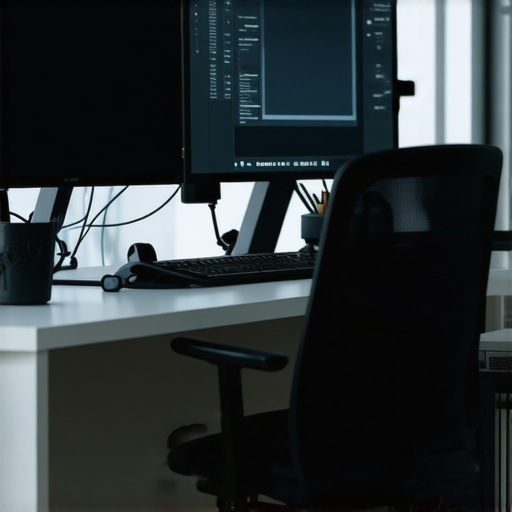
I remember the exact moment I realized my old single monitor setup was holding me back. It was a chaotic Monday morning, deadlines looming, and I was juggling between multiple windows—code, emails, research pages—all on a tiny screen. Frustration bubbled up as I kept switching tabs, losing focus, and wasting precious minutes. That was my lightbulb moment. I knew I needed something better, something more efficient.
Fast forward to today, and I can confidently say that a well-designed dual monitor setup transformed my workflow. But here’s the thing: not all setups are created equal. With new tech emerging in 2025, choosing the right monitors and arranging them properly can make or break your productivity—whether you’re a developer, designer, or remote worker. In this article, I’ll share my personal journey, mistakes I made early on, and practical advice to help you build the perfect dual monitor setup for your needs.
Why Your Workspace Deserves a Dual Monitor Upgrade
Most of us underestimate how much a second screen can change the game. Studies show that dual monitors can boost productivity by up to 40% and significantly reduce errors. Imagine having your code on one side and documentation or communication apps on the other—no more constant window switching. Plus, with the rise of high-resolution, color-accurate displays, your work can become not just faster, but also more visually precise.
In 2025, the market is flooded with options—curved screens, 4K resolution, ultra-wide monitors, and more. It’s exciting but also overwhelming. I remember rushing into a purchase without enough research, ending up with a monitor that was too dim or had poor color accuracy, which hampered my creative tasks. That mistake taught me to prioritize quality over hype and ensure my setup truly suited my workflow.
If you’re tired of feeling cramped or switching between multiple tabs and windows, then you’re in the right place. Today, we’ll explore how to pick the best dual monitor setup for your work, coding, or creative projects, so you can finally work smarter, not harder. Ready to transform your workspace? Let’s get started.
What’s Holding You Back from a Better Setup?
Have you ever invested in a monitor that looked great but turned out to be a pain in the neck or eyes? I did. Early on, I made the mistake of prioritizing size over ergonomics and color accuracy, which led to headaches and eye strain. Trust me, I’ve learned the hard way that a good monitor isn’t just about big screens or flashy specs—it’s about how well it integrates into your workflow and supports your productivity.
In this guide, I’ll help you avoid those pitfalls and share insights backed by industry experts and my own experience. For more ideas on boosting your workspace, check out dual monitor setup ideas for 2025.
Choose Monitors That Fit Your Workflow
Start by selecting monitors that align with your specific tasks. If you’re into creative work, prioritize color accuracy and resolution. For coding and office productivity, focus on high refresh rates and ergonomic features. In 2025, ultrawide and curved screens are also popular for their immersive experience, mimicking a seamless workspace without gaps. When I upgraded, I opted for two 27-inch 4K monitors with IPS panels, ensuring sharp visuals and accurate colors for my creative projects and coding work.
Align and Position for Comfort
Proper placement is key. Think of your monitors as the dashboard of your car—you want everything in easy reach and at eye level. Use adjustable stands or monitor arms to set your screens at the right height, angle, and distance. I learned this the hard way—my first setup had monitors stacked on books, leading to neck strain after a few hours. Now, I position the primary monitor directly in front of me, with the secondary slightly to the side at a comfortable angle. This reduces eye fatigue and keeps my workflow smooth.
Optimize Your Desk Space and Ergonomics
Maximize your desk space with dual monitor mounts that clamp to the edge. This frees up room for other essentials and keeps cables tidy. Remember to invest in a good ergonomic chair and a keyboard tray that keeps your wrists neutral. I used to work hunched over, but after adding a dual monitor arm and adjusting my chair height, I noticed a significant drop in discomfort. Think of your workspace as a cockpit—every element should support your productivity and comfort.
Configure Software for Efficiency
Once your hardware is set, fine-tune your software. Use window management tools like Windows Snap or third-party apps like DisplayFusion to organize your workspace. For coding, I assign my code editor on the left monitor and documentation or chat apps on the right. This setup reduces switching tabs and helps me keep focus. Additionally, customize your display settings to match ambient lighting, reducing glare and eye strain. In 2025, many monitors offer auto-brightness and color temperature adjustments—use them to your advantage for long work sessions.
Test and Tweak Your Setup
After assembling your dual monitors, spend time testing different arrangements. I recommend working for a few days with your initial setup, then adjusting angles or positions based on comfort. Small tweaks can make a big difference—like shifting a monitor slightly higher or lowering your chair. Remember, the goal is to create a workspace that feels natural and minimizes fatigue, so don’t hesitate to experiment until it feels right. For more ideas, check out dual monitor setup ideas for 2025.
Many enthusiasts and professionals dive into dual monitor setups with the belief that simply adding a second screen will instantly boost productivity. However, let’s dig deeper and uncover some hidden nuances that many overlook, leading to less-than-ideal results. One prevalent myth is that bigger or higher-resolution monitors automatically equate to better workflows. While these specs are important, the real game-changer lies in how you integrate and optimize your setup for your specific tasks.
For instance, a common trap is neglecting the importance of calibration and color accuracy, especially for creative work. Monitors with high resolution and size won’t deliver their full potential if they aren’t properly calibrated. Creative professionals, in particular, should prioritize color-accurate displays, such as those highlighted in our guide to color-accurate monitors for 2025. Failing to do so means risking color mismatches and compromised visual work, which can be costly in professional settings.
Another misconception is that all dual monitor setups are created equal. Many just stack two monitors without considering ergonomic positioning or the workflow’s natural flow. This often results in neck strain, eye fatigue, and reduced productivity. A more advanced mistake is ignoring the importance of monitor placement and ergonomics. For example, aligning the primary monitor directly in front of you at eye level while placing the secondary at an angle can significantly reduce strain. Proper use of monitor arms and ergonomic accessories is crucial here, a detail often underestimated in tutorials that focus solely on hardware specs.
How can I optimize my dual monitors for complex workflows?
Optimizing for complex workflows involves more than just physical setup. Software configuration plays a vital role. Using window management tools like Windows Snap or third-party apps such as software solutions to organize your workspace can streamline multitasking. For instance, dedicating one monitor for coding and the other for reference materials reduces context-switching, enhancing focus and efficiency. Additionally, customizing display settings to match ambient lighting can reduce eye strain during long work sessions, a feature increasingly available in 2025’s monitors.
Beware of the trap where users assume that simply adding more monitors will automatically improve productivity. The truth is, without proper alignment, ergonomic setup, and software optimization, additional screens can become a distraction rather than a tool. It’s worth investing time in testing different configurations and adjusting angles, heights, and software profiles until your workspace feels natural and minimizes fatigue.
In summary, the key to a successful dual monitor setup isn’t just hardware specs but how you integrate, calibrate, and optimize your environment. Remember, every workflow is unique—what works for one person might not suit another. Take the time to tweak your setup, and don’t fall into the trap of assuming bigger is always better. Want more tips on creating a workspace tailored to your needs? Check out our latest setup ideas for 2025. Have you ever fallen into this trap? Let me know in the comments!
How do I maintain my dual monitor setup over time?
Keeping your dual monitor setup in top shape requires a combination of the right tools, routine checks, and thoughtful adjustments. Personally, I rely heavily on specialized software that helps me monitor and calibrate my displays, ensuring consistent performance and color accuracy. One tool I swear by is CalMAN. It allows me to regularly calibrate my monitors, which is crucial for creative work where color fidelity matters. Regular calibration ensures that my displays remain accurate over months, preventing drift that can occur with aging panels.
In addition to calibration tools, I use display management software like DisplayFusion. This software helps me organize windows, create custom profiles, and quickly switch between workspace configurations. It’s particularly useful when I need to set up different modes for coding, designing, or video editing, saving me time and reducing clutter.
Hardware maintenance is equally important. I routinely check cables for wear and tear, replacing any frayed or loose connections. Dust accumulation can cause overheating and reduce display lifespan, so I keep my workspace tidy and use compressed air to clear dust from monitor vents and ports. Additionally, I invest in quality monitor arms that allow me to adjust height, tilt, and rotation easily—this keeps my ergonomic setup optimal and minimizes strain.
Looking ahead, I believe the trend toward integrated software solutions will grow, providing even more comprehensive tools for ongoing monitor health and calibration. Manufacturers are increasingly embedding auto-calibration features, and I expect this to become standard in high-end models soon. For now, combining hardware checks with dedicated software like color calibration tools and window management programs will keep your setup working flawlessly for years to come.
Don’t forget to schedule regular maintenance—monthly or quarterly—to ensure your dual monitors stay aligned with your workflow. Why not start today by trying out DisplayFusion for window management? It’s a powerful step toward a more organized and efficient workspace. Keeping your tools sharp and your setup calibrated is the secret to long-term productivity!
The Hardest Lesson I Learned About Dual Monitors
One of my biggest surprises was realizing that more monitors aren’t automatically better. I once thought that stacking two large screens would instantly double my productivity, but I quickly learned that without proper ergonomics and calibration, it could lead to more fatigue and errors. The key lesson was that quality and setup matter more than quantity.
My Essential Toolkit for Mastering Dual Monitors
- Color calibration tools like CalMAN: These kept my displays accurate over time, which is crucial for creative work.
- Display management software such as DisplayFusion: This helped me organize my workspace efficiently, saving me time and reducing clutter.
- Ergonomic accessories like monitor arms: These allowed me to position my screens perfectly, preventing neck strain and fatigue.
- Quality cables and regular cleaning routines: Keeping everything tidy and well-maintained extends hardware lifespan and maintains performance.
Believe in Your Workspace Transformation
Building a dual monitor setup tailored to your needs is an investment in your future productivity and comfort. Don’t hesitate to experiment with configurations, calibrate your displays, and use the right software tools. Your workspace can evolve from cluttered and frustrating to a sleek, efficient environment that inspires your best work. If you’re ready to take the plunge, check out these creative setup ideas for 2025 and start your transformation today. What’s one feature you think is essential for your ideal dual monitor setup? Share your thoughts in the comments below!
I really resonated with the emphasis on ergonomics and proper placement in the post. When I first upgraded to dual monitors, I thought bigger and higher resolutions alone would boost my productivity, but I underestimated how much positioning impacts comfort over long hours. Using adjustable arms and setting my screens at eye level completely transformed my experience—no more neck strain or eye fatigue after a day’s work. I also found that color calibration is crucial for my creative projects, especially when ensuring consistency across designs. Has anyone experimented with smart auto-calibration monitors? They seem promising for maintaining color accuracy effortlessly in 2025, especially for those of us working on detailed visual work.
Reading this post really underscored how crucial proper ergonomics are in setting up dual monitors, especially as technology evolves in 2025. I remember rushing to buy larger, high-resolution screens without considering how I’d position them, which led to persistent neck and eye strain. Since switching to adjustable monitor arms and setting my primary display at eye level, my comfort and productivity have improved dramatically. It’s fascinating how small tweaks can make such a difference. Moreover, I’ve been exploring auto-calibration monitors, as Emily mentioned in her comment—these are game changers for ensuring consistent color fidelity, especially during prolonged creative projects. Do any of you use auto-calibration features regularly? How reliable have you found them in real-world scenarios? Personally, I think their integration into high-end displays will become standard within the next few years, simplifying upkeep for professionals who depend heavily on color accuracy. Overall, investing in ergonomic accessories and quality calibration tools feels like a no-brainer for a long-term, efficient workspace.
I completely agree with the post about how critical proper ergonomics and monitor placement are in maximizing productivity and comfort. When I upgraded my workspace, I initially bought large, high-resolution monitors without considering how they would fit into my daily workflow. It wasn’t until I invested in adjustable monitor arms and took the time to align everything at eye level that I truly noticed a difference—less neck fatigue and sharper focus. It’s fascinating how small ergonomic tweaks can lead to huge benefits. I’ve been wondering, do any of you use or plan to try auto-calibration monitors that adjust colors automatically? I’ve heard they are especially useful for creative professionals, ensuring color consistency across long projects. How reliable have you found these features in real-world use? I suspect that as technology advances, integrated auto-calibration in monitors will become standard, reducing manual effort and ensuring ongoing accuracy. Would love to hear others’ experiences or suggestions for optimizing dual setups for both comfort and precision.
Reading through this post really made me think about how often we overlook the importance of monitor placement and ergonomic adjustments. I used to just buy large, high-res monitors thinking bigger is better, but I quickly learned that without proper positioning—like eye-level and at the right distance—long hours start taking a toll. I’ve recently started using monitor arms, and the difference in neck comfort and focus is substantial. Also, I’m very curious about auto-calibration monitors I’ve seen emerging in 2025—has anyone had experience with these? They seem like a game changer for professionals, especially for ensuring color consistency without manual calibration every few months. Do you think this technology will become standard in the near future? The post absolutely highlights how small tweaks in setup can make huge impacts. I’d love to hear how others have customized their dual setups for both comfort and maximum productivity. What’s been your biggest ergonomic improvement?