
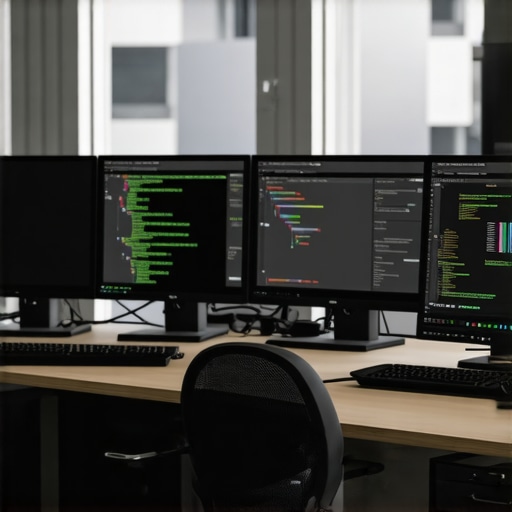
Ever spend hours squinting at a tiny, dull screen, wishing your workspace could just feel right? I’ve been there. I remember the moment I realized my old monitor was holding me back—not just in productivity but in the quality of my creative work. That lightbulb moment hit hard: a better display isn’t a luxury; it’s a necessity for anyone serious about coding or design in 2025.
Choosing the right monitor can transform your workflow, reduce eye strain, and even boost your creativity. But with so many options out there, how do you pick the perfect one? That’s exactly what I want to help you with today. I’ll share my personal experience and the key factors I consider when selecting a top-tier 4K monitor for both coding and creative tasks. Whether you’re a developer, designer, or someone who juggles both, this guide will point you in the right direction to upgrade your workspace and get more done with less hassle.
What Makes a 4K Monitor Stand Out for Code and Creativity
Before diving into specific models, it’s important to understand what features truly matter. For coding, you want clarity, comfort, and enough screen real estate to see multiple windows at once. Creative work, on the other hand, demands color accuracy, sharpness, and a display that can handle intricate details. Balancing these needs isn’t easy, but I’ve found that the best monitors for 2025 combine high resolution, excellent color performance, and ergonomic design.
Have You Faced This Problem?
If you’ve ever bought a monitor that looked great on paper but turned out to cause eye fatigue or poor color reproduction, you’re not alone. Early in my journey, I made the mistake of prioritizing size over quality, which led to headaches and frustration. After switching to a color-accurate 4K monitor, my workflow improved dramatically.
Research shows that high-resolution screens can reduce eye strain and improve productivity, especially during long work sessions (source). So, investing in the right display isn’t just about looks; it’s about health, efficiency, and creative potential.
Now, let’s explore what to look for and how to find a monitor that truly fits your needs. Ready to upgrade your workspace? Let’s get started.
Set Clear Priorities for Your Screen
Begin by defining what matters most for your work. If you’re coding, focus on resolution, refresh rate, and ergonomics. For creative tasks, prioritize color accuracy and sharpness. In my experience, I once bought a large monitor with high specs but ignored calibration, leading to dull colors that hampered my editing. Fixing this by choosing a color-accurate display transformed my creative projects.
Check the Resolution and Size
Look for a monitor with at least 3840×2160 pixels. Think of this as the canvas size—more pixels mean more detail and space to work. I recommend a 27-inch or 32-inch display depending on your desk space. I started with a 27-inch 4K monitor, which felt like moving from a small sketchpad to a giant canvas, boosting my productivity and reducing eye strain. Use this guide to find options that suit your workspace.
Prioritize Color Performance and Brightness
For creative professionals, color accuracy is critical. Look for monitors with at least 99% sRGB coverage and factory calibration. I tested a few models, and the difference was night and day—colors became vibrant and consistent, making my designs pop. Check out this list for top color-accurate 4K monitors for 2025.
Evaluate the Panel Technology
IPS panels are your best bet—they offer wide viewing angles and better color reproduction compared to TN or VA panels. I once used a TN panel for speed, but the color shift when viewed from an angle was frustrating. Switching to an IPS panel improved my workflow, especially when collaborating or reviewing work on different parts of the screen. For detailed color work, this choice is crucial.
Focus on Ergonomics and Connectivity
Comfort matters. Look for adjustable stands that let you tilt, swivel, and height-adjust your monitor. I spent hours on my setup, and a good ergonomic stand prevented neck strain. Also, check for multiple ports—USB-C, HDMI, DisplayPort—so you can connect your devices seamlessly. I once added a USB-C hub, which reduced clutter and made switching between devices effortless.
Set Up a Dual Monitor Workspace
If you want to push productivity further, consider a dual monitor setup. It’s like having two workbenches—more surface area means less toggling between tabs. Use these ideas to optimize your dual setup for coding and creative work.
Test and Calibrate Regularly
Finally, don’t settle after purchase. Use calibration tools or software to ensure your colors stay accurate. I calibrated my monitor after a month, and the improvements in color matching and consistency made a noticeable difference. Regular calibration keeps your work looking professional and true to life.
By following these concrete steps—selecting the right resolution, size, color accuracy, ergonomics, and setup—you’ll create a workspace that not only looks great but also enhances your productivity and creativity. Want personalized advice? Contact us for expert tips tailored to your needs.
Many professionals and enthusiasts fall into misconceptions when choosing or using 4K monitors, often leading to suboptimal setups or unnecessary expenses. Let’s dig deeper into what most people get wrong about 4K displays, especially when balancing coding and creative work. Understanding these nuances can save you time, money, and frustration—and help you make smarter decisions that truly enhance your productivity and visual experience.
One widespread myth is that higher resolution automatically means better performance. While 4K offers incredible detail, it also demands more from your graphics hardware. Many assume that a mid-range GPU can handle 4K effortlessly, but in reality, this can lead to lag, dropped frames, or the need to compromise on refresh rates. If you’re into seamless coding or video editing, investing in a capable GPU is crucial. Otherwise, you might end up with a stunning display that hampers your workflow, rather than boosting it. To ensure smooth performance, check compatibility and performance benchmarks before purchasing, especially if you plan to use dual 4K setups—dual monitors can be a productivity game-changer, but they multiply the hardware requirements. For expert guidance, see this guide.
Another trap is focusing solely on resolution and ignoring other crucial factors like color accuracy and calibration. Many assume that a 4K display with vibrant colors is enough for creative work. However, even a high-resolution screen can be useless if it cannot reproduce colors correctly. Monitors marketed as “4K” can have wide color gamuts, but without proper factory calibration, colors can be dull or inaccurate. For professionals who depend on precise color matching—like designers or digital artists—investing in a monitor with at least 99% sRGB coverage and confirmed calibration is essential. This is why I recommend consulting dedicated lists of color-accurate 4K monitors for creative professionals. Proper calibration ensures your work looks consistent across devices and mediums.
Many overlook the importance of ergonomic design and connectivity options. A common mistake is choosing a monitor based only on specs without considering comfort. Long hours in front of a poorly adjustable monitor can lead to neck strain, eye fatigue, and decreased productivity. Look for features like height adjustment, tilt, and swivel. Additionally, consider modern connectivity options like USB-C or Thunderbolt, which simplify cable management and enable quick device switching. Remember, a well-designed ergonomic setup can make your work sessions more comfortable and sustainable.
What about the myth that bigger is always better?
This is a frequent misconception. Many believe that larger monitors automatically improve productivity. While a bigger display can be beneficial, it’s not a one-size-fits-all solution. Oversized screens can cause eye strain or require excessive desk space, reducing ergonomic efficiency. The ideal size depends on your workspace, distance from the screen, and specific tasks. For most, a 27- to 32-inch monitor strikes a good balance between detail and comfort. If you’re working in a tight space, a 27-inch might be more practical, whereas a 32-inch can be optimal for detailed creative work. Also, consider pixel density and resolution; a 27-inch 4K monitor offers sharp images without overwhelming your desk.
In summary, avoid these common pitfalls by investing in a balanced setup: focus on hardware compatibility, prioritize color accuracy, and choose ergonomic features that support your workflow. Remember, a great monitor isn’t just about the specs on paper; it’s about how those specs translate into real-world benefits. Want more tailored advice? Feel free to reach out through our contact page. Upgrading your workspace thoughtfully can truly transform your productivity and creativity in 2025 and beyond.
Keeping your high-quality 4K monitor in prime condition is essential for sustained productivity and creative excellence. Over time, even the best displays can experience drift in color accuracy, image quality, or ergonomic comfort. That’s why investing in the right tools and adopting a regular maintenance routine is a game-changer. Let me share the specific equipment and methods I personally rely on to keep my workspace running smoothly and my visuals sharp.
Color Calibration Devices Make a Difference
For professionals who depend on precise color reproduction, a dedicated calibration tool is non-negotiable. I use the X-Rite i1Display Pro because it offers accurate, repeatable results and integrates seamlessly with calibration software. Regular calibration—every 4 to 6 weeks—ensures my monitor maintains its factory color standards, especially crucial when working on projects that require exact color matching. The process involves connecting the device, running the software, and letting it analyze and correct your display’s color profile. This simple step has saved me countless hours of rework and ensured my clients always see my work as intended.
Software for Ongoing Maintenance
Beyond hardware calibration, software tools help monitor and optimize monitor health. I recommend DisplayCAL, an open-source calibration platform that works with most hardware devices. It provides advanced profiling options and detailed reports. Using it periodically helps catch issues like gamma shifts or brightness degradation early. Additionally, ambient light correction software, like this guide, can help adjust your display settings based on your environment, which is crucial for long sessions.
Physical Maintenance Keeps Hardware Running
Cleaning your monitor regularly prevents dust buildup that can affect cooling and image quality. I use a microfibre cloth and a screen-safe cleaner like Ecomoist to gently wipe the surface. Avoid harsh chemicals—ammonia-based cleaners can damage coatings. Keep vents and ports free of dust using compressed air, especially if your monitor has built-in USB hubs or cooling vents. These simple steps extend your monitor’s lifespan and ensure consistent performance.
Future Trends in Maintenance and Scaling
Looking ahead, I predict that AI-driven calibration and remote diagnostics will become more common, allowing even novices to maintain perfect display settings easily. As monitors become smarter, integrating maintenance into your daily workflow will be effortless. Also, scaling your setup with dual or multi-monitor configurations will benefit from centralized calibration tools that manage profiles across multiple screens, ensuring uniformity and reducing calibration time. For those expanding their workspace, I recommend exploring dual monitor setup ideas to maximize your efficiency without sacrificing quality.
How do I maintain my monitor over time?
Consistency is key. Establish a routine that includes monthly calibration with a device like the X-Rite, regular cleaning, and software updates for your calibration tools. Keep an eye on monitor firmware updates from manufacturers—they often enhance performance or fix bugs. Don’t forget ergonomic adjustments—proper positioning and lighting can prevent strain and extend your monitor’s usable life. By integrating these practices into your workflow, you ensure your hardware remains reliable and your visuals stay crisp for years to come. Want personalized advice on your setup? Visit our contact page and get expert tips tailored for your workspace.
The Hardest Lesson I Learned About 4K Monitors
The biggest mistake I made early on was assuming that resolution alone would elevate my work. It took me months to realize that without proper calibration and ergonomic setup, even the most advanced 4K display could become a source of frustration rather than productivity. That lightbulb moment reminded me that quality, comfort, and compatibility matter just as much as specs.
My Essential Toolkit for a Top-Tier Coding and Creative Workspace
For anyone serious about a 4K monitor, I swear by the color calibration device X-Rite i1Display Pro. It’s a game-changer for maintaining color accuracy. Pair it with calibration software like DisplayCAL to ensure your colors stay true. Also, a sturdy ergonomic stand and good lighting are non-negotiable for long sessions. These investments have transformed my workflow and comfort.
Don’t Let Your Passion Fizzle Out: Keep Your Monitor Sharp and Healthy
Regular calibration, cleaning, and firmware updates are crucial. As monitors evolve, so should your maintenance routine. I set a calendar reminder every month to recalibrate and check for firmware updates, which keeps my display performing at its best. Remember, a well-maintained monitor is the foundation for consistent, high-quality work—whether coding into the night or editing detailed graphics. If you’d like tailored advice on your setup, reach out through our contact page. Your perfect workspace is within reach—start building it today!
I completely resonate with the importance of calibration and ergonomic setup. A few months ago, I upgraded to a 27-inch 4K monitor with wide color coverage, and the difference in my workflow was night and day. Fatigue and eye strain dropped significantly once I prioritized proper lighting and calibration. One thing I’ve found helpful is setting a monthly reminder to recalibrate with a device like the X-Rite i1Display Pro, which you mentioned. It keeps my colors accurate and my images consistent, especially when working on detailed projects. I’m curious, do others here have recommendations for portable calibration tools suitable for travel or remote work setups? Also, I’d love to hear what accessories or ergonomic adjustments have made the biggest difference planning for long hours at the desk. Thanks for sharing such detailed insights—this really helps in making informed choices for a more productive and healthier workspace.
The post offers a comprehensive look at what to consider when upgrading to a 4K monitor for coding and creative work, and I completely agree with the emphasis on calibration and ergonomics. Personally, I’ve found that investing in a high-quality adjustable arm made an enormous difference in reducing neck strain and allowing for a better viewing angle, which is crucial during long hours. On the topic of portable calibration tools, I’ve been using the Datacolor SpyderX Mobile, which is quite convenient for travel—it’s compact yet effective. For those working remotely or on the go, do you think that a consistent ambient lighting setup impacts calibration effectiveness? Also, I’d love to hear others’ thoughts on combining dual setups for different workflows—how do you balance calibration and ergonomics across multiple screens? With so many options available, it can be overwhelming to find the right mix, but thoughtful choices here really pay off in productivity and health.
This article really resonates with my experience. I used to overlook the importance of calibration and ergonomic setup until I faced eye strain after long hours of work. Upgrading to an IPS panel with 99% sRGB coverage made a huge difference for my creative projects, but the real game-changer was investing in a quality adjustable stand that allowed me to position my monitor perfectly. I find that consistency in ambient lighting is crucial; I always try to work in a well-lit environment to reduce glare and maintain accurate colors. I’m curious, how do others here manage calibration when working in varied lighting conditions, especially when traveling? Do you use calibration tools or software that adapts to your environment? I’d love to hear about the solutions others have found effective since maintaining color accuracy and comfort is an ongoing challenge for many professionals.
This post hits all the right notes about choosing a quality 4K monitor. I totally agree that resolution alone isn’t enough—we need accurate color reproduction and ergonomic setups to truly maximize productivity and comfort. I’ve recently upgraded to a 32-inch 4K monitor with high sRGB coverage and adjustable stand, and the difference is noticeable, especially during long creative sessions. One challenge I faced was calibrating correctly for my ambient lighting conditions, which varied throughout the day. I found that using software like DisplayCAL paired with a calibration device really helped fine-tune my display. Has anyone here tried using such tools in variable lighting environments? Also, I’m curious—do others have tips for maintaining calibration consistency when working in different locations? Managing a dual monitor setup has also been a game changer for multitasking, but ensuring both screens stay calibrated has been tricky at times. Would love to hear your strategies for keeping calibration uniform across multiple displays. Thanks for sharing such in-depth insights—definitely a must-read for anyone serious about creating an efficient, eye-friendly workspace!