
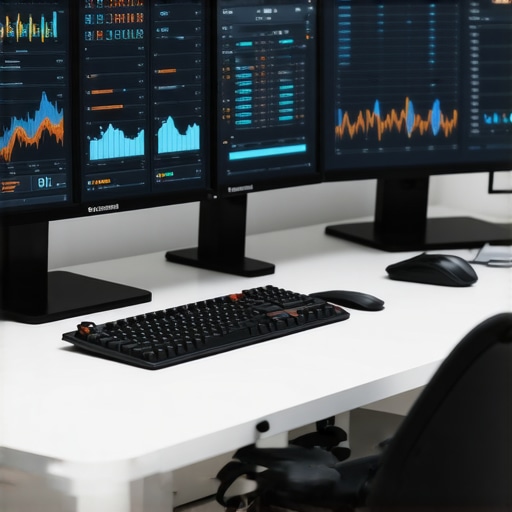
Have you ever stared at your single monitor, feeling your productivity slipping away with every unorganized window? I used to spend ages toggling between tabs, squinting at tiny text, and wishing for a better setup. One day, after a particularly frustrating day, I realized that my workspace was holding me back more than I thought. That lightbulb moment led me to dive into the world of dual and productivity monitors, and let me tell you — it completely changed how I work.
Why the Right Monitor Setup Matters More Than Ever
In 2025, the modern office demands more than just a decent screen. With remote work, creative projects, and multitasking at an all-time high, having the right monitor setup can mean the difference between a productive day and a stressful one. Studies show that dual monitor setups can boost productivity by up to 20-30%, saving countless hours that would otherwise be lost in window switching and cluttered workflows. If you’re still on the fence, ask yourself: Have I ever missed a deadline because I couldn’t see all my files at once? Or spent extra time hunting for that one window buried behind others? If yes, then this guide is for you.
Is All the Hype About Dual Monitors Actually Worth It?
Early in my journey, I made a mistake I see many others repeat — I bought cheap, mismatched monitors just to get something on my desk. Turns out, that just created more frustration. A good monitor isn’t just about size; color accuracy, refresh rate, connectivity, and ergonomics matter a lot. Investing in the right dual setup can be a game-changer, but only if you choose wisely. I’ll walk you through how to avoid this rookie mistake and select monitors that truly enhance your workflow.
And if you’re wondering whether this upgrade is worth it, consider this: according to a report from TechCrunch, optimized workstation setups can improve focus and reduce fatigue, which is crucial for long hours of work. Ready to transform your workspace? Let’s get started with the essentials of choosing the perfect monitors for 2025.
Choose Monitors That Fit Your Workflow
Start by defining what tasks dominate your workday. Are you coding, designing, or managing multiple spreadsheets? This clarity helps you pick monitors with the right features. For example, creative professionals benefit from color-accurate 4K monitors to ensure visual fidelity, while developers may prioritize high refresh rates and connectivity options. I once purchased a pair of mismatched monitors for my design work, which led to inconsistent colors and frustration. After reevaluating my needs, I went for a matched dual setup with optimized dual monitors for coding and creative tasks, which significantly improved my workflow.
Assess Your Space and Ergonomics
Measure your desk space carefully. A cluttered desk hampers efficiency regardless of monitor quality. Use adjustable stands or mounts to position screens at eye level, reducing neck strain. I recommend considering ergonomic stands and mounts for flexibility. I once set up my monitors incorrectly, causing discomfort after long hours. After repositioning them with proper ergonomic gear, my fatigue decreased, and my productivity soared. Remember, a good setup isn’t just about size but about comfort and accessibility.
Connect and Calibrate for Precision
Proper connection is crucial. Use high-quality HDMI or DisplayPort cables to ensure stable signals. Once connected, calibrate your monitors for consistent color and brightness. For creative work, this step ensures color accuracy across both screens, preventing discrepancies that can ruin designs. I once neglected calibration, resulting in mismatched hues. After calibration using tools like a colorimeter, my dual monitor setup became a seamless canvas, boosting my confidence and efficiency. For precise calibration, check out color calibration guides.
Optimize Layout and Workflow
Arrange your monitors to mimic your workflow. Place the primary screen directly in front of you, with secondary screens flanking it. Use virtual desktops or window management software to keep things tidy. For example, I dedicated my main monitor for active work, while secondary screens displayed reference materials or chat windows, which minimized tab switching. For ideas on ideal setups, explore dual monitor layout ideas. Experiment with orientations—landscape or portrait—that suit your tasks best.
Fine-Tune Your Settings Regularly
Monitor settings aren’t a one-and-done deal. Adjust brightness, contrast, and color profiles periodically for optimal visibility and comfort. Using presets for different tasks—like coding or creative editing—can save time. I once ignored this, leading to eye strain. After setting up custom profiles aligned with my ambient lighting, my eyes felt less tired, and my focus improved. Regular adjustments keep your workspace comfortable and efficient, especially as lighting conditions change during the day.
Keep Your Setup Updated and Maintained
Finally, keep your hardware and software current. Update your graphics drivers and monitor firmware to fix bugs and improve performance. Clean your screens regularly to prevent dust buildup that can impair visibility. I learned this the hard way when dust caused flickering. A quick cleaning and driver update restored my monitors’ smooth operation, saving me hours of troubleshooting. Staying proactive ensures your dual setup remains a productivity powerhouse.
Many enthusiasts and even seasoned professionals fall into the trap of oversimplifying their monitor selection process, often based on popular myths or superficial features. Let’s dig deeper into what most people get wrong about choosing monitors for 2025, and uncover the nuances that can make or break your setup.
Why Bigger Isn’t Always Better — The Hidden Cost of Screen Size
It’s a common misconception that larger monitors automatically lead to increased productivity. While a bigger screen can offer more workspace, it can also introduce ergonomic challenges and increase eye strain if not properly calibrated or positioned. For example, a 32-inch monitor placed too close can cause neck and eye discomfort, negating its benefits. The key is to balance size with resolution, viewing distance, and ergonomic setup. I’ve seen many overlook the importance of pixel density; a 27-inch 4K monitor can deliver crisper images than a 32-inch display with the same resolution, which is crucial for detailed work. For more on this, check out our guide on selecting the right size and resolution.
Beware the Color Accuracy Myth
Many assume that a monitor labeled as “professional” or “color-accurate” is automatically suitable for creative work. However, the calibration process, panel technology, and factory pre-set profiles significantly affect actual performance. A common mistake is neglecting to calibrate monitors regularly, which leads to mismatched colors and compromised work quality. Additionally, not all IPS panels are created equal; some suffer from backlight bleed or inconsistent color uniformity. Investing in a monitor with hardware calibration support and proven color accuracy, like those reviewed in color-accurate monitors for creatives, is essential for professional-grade work.
Advanced Question: How Do Refresh Rate and Response Time Impact Dual Monitor Workflow?
While many focus on resolution and color, performance metrics like refresh rate and response time are often overlooked in professional settings. Higher refresh rates (e.g., 144Hz vs. standard 60Hz) can dramatically improve the fluidity of motion and reduce eye fatigue during long sessions, especially when working across multiple screens. Response time, although more critical for gaming, can also influence how quickly your system updates images, preventing ghosting and lag. When setting up dual monitors for coding or design, choosing displays with a higher refresh rate and fast response times can contribute to a smoother workflow. For tailored setup ideas, explore dual monitor configurations for productivity. Remember, the right combination of performance and ergonomics ensures sustained focus without unnecessary fatigue.
Have you ever fallen into this trap? Let me know in the comments and share your experience with monitor selection mistakes or surprises. Staying vigilant about these nuances can help you craft a workspace that truly boosts productivity and comfort.
Once you’ve invested in a high-quality dual monitor setup, the next crucial step is ensuring it continues to perform flawlessly over time. Regular maintenance is key to preserving image quality, preventing hardware issues, and keeping your workspace efficient. I personally dedicate a few minutes weekly to cleaning and calibration routines that extend the lifespan of my monitors and optimize their performance.
How do I keep my monitors in top shape over the years?
First, physical cleaning is essential. Dust, fingerprints, and smudges can obscure clarity and color accuracy. Use a soft microfiber cloth and a gentle screen cleaner—avoid harsh chemicals that can damage the display surface. I recommend cleaning my monitors every two weeks, especially if my workspace is prone to dust or pet hair. This simple habit prevents long-term buildup that can cause pixel degradation or uneven brightness.
Second, software calibration helps maintain color accuracy. Monitors can drift in color fidelity due to aging components or temperature changes. I use hardware calibration tools like the X-Rite i1Display Pro, which, although an investment, guarantees precise color matching—crucial for creative professionals. For those on a budget, built-in calibration options or free tools like DisplayCAL can suffice. Regular calibration—every three to six months—ensures your displays stay true to color profiles, especially when working on critical visual tasks.
Third, keep your drivers and firmware up to date. Manufacturers often release updates that fix bugs, improve performance, or enhance compatibility. Periodically visit your monitor manufacturer’s website or use dedicated software utilities to check for updates. For example, I update my monitor’s firmware every quarter to benefit from improved calibration stability and new features, as recommended in the latest expert advice.
Hardware longevity also depends on proper placement. Avoid direct sunlight or heat sources that can accelerate panel aging. Adjust brightness and contrast based on ambient lighting; high brightness in a dark room strains your eyes and can cause premature wear. I utilize ambient light sensors and adjust settings accordingly, which not only preserves my monitors but also reduces eye fatigue.
Finally, consider investing in surge protectors or UPS units to shield your equipment from power fluctuations. Sudden surges can damage internal components, leading to costly repairs or replacements. I use a surge protector with an automatic shutoff feature, giving me peace of mind during thunderstorms or power spikes.
Looking ahead, as monitor technology advances—like OLED panels and improved color calibration standards—staying informed about updates and best practices will be even more important. Manufacturers are continually refining features that extend lifespan and improve image quality, so keeping your setup well-maintained will ensure you benefit from these innovations.
Try implementing a monthly cleaning and calibration routine to see immediate improvements in your workspace quality. Regular upkeep not only prolongs hardware life but also guarantees that your dual monitors deliver peak performance for years to come. For more detailed guidance, visit our comprehensive maintenance guide.
In my journey to optimize workspace efficiency, I discovered that the real game-changer isn’t just choosing any monitors but understanding the nuanced lessons that can elevate your setup from good to exceptional. Here are some insider insights I wish I knew when I first started:
- The Hidden Cost of Size: Bigger isn’t always better. A 32-inch monitor can be a productivity boon or a curse, depending on how well it’s calibrated and positioned. I learned this lesson after experiencing neck strain from a poorly placed large display, realizing that optimal ergonomics trump sheer size.
- Color Calibration Is Non-Negotiable: Investing in hardware calibration tools like the X-Rite i1Display Pro transformed my creative output, preventing color mismatches that could ruin projects. Regular calibration became my secret weapon for maintaining visual fidelity.
- Refresh Rate Matters More Than You Think: Higher refresh rates (like 144Hz) reduce eye fatigue during long work sessions, especially when working across multiple screens. This overlooked feature made my workflow smoother and less tiring.
- Regular Maintenance Keeps Performance Peak: Simple habits like weekly screen cleaning and bi-annual calibration extend monitor lifespan and ensure consistent quality. These small routines saved me from unexpected hardware issues.
- Proper Space Planning Is Key: Positioning monitors at eye level and using ergonomic stands drastically improved comfort. I realized that a cluttered desk hampers productivity more than I expected, prompting me to organize with purpose.
My Essential Toolkit for Dual Monitors in 2025
Choosing the right tools can dramatically improve your setup. I highly recommend:
- Color calibration tools like X-Rite i1Display Pro for precision color work.
- Ergonomic stands and adjustable mounts from reputable brands to ensure comfort.
- Window management software like DisplayFusion for seamless workflow.
- High-quality cables and connectors to maintain stable connections and image quality.
Embrace the Future of Your Workspace
Now, it’s your turn to transform your workspace with a dual monitor setup that truly works for you. Remember, the key is not just hardware but how you optimize and maintain it. Regularly revisit your setup, experiment with layouts, and stay informed about emerging technologies like OLED and advanced calibration standards. Your workspace should inspire productivity and comfort every day.
What’s the biggest challenge you face when setting up or maintaining your monitors? Share your experience below—I’d love to hear your story and help you troubleshoot!