
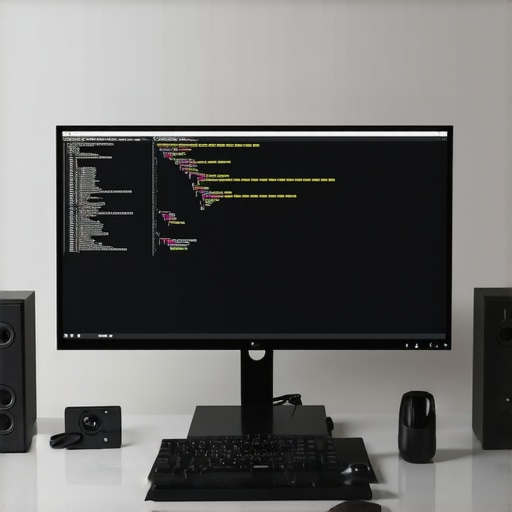
Have you ever stared at your screen, frustration bubbling as your code lags behind your thoughts, or the refresh rate makes fast scrolling feel choppy? I remember those moments vividly—feeling sluggish on my old monitor, fighting glare, and wishing I could just find that one setup that finally clicked. It was a lightbulb moment when I realized that my display profoundly impacts my productivity and comfort, especially as a developer navigating longer coding sessions.
The Game-Changer in My Workspace
Three years ago, I was plugged into the same old monitor setup, convinced that upgrading was a luxury. Boy, was I wrong. The breakthrough came when I swapped my standard 60Hz, 4K monitor for a high-refresh, 120Hz 4K display. Suddenly, everything was smoother—scrolling through lines of code, switching between applications, and even reading intricate design details became effortless. This wasn’t just about visuals; it was about how my brain could work faster and more efficiently without fighting against the hardware.
Today, in 2026, this transition has become the new standard. Top-tier monitors now blend high refresh rates with stunning 4K resolution, creating an environment that is both visually rich and incredibly responsive. The benefits extend beyond aesthetics; they translate into tangible productivity gains, reduced eye strain, and an overall more enjoyable work experience. If you’re still clinging to that aging display, I have a hunch that you’ve faced the same obstacles I once did—slow responsiveness, eye fatigue, or just plain frustration with how your workspace feels.
Is the Hype About 120Hz 4K Monitors Justified?
When I first heard about the push for 120Hz 4K monitors, I was skeptical. A common mistake I made early on was assuming that more pixels or higher refresh rates were only beneficial for gamers or graphic designers. The truth is, for coding and office work, these features significantly improve the clarity and fluidity of your interactions with the screen. According to recent studies, even basic tasks become more comfortable and less fatiguing when performed on displays that support higher refresh rates and accurate color reproduction.
By the end of this article, I want you to feel confident about making the switch—knowing exactly how these monitors can elevate your work and clear up common doubts about their value. Let’s dive into how you can identify the right monitor for your needs and avoid rookie mistakes that could hold you back.
Pick the Right Dual Monitor Arrangement
When I first decided to upgrade, I thought simply adding a second monitor would double my productivity. I started with a basic side-by-side setup using inexpensive screens. To optimize, I used dual monitor ideas that promoted seamless workflows—placing the primary screen directly in front and the secondary at a slight angle. This reduced neck strain and kept everything within easy reach, much like creating an intuitive workspace. Experiment with stacking or side-by-side arrangements to find what suits your tasks best, ensuring you minimize eye and neck movement, which is essential for long work sessions.
Choose a 4K Monitor That Fits Your Needs
Switching from a standard display to a 4K monitor was a game changer for my detailed tasks. I recall a day when I mistakenly bought an ultra-wide 4K, thinking more width would help. After some trial, I realized a balanced 4K monitor with accurate color reproduction suited my programming and design work better. Focus on resolution, size, and color accuracy—these affect clarity and reduce eye fatigue. For precise color tasks, consult our color accuracy guides to avoid choices that produce muddy or dull outputs, which can hinder creative work and cause eye strain over time.
Prioritize Office Monitors That Boost Comfort and Productivity
After hours of research, I found that ergonomic features are crucial. I remember adjusting my monitor height repeatedly until I found a setup aligning with my eye level. A monitor with adjustable height, tilt, and swivel helps maintain good posture, preventing neck and back pains. For prolonged coding sessions, an eye-friendly flicker-free display with anti-glare coating significantly reduces fatigue. When selecting an office monitor, look for those endorsed in our office monitor buying guide. These features collectively contribute to a healthier, more efficient workspace, making your long work hours more manageable.
Enhance Productivity with High Refresh Rates
I once upgraded my monitor from 60Hz to 120Hz, and the difference was striking. The fluidity of motion engagement made scrolling and window switching feel more natural, almost like watching a high-quality film instead of a choppy slideshow. Although originally skeptical, I found that higher refresh rates lessen eye fatigue and improve visual responsiveness, especially during extended periods of multitasking. If you’re considering this upgrade, review our top 4K monitors with high refresh rates that combine visual clarity with smooth operation, perfectly suited for fast-paced tasks like coding or design adjustments.
Calibrate Your Color Settings for Accuracy
During a major project, I noticed my screen’s colors looked off when comparing them to printed prototypes. This led me to calibrate my display using professional tools, ensuring color fidelity. Accurate colors save time and prevent miscommunication, especially for creative professionals. Dive into our color calibration resources to learn techniques for precise adjustment. Achieving this level of accuracy can significantly enhance your workflow, making your monitor an extension of your creative vision rather than an obstacle.Many professionals jump into upgrading their displays without understanding the nuances that truly impact their workflow and eye health. A prevalent mistake is assuming that more pixels or higher refresh rates automatically guarantee better productivity. In reality, choosing a monitor should be about aligning features with your specific tasks rather than chasing the newest specs just because they sound impressive. For example, some believe that a dual monitor setup is inherently more efficient, but without proper ergonomics and placement, it can lead to neck strain and decreased focus. Additionally, there’s a misconception that color accuracy is only essential for designers, whereas in truth, accurate colors can prevent eye fatigue during long coding sessions, as supported by studies from the Journal of Vision. When selecting a ‘productivity monitor’ or an ‘office monitor,’ many overlook the importance of adjustable stands, anti-glare coatings, and flicker-free technology—features that are crucial for sustained comfort and efficiency. A common trap is purchasing a 4K monitor with high resolution but poor calibration, which results in muddy colors and eye strain over time. Instead, prioritize monitors with factory calibration and proven color accuracy, especially if your work involves visual details. Remember, the goal is to create a workspace that enhances focus, reduces fatigue, and adapts to your workflow. To make truly informed decisions, explore our guides on color accurate monitors and dual monitor setups.
Is Higher Resolution Always Better for Your Workflow?
Some believe that bumping up to 4K is the ultimate upgrade, but if your workstation isn’t optimized for it, you might end up with more eye strain than productivity. High resolution demands powerful hardware and proper scaling to prevent tiny UI elements that can cause discomfort. According to experts from the National Institute of Health, improper calibration and mismatch between monitor features can lead to headaches and fatigue, negating any productivity benefits. So, instead of blindly chasing higher specs, focus on matching your tasks with the right features—such as color accuracy, ergonomic design, and refresh rate—that create a balanced, efficient workspace. Have you ever fallen into this trap? Let me know in the comments.
Once you’ve invested in high-quality displays, the key to ensuring sustained performance lies in proper maintenance. Regular calibration, cleaning, and software updates are essential to keep your monitors delivering accurate colors and optimal clarity over time. For color-accurate monitors, I personally calibrate mine using the X-Rite i1Display Pro device every few months. This helps maintain consistent color fidelity, vital for creative professionals and long-term office work. Additionally, using reputable cleaning tools like microfiber cloths and screen-safe cleaning solutions prevents dust and smudges that can impair visibility and strain your eyes. For software, always keep your graphics card drivers and monitor firmware up to date—these updates often include performance improvements and bug fixes that prevent lag and artifacts.
Looking ahead, I predict that monitor maintenance will become more automated, with smart sensors alerting you when calibration drifts or cleaning is needed. This proactive approach minimizes downtime and preserves display integrity, especially as resolutions and refresh rates become more demanding. To streamline your maintenance routine, I recommend setting calendar reminders for calibration and firmware checks—it’s a small step that ensures your setup remains at peak performance for years to come.
How Do I Keep My Monitors Working Efficiently Over Time?
Implementing a routine for cleaning, calibration, and firmware updates is crucial. Use tools like the recommended color calibration devices and keep your system software current. Regular inspections help detect issues early, preventing costly repairs or replacements. Maintaining an ergonomic setup also prolongs monitor lifespan—adjust stands to avoid uneven pressure that could damage panels. Personally, I check my setup quarterly and notice a significant difference in color consistency and responsiveness. Don’t forget to review your privacy and security settings as well; updates often include patches that safeguard your workspace from potential breaches, ensuring a seamless, safe experience.
For those interested in optimizing their workflow further, I suggest exploring advanced calibration techniques detailed in professional guides. For example, professional-grade hardware calibration can fine-tune color accuracy to industry standards, which is especially beneficial for creative tasks or color-sensitive projects. Making these practices part of your regular routine will extend your monitor’s service life and preserve its visual quality, ultimately protecting your investment and your eyes. Ready to take your display maintenance to the next level? Try calibrating your monitor using a high-end device like the X-Rite i1Display Pro—it’s a game-changer for color precision.
Lessons No One Tells You About Choosing Monitors
- Size and Distance Matter More Than You Think: I once ignored ergonomic standards, thinking size was all that mattered. The lightbulb moment was realizing the optimal distance and size prevent eye fatigue—aligning my monitor height and viewing angle changed everything.
- Calibration Is Not Just for Creatives: I used to assume calibration was a niche concern. Regularly calibrating my display improved clarity and reduced eye strain, making a huge difference in my daily productivity, regardless of task type.
- Refresh Rate Isn’t Just for Gamers: Skeptical at first, I discovered that higher refresh rates ease eye fatigue during long coding marathons. It’s about creating a responsive, comfortable visual environment.
- Dual Monitors Are Not a One-Size-Fits-All Solution: It’s tempting to buy two identical screens, but customizing their setup to your workflow—primary and secondary roles—boosts efficiency and reduces neck strain. Placement truly matters.
- Features Over Fancy Specs: I wasted money on ultra-high-res monitors without considering color accuracy or ergonomic features. Prioritizing these practical features led to more satisfying, sustained use.
Tools and Resources That Changed My Approach
- Color calibration tools: Education on calibration is crucial—whether you’re a designer or a developer wanting comfortable viewing. I personally use the X-Rite i1Display Pro to keep my colors sharp.
- Dual monitor setup ideas: Experimentation with placement and workflow has been invaluable. The right arrangement can make your workspace feel more natural and less stressful.
- Ultimate calibration guide: This resource helped me understand the nuances of color fidelity, ensuring my work remains consistent and eye-friendly over time.
- Office ergonomic features: Investing in monitors with height, tilt, and swivel adjustments transformed my long hours from painful to manageable. Ergonomics is a game-changer.
Trust Your Eyes and Your Instincts
Looking ahead, I believe monitor maintenance will become smarter, with embedded sensors alerting us to calibration drifts or needed cleanings. Establishing a routine of calibration and ergonomic adjustments can seem tedious at first, but it’s an investment in your health and productivity. Taking those extra moments to ensure your display’s accuracy and comfort pays off in sustained focus and reduced fatigue. Remember, a well-chosen monitor isn’t just a tool—it’s an extension of your work and your well-being. Whether you’re considering upgrading to a high-refresh, 4K display or optimizing your dual setup, there’s a world of opportunities to improve your workspace today. What steps are you willing to take to enhance your monitor setup for better productivity and comfort? Share your experience below!