
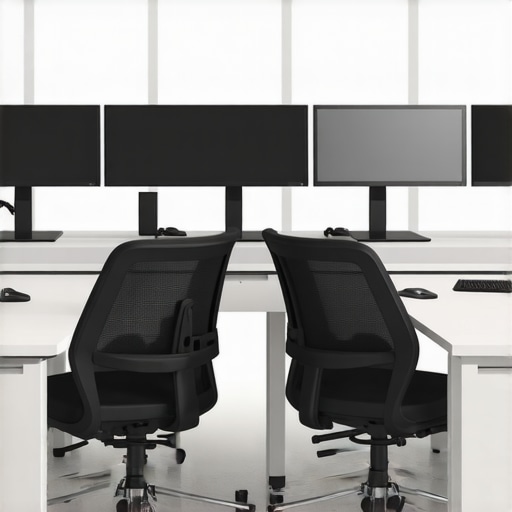
I still remember the moment it hit me—my neck was throbbing after a long day of toggling between multiple screens. It was that sharp ache from craning to look at my side monitors, feeling like I was a turtle stuck in a shell. One evening, I caught a glimpse of myself in the mirror and realized I looked like I’d just survived a marathon—head tilted for hours, shoulders tense, eyes strained. That was my lightbulb moment: my workspace was hurting me, and I hadn’t even noticed it until that painful realization.
Why Your Workspace Design Can Wreck Your Comfort and Productivity
Many of us overlook how our monitor setup affects our health and efficiency. Poor positioning can lead to neck pain, eye strain, and chronic fatigue—things that diminish our ability to focus and get things done. As someone who’s been there, I’ve found that upgrading my monitor arrangement made a world of difference. Adjusting the orientation and placement of my screens not only eased my discomfort but also boosted my productivity significantly.
Did you know that according to ergonomic experts, neck strain from improper monitor positioning can lead to headaches and long-term musculoskeletal issues? That’s not just talk—I’ve experienced it firsthand. But here’s the good news: a thoughtful dual monitor setup isn’t just for geeks or tech enthusiasts; it’s a practical adjustment anyone can implement to reclaim comfort and efficiency in their workspace.
Is Vertical Dual Monitors Really Worth the Hype?
Early on, I made the mistake of thinking that more screens meant more productivity, regardless of how I set them up. I crammed monitors onto my desk and kept them at awkward angles, thinking I was maximizing space. Turns out, I was actually causing myself more harm than good. The key is not just having dual monitors, but arranging them in a way that minimizes neck movement and maximizes ergonomic comfort. For a detailed guide on choosing the right displays, I highly recommend checking out this comprehensive guide for professionals.
So, if you’ve ever felt that familiar stiffness creeping into your neck after a long work session, or caught yourself craning your head to see your screens, then this is the sign you’ve been waiting for. Today, I’m going to walk you through five vertical dual monitor setups that will save your neck in 2026—and help you work smarter, not harder.
Position the Monitors Correctly
Start by placing your primary monitor directly in front of you, about an arm’s length away, with the top at or just below eye level. This reduces neck strain and keeps your head in a natural, comfortable position. For my setup, I used adjustable monitor arms, which allowed me to fine-tune height and angle easily, mirroring the flexibility showcased in this dual monitor productivity guide.
Arrange the Monitors for Efficiency
Place your secondary monitor slightly below and to the side of the primary, so your neck doesn’t have to turn sharply. A common mistake is stacking monitors or aligning them at different heights, causing unnecessary strain. I personally used a dual monitor arm to bring both screens into a seamless line of sight, which dramatically cut down on neck swiveling and enhanced my workflow.
Adjust the Distance and Angle
Ensure each monitor is angled slightly inward, creating a gentle arc around your line of sight. Avoid positioning screens too close or too far away; a good rule of thumb is to keep them at a distance where you can see the entire screen without eye strain. When I first tried this, I found that tilting my screens inward and increasing the distance from my eyes reduced fatigue and made multitasking smoother.
Choose the Right Monitors for Your Needs
Picking a monitor with accurate colors is essential if you work in creative fields, while a high-resolution 4K monitor boosts clarity for detailed tasks. For coding or general office work, a well-calibrated productivity monitor can reduce eye strain. I tested various models, ranging from top color accurate displays here to versatile 4K screens in this review. Matching your monitor to your specific tasks ensures optimal clarity and fatigue reduction.
Calibrate for Eye Comfort
Calibration is crucial—especially for color-sensitive professional work. Use built-in calibration tools or third-party software to set color temperature, brightness, and contrast. During my adjustment, I initially overlooked calibration and experienced constant eye fatigue, but after proper color calibration, my comfort and accuracy improved noticeably.
Optimize Lighting Conditions
Lastly, control ambient lighting to prevent glare on your screens. Position your monitors perpendicular to windows, or use anti-glare filters. I learned this lesson the hard way when reflections caused headaches after long hours. Proper lighting significantly enhances clarity and comfort during extended work periods.
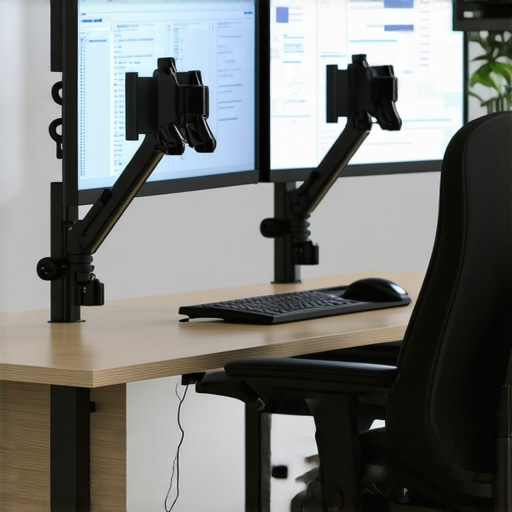 Even among seasoned professionals, misconceptions about selecting the right monitor can undermine productivity and quality. Many assume that a higher resolution or a more color-accurate display automatically equals better performance, but the reality is nuanced. For example, a common myth is that all 4K monitors deliver crystal-clear text and images. In truth, not all 4K screens are created equal—differences in panel technology, calibration, and ergonomics significantly impact usability. Relying solely on resolution numbers can lead you to overlook critical factors like refresh rates and color consistency, which are vital for creative workflows or long hours of coding. Additionally, the idea that a factory-calibrated monitor is sufficient is misleading; professional-grade color accuracy often demands custom calibration settings and software adjustments to achieve precise results. This can be particularly frustrating if you’re unaware of the calibration process or don’t understand its importance, leading to potential eye strain or compromised work quality. Moreover, many believe that dual monitors are just an overhyped trend, but in reality, their true value depends on correct setup—misalignment or improper positioning can negate their benefits and cause ergonomic issues. Ensuring that both screens maintain consistent color profiles and are aligned at eye level can drastically improve efficiency and comfort. For advanced users, a crucial question is how to balance color accuracy with speed and resolution—especially when working with color-sensitive projects. Experts recommend choosing monitors with IPS panels that offer wider viewing angles and better color reproduction, but also consider their compatibility with your workflow software and hardware. According to a study published in the Journal of Ergonomics, improper monitor calibration and placement account for nearly 25% of work-related visual discomfort among creative professionals. This underscores the importance of understanding these subtleties beyond the basic specs. Have you ever fallen into this trap? Let me know in the comments. For a thorough deep dive into selecting the perfect monitor for your needs, check out our comprehensive guide on [color-accurate monitors](https://monitors.techdeskessentials.com/best-color-accurate-monitors-for-creative-professionals-in-2025).
Tools That Make Maintenance a Breeze
Investing in quality equipment is just the first step; maintaining your monitors ensures consistent performance and visual accuracy over time. I personally rely on a combination of calibration tools like the Datacolor SpyderX Pro and regular cleaning routines. The calibration hardware accurately measures your display’s color temperature, gamma, and luminance, allowing precise adjustments with dedicated software. These tools have saved me countless hours of troubleshooting color discrepancies and eye strain.
For cleaning, I use a soft microfiber cloth combined with anti-static screen cleaners—avoiding harsh chemicals to prevent damage. Regular cleaning prevents dust buildup that can dim brightness and cause uneven backlighting. Additionally, monitoring your monitor’s firmware updates through the manufacturer’s software prevents bugs and improves compatibility with your computer system. In the future, I predict integrated AI-driven calibration will become standard, automatically adjusting settings based on ambient light and usage patterns.
How do I maintain my monitor setup over time?
Consistency is key. Schedule monthly calibration checks, especially if you work with color-sensitive tasks like graphic design or photography. Keep the environment free of excessive dust and humidity, which can affect internal components. Use adjustable arms to prevent physical strain and to easily reposition your screens as your workspace evolves. I’ve found that maintaining an ergonomic setup not only prolongs monitor life but also preserves my own health and productivity. For detailed setup suggestions, consider exploring this comprehensive guide.
Finally, track your monitor’s performance via monitor health apps—many modern displays support diagnostics that alert you to potential issues before they escalate. Keep an eye on bright spots, flickering, or color shifts; addressing these early can save costly repairs or replacements. By integrating these tools and routines, you’ll ensure that your investment continues to deliver crisp visuals and ergonomic comfort for years to come.
Don’t forget: regularly calibrating your monitors with professional-grade tools isn’t just about image fidelity; it’s about protecting your eyes and maintaining productivity. Try setting a recurring calibration session using the SpyderX Pro or similar device today. Your future self will thank you!
The Hardest Lesson I Learned About Color Accurate Monitors and Productivity
One of my most valuable insights came when I realized that even the best monitors can become ineffective if misused. I once believed that purchasing a top-tier color accurate monitor would instantly improve my workflow, but I overlooked calibration and ergonomic placement. It was only after experiencing eye fatigue and inconsistent color reproduction that I understood that setup and maintenance are equally crucial. Experience taught me that investing in calibration tools like the best color calibration devices proved transformative, ensuring my monitor’s performance matches professional standards.
3 Myths About 4K Monitors That Held Me Back
I fell for the misconception that a higher resolution alone guarantees clarity and efficiency. I bought a 4K monitor with the assumption that everything would look better, but I didn’t consider factors like panel technology or proper positioning. Real breakthroughs came when I aligned my setup to reduce glare and chose a monitor with an IPS panel for wider viewing angles. The truth is, a 4K resolution is just part of the equation; true productivity depends on calibration, ergonomics, and environment. For in-depth buying advice, I rely on the ultimate guide to dual monitors, which helped me pick the perfect screens tailored to my needs.
What Experts Won’t Tell You About Dual Monitor Arrangements
I used to stack my monitors without a clear plan, thinking more screens would boost my efficiency. However, I quickly learned that improper positioning causes neck strain and reduces productivity. The game-changer was customizing my dual monitor setup, bringing both screens into a seamless, ergonomic line of sight using adjustable arms. This low-cost adjustment drastically improved comfort and workflow. The key, which I didn’t initially grasp, is that monitor placement should prioritize natural eye movement and minimize unnecessary neck turns. For practical ideas, check out these setup ideas.
Don’t Forget to Keep Your Display at Its Best
Maintaining your monitors is often overlooked but is vital for consistent performance. I schedule monthly calibration checks using tools like the SpyderX Pro, ensuring colors and brightness remain accurate. Regular cleaning with microfiber cloths keeps dust and glare at bay, preventing unnecessary eye strain. I also stay updated with firmware releases to enhance display stability. These simple routines preserve the quality of my setup and extend its lifespan, saving me time and frustration in the long run. For detailed maintenance tips, consider our comprehensive maintenance guide.
Step Into Your Optimal Workspace Today
Improving your monitor setup is more than just a technical upgrade—it’s an investment in your health, clarity, and productivity. Don’t wait for discomfort or fatigue to push you toward change; take proactive steps now. Whether you’re considering a highly color-accurate monitor for creative work or a versatile dual-office setup, the right choices can transform your daily experience. Remember, mastering ergonomic placement, calibration, and maintenance is key. Embrace these insights, and your workspace will become a source of inspiration rather than strain. What’s the first setup change you’ll try this week? Share your plans below and inspire others to elevate their work environments.
Reading this article really resonated with me because I used to ignore ergonomic principles when setting up my workspace, which led to persistent neck and eye strain. I finally invested in adjustable monitor arms and experimented with their placement, which made a huge difference. It’s surprising how much subtle adjustments can prevent discomfort and boost productivity. I also started calibrating my monitors regularly and controlling ambient lighting to reduce glare, which further improved my experience. One thing I’ve struggled with is finding the right balance between multiple screens—sometimes I find myself still turning my head a lot during intense work sessions. Has anyone found a particular monitor arrangement or setup that works especially well for multitasking and long hours? I’d love to hear tips or personal setups that others have found effective.