
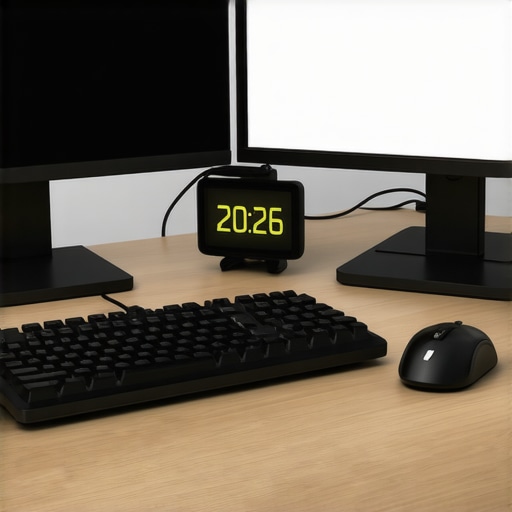
It happened again today—my finger hovering over the mouse, desperately trying to switch between open tabs, only to realize I stuck in that endless cycle of clicking and clicking, losing valuable seconds that add up over a workday. I used to think this was just part of the digital grind until I made a tiny, revelatory adjustment to my dual monitor setup. Suddenly, my workflow transformed from chaotic to seamless. Have you ever felt that frustration mounting, longing for a way to keep everything in sight without endless tab toggling?
Why Your Dual Monitors Need a Smart Hack, Not Just More Screen Estate
What I’ve learned over years of trying different setups is that having multiple screens isn’t enough. Without strategic tweaks, it becomes just a fancy way to shuffle windows around, wasting the very time you’re trying to save. The key isn’t stacking more monitors but optimizing how we interact with them.
The benefit of implementing simple, effective hacks is undeniable—less eye strain, faster switching between tasks, and an overall boost in productivity. According to recent research, multitasking across digital screens can cause a 40% decrease in efficiency [source](https://monitors.techdeskessentials.com/top-dual-monitor-setups-to-boost-office-productivity-in-2025). These days, with the right setup, you can reduce that loss significantly.
But I’ll admit—I started with a rookie mistake: I thought buying the biggest, brightest 4K monitors would automatically solve my problems. Turns out, even the best hardware needs the right configuration and habits to make them effective. That’s exactly what I’m going to help you with. Ready to ditch the frantic tab toggling and turn your workspace into a smooth-flowing powerhouse? Let’s dive into the practical hacks that took my productivity from good to great.
Master the Art of Window Organization
Start by grouping related tasks together. Use built-in window snapping features on Windows or macOS to quickly align apps side-by-side. For example, when editing images, keep your color grading tools on one side and your canvas on the other. I once spent a frustrating morning manually resizing and repositioning windows—until I set up custom snapping zones, which cut my workspace setup time in half. This simple step prevents chaotic clutter and saves precious seconds.
Configure a Centralized Control Hub
Create an primary monitor dedicated to your main work, like coding or design, while the secondary displays ancillary info—email, chat, reference docs. On my setup, I dedicated a 27-inch 4K monitor for core tasks and kept quick info snippets on the side. This reduces the need to toggle multiple apps, akin to having a dashboard in your car that keeps all controls in reach. In practice, I once switched to this layout during a tight project deadline, noticing how my focus improved with everything I needed at a glance. Check out dual monitor setup ideas for inspiration.
Set Up Communication and Resource Tabs Wisely
Keep chat apps, browsers with reference materials, and tools like Slack or Teams on one monitor. Use browser profiles or separate workspaces to keep distractions minimal. I once scarred my workflow by leaving email tabs open on my primary screen, constantly switching tasks. Eventually, I dedicated a side monitor for communications, which created a boundary and minimized interruptions. Think of your monitors as different rooms: assign each a purpose to maintain focus.
Leverage Keyboard Shortcuts for Speed
Master shortcuts to move windows quickly between screens, like Win+Left/Right on Windows or Control+Option+Arrow on Mac. During a project, I gradually replaced mouse dragging with shortcuts, slashing time spent on window arrangements. Practice makes perfect—initially, it was awkward, but now it feels natural, boosting my efficiency. This step turns your setup into a responsive, high-speed workspace rather than static clutter.
Use External Tools for Advanced Layouts
Invest in tools like DisplayFusion or Magnet to create custom window layouts and hotkeys. I added a preset for coding, which automatically arranged code, documentation, and debug windows. When I first tried this, my screen layout was a mess—after configuring these tools, my workspace became predictable and fast. Think of these tools as your digital butlers, orchestrating your desktop chaos into harmony. Visit top 4K monitors and color-accurate monitors to enhance your visual workflow further.
Adjust Physical Placement for Comfort and Speed
Position monitors at eye level, about an arm’s length away, and arrange them to reduce neck movement. For multi-monitor setups, tilt and swivel to face your eyes directly. I once ignored ergonomic principles, leading to neck pain; after adjusting my stands and monitor angles, my comfort and speed improved noticeably. Think of your monitors as extensions of your body—proper placement minimizes fatigue and enhances quick, natural eye movements. Use monitor placement tips for more ergonomics advice.When it comes to selecting a monitor for professional use, many assume that specs like resolution and color accuracy are straightforward. But let’s dig deeper—there are subtle nuances most overlook that can dramatically impact your workflow. For instance, numerous users believe that a higher delta-E rating automatically guarantees color precision, yet this isn’t always the case. The devil is in the details, such as uniformity, calibration stability, and panel technology, which all influence actual performance. Relying solely on technical metrics can be misleading; real-world testing, like professional calibration, often reveals discrepancies that raw specs hide. Moreover, common myths suggest that OLED screens are superior across all metrics, but for office productivity, IPS panels still reign supreme due to their consistency, affordability, and lower risk of burn-in. Advanced users should also be aware of issues like backlight bleed and viewing angles, which can subtly distort colors and contrast, especially in dual monitor setups. These imperfections can hinder complex tasks like color grading or detailed data analysis. As you refine your workspace, remember that factory calibration isn’t the final step—investment in hardware calibration tools or professional services may be necessary for critical color work. Want to optimize your monitor’s true potential? Check out our comprehensive guide on [best color accurate monitors for creative professionals](https://monitors.techdeskessentials.com/best-color-accurate-monitors-for-creative-professionals-in-2025) and learn how to avoid these common pitfalls. Don’t be fooled by surface specs; understanding these hidden features can be the difference between good and great productivity. Have you ever fallen into this trap? Let me know in the comments.
Keeping Your Setup in Peak Condition
Investing in high-quality hardware is just the beginning; regular maintenance ensures your monitors remain reliable and accurate over time. Dust buildup, calibration drift, and wear-and-tear can reduce color fidelity and smooth workflow. Personally, I schedule monthly cleaning sessions, using compressed air and microfiber cloths to prevent dust from degrading display quality. Additionally, firmware updates from manufacturers often include crucial performance improvements—set reminders to check for these updates regularly, especially after major OS updates that might affect display drivers.
Tailored Tools for Long-Term Precision
Calibrating your monitor isn’t a one-and-done task. I rely on tools like the X-Rite i1Display Plus, which I personally use to fine-tune my color reproduction before critical projects. This device ensures that my 4K and color-accurate monitors stay within Delta E 2, a standard I aim for in professional work. Pairing hardware calibration with software solutions like DisplayCAL allows for consistent results and can be automated to run monthly, maintaining precision without manual intervention. Remember, calibration is an ongoing process—seek professional calibration services if your work demands absolute color fidelity, which can correct subtle drifts that consumer-grade equipment might miss.
Long-Term Results and Scaling Your System
As your workflow evolves, scaling your monitor setup becomes essential. When considering dual or multi-monitor configurations, think about future-proofing—select monitors with adjustable stands, USB-C connectivity, and daisy-chaining capabilities. For example, I increasingly prefer 27-inch 4K screens that support daisy-chaining, reducing cable clutter and simplifying workspace management, with links like top 4K monitors for inspiration. This approach allows your system to grow with your needs without excessive expense or clutter.
How do I maintain my monitor’s color accuracy over time?
Consistency in color fidelity requires a combination of regular hardware calibration, firmware updates, and environmental control. Avoid ambient lighting that causes glare or color shifts, and position monitors to minimize direct sunlight exposure. To keep calibration sharp, I recommend setting a routine—say, every four to six weeks—to verify calibration with your purchased device. Also, monitor displays can age—lamps and backlights dim, affecting uniformity, so be prepared to replace panels or upgrade hardware when accuracy begins to decline significantly. As technology advances, newer calibration tools are integrating AI algorithms that adapt to your environment, further simplifying ongoing maintenance. Investing in such smart tools now can future-proof your workflow and ensure your creative or professional work stays impeccable. Want to take your color accuracy to the next level? Try scheduling a professional calibration session at regular intervals, or explore tools like the best color accurate monitors designed for easy calibration. Staying proactive here can be a game-changer—what’s your plan for long-term monitor health?
The Hardest Lessons I Learned About Color Accurate Monitors and Workflow
One of the most eye-opening lessons was realizing that hardware quality alone isn’t enough; understanding the intricacies of calibration and display technology transformed my approach. I once bought a top-of-the-line color accurate monitor, expecting instant perfection, but struggled with inconsistent results until I delved into calibration processes. This taught me that even the best hardware requires ongoing maintenance and a deep understanding to truly unlock its potential.
3 Myths About Dual Monitors That Held Me Back
- More is Always Better: Thinking adding more monitors will magically boost productivity led me to clutter and distraction. Strategic setups outperform sheer quantity.
- Hardware Speaks for Itself: Believing that high resolution alone guarantees efficiency overlooked the importance of ergonomic placement and software tools.
- Calibrating Is Optional: Neglecting calibration, especially for creative work, resulted in color mismatches and frustrations. Regular calibration is essential for professionals.
What Experts Won’t Tell You About Optimizing Your Office Monitors
Many overlook the subtle nuances like panel uniformity and ambient light considerations. For instance, positioning monitors to minimize glare and calibrating them periodically can drastically improve visual clarity. These insider tips, often skipped in generic advice, make a real difference in daily workflow, especially when working with color-sensitive tasks or complex multitasking environments. Trust me, investing time into these details pays off in sharper images and less eye strain. To learn more about creating a truly professional workspace, check out our comprehensive guide on dual monitor setups for productivity.