
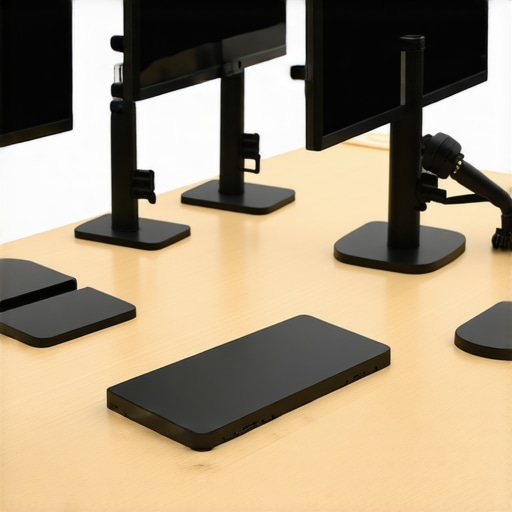
Ever found yourself squinting at a tiny font on your ultra-wide monitor, desperately trying to decipher a crucial piece of data? Or perhaps you’ve spent ages tweaking your setup, only to realize your neck and shoulders are pounding from awkward angles? I remember those days all too well—until I discovered the magic of small accessories that totally revamped my workspace. Today, I want to share how a few game-changing gadgets can turn your dual monitor arrangement from frustrating to fabulous.
Why Small Accessories Make a Big Difference in Your Dual Monitor Setup
Every professional, creative, or coder knows the pain of a cluttered, uncomfortable, or inefficient workspace. Even with high-end monitors—like the top 4k models for office efficiency—you might still struggle with alignment, glare, or stability. I’ve been down that road—buying expensive gear only to realize that the real secret is accessorizing smartly. After experimenting, I learned that small but well-chosen accessories can improve ergonomics, reduce eye strain, and maximize desk space.
So, if you’ve ever felt overwhelmed trying to perfect your setup or wondered if these little gadgets are worth the investment, you’re in good company. The truth is, many of these accessories aren’t just gimmicks—they’re backed by ergonomic research and user feedback, dramatically boosting productivity and comfort.
Is Investing in Accessories Really Worth the Extra Cost?
Honestly, I used to think that a fancy monitor was enough. I made the mistake early on of ignoring simple add-ons, assuming they were just extra clutter. That mistake cost me more in discomfort and lost time than I want to admit. For example, I dismissed dual monitor arms, thinking they were just for show, until I realized how much neck pain I saved by properly positioning my screens.
According to ergonomic studies, proper monitor placement and support are critical for reducing musculoskeletal problems. In fact, a report from the American Academy of Orthopaedic Surgeons emphasizes that ergonomic accessories are essential for maintaining long-term health—especially if you work long hours at your desk. So, the tiny investment in a good monitor stand or dual-arm mount can pay off hugely.
In the upcoming sections, I’ll walk you through five small accessories that, in my experience, are must-haves for fixing common dual monitor issues. Whether you’re tired of clutter, eye strain, or awkward angles, these gadgets are your new best friends. Ready to transform your workspace? Let’s dive into the first essential accessory that I swear by.
Position Your Monitors for Optimal Comfort
Begin by placing your monitors at eye level to reduce neck strain. Use a adjustable dual monitor arm to freely position screens precisely where you need them. I once spent an afternoon tinkering with a homemade riser—after some trial and error, I found that elevating my screens to eye height cut my neck pains in half, making focus much easier. Know that choosing the right office monitor can significantly impact ergonomics, especially if you spend long hours working.
Align Your Displays for Seamless Workflow
Ensure your monitors are aligned horizontally to mimic a single, wide workspace. This reduces eye movement and mental fatigue. I recommend placing a small vertical spacer or using monitor bezels as a guide. When I set up my dual screens, I placed my primary monitor slightly to the right and adjusted the secondary to match its height—this yielded a fluid visual flow when coding or designing. If space is limited, consider dual monitor setup tricks designed for tight desks.
Tweak Your Viewing Angles and Distance
Position your screens so the top edge is approximately at eye level, about an arm’s length away. Use a monitor with adjustable tilt to fine-tune your angle, reducing glare and reflections. I found that staring down at a monitor for hours caused headaches, so I went for a tilt adjustment that kept my neck straight. Remember, high-quality office monitors with ergonomic features enhance this experience.
Calibrate for Color Accuracy and Clarity
Use professional calibration tools or built-in software to set your monitors to standard color profiles, reducing eye strain and ensuring color consistency—crucial for creative tasks. My first attempt involved manually adjusting brightness and contrast; the difference was striking. I then used calibration software, which eliminated muddy tones and sharpened text clarity. If fidelity matters in your workflow, consider color-accurate monitors that support professional calibration.
Manage Your Cables and Desk Space
Keep cables hidden with cable sleeves or using a dual monitor cable management kit. This prevents clutter, reduces accidental disconnections, and creates a clean workspace. I installed a simple under-desk cable tray; tidiness motivated me to work more efficiently. For even tighter spaces, explore space-saving dual monitor setups that optimize desk layout.
Adjust Settings for Long-Term Comfort
Fine-tune your monitor’s brightness, contrast, and refresh rate to match your environment and tasks. For prolonged coding or text editing, consider lowering blue light emission and enabling flicker-free technology to reduce eye fatigue. During my setup, tweaking these minor parameters allowed me to work comfortably for hours without tired eyes. Check out best office monitors with eye-care features for reference.
When it comes to selecting a high-quality monitor, many users cling to popular beliefs that are, quite frankly, oversimplified or outdated. One of the most common misconceptions is that higher resolution notebooks or monitors like 4K are universally better for every professional workflow. While 4K provides stunning detail, relying solely on increasing resolution can lead you to ignore critical factors like color accuracy, ergonomic calibration, or panel technology. In fact, many 4K monitors fail to deliver true productivity benefits if they lack proper calibration or color precision, which is vital for creative professionals. Advanced users should realize that not all 4K displays are created equal—some have poor pixel density scaling, inconsistent color rendering, or subpar refresh rates that can hamper efficiency rather than enhance it.
Why Surface-Level Specs Can Sabotage Your Setup
Most people overlook the nuances in monitor specifications, assuming that specs like resolution or size automatically translate into better productivity. For instance, a common trap is choosing a large, glossy 4K screen expecting ultimate clarity, only to find that glare and reflections cause significant eye fatigue. Professional-grade options often feature matte finishes and better anti-glare coatings that reduce strain during long hours of work. Plus, you might discover that a high-resolution monitor with poor color consistency or lacking HDR capabilities could undermine tasks that rely heavily on accurate color, such as photo editing or design work. This oversight can result in wasted investment and frustration, especially if you’re unaware that color accuracy depends heavily on panel technology (IPS vs. VA), delta-E values, and calibration hardware. Take the time to explore professional guides on minimizing eye strain and maximizing your monitor’s true potential, rather than just jumping for the latest resolution bragging rights.
Another critical yet often ignored detail is the importance of proper scaling and pixel density—particularly on 4K displays. Many users experience interface elements that are either painfully tiny or uncomfortably large due to improper scaling settings, leading to a cluttered workspace or awkward navigation. This is where understanding the advanced nuances of Windows or macOS scaling options comes into play. Setting the correct scale helps ensure that text, icons, and windows are optimized for your viewing distance, reducing eye strain and boosting workflow efficiency. You can verify that your monitor supports these features natively by consulting the manufacturer specifications before making a purchase.
Now, what about dual monitors and productivity? Many assume stacking two 4K screens automatically doubles their effectiveness. However, without considering ergonomic placement, color calibration consistency, or bezel management, you risk creating a disjointed visual experience that hampers focus. I recommend exploring detailed dual monitor setup ideas to ensure seamless workflows. For advanced professionals, integrating color-accurate displays across both units is essential, especially when editing visual content that demands consistent tones. Achieving this harmony often involves choosing monitors with matching color gamuts, calibration supports, and uniform panel technology, which many overlook in the sales process.
In sum, the critical takeaway is that superficial specs can’t replace thoughtful calibration, panel quality, and ergonomic setup. Embrace a comprehensive approach by investigating how features like blue light filtering, flicker-free technology, and local dimming improve long-term comfort. To deepen your understanding, check out the [ultimate guide to color-accurate dual monitors](https://monitors.techdeskessentials.com/ultimate-guide-to-color-accurate-dual-monitors-for-productivity-in-2025-2) and discover how to fine-tune your workspace for ultimate efficiency and health. Have you ever fallen into this trap? Let me know in the comments.Maintaining your premium monitors, such as 4k and color-accurate models, is essential for long-term productivity and visual fidelity. Investing in reliable tools and following systematic routines can extend your display’s lifespan while ensuring consistent performance. One of my go-to practices is using a high-quality screen cleaning kit that includes alcohol-free wipes, microfiber cloths, and gentle cleaning solutions. Regular cleaning prevents dust buildup and smudges that can affect color accuracy and brightness. Additionally, I utilize calibration hardware like the X-Rite i1Display Pro, which I personally rely on to keep my color-accurate monitors calibrated for professional work. Routine calibration every few months ensures that hues remain precise, especially crucial for creative tasks. Pairing this with software calibration tools like DisplayCAL provides an extra layer of confidence in color fidelity.
For software maintenance, I recommend setting up custom profiles and scripts that automatically adjust gamma, brightness, and contrast based on the time of day. This not only preserves your eyes but also maintains consistent visual output. Regular firmware updates from the monitor manufacturer are equally important—these often fix bugs and improve color consistency. To streamline these updates, consider incorporating OEM software that checks for updates automatically. With dual or multi-monitor setups, cable management becomes vital to prevent wear and tear. Using cable sleeves or adopting modular HDMI/DisplayPort cables reduces strain on ports and avoids costly repairs.
Looking ahead, the trend points toward smarter, self-calibrating monitors integrated with AI-based diagnostics that can warn users of potential issues before they escalate. As technology advances, expect seamless maintenance routines that require minimal user intervention.
Question: How do I maintain color accuracy and performance over time?
One effective method involves implementing scheduled calibration routines with professional tools like the X-Rite i1Display Pro. I personally calibrate my primary color-sensitive monitor every three months, aligning it with a calibrated reference using DisplayCAL software. This practice prevents drifts in color and ensures fidelity across creative projects. Additionally, keeping your monitor firmware up-to-date is vital, often resolving bugs that could affect color output or refresh rates. To simplify maintenance, set your calibration software to run automatically during non-peak hours, reducing manual effort.
Adopting good cable management and protective filters to guard against dust and glare also prolongs display clarity and reduces the risk of hardware issues. If you’re interested in exploring professional calibration, I suggest reaching out to specialists via [our contact page](https://monitors.techdeskessentials.com/contact-us) to get personalized advice.
Finally, stay informed about advancements in monitor technology, such as the upcoming AI-powered self-maintenance displays, which promise to revolutionize long-term upkeep. By integrating these tools and routines, your investment in a high-end monitor not only pays off in immediate productivity but remains a reliable asset for years to come. Don’t hesitate to try applying these calibration tips today—small adjustments can lead to significant improvements in your visual workflow.
The Hidden Truths About Ergonomics and Visual Fidelity
One of the toughest lessons I learned was that even the most advanced 4K monitor can fall flat if you neglect small details like calibration and placement. I used to think that resolution alone dictated clarity, but I soon discovered that proper calibration and ergonomic positioning are what truly unlock peak performance—saving my eyes and reducing fatigue over long hours. Investing time into understanding panel technology and calibration tools turned my workspace from a source of discomfort into a sanctuary of productivity.
Carving Out Your Perfect Workspace with Tiny Tweaks
Small accessories like adjustable monitor arms and cable management systems may seem minor, but they have a profound impact. I once struggled with a cluttered desk and uneven screens, which hampered my focus. After swapping to a dual monitor arm and hiding cables with simple sleeves, my environment instantly felt more professional. Little changes, like aligning monitors precisely and choosing matte surfaces to prevent glare, created a workspace that motivates me every day.
Embracing Ongoing Maintenance for Long-Term Clarity
My surprise discovery was that maintenance doesn’t end after setup—regular calibration, cleaning, and firmware updates keep my monitors performing their best. Using tools like calibration hardware has become a routine, preventing color drifts that can ruin creative projects. This proactive approach extends the lifespan of my investment and ensures my work always looks its best, whether I’m designing or analyzing data. Remember, small consistent actions outperform sporadic efforts and pay dividends over time.
My Deep Dive into Monitor Technology and Myths
- Overestimating resolution alone can lead to overlooked factors like panel quality and calibration capabilities. I learned to prioritize panels with high delta-E ratings for color accuracy—even if they’re not the newest model.
- Assuming bigger always means better; I found that a 27-inch 4K screen with the right scaling beats a bulky 32-inch if ergonomics and pixel density aren’t considered.
- Falling for glossy screens that cause glare—switching to matte displays was a game-changer for reducing eye fatigue during marathon work sessions.
Where to Elevate Your Monitoring Game From Here
For those ready to take their setup further, I suggest exploring professional calibration tools like the X-Rite i1Display Pro and diving into guides on dual monitor layouts. Check out trusted resources like our comprehensive guide to dual monitor calibration and setup—it’s packed with insights that I wished I’d known earlier. A well-maintained, properly calibrated dual setup isn’t just about aesthetics; it’s about safeguarding your health and enhancing your productivity long-term.
Your Next Step to a Better Workspace
The journey to an optimal dual monitor and 4K setup is personal and ongoing. Small investments in accessories, maintenance routines, and education can transform your workspace into a powerhouse of efficiency and comfort. I encourage you to experiment with what I’ve shared, adapt it to your unique needs, and embrace continuous improvement. Your perfect workspace is within reach—start today and watch your productivity soar.
What’s the one tweak that made the biggest difference in your setup? Share your story below and inspire others to upgrade quietly—small changes can make a world of difference!
,
Reading this post really resonated with me because I used to overlook the importance of monitor positioning until I started experiencing chronic neck tension. Investing in a good adjustable arm not only improved my posture but also allowed me to position my screens perfectly at eye level. That tiny tweak made a huge difference in my daily comfort and productivity. It’s interesting how small accessories, like cable management clips or anti-glare screens, can seem trivial but actually contribute significantly to a streamlined workspace. I’ve also found that regularly calibrating my monitors with a hardware tool like the X-Rite i1Display Pro ensures consistent color accuracy, which is crucial for my design work. Has anyone experimented with AI-powered self-calibrating monitors? I wonder how much they could help with long-term maintenance and workflow consistency.
This article hits on some crucial points that many overlook when optimizing a dual monitor setup. I’ve personally found that small accessories like adjustable monitor arms and cable management solutions do more than just tidy up the desk—they substantially improve ergonomics and workflow. For example, I used to have my screens at a fixed height, which caused neck strain after hours of work. Once I got a decent dual-arm mount and properly aligned the monitors at eye level, my posture improved dramatically, and focus became easier. One thing I’ve added recently that made a noticeable difference is an anti-glare screen protector; it cut down reflections and eye fatigue during long coding sessions. Out of curiosity, has anyone experimented with monitor stands that allow for multi-axis adjustment, or with software that dynamically adjusts brightness and contrast based on ambient light? I’m interested in hearing what tools or accessories others found most effective for long-term comfort and productivity.
This post highlights a really crucial aspect of dual monitor setups that often gets overlooked: the combination of ergonomic placement and small accessories can dramatically improve long-term comfort and productivity. From my experience, investing in a high-quality adjustable monitor arm was a game-changer. It not only allowed me to position my monitors precisely at eye level but also freed up desk space, making the whole environment much less cluttered and more inviting to work in. I’ve also started using blue light filters on my screens, which really helps with eye fatigue after long hours. I wonder, has anyone experimented with voice-controlled monitor adjustments? I’ve heard some setups now support voice commands for changing brightness or switching profiles – that might be the next step in making ergonomics even more effortless. Also, what are your go-to accessories for cable management? I find that well-hidden cables help reduce visual clutter and contribute significantly to a tidy workspace.
This article really hits the mark regarding small accessories that make a huge difference. I completely agree that proper ergonomic placement can prevent long-term health issues, especially for those of us who spend hours in front of screens. I’ve recently started using a height-adjustable monitor arm, and it’s been a game-changer. It’s impressive how much more comfortable I feel, and the setup looks so much cleaner without cluttered cables. Adding to the conversation, I’ve also experimented with anti-glare screen protectors, which significantly reduce eye strain, especially during late work sessions. I’ve been curious about incorporating voice-controlled monitors; has anyone tried this? It sounds futuristic, but it seems like a convenient way to tweak settings without interrupting workflow. What other small accessories or tech enhancements have you found helpful for sustaining productivity and comfort over long periods? I’d love to hear more tips or experiences to optimize my workspace further.