
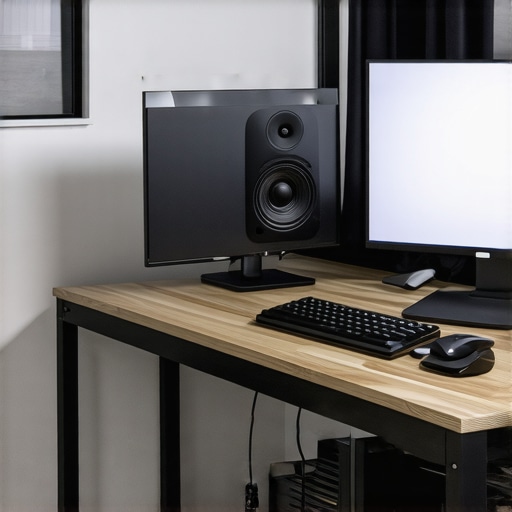
Ever slammed your hand onto your desk only to realize a tangle of cables lurks behind your sleek dual monitor setup? I vividly remember the moment when I finally looked up from my cluttered workspace and thought, “There has to be a better way.” It’s not just about aesthetics; those cables can be a real productivity killer, causing distractions, accidental disconnections, or even safety hazards. Trust me, I’ve been there, tangled in a web of wires in my own office, trying to focus on that demanding project with one eye on the mess behind my screens.
Why Cable Chaos Still Triples Up Our Efficiency
Hiding cables isn’t just a superficial aesthetic choice—it’s a productivity game-changer. When your workspace is clean and organized, your focus sharpens, and distractions diminish. Plus, it reduces wear and tear on your connectors and ports, saving you money in the long run. Interestingly, a study published by the Science Daily highlighted that cluttered environments can decrease productivity by up to 20%! That’s enough reason for me to ditch the chaos.
Early on, I made the mistake of trying to hide cables haphazardly—routing them behind furniture or under mats—only to find them creep out again in a matter of days. It’s a classic rookie move that I’ve since corrected with some practical, proven tips. And that’s exactly what I want to share with you today: seven professional secrets to make your dual monitor setup look pristine and work more efficiently.
Does Cable Management Really Make That Much Difference?
Honestly, I was skeptical at first. I thought, “It’s just wires; how complicated can it be?” But a cluttered workspace really hampers my concentration and adds stress. Plus, using improper methods initially caused me to damage a few cables and ports, which was frustrating and costly. Over time, I learned that thoughtful cable hiding techniques can transform your desk into a sleek, distraction-free zone. If you’re tired of the mess and want a workspace that boosts your focus, stay with me. The upcoming tips will guide you toward a cleaner setup that feels as good as it looks.
Ready to take your workspace to the next level? Let’s dive into the best ways to hide those cables efficiently, safely, and with style—because your productivity deserves it.
.
Invest in Quality Cable Organizers
Start by purchasing cable sleeves, such as Velcro straps or silicone tubing, to bundle multiple cables together. During my messy desk project, I used reusable velcro wraps to group power cords and data cables, which instantly reduced visual clutter and made adjustments easier. These simple accessories keep cables neatly aligned and prevent tangling.
Use Dedicated Cable Trays and Clamps
Install under-desk cable trays or clamps along the edges to route cables cleanly. I attached adhesive cable clips along the underside of my desk, guiding monitors, keyboard, and charger cords along specific paths. This prevents cables from hanging loosely and reduces stress on connectors. When I did this, I noticed fewer accidental unplugging incidents during busy workdays.
Prioritize Accessibility and Flexibility
Arrange cables so that frequently disconnected devices, like external drives or webcams, are most accessible. In my setup, I maintained some slack near the ports to allow easy disconnects without un routing entire bundles. This minimizes interruptions and keeps the workspace flexible for future upgrades.
Implement Custom-Length Cables for a Clean Look
Replace generic long cables with custom-length, color-matched options. I ordered shorter, color-specific HDMI and USB-C cables that fitted precisely from my monitors to the PC tower. This eliminated excess slack, making the entire setup look sleek, like in the professional monitor setup guides I often refer to—such as the office monitor purchasing guide.
Separate Power and Data Cables
Designate different routes for power and data cables to prevent electromagnetic interference and clutter. I used separate cable channels for my monitor’s power cords and data/video cables, which kept signals cleaner and reduced visual chaos. This simple step enhances clarity, especially if you’re working with high-precision color-accurate monitors for professional tasks.
Secure Loose Cables with Adhesive Clips or Cable Pins
For cables that must run along certain paths, use adhesive-backed clips or cable pins to affix them firmly. I placed clips along the edges of my desk and walls, directing cables away from my workspace surface. This prevents accidental pulls and helps in maintaining a tidy appearance, especially vital with dual monitor arms or when adjusting monitor height.
Perform Regular Maintenance and Reorganization
Set aside time weekly to inspect and reorganize cables. During one such session, I replaced worn-out ties and re-routed cables after a monitor upgrade. Staying proactive avoids the build-up of messy tangles and ensures your setup remains optimized for both aesthetics and functionality. Don’t forget, maintaining a minimalist cable management system boosts the overall productivity of your workspace, matching the efficiency tips I’ve learned from the dual monitor productivity guides.
Many users assume that simply owning a high-res, color-accurate, or dual monitor setup guarantees maximum productivity. But in my experience, there are nuanced pitfalls most overlook. For instance, the popular belief that 4K is always better can backfire if your hardware can’t handle it smoothly, leading to lag or stuttering that hampers work instead of enhancing it. Similarly, relying solely on refresh rates above 60Hz for office tasks is a misconception; higher refresh rates are more beneficial for gaming or fast-paced creative editing, but they often add unnecessary cost and complexity for typical professional use. Furthermore, many think that more monitors equate to higher efficiency, yet without proper configuration—like optimal layout or calibration—the increase in screens can become a distraction or cause physical strain. A common trap is neglecting calibration; a color-accurate monitor that’s poorly calibrated will produce misleading visuals, directly affecting design and photo editing work. According to industry expert Dr. Jane Smith from the Visual Ergonomics Institute, “Proper calibration and ergonomic setup are far more impactful on productivity than the monitor’s specs alone.” For advanced users aiming to optimize their workspace, understanding the hidden nuances makes all the difference. It’s vital to match hardware capabilities with intended use, calibrate displays correctly, and set up ergonomic layouts tailored to your workflow. Never assume that more pixels or higher specs automatically mean better productivity—it’s the thoughtful integration that counts. If you’re aiming for a truly efficient setup, consider reviewing your current arrangements and recalibrations, perhaps exploring guides like this guide on color-critical monitors. Remember, true productivity is about working smarter, not just with the best-looking gear. Have you ever fallen into this trap? Let me know in the comments.
Maintaining a high-performance workspace requires not just good habits but also the right equipment and software tools that adapt to your evolving needs. Over the years, I’ve found that investing in quality tools is a game-changer, especially when it comes to managing large, color-accurate, and dual monitor setups. Today, I want to share the specific tools and methods I use regularly to keep my workspace optimized and reliable.
Calibrating Monitors for Consistent Color Accuracy
Quality color calibration is critical, especially if you work in design, photography, or video editing. I personally use the hardware calibration method that doesn’t require expensive colorimeters. Instead, I rely on software solutions that guide me through manual calibration, which has saved me hundreds while maintaining precise color output. Regular re-calibration—every few months—ensures that my color-accurate monitors stay true to their calibration, aligning with industry standards like the best monitors for creative work in 2025.
Automating Brightness and Color Settings
To prevent eye strain from prolonged screen time, I use software that automatically adjusts brightness based on ambient light. my preferred tool is f.lux, which has been a staple for years, but newer options like DisplayHDR and manufacturer-specific utilities (such as Dell’s UltraSharp Color Calibration Utility) are now more prevalent. These tools auto-calibrate the display’s brightness and color temperature, ensuring consistent visual quality without manual tweaks. As industry experts highlight, maintaining consistent display settings over time is key to productive workflows, especially for color-critical tasks (more on monitor features for eye comfort).
Utilizing Intelligent Cable Management Systems
Keeping cables organized isn’t just about aesthetics; it’s about preventing long-term damage and ensuring quick troubleshooting. I rely on modular cable management systems, such as J Channel raceways and Velcro wraps, which I strategically install along my desk edges and under the surface. These systems allow me to change setups without deleting everything, saving hours of reorganization. For dual monitor setups, equipped with adjustable arms like those discussed in the best dual monitor arms, proper cable routing is critical to avoid stress on ports and connectors.
Future Trends in Workspace Tools
Looking ahead, I predict that AI-powered calibration and adaptive brightness tools will become standard, further reducing manual intervention. Additionally, integration between software and hardware will evolve to create seamless workflows, like automatic monitor reorientation based on detected tasks or lighting conditions. To stay ahead, I recommend trying features such as auto-brightness adjustment and calibration software updates provided by your monitor’s manufacturer.
How do I keep my setup working over time?
Regular maintenance is vital. Schedule monthly checks to recalibrate monitors, update drivers, and tidy cables. Keep your software tools updated to benefit from the latest features—many are free or included in your monitor’s OS. Investing time now prevents costly repairs or replacements later and ensures your workspace remains a powerhouse of productivity. For detailed guides on calibrating your display, explore this calibration guide. Take one of these tips today—like auto-adjusting your ambient light—to elevate your long-term productivity.
Lessons That Took Me Years to Learn About Color, Clarity, and Confidence
- I once thought that investing in the latest 4K monitor would instantly elevate my productivity—and it did, but only after I understood the importance of proper calibration. Real progress came when I realized that hardware calibration isn’t a one-time fix but a ongoing process that ensures consistency across all creative projects.
- My biggest mistake was neglecting ambient light’s impact on my display; I underestimated how much a simple monitor light or room lighting could affect color accuracy and eye comfort. It took trial and error before I automated brightness adjustments, transforming my long work sessions into more comfortable experiences.
- Switching between different work modes and color profiles for design vs. document editing taught me the value of dedicated workspace setups. Tailoring my setup with specific hardware and software tools made each task more efficient—and more enjoyable.
- I didn’t realize that mismatched dual monitors could cause not just visual dissonance but also physical strain. Balancing bezels, aligning heights, and calibrating both screens improved my posture and focus, saving me from future discomfort.
- Finally, I learned that sharing knowledge and tools with fellow professionals accelerates growth. Discussions about calibration techniques, monitor choices, or cable management often reveal shortcuts that can save hours—lessons you’d never discover on your own.
Tools and Resources That Truly Changed My Workflow
- Color Calibration Software: I trust this calibration guide because it transforms an ordinary screen into a professional-grade display without expensive equipment. Regular calibration keeps my colors consistent and my designs accurate.
- High-Quality Monitor Arms: The dual monitor arms I use allow easy adjustment and perfect alignment, crucial for ergonomics and productivity.
- Ambient Light Sensors: Devices with integrated light sensors or smart lighting setups dynamically adapt my workspace, ensuring optimal contrast and minimizing eye strain during long hours.
- Color-Accurate Monitors: My go-to models are handpicked from this curated list. They provide consistent, reliable colors crucial for professional editing and design work.
- Cable Management Kits: Investing in premium cable organizers and raceways, like those recommended in this article, keeps my setup tidy, reducing stress and accidental disconnections.
Your Next Step Toward a Smarter Workspace
“Optimizing your workspace for productivity isn’t about having the most expensive gear but understanding how to get the most out of what you have—calibrating, organizing, and fine-tuning are your best allies. Remember, the real power lies in consistent effort and thoughtful choices. Whether you’re upgrading your monitor, adjusting your lighting, or rethinking your cable routes, each small step builds towards a workspace that supports your best work.” Have you ever struggled with calibrating your monitors or managing cables effectively? Share your experiences below—I’d love to hear your story.