
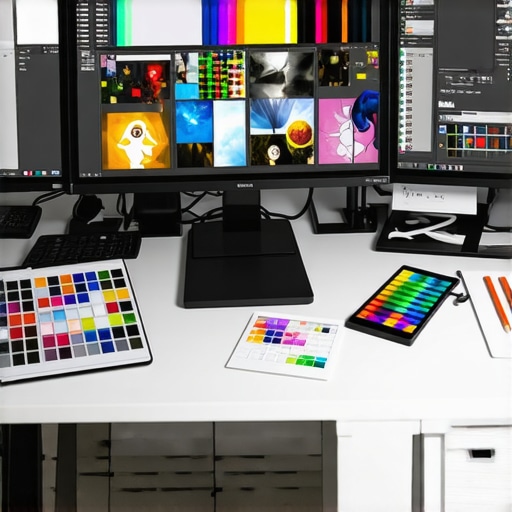
Ever stared at your screen, frustration bubbling up, as colors look off and details blur? That was me not too long ago. I was trying to perfect a digital painting or edit photos, only to realize my monitor was the culprit—its colors were far from accurate, and the resolution simply didn’t cut it anymore. The lightbulb moment hit hard: if I wanted my work to truly shine, I needed a serious upgrade. But with so many options flooding the market, how do you pick a monitor that’s both reliable and tailored for creative work?
Why Choosing the Right Monitor Matters for Creatives in 2025
In the world of digital creativity, your display isn’t just a window—it’s your canvas. A high-quality, color-accurate monitor can make or break your projects, whether you’re designing, photo editing, or video editing. The stakes are higher than ever, especially with 4K resolution becoming the standard. According to a recent report by Display Supply Chain Consultants, the demand for 4K monitors is projected to grow by over 30% in 2025, emphasizing the importance of crisp visuals that faithfully reproduce colors. If your current setup feels outdated or unreliable, you’re not alone. Many creatives face the same dilemma: how to find a monitor that combines color precision, resolution, and ergonomic comfort.
Trust me, I’ve made my share of mistakes early on—buying monitors based solely on size or price without considering color accuracy or calibration capabilities. That approach left me with screens that looked vibrant but misrepresented actual colors, leading to hours of rework and frustration. It’s clear now that investing in the right display can save you countless hours and elevate your creative projects.
Today, I’ll guide you through the essential features to look for and recommend some of the best options available in 2025. Whether you’re a professional artist, photographer, or designer, selecting a monitor that offers both true-to-life colors and stunning 4K clarity is crucial. Ready to transform your workspace? Let’s dive into the details that will help you make an informed decision and avoid the pitfalls I once fell into.
Set Your Priorities and Identify Your Needs
Start by defining what you need from your monitor. Are you editing photos, designing graphics, or working on video projects? Each task demands different features. For example, photo editors need near-perfect color accuracy, while video editors require high resolution and smooth playback. As I learned during my own upgrade, understanding your core tasks helps narrow down the options and avoid overspending on unnecessary features.
Focus on Color Accuracy and Calibration Features
Look for monitors with a wide color gamut, ideally covering at least 99% of AdobeRGB and DCI-P3. This ensures the colors you see are close to the final output. Additionally, check if the monitor supports hardware calibration—this allows you to fine-tune colors directly on the device, maintaining accuracy over time. When I tested a few models, those with built-in calibration tools kept my color profiles consistent, saving me hours of rework. For detailed comparisons, visit this guide.
Prioritize 4K Resolution and Panel Type
Choosing a 4K panel is essential for high-detail work. IPS panels are generally preferred for their superior color reproduction and wide viewing angles, crucial when working with multiple collaborators or screens. During my own setup, switching from a TN to an IPS monitor drastically improved my ability to see accurate colors from different angles, reducing my need to constantly adjust my position.
Consider Hardware and Connectivity Options
Ensure the monitor has adequate connectivity—Thunderbolt, USB-C, HDMI, or DisplayPort—so it integrates smoothly with your workflow. Also, pay attention to the color depth. A 10-bit panel can display over a billion colors, minimizing banding and gradients issues. I once struggled with color banding on a 8-bit display, which made subtle gradients look unnatural. Upgrading to a 10-bit IPS monitor eliminated these problems and made my images look more lifelike.
Evaluate Ergonomics and Screen Size
Comfort is key during long editing sessions. Look for adjustable stands—height, tilt, swivel—and if possible, a monitor with a VESA mount. Screen size depends on your workspace, but 27 to 32 inches is a sweet spot for detailed work without overwhelming your desk. During my upgrade, I replaced my small monitor with a 32-inch model, which gave me more workspace and reduced eye strain. For ergonomic tips on multi-monitor setups, see this article.
Test Before You Buy and Use Calibration Tools
If possible, test the monitor in person. Check for uniformity, color accuracy, and responsiveness. Once purchased, use calibration tools like X-Rite i1Display Pro or Datacolor SpyderX to fine-tune your display. I calibrated my monitor after installation, and the difference was night and day—colors became consistent across different projects and lighting conditions. For detailed calibration techniques, visit this comprehensive guide.
Many professionals and hobbyists alike fall into common traps when selecting a monitor, often based on misconceptions that can hinder their workflow and color accuracy. Let’s dig deeper into what most people get wrong about choosing a creative monitor in 2025, and why understanding these nuances can significantly improve your setup.
Contrary Beliefs About Resolution and Size
One widespread myth is that bigger screens or higher resolutions automatically translate to better productivity and accuracy. While a larger display can provide more workspace, it doesn’t guarantee color precision or ergonomic comfort. Many assume that a 32-inch 4K monitor will solve all visual issues, but without proper calibration and panel quality, you might still be facing subpar color reproduction. The real key lies in panel technology and calibration capabilities, not just size or resolution. For example, an IPS panel with hardware calibration support will outperform a larger TN panel in color accuracy, even if the latter has a higher resolution.
The “Oops” of Ignoring Calibration and Color Gamut
One of the most dangerous pitfalls is neglecting to calibrate your monitor regularly or assuming factory calibration is enough. Monitors can drift in color accuracy over time, especially with prolonged use. Skipping calibration tools like X-Rite i1Display Pro or Datacolor SpyderX can lead to subtle yet impactful inaccuracies that affect your final output. Furthermore, many overlook the importance of a wide color gamut—covering at least 99% of AdobeRGB or DCI-P3—to ensure true-to-life colors. Without these features, even a high-resolution monitor can mislead your creative process.
Advanced Question: How does panel type affect color accuracy and workflow efficiency?
Panel technology—IPS, TN, or OLED—plays a crucial role in color reproduction, viewing angles, and response times. IPS panels are preferred among creatives due to their superior color accuracy and wider viewing angles, reducing the need to constantly reposition your screen. OLED displays, though more expensive, offer incredible contrast and color depth, which can be vital for high-end photo and video editing. Understanding these nuances helps you select a monitor that complements your workflow, rather than just looking appealing on paper. For detailed insights, check out this guide.
Have you ever fallen into this trap? Let me know in the comments!
Maintaining your color-accurate monitor over time is crucial to ensure consistent performance and preserve your investment. Regular calibration is the cornerstone of long-term accuracy. I personally use the Datacolor SpyderX because it’s user-friendly, provides precise color adjustments, and supports the wide gamuts I work with daily. Setting a routine to calibrate every 4 to 6 weeks can prevent color drift and keep your workflow reliable.
Beyond calibration, keeping your monitor physically clean is often overlooked. Dust, fingerprints, and smudges can subtly impact contrast and color perception. I recommend gently cleaning the screen with a microfiber cloth and a screen-safe cleaner. Avoid harsh chemicals that can degrade the panel over time. For a deeper clean, some professionals use compressed air to remove dust from vents and around ports, ensuring proper ventilation and preventing overheating that could affect display longevity.
In terms of software tools, I rely on CalMAN for advanced calibration when I need fine-tuning beyond basic adjustments. It provides detailed reports and helps me verify the accuracy of my display after calibration. Regularly reviewing these reports helps catch any issues early, especially if you notice discrepancies in color consistency across projects.
Looking ahead, the trend of integrated hardware calibration tools will likely become standard in high-end monitors, simplifying maintenance. Additionally, as OLED and mini-LED panels become more prevalent, understanding their specific care needs—such as avoiding burn-in—will be vital. Manufacturers are starting to include automatic calibration features, which I predict will become more common, further reducing manual effort and ensuring long-term accuracy.
How do I maintain my monitor’s performance over time?
Establishing a routine calibration schedule, using reliable calibration hardware like the SpyderX or i1Display Pro, and keeping the screen clean are key steps. Additionally, protecting your monitor from direct sunlight and extreme temperatures preserves its lifespan. I also recommend periodically reviewing your display settings in your editing software to ensure they match your calibrated profiles, maintaining color consistency across all your projects.
Try integrating a regular calibration routine into your workflow today—it’s a simple step that pays off by maintaining your work’s integrity and saving you time and frustration in the long run.
The Hardest Lessons I Learned About Choosing a Creative Monitor in 2025
One of the biggest realizations I had was that focusing solely on resolution or size can be misleading. True color accuracy depends on panel technology and calibration support. I once bought a larger monitor with a higher resolution, only to find out it lacked the color precision I needed for my work. That taught me to prioritize panel quality over sheer specs.
3 Myths About Color Gamut and Calibration That Held Me Back
Many creatives assume factory calibration is enough or that a wider color gamut isn’t necessary. I learned the hard way that regular calibration with tools like the X-Rite i1Display Pro is essential for maintaining color fidelity over time. Also, a monitor covering at least 99% of AdobeRGB makes a significant difference in achieving true-to-life colors.
What Experts Won’t Tell You About Panel Types and Workflow Efficiency
Choosing between IPS, OLED, or mini-LED panels can be daunting. I found that IPS panels offer the best compromise of color accuracy and viewing angles for my daily work, while OLEDs excel in contrast but require careful handling to avoid burn-in. Understanding these nuances helps tailor your monitor to your specific needs, ultimately saving you time and frustration.
Curated Recommendations for Creative Monitors in 2025
- BenQ SW271: Trusted for its exceptional color accuracy and hardware calibration support, perfect for professional editing.
- Dell UltraSharp U3223QE: Offers wide color gamut coverage and excellent ergonomics, making long work sessions comfortable.
- Eizo ColorEdge CG319X: A high-end choice with built-in calibration and stunning 4K resolution, ideal for demanding creative tasks.
Embrace the Future of Color Precision and Take Action Today
Investing in the right monitor is more than a purchase—it’s a commitment to your craft. Remember, regular calibration, understanding panel technology, and choosing a model that aligns with your workflow are keys to sustained success. Don’t wait until your current setup holds you back; start exploring options now and elevate your creative projects to new heights.
What has been your biggest challenge in selecting a color-accurate monitor? Share your experience below—I’d love to hear your story!