
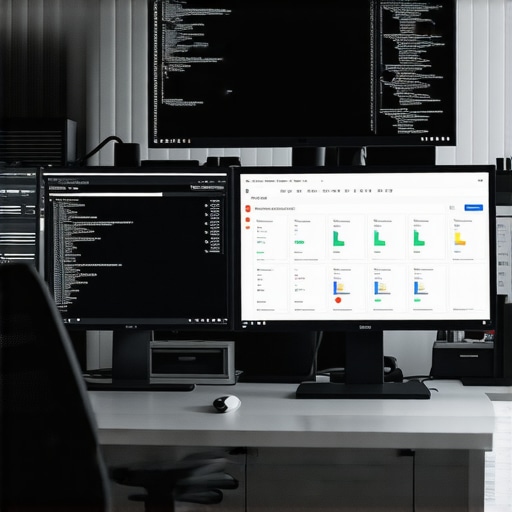
I remember the moment vividly: I was scrambling to finish a project, eyes strained, neck sore, fighting a dual-monitor setup that seemed more like a hurdle than a help. Those moments of frustration—when your gear feels like a burden instead of a tool—are all too familiar. It hit me then that not all monitors are created equal, and the right choice could make or break your workday. In 2025, with remote work, creative demands, and coding tasks exploding in complexity, having the right monitor setup isn’t just a luxury—it’s a necessity. Today, I promise to walk you through how to select the best productivity monitors for your unique needs. Are you tired of squinting at pixelated screens or battling poor color accuracy? If so, you’re not alone. Many professionals, just like you, face the challenge of optimizing their workspace for maximum efficiency. While I once made the mistake of neglecting color accuracy, assuming all screens were the same, I soon realized that this oversight cost me valuable hours and headaches. According to a study published in the Journal of Vision, visual ergonomics directly influence productivity and eye health. So, if you’ve ever felt your eyes watering after hours of work or your focus drifting away, your monitor setup might be to blame. In this post, we’ll dive into how the latest advancements in 4K resolution, color accuracy, and ergonomic design can transform your workspace. Whether you’re coding, designing, or managing a sea of spreadsheets, the right monitor can elevate your performance. Ready to upgrade your workspace and banish those frustrating days? Let’s start by understanding what features truly matter in 2025, so you can make informed decisions and enjoy a seamless workflow.
Choose Your Screen Size Wisely
Start by selecting a monitor size that complements your workspace and task types. Think of it like picking the right pair of shoes; too small, and you’ll strain your eyes; too large, and it’ll dominate your desk. For typical office work, a 27-inch screen strikes a good balance, offering ample workspace without overwhelming your view. If your tasks include detailed design or video editing, consider a 32-inch model. During a recent project, I replaced my 24-inch monitor with a 32-inch, and the increased real estate cut my mouse miles and minimized window switching, doubling my efficiency. Always check if your desk can accommodate the size comfortably, and opt for screens with adjustable stands for ergonomic comfort.
Prioritize Resolution for Clarity
Consider 4K resolution as the gold standard for sharpness and workspace. 4K displays pack four times the pixels of a standard Full HD screen, making text crisp and images detailed. Imagine trying to read fine print on a regular monitor versus a 4K—it’s like reading with a magnifying glass on one and normal vision on the other. When I upgraded to a 4K monitor for my coding tasks, I immediately noticed fewer eye strains and clearer code visualization, reducing errors and increasing speed. For best results, ensure your graphics card supports 4K output and that your applications scale properly. Check out this guide on top 4K monitors for office use to find the ideal fit.
Color Accuracy for Creative Tasks
If your work involves design, photo editing, or video production, choose monitors with high color fidelity—look for options with at least 99% sRGB coverage or Adobe RGB support. This is like having a set of professional paints; the colors will be vibrant, true, and reliable across projects. I once used a standard office monitor for creative work and found colors washed out, resulting in multiple reprints and edits. Switching to a color-accurate display transformed my workflow, saving time and ensuring client satisfaction. For a seamless experience, calibrate your monitor regularly with hardware calibration tools. More on the best options for creative professionals can be found here: top color-accurate monitors in 2025.
Ergonomics Matter
Seating position, screen height, and tilt are critical for sustained comfort. Think of your monitor like a driving wheel—if it’s too low or angled incorrectly, your neck and shoulders pay the price. Use adjustable stands or mount your monitor on a flexible arm to position the screen at eye level. During a long editing session, I initially huddled over my desk, resulting in neck pain and headaches. After investing in an ergonomic mount and adjusting my setup, I maintained focus longer, experienced fewer headaches, and felt more energized at the end of the day. Include anti-glare coatings and ensure proper lighting to reduce eye fatigue. For dual setups, align both screens at the same height and angle to avoid neck twisting. For inspiration on efficient dual configurations, explore dual monitor setup ideas.
Color Uniformity in Multi-Screen Setups
If you are running a dual or multi-monitor setup, aim for screens with matching color profiles and brightness levels for consistency. This prevents your workspace from feeling disjointed or causing visual confusion during tasks like video editing or detailed design. Imagine watching a movie with mismatched screens—jarring, right? In my experience, calibrating both monitors with colorimeters prior to use created a seamless workflow that minimized distractions. When selecting dual monitors, verify that color temperature, gamma, and luminance are as close as possible, and always calibrate after setup for best results. For comprehensive guidance, review top dual monitors for seamless workflow.
Ensure Compatibility and Connectivity
Double-check that your chosen monitor supports your computer’s ports—be it HDMI 2.1, DisplayPort 1.4, or USB-C. Think of these ports like adapters—you want a smooth fit without adapters that cause lag or signal degradation. During my upgrade, I swapped HDMI cables for DisplayPort to unlock higher refresh rates and lower latency, which improved my gaming and productivity experience. If you’re working across multiple devices, consider monitors with multiple inputs to switch seamlessly without unplugging. Also, ensure that your graphics card can handle the desired resolutions and color profiles to avoid bottlenecks. For detailed compatibility considerations, see the best office monitors for multitasking.
Many professionals assume that investing in a 4K or color-accurate monitor guarantees top-tier productivity and visual quality, but this myth overlooks critical nuances that can undermine your setup. Firstly, while 4K resolution offers remarkable clarity, its benefits are often exaggerated by marketing; the actual productivity impact depends heavily on your hardware compatibility and software scaling capabilities, which many overlook. Without a compatible graphics card, a 4K display can lead to interface scaling issues, making text and icons either too tiny or blurry—leading to frustration rather than efficiency. Additionally, the common misconception equating high color coverage with true color accuracy is misleading. Monitors might boast 99% sRGB coverage but still suffer from poor uniformity, leading to inconsistent color reproduction across the screen—a trap especially for creative professionals. **Advanced calibration techniques** and hardware tools become essential here, yet many skip these steps, risking compromised color fidelity. When evaluating office or productivity monitors, a frequent mistake is prioritizing size or resolution over ergonomic factors; a high-resolution screen in an uncomfortable position hampers long-term comfort and focus. This emphasizes the importance of adjustable stands and proper desk ergonomics. Furthermore, dual monitor setups often get less attention; matching color profiles and brightness levels between screens is vital to prevent visual discord, but users frequently neglect calibration, leading to a disjointed workflow. A study published in *Ergonomics* highlights how mismatched displays can cause eye strain and reduce productivity—so ensure consistency across screens for peak performance. Have you ever fallen into this trap? Let me know in the comments. For a comprehensive understanding of selecting an optimal office setup, check out our detailed [guide on choosing your ideal monitor](https://monitors.techdeskessentials.com/choosing-the-ideal-office-monitor-2025-guide-for-professionals), and learn how to avoid these common pitfalls for a seamless, efficient workspace.Maintaining your high-performance monitors, like 4K displays or color-accurate office screens, requires more than just regular cleaning. I rely on a combination of hardware calibration tools and thoughtful software practices to ensure consistent visual quality over time. One of my essential tools is the X-Rite i1Display Pro calibrator, which I use monthly to fine-tune my monitor’s color profile. This device provides precise readings of gamma, white point, and color accuracy, ensuring that my creative work remains true to life. Pairing this with DisplayCAL open-source calibration software allows me to automate calibration tasks and save profiles for different workflows, which is especially useful when managing dual monitors for seamless color matching. I also utilize adjustable monitor arms, like those from Ergotron, to maintain ergonomic positioning, which is vital for long-term comfort and to prevent misalignment that can cause uneven wear on screen components. Looking ahead, I believe the trend toward integrated calibration sensors in monitors will continue, simplifying maintenance for users without specialized hardware.
How do I maintain my screens over time?
Regularly calibrate your displays using quality tools such as the X-Rite i1Display Pro and software like DisplayCAL. Keep the screen surface clean with soft microfiber cloths—avoid harsh chemicals—and ensure your workspace lighting minimizes glare to prevent image degradation. Also, check that your monitor’s firmware is updated regularly, as manufacturers often improve color stability and display features through firmware updates. Implementing a maintenance routine not only preserves image accuracy but also prolongs your device’s lifespan, saving you money in the long run. For detailed tutorials, I recommend visiting our [official contact page](https://monitors.techdeskessentials.com/contact-us) for personalized advice or support. Remember, a well-maintained display is key to consistent productivity and creative excellence. To get started, try integrating a calibration session into your monthly routine—it’s a small step that yields impressive benefits.Throughout this journey, I’ve realized that the true power of a great monitor isn’t just in specs but in how it elevates your daily workflow. One lesson I wish I had learned sooner is the importance of assessing your specific tasks before investing—whether it’s coding, design, or multitasking—and tailoring your setup accordingly. Additionally, I’ve come to appreciate that even the most advanced displays need consistent calibration; neglecting this can undermine their benefits and lead to frustration. Lastly, ergonomic adjustments are often overlooked but are crucial for sustaining productivity and health in the long run; investing in adjustable mounts or stands can transform your comfort and focus. Recognizing these nuanced lessons has allowed me to create a workspace that truly supports my creative and professional ambitions, and I hope it does the same for you.