
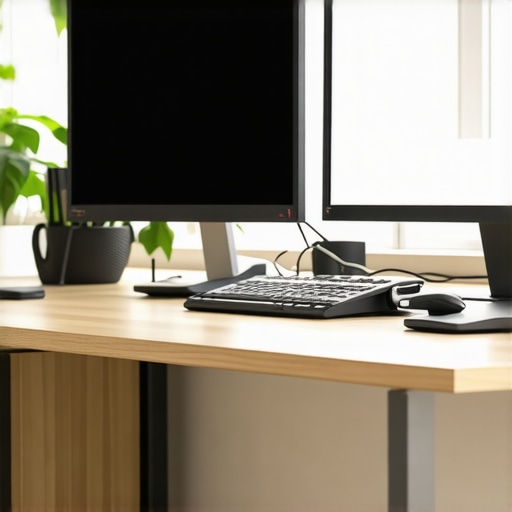
I vividly remember the moment I realized my productivity was crashing faster than my old laptop’s storage space. Sitting in my cluttered desk, staring at a single 27-inch monitor, I noticed my tasks piling up—emails, creative edits, code snippets—all vying for space on a limited screen real estate. Frustration crept in; I was wasting time toggling between tabs, missing deadlines, and feeling utterly drained by the end of the day. That lightbulb moment hit me hard: I needed a dual monitor setup, but not just any monitors—something tailored for seamless workflow and vibrant, color-accurate visuals in 2025.
Why Your Current Screen Setup Might Be Holding You Back
Ever find yourself squinting at a monitor that’s too dim, struggling to see details on a screen with poor color accuracy, or juggling multiple windows on a tiny display? You’re not alone. Many professionals still use outdated setups that limit their efficiency and lead to eye strain or miscommunication, especially when working on creative projects or multitasking. The truth is, a well-chosen dual monitor configuration can not only accelerate your workflow but also reduce fatigue and elevate your overall work quality.
Research from the University of Utah shows that multi-monitor setups can boost productivity by up to 42%, provided they are configured correctly and using high-quality displays. This isn’t just hype; it’s a proven strategy to help you work smarter, not harder. But here’s the catch—choosing the right combination of monitors in a world flooded with options can be overwhelming.
Are you tired of constantly switching between tabs or struggling with monitors that don’t show true colors? If so, you’re in the right place. We’re going to explore how to build a dual monitor setup that truly works for your professional needs—whether you’re coding, designing, or managing multiple projects. And trust me, after years of experimenting and refining my own setup, I’ve learned what works—and what doesn’t.
Before diving into configurations, it’s important to understand the common pitfalls that sap efficiency and how to avoid them. Let’s start with what to watch out for so you can make informed decisions and create a workspace that empowers your productivity, not hinders it.
Choose the Right Monitors for Your Needs
Start by assessing your primary tasks—coding, designing, or multitasking—and select monitors accordingly. For precise color work, opt for a color-accurate 4K monitor, which ensures your visuals are vibrant and true to life. For general office tasks, a high-resolution 4K monitor with good productivity features can boost efficiency. Think of your monitors as tools—just like a chef needs a sharp knife and a sturdy pan, your workspace requires equipment suited to your workflow.
Set Up Your Workspace for Comfort and Productivity
Arrange your monitors so they form a flat, uninterrupted surface, similar to assembling a well-oiled machine. Position the primary monitor directly in front of you at eye level, and place the secondary to the side at a slight angle. Use adjustable stands or mounts to achieve this setup, reducing neck strain and improving visibility. This way, you avoid the ‘mouse bottleneck’—the frustration of constantly switching focus. Remember, comfort directly relates to sustained productivity.
Optimize Display Settings for Seamless Workflow
Configure your monitors to match each other’s color profiles, especially if they are different brands or models. Use calibration tools or software to fine-tune brightness, contrast, and color gamut. Think of this as tuning a musical instrument—precision ensures harmony across your tasks. For example, when editing images, a color-accurate monitor guarantees your work looks consistent across screens, reducing time spent correcting discrepancies.
Implement Workflow Bridge Features
Leverage features like Picture-by-Picture (PbP) or Picture-in-Picture (PiP) modes, which let you display multiple sources simultaneously. Imagine having your email and code side-by-side—this is similar to having two windows open on a physical desk but with the flexibility of digital management. Setting these up enhances multitasking, making your workspace as dynamic as your tasks demand. Refer to office monitor guides for specific model recommendations that support these features.
Use Proper Ergonomics and Adjustments
Adjust monitor height, tilt, and swivel to align with your natural line of sight—think of it as customizing a vehicle’s dashboard for ease of use. This minimizes eye strain and prevents fatigue, allowing you to work longer without discomfort. A well-calibrated setup reduces the risk of headaches and promotes sustained focus throughout your day.
Test and Refine Your Setup Regularly
After initial configuration, spend time working with your dual monitors. Notice what feels awkward or inefficient, like a mechanic tuning an engine—small tweaks can dramatically improve performance. Adjust positions or settings as needed, ensuring fluid transitions between tasks. Over time, this iterative process transforms your workspace into a productivity powerhouse, tailored exactly to your workflow. For ongoing insights and the latest gear, consider consulting resources like dual monitor setup ideas.While many professionals focus on size, resolution, or refresh rates when choosing a 4K or productivity monitor, few realize the subtle factors that can dramatically affect your workflow and visual accuracy. One common misconception is that higher pixel counts automatically translate to better clarity for all tasks. However, without proper calibration and understanding of color profiles, a 4K monitor might produce inconsistent or dull visuals, especially in creative work. Oversights like neglecting uniform brightness and contrast across dual monitors can cause eye strain and reduce efficiency over time. Additionally, many overlook the impact of panel type—IPS panels might offer better color consistency than TN or VA options, which is critical for tasks demanding color precision.
Another nuanced mistake involves ignoring workflow-specific features such as USB-C hubs, ergonomics, or support for VESA mounting. These can significantly improve your setup’s versatility but are often dismissed in favor of raw specifications. For advanced users, understanding hardware compatibility for calibration tools and software is crucial; a misaligned setup could nullify the benefits of a high-quality color accurate monitor.
Moreover, many assume that a dual monitor setup is just about adding more screens. In reality, effective multi-monitor configurations require careful alignment, matching color profiles, and cohesive ergonomics to truly maximize productivity. Simply stacking mismatched displays can cause neck strain, eye discomfort, and visual inconsistency, hampering work rather than enhancing it.
Research by industry experts emphasizes that it’s not just about the hardware but also how you utilize it. For example, a study in the *Journal of Vision* highlights that proper calibration can improve color discrimination by up to 30%, which is vital for design and editing professionals. So, the secret lies in understanding these finer details and tailoring your setup to your specific workflow challenges.
Make sure to review these nuances before investing in a new monitor. Check out our comprehensive guides on color-accurate monitors for creative professionals or explore how to optimize your dual setup with dual monitor ideas for increased productivity. Don’t fall into the trap of assuming specs tell the whole story—digging into these details can transform your workspace and output. Have you ever fallen into this trap? Let me know in the comments.Maintaining your high-quality monitors is crucial to preserving their performance and getting long-term value from your investment. Personally, I rely on a combination of calibration tools and routine checks to ensure my color-accurate 4K monitors stay precise and vibrant over the years. For example, I swear by the X-Rite i1Display Plus calibration device, which allows me to regularly fine-tune brightness, contrast, and color profiles with just a few minutes of effort. This is especially important if you’re working on projects that demand consistent color accuracy, like creative design or photography projects. Regular calibration prevents color drift and ensures your workspace remains optimized for work quality.
Aside from calibration hardware, software solutions like DisplayCAL offer robust, user-friendly interfaces to automate calibration processes and manage profiles across multiple monitors. I automate calibration every quarter—this habit keeps my setups consistent, minimizes eye strain, and guarantees that my color work remains reliable.
In addition to calibration, routine physical maintenance is simple but effective. Use a microfiber cloth to dust off screens regularly, avoiding harsh chemicals that could damage the display. For long-term health of your monitors, ensure adequate ventilation and avoid exposing your screens to extreme temperatures, which can degrade components.
Looking ahead, the trend points toward smarter, self-calibrating displays that automatically adjust based on ambient light conditions and usage patterns, simplifying maintenance further. Already, some flagship models incorporate integrated light sensors and calibration algorithms, making manual adjustments a thing of the past. For now, leveraging reliable calibration tools remains the most effective way to maintain your monitors.
Interested in keeping your workspace at peak performance? I highly recommend integrating a calibration routine with tools like DisplayCAL and hardware such as the X-Rite device. Doing this not only guarantees color accuracy but also prolongs your monitor’s lifespan.
Want to explore more about the best monitors that support easy calibration and long-term reliability? Check out our detailed guides on color-accurate monitors or contact us for personalized recommendations via our contact page. Taking these small but vital steps will keep your monitors performing flawlessly for years to come.
The Shortcut to Better Work Comes from Experience
One of the most profound lessons I learned is that investing time in fine-tuning your monitor calibration and ergonomic setup yields exponential returns in productivity and comfort. Jumping straight into a new dual monitor setup can be tempting, but rushing often leads to overlooked details—like mismatched color profiles or improper positioning—that drag down performance over time. Personal breakthroughs came when I embraced incremental improvements, regularly calibrating my displays with reliable tools and adjusting my workspace as I learned what worked best for my workflow. These small, consistent steps transformed my work environment from a source of strain into a well-oiled productivity engine.
Curated Tools That Elevated My Setup
For anyone serious about maintaining peak display quality, I recommend tools like the X-Rite i1Display Plus, which has become my go-to for precise calibration. Software like DisplayCAL offers an intuitive interface for ongoing calibration, ensuring consistent color accuracy across my dual screens. When selecting monitors, I turn to trusted reviews and detailed guides because they help me decipher which features truly improve workflow, like VESA mount compatibility or adjustable stands. These tools and resources have become essential parts of my toolkit, ensuring I don’t just have great monitors but also keep them performing at their best.»
Your Next Step Begins Today
Remember, the journey toward an optimized workspace isn’t about buying the latest gear overnight—it’s about understanding your needs, making informed choices, and continually refining your setup. Embracing these lessons and tools will empower you to craft an environment that inspires creativity, enhances efficiency, and sustains comfort over the long haul. Now is the perfect moment to start—your ideal dual monitor workspace awaits. If you’re eager to see some exemplary setups or need personalized recommendations, explore our detailed guides or reach out through our contact page. Remember, a thoughtfully arranged workspace can unlock your full potential, just as it did for me. So, what small change will you make today to elevate your monitor setup? Let’s hear your plans below!