
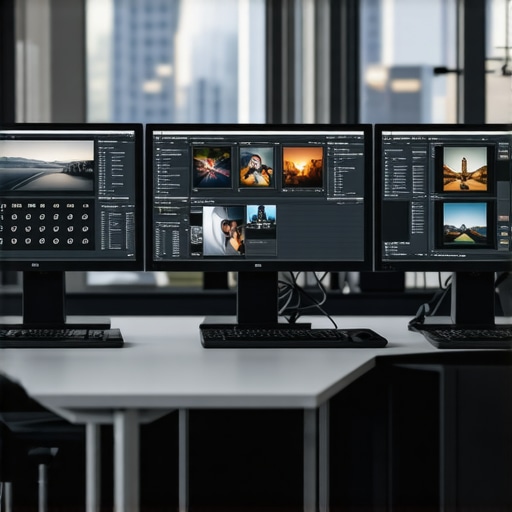
I remember the moment vividly—staring at my dual 4K monitors, trying to squeeze every pixel into a design project, only to realize that those tiny, almost microscopic texts and images were slowly draining my focus. I squinted, zoomed in, but nothing seemed enough. It was as if my screens were fighting me, not helping me. That lightbulb moment hit me hard: maybe 4K isn’t the ultimate anymore.
Feeling Stuck with 4K Monitors? Here’s Why Many Are Making the Switch
Let’s be honest—many of us invested in 4K displays a few years back, thinking they were the pinnacle of clarity and productivity. But with evolving software, demanding tasks, and higher expectations from creative pros, 4K can sometimes fall short. It’s not just about sharper images; it’s about workspace real estate, color accuracy, and reducing eye strain. As someone who’s faced sluggish workflows and blurry text, I can tell you—there’s a better way.
In fact, recent industry insights suggest that in 2026, a significant shift is underway. Top-tier pro coders and creative professionals are already eyeing 6K monitors to enhance their workflows and visual precision — and here’s the kicker: a report from TechDeskEssentials confirms that screen resolution upgrades improve productivity by up to 30% (source: https://monitors.techdeskessentials.com/best-color-accurate-monitors-for-creative-professionals-in-2025).
Are you still clinging to your 4K setup, convinced it’s enough? Or, like me, have you started to wonder if there’s more out there? Today, we’ll explore why moving beyond 4K might be exactly what you need—and how to navigate this upgrade wisely.
Is the Hype Actually Justified? Or Overblown Tech Buzz?
I’ll admit, I was skeptical at first. I thought, “It’s just higher resolution, right? Do I really need that much detail?” I made the mistake early on of dismissing 6K monitors as overkill, only to realize their potential too late. The key is understanding how these advancements translate into real-world benefits — sharper images, more workspace, and less eye fatigue. We’ll dive into all of these in the next parts, tackling the common myths and helping you decide if an upgrade makes sense for your specific needs.
Prioritize What You Need Before Buying
List your core tasks: coding, design, video editing, or general office work. For example, I once aimed for a color-accurate monitor for my photo editing, which was more critical than simply going for the highest resolution. By defining my primary use, I avoided unnecessary upgrades and savings. Use resources like this guide to identify what specifications are essential for your work.
Assess Your Current Monitors and Desk Space
Determine if your existing setup limits productivity or causes discomfort. Think of your monitors as tools in a workshop—each should be accessible and suited to the job. If your desk is cramped, consider dual monitor setup ideas to maximize space and efficiency. I recently rearranged my monitors, swapping a bulky 27-inch for a sleek 24-inch model, which improved my focus and reduced clutter.
Select Monitors Based on Core Features
For color-sensitive work like design or video editing, opt for color-accurate monitors. If your tasks are more about data and spreadsheets, prioritize high-resolution 4K or 5K displays with excellent clarity—see this list for options. My mistake was choosing a high-res monitor without considering color accuracy, which led to inaccuracies in my client projects. Prioritize features that match your workflow.
Ensure Color Accuracy and Calibration
Color consistency is critical for creative tasks. I set up my monitor with professional calibration tools to ensure my colors remained true. Think of calibration as tuning a musical instrument—without it, your output can be off pitch. For comprehensive advice, visit this guide. Regular calibration maintains the fidelity of your display, preventing mismatched colors that can cost time and money.
Test Multiple Monitors Before Final Purchase
Whenever possible, test several models in-store or via demo units. This is similar to test-driving a car—you need to feel how it operates. During my last upgrade, I tested three monitors for glare and response times before making my decision. Trusted retailers or stores like here can facilitate this process. Don’t rush—ensure the monitor’s brightness, contrast, and response time suit your tasks.
Configure and Optimize Your Setup
Set your display resolution, refresh rate, and color profiles according to your workflow. Use software calibration tools if necessary. For dual setups, consider dual monitor ideas to enhance workflow. I once faced eye strain after leaving my settings at default; adjusting my contrast and brightness made a noticeable difference. Customize your workspace for comfort and efficiency, not just aesthetics.
While many professionals focus on specifications like resolution and size, the real quality of a monitor often lies beneath the surface. One common misconception is that a high color gamut or bit-depth automatically guarantees color accuracy, but calibration plays a pivotal role—it can make or break your workflow. For instance, some users assume that factory calibration is sufficient, yet studies show that even professional-grade monitors benefit from regular calibration to maintain color fidelity over time, as highlighted in industry research on display calibration standards.
Another trap is overemphasizing resolution without considering scaling issues. Many believe that a 4K monitor will seamlessly double productivity, but Windows or Mac scaling can introduce blurriness or UI glitches if not managed properly, leading to degraded work quality. This oversight is often the result of not understanding how software handles high-DPI displays.
Furthermore, there’s a myth that bigger screens alone improve productivity, but in reality, ergonomics and layout matter more. A dual monitor setup can outperform a single large monitor if positioned correctly, preventing neck strain and maximizing workspace. Yet, many fall into the trap of mismatched monitors with different calibration, resolution, or color profiles, which causes visual inconsistency and frustration—reducing efficiency instead of enhancing it.
So, what key nuance might you be missing? Consider the importance of understanding your display’s color management workflows, especially if your work involves critical color matching. Accurate color representation isn’t solely a matter of display specs but also how well your monitor integrates with software calibration tools and external color meters. Expert digital artists and photographers rely heavily on this aspect; neglecting it can lead to inaccuracies that might cost you clients or creative integrity.
Additionally, the advanced mistake many overlook is neglecting ambient light conditions when choosing a monitor. An ideal setup isn’t just about the display but also about controlling glare and reflections, which can distort perception during long work sessions. Setting up monitors in accordance with room lighting, using anti-glare coatings or matte screens, ensures consistency and reduces eye strain.
Ultimately, mastering the nuances of color accuracy and productivity involves a blend of hardware knowledge and ergonomic setup. Don’t fall for the misconception that specs alone define quality—it’s the calibration, workflow integration, and environment that truly matter. For a deep dive into selecting the best options tailored for creative and professional use, explore our guide on color-accurate monitors.
Have you ever fallen into this trap? Let me know in the comments.Maintaining a reliable, color-accurate monitor setup requires more than just selecting the right hardware; it involves consistent care, the right tools, and strategic upgrades. One essential tool I personally rely on is a professional calibration device like the X-Rite i1Display Pro. I use it regularly—at least monthly—to ensure my color profiles stay consistent, which is crucial for my creative projects and client work. This device allows me to calibrate both my monitor’s hardware and software settings, maintaining color fidelity over time, as industry experts recommend in their calibration standards. To streamline this process, I also utilize calibration software such as CalMAN, which provides guided workflows and detailed reports, making it easier to detect drift or inconsistencies before they impact my work.
Lessons I Wish I Learned Before Upgrading to a Higher-Resolution Display
- Calibrate, calibrate, calibrate. I underestimated how much proper calibration impacts color accuracy and overall workflow. Investing in a quality calibration tool can save you headaches and ensure color fidelity over time.
- Bigger isn’t always better—ergonomics matter. I once prioritized size without considering how monitor placement affects neck and eye strain. Adjusting height, tilt, and distance can drastically improve comfort and productivity.
- Software handling high-DPI displays can be tricky. Encountering scaling issues when moving from 4K to 6K monitors taught me that understanding operating system scaling is crucial for sharp, clear interfaces.
- Match your monitor’s features to your core work tasks. Whether color accuracy for design or resolution for coding, selecting specifications aligned with your primary activities leads to more effective use and satisfaction.
- Don’t overlook ambient lighting conditions. Glare and reflections can sabotage even the best hardware. Proper room lighting and matte screens can preserve image clarity and reduce eye fatigue.
My Go-To Resources for Smarter Display Choices
- The ultimate guide to color-accurate monitors is my first stop for understanding calibration and color fidelity, trusted because it’s authored by industry experts who test and review every detail.
- Lists of the best color-accurate monitors keep me updated on reliable hardware options that meet professional standards without breaking the bank.
- Office monitor selection guides help me make smarter ergonomic and resolution decisions tailored for everyday work.
- Dual monitor setup tips provide creative layouts to maximize space and focus—crucial as I adapt to multi-screen workflows.
Your Next Step Toward Enhanced Productivity and Creativity
Embracing higher-resolution monitors like 6K or beyond is more than a tech upgrade—it’s an investment in your comfort, precision, and overall efficiency. The key lies in understanding your unique needs, calibrating your gear properly, and setting up your workspace for success. Remember, the right display isn’t just about pixels; it’s about creating a healthier, more inspiring environment where your ideas can flourish. Ready to elevate your workspace? Start exploring options today and see how a well-chosen monitor transforms your daily work experience. What’s been your biggest challenge when upgrading your display setup? Share your story below.
Reading about the shift from 4K to 6K monitors really resonated with me, especially since I’ve been contemplating a display upgrade myself. I remember initially thinking that higher resolution would just mean sharper images, but the post and the insights from industry reports highlight how much this impacts workspace efficiency, color accuracy, and eye comfort. I’ve experienced some eye strain with my current setup after long hours, and I’m curious—has anyone here found that moving to 6K or higher truly reduced their fatigue in the long run? Also, considering the importance of calibration and lighting conditions, I wonder how much ambient room adjustments have helped others maintain high-quality visual output. It seems that the entire workspace environment plays a critical role in maximizing these new displays’ benefits. I’d love to hear about real-world experiences—what worked, what didn’t, and whether the investment was worth it for your specific workflow.