
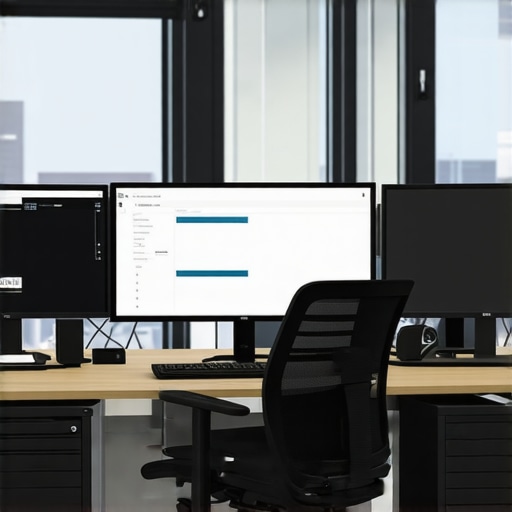
I remember the exact moment I realized I might have gone a little overboard with my office setup. I was squinting at my ultra-wide, 4K monitor—the latest model everyone seemed to rave about—trying to get work done. Instead of boosting my productivity, it just made me feel overwhelmed and a bit lazy, as if my eyes were struggling to keep up with the pixel density. It hit me: was my shiny new 4K monitor actually helping me, or just making things more complicated?
The Overhype of 4K Monitors for Everyday Tasks
Fast forward to today, and I’m convinced that most office workers—myself included—don’t need the latest 4K behemoth. In fact, many of us are falling for a hype that promises absolute clarity and color accuracy, but in reality, it might be overkill for the typical 9-to-5 routine. The truth is, a high-resolution monitor won’t automatically make you more productive if your workflow isn’t designed around it. Instead, it can lead to eye strain, increased costs, and an unnecessarily cluttered desk.
As I experimented with different setups, I learned that a well-balanced monitor—one that suits your specific needs—can do wonders without breaking the bank. If you’re curious whether your current display is holding you back or if you’re just being seduced by shiny specs, stick around. I’ll share practical insights from my own experience and help you find a monitor that actually fits your workflow.
Is All That Screen Real Estate Truly Worth It?
Early on, I made the mistake of prioritizing resolution over comfort. I assumed bigger, sharper screens would automatically boost my efficiency. But the real game-changer was learning to match my monitor to my tasks. Did you know that according to a survey by TechRepublic, over 60% of digital workers find ultra-high-resolution monitors unnecessary for their daily work? Many are wasting money and desk space, thinking bigger means better. If you’ve ever felt overwhelmed by your screen setup or wondered if you’re overinvesting, you’re not alone. Let’s break down what really matters when choosing your ideal office monitor—and why you don’t have to chase 4K to be effective.
Ready to rethink your monitor choices and avoid common pitfalls? Let’s dive into what makes a screen truly suited for daily work tasks, so you can set up a workspace that enhances rather than hinders your productivity.
Assess Your Workflow Before Making a Purchase
Start by analyzing your daily tasks. Are you coding, designing, or managing spreadsheets? For coding and multitasking, consider a dual monitor setup to expand your workspace. For creative tasks, a color-accurate 4K monitor can significantly enhance precision. Personally, I once tried to upgrade to a 32-inch 4K display without assessing my desk space, which resulted in clutter and decreased focus. Measuring your available space and noting your main tasks prevents wasteful investments.
Choose the Right Display Size and Resolution
Sizing Matters
Don’t fall for the myth that bigger is always better. I once bought a 34-inch ultra-wide without considering my desk ergonomics, leading to neck strain. Instead, match the monitor size to your typical distance from the screen: a 24-27 inch screen is ideal for most office work at standard distances, while vertical space is limited. Avoid overwhelming your workspace with oversized displays unless you often work with multiple windows simultaneously.
Resolution – Not Just About Pixels
Investing in a 4K monitor seems tempting, but it’s pointless if your hardware can’t handle it or if your tasks don’t require ultra-high detail. I tested a 4K display for a week, and although the picture was sharp, scaling issues with some applications frustrated me. Focus on what benefits your workflow: 1080p might suffice for simple tasks and extend hardware lifespan, while professionals involved in detailed design or video editing gain from 4K’s clarity. For a comprehensive comparison, check out top 4K monitors for office efficiency.
Prioritize Color Accuracy When Necessary
Creative professionals know that color fidelity can make or break their projects. My experience with a poorly calibrated monitor led to mismatched hues in my designs, requiring costly reprints. For tasks demanding true color reproduction, opt for monitors with high color gamut coverage (covering sRGB, AdobeRGB). I suggest reviewing options like color-accurate monitors for creative work to ensure your display meets the standards necessary for professional outputs.
Learn to Calibrate Your Display
Even the best panel can benefit from calibration. I initially skipped calibration and noticed my colors looked different on other screens, causing confusion. Use hardware calibrators or software tools to adjust brightness, contrast, gamma, and color temperature. Regular calibration maintains color consistency, especially important for tasks like photo editing or branding. For guidance, visit guides on color calibration.
Optimize Your Ergonomics and Workspace
A monitor’s position directly impacts your comfort and productivity. I once ignored height adjustments, which led to persistent neck pain. Set your monitor so the top of the screen aligns with your eye level; use adjustable stands or monitor arms. Also, position bright lights to avoid glare, which can cause eye strain. Long-term comfort is crucial—after adjusting my setup, I experienced less fatigue and better focus. For ergonomic tips, explore office monitor selection guides.
While many assume upgrading to a larger, 4K, or color-accurate monitor automatically boosts productivity, the real advantage lies in understanding the nuances behind these features. Contrary to popular belief, more pixels or color can sometimes backfire if not aligned with your workflow and workspace ergonomics. For instance, overspending on a high-end monitor without evaluating your actual tasks might lead to unnecessary expenses and clutter. Achieving effective productivity requires discerning which features genuinely add value, instead of chasing the latest tech hype.
Are All High-Resolution Monitors Created Equal for Your Tasks?
Many professionals fall into the trap of believing that 4K resolution universally benefits all workflows. However, studies suggest that unless your work involves detailed design, video editing, or color grading, the difference between 1080p and 4K might not translate into tangible efficiency gains. Moreover, 4K displays demand more from your hardware and UI scaling, which can cause blurriness or eye strain if not configured properly. A smarter approach involves matching resolution to your hardware capabilities and the ergonomics of your workspace. For example, a 27-inch 1440p monitor often offers a sweet spot for clarity and performance without overwhelming your desk.
Remember, a well-calibrated, ergonomic setup can outperform even the most advanced display specs. Always calibrate your monitor regularly, especially if you work in color-sensitive fields, and position it to reduce eye strain. By focusing on these nuanced adjustments, you create a workspace that truly enhances productivity, rather than just impresses with specs.
Curious about what features are truly worth investing in? Visit this comprehensive guide to help tailor your monitor choices to your specific needs—not hype.
Have you ever fallen into this trap? Let me know in the comments.
Once you’ve optimized your monitor and workspace, the key to sustained productivity lies in diligent maintenance and using the right tools to keep everything running smoothly. One powerful approach I rely on is regular calibration of my color-accurate monitors, especially since I work with visual designs and need precise color fidelity. Hardware calibrators like the X-Rite i1Display Pro have been game-changers, ensuring my color profiles stay consistent over time. I calibrate my monitors monthly, and it’s surprisingly straightforward—just a few minutes with dedicated software, and my display remains pristine. Additionally, software tools like DisplayCAL offer free, open-source calibration options that work well with most hardware calibrators, providing trusted routines backed by industry standards.
Beyond calibration, software updates for your monitor’s firmware and graphics drivers are essential. I make it a habit to check for firmware updates quarterly—monitor manufacturers often release fixes that can improve compatibility and performance. For graphics drivers, I subscribe to automatic updates via Nvidia or AMD, which keeps my display and hardware functioning in harmony and prevents issues like scaling problems or flickering. Routine cleaning of the screen with lint-free cloths and avoiding harsh chemicals also prolongs the lifespan of your monitors and preserves display quality. Remember, a dusty or smudged screen not only looks unprofessional but can also cause unnecessary eye strain.
Another often-overlooked aspect involves managing cable clutter. Investing in good quality cable organizers and monitor stands with integrated cable management keeps your workspace tidy, which directly influences your focus and mental clarity. Over time, cords can loosen or degrade—periodically inspecting and replacing worn cables ensures a stable connection and prevents frustrating disruptions.
Looking ahead, I predict that integrated software solutions combining calibration, diagnostics, and ergonomic alerts will become more prevalent. Companies are now exploring AI-driven tools that can automatically adjust display settings based on time of day or ambient lighting conditions, much like how smartphones adapt brightness. This trend will make professional-grade maintenance simpler and more accessible, reducing the time spent on manual adjustments and helping maintain peak productivity.
How do I maintain my monitor setup for years of reliable use?
The secret is to establish a routine. Allocate a few minutes each month for calibration, check for software and firmware updates, and clean your workspace. Using tools like the calibration routines I rely on ensures consistency. Remember, well-maintained equipment not only performs at its best but also extends its lifespan, saving you money and hassle. Don’t wait until issues arise—preventive care is your best strategy.
If you haven’t tried regular calibration recently, I highly recommend investing in a good hardware calibrator and setting up a monthly routine. The tiny effort pays off in color accuracy, eye comfort, and overall productivity. Plus, it gives you peace of mind knowing your workspace is optimized for the long haul.
Throughout this journey, I discovered that pursuing the latest tech isn’t always the path to better productivity. Sometimes, the most significant gains come from understanding your actual needs and configuring your workspace accordingly. Optimizing your monitor setup is not about chasing after specs but about aligning your tools with your workflow and comfort. The real benefit lies in thoughtful choices, regular calibration, and ergonomic placement, which combine to create an environment where focus and efficiency thrive. Remember, a monitor that suits your specific tasks and environment will serve you far better than the most expensive display that isn’t tailored to your needs. So, invest in your workspace wisely—your productivity and well-being depend on it. Making deliberate, informed decisions about your monitor setup is the best step toward sustainable work success.