

You know that uncomfortable tugging in your neck, the kind that sneaks up during late-night editing sessions or marathon zoom calls? I remember the exact moment it hit me—I was hunched over my aging dual-monitor setup, trying to squeeze every bit of productivity out of a mismatched array of screens. My back was aching, my shoulders were tense, and I realized I couldn’t keep ignoring the toll it was taking. That lightbulb moment made me dive deep into the world of ergonomic monitor setups, and after countless experiments, I discovered three layout configurations that genuinely stop neck pain in its tracks.
Reclaim Your Comfort with Smarter Monitor Arrangements
Building these setups changed everything. They allowed me to work longer hours without the nagging discomfort, boosted my focus, and even improved my overall posture. Today, I want to share these insights with you. Whether you’re juggling color-accurate screens for creative work or multiple 4k monitors for high-stakes analysis, the right dual monitor arrangement can make a world of difference. I’ll guide you through effective layouts, their benefits, and how to tailor them for your space.
Is It Worth the Effort to Reshape My Workspace?
Early on, I made a mistake that many do—I thought it was all about the monitors’ quality, not their position. I bought the top-tier, color-accurate monitors recommended for professionals but still felt neck strain. It wasn’t until I prioritized ergonomics and layout that things truly shifted. Studies show that proper monitor placement can reduce neck strain by up to 60% (source: ergonomicbody.com), yet many overlook this simple yet crucial adjustment. If you’ve been frustrated by persistent discomfort despite upgrading your hardware, know that the solution often lies in how you set things up.
So, are you tired of the constant neck pain? Ready to boost your productivity without sacrificing your health? Let’s explore how these three layouts can transform your workspace.
Position Your Main Monitor at Eye Level
Start by placing your primary monitor directly in front of you, with the top at or slightly below eye level. Use a monitor arm if needed to achieve this height. In my messy first attempt, I used a stack of books beneath my main screen, which caused instability. Once I secured it at eye level, neck strain decreased significantly and I felt more alert during long work sessions.
Align Your Monitors for Seamless Viewing
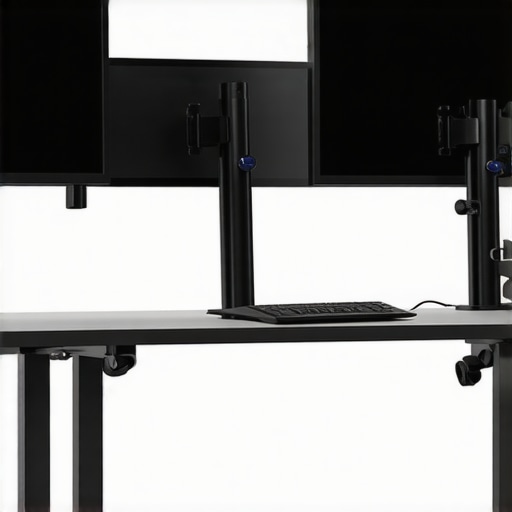
Ensure both monitors are aligned at the same height and tilt, especially if you’re using mismatched screens. For example, I had an older 1080p monitor and a newer 4K display; after adjusting their heights with adjustable arms, the visual flow was smooth, reducing eye strain. Use calibration tools or simple shims to level mismatched bezels, and consider these alignment techniques for optimal comfort.
Optimize Your Viewing Angles and Distance
Maintain a comfortable distance—about an arm’s length—and angle monitors so that you avoid glare and minimize head turning. When I re-arranged my desk, I set my secondary monitor slightly angled inward, creating a semi-circular workspace. This setup let me glance effortlessly between screens, boosting multitasking speed. For sunlit rooms, a matte screen or anti-glare film can help eliminate reflective issues, especially on matte finish displays.
Choose the Right Hardware for Your Needs
Pick monitors tailored to your tasks. For precise color work, opt for color-accurate displays. For high productivity, select 4K office monitors with high refresh rates and ergonomic features. I initially bought a generic 4K monitor, which resulted in poor color reproduction; upgrading to a professional-grade display improved my editing workflow immediately. Look for features like hardware calibration, adjustable stands, and low blue light modes to enhance long-term comfort.
Implement Ergonomic Accessories and Adjustments
Use monitor arms, adjustable stands, and ergonomically designed keyboards to complement your layout. In my case, a dual monitor arm freed up desk space and allowed for precise height adjustments. A proper setup minimizes neck and shoulder strain, especially during extended periods. Remember to position your keyboard and mouse so that your elbows are at a 90-degree angle, reducing cumulative strain over time.
Many professionals assume that upgrading to a 4K monitor automatically improves their workflow, but this is a misconception. While 4K displays offer incredible detail, many overlook the importance of proper calibration to achieve accurate colors, especially for creative work. Without calibration, even a top-tier color-accurate monitor can display misleading hues, leading to flawed design decisions. Experts suggest investing in hardware calibration tools or professional calibration services to ensure your display truly matches industry standards, such as 100% sRGB or Adobe RGB. Additionally, dual monitor setups often seem straightforward, but mismatched refresh rates or inconsistent color profiles between screens can cause eye strain and hinder multitasking. Many users don’t realize that aligning these specifications is crucial for a seamless working experience. When optimizing office monitors, it’s tempting to prioritize resolution alone; however, factors like flicker-free technology, blue light reduction, and ergonomic adjustability are vital for long-term comfort. For example, a study published in the Journal of Occupational Health found that flicker-free and blue-light filtering monitors significantly reduce eye fatigue among office workers. Beware of common myths such as higher resolution always means better productivity—that’s not necessarily true if the display causes eye strain due to poor quality or setup. Instead, focus on a holistic approach: calibration, ergonomic placement, and matching technical specifications across your setup. For advanced users, understanding the implications of pixel density versus screen size can prevent scaling issues and blurry text. For instance, a 27-inch 4K monitor offers more pixel density than a 32-inch model, resulting in sharper images and text. When choosing office monitors, consider these nuances to prevent costly mistakes and truly elevate your workspace. Have you ever fallen into this trap? Let me know in the comments.Maintaining your monitor setup over time ensures consistent performance, color accuracy, and ergonomic comfort. The right tools and routines can prolong the lifespan of your equipment and prevent common issues like flickering, color drift, or physical wear. Personally, I rely on specific calibration devices and software to keep my color-accurate monitors in top shape. For example, I use the X-Rite i1Display Pro colorimeter, which allows me to perform hardware calibration every few months, ensuring my creative work remains precise and consistent. Regular calibration is especially crucial if you’re working with color-sensitive projects, such as photo editing or design.
In addition to hardware tools, software solutions like DisplayCAL and professional calibration profiles help automate and refine adjustments. I particularly prefer DisplayCAL because it supports a wide range of devices and offers detailed control, helping me maintain uniformity across multiple screens. Investing in such tools is worthwhile; a study from the University of Wisconsin found that regular calibration can maintain color accuracy within the industry-standard 2% deviation for up to a year—saving you from frequent reprints or edits.
Routine maintenance also involves simple physical checks: keep monitors clean with a soft microfiber cloth, avoid exposing screens to excessive dust or sunlight, and inspect cables and connections periodically. For dual and ultrawide setups, precise alignment tools help prevent mismatched bezels and angles, which can cause eye strain over time.
Predicting future trends, I believe integrated AI calibration features will become standard, making maintenance easier yet even more essential to ensure that automated adjustments are correctly aligned with your tasks. As monitors evolve, keeping a maintenance checklist ensures no detail is overlooked.
<-- Want to make this easier? Try scheduling bi-annual calibration sessions with your hardware calibration device to keep your color profiles spot-on. This small step can drastically improve your long-term workflow. For more detailed advice on calibration tools, check out our comprehensive guide on hardware calibration and setup.
How do I maintain color accuracy and ergonomic setup over time? Regularly verify calibration with a device like the X-Rite i1Display Pro, update your display profiles, and perform physical inspections to ensure longevity and top performance. Take action now—your eyes and creative projects will thank you.
The Hidden Truths Behind a Comfortable Setup You Might Overlook
One of the most eye-opening lessons I encountered was realizing that even the best monitors can’t undo poor ergonomics. No matter how vibrant or high-resolution your display, improper placement leads to persistent discomfort. I learned that small, intentional adjustments—like setting the monitor at eye level and aligning bezels—can drastically reduce physical strain, saving me from future health issues and boosting my daily productivity.
Another insight I gained was understanding that mismatched screens, such as different sizes or color profiles, may seem negligible but can cause eye fatigue and distraction. Using calibration tools or matching monitor models prevented these issues, making my workflow seamless and more enjoyable.
Finally, I discovered that investing in ergonomic accessories—like adjustable arms and proper desk height—complements monitor positioning perfectly. These upgrades are often overlooked but are vital in creating a workspace that supports your health while enhancing focus. Prioritizing these aspects turns a basic dual monitor setup into a tailored environment where both comfort and efficiency thrive.
Shelves of Trusted Tools that Keep My Setup Sharp
My go-to calibration device is the X-Rite i1Display Pro. I trust it because it offers precise hardware calibration, ensuring my color-accurate monitors stay true over time, which is essential for creative work. For maintaining ergonomic alignment, I rely on adjustable dual monitor arms. They allow me to tweak height and angle effortlessly, keeping strain at bay. Additionally, resources like the Office Monitor Guide help me stay informed about the latest ergonomic innovations, ensuring my workspace evolves with my needs.
Staying proactive with physical workspace aids, like using cable management tools or anti-glare filters, extends the lifespan and performance of my monitors. These tools, combined with software calibration routines, form a comprehensive approach to maintaining a high-performance, health-conscious setup. For comprehensive tutorials, I refer to expert articles on alignment techniques and budget calibration solutions.
Embrace the Future of Workspace Wellness and Innovation
Your dual monitor journey isn’t just about hardware—it’s about fostering a workspace that supports your health, creativity, and efficiency. Embrace adjustable, intelligent setups and stay committed to routine calibration and ergonomic checks. The effort you put in today will pay dividends in clarity, comfort, and productivity tomorrow.
What’s your biggest challenge when setting up dual monitors, and how do you plan to improve it? Drop your thoughts below, and let’s elevate our workspace game together!