
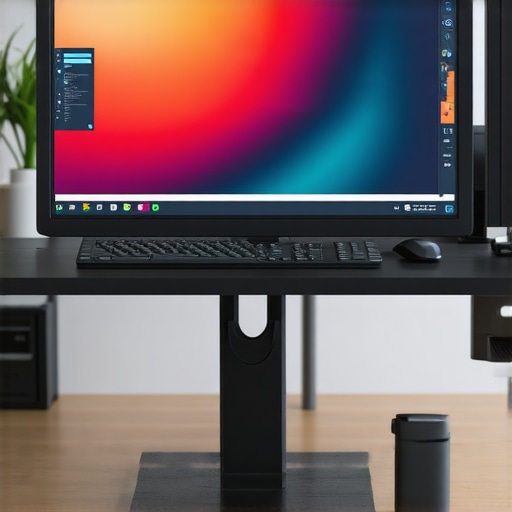
Have you ever stared at your office monitor, squinting at colors that just don’t seem right? Maybe it’s a vivid 4K display that looks stunning but makes your photos look off. Or perhaps you’re juggling multiple screens, and the color mismatch bugs you every day. I used to think it was just me—until I realized how much my inaccurate monitor was holding back my work and creativity. That lightbulb moment changed everything. I finally understood that investing in a color-accurate monitor isn’t just about aesthetics; it’s about precision, efficiency, and peace of mind.
Why Choosing the Right Monitor Matters More Than Ever
In 2025, the stakes are higher than ever. Whether you’re a professional designer, a coder, or someone who simply values a crisp workspace, your monitor is the window through which you see your work. An inaccurate display can distort colors, lead to mistakes, and even cause eye strain. According to a recent study by DisplayMate, color accuracy is a key factor in professional workflows, affecting everything from branding to photo editing. If you’ve ever experienced the frustration of mismatched shades or had to redo work due to poor display calibration, you know what I mean. So, how do you pick the right one? That’s what we’ll explore today—no fluff, just real advice from someone who’s been there.
Is Investing in a Color Accurate Monitor Really Worth It?
Honestly, I made the mistake early on of buying a flashy, high-resolution monitor without considering color fidelity. It looked impressive, but my photos and designs never quite matched the original. The result? Hours wasted fixing color issues or second-guessing my work. If you’re someone who values precision—whether for professional projects or just to enjoy true-to-life visuals—skipping this step can be costly. Luckily, I discovered that a good color accurate monitor can transform your workspace. It’s not just about the visuals; it’s about confidence in your work and reducing errors. Want to avoid my mistake? Keep reading, because I’ll guide you through what to look for and how to choose the best monitor for your needs.
If you’re tired of second-guessing your display or feeling overwhelmed by the options, you’re not alone. The good news is, with a little guidance, selecting the right monitor becomes much simpler. From dual setups to high-end 4K displays, I’ll break down everything you need to know to make an informed decision. Ready to upgrade your workspace and boost your productivity? Let’s dive into the essentials of choosing a color-accurate monitor that will serve you well in 2025 and beyond.
Set Your Workspace for Precision
Start by assessing your current setup. Remove any distractions and clear your desk to create a dedicated space for calibration. I remember the first time I did this; I moved my monitor to a neutral light source, turned off overhead lights, and adjusted my environment to minimize glare. This simple step laid the foundation for accurate color calibration.
Choose the Right Display Technology
Opt for IPS panels over TN or VA for better color consistency and viewing angles. Think of it like choosing a window with clear glass versus tinted or frosted options—IPS offers a true window into your work. For detailed work, a 4K resolution provides sharpness, but ensure your hardware can handle it smoothly. To explore top options, check out top 4K monitors tailored for productivity.
Calibrate Your Monitor Carefully
Invest in a hardware calibration tool like a colorimeter. Connect it to your computer and run calibration software. During my first calibration, I followed the on-screen instructions meticulously, adjusting brightness, contrast, and color temperature. This process ensures that the colors you see are as close to real as possible, essential for creative professionals or anyone valuing visual fidelity.
Adjust Brightness and Contrast for Comfort
Set your monitor’s brightness to match your ambient lighting. A good rule is to have your screen slightly dimmer than your environment to reduce eye strain. My experience shows that small tweaks here can significantly improve comfort, especially during long work sessions. Use the built-in settings or calibration software to fine-tune these parameters.
Implement Dual Monitors for Increased Productivity
If your workflow benefits from multitasking, consider a dual setup. Position two monitors side-by-side, ensuring both are calibrated to match in color and brightness. This setup is like having two seamless windows—one for reference and one for active work. For ideas on optimal configurations, visit dual monitor setups.
Regularly Maintain Calibration
Colors drift over time, so schedule calibration every few months. I keep a reminder and run a quick calibration check, especially before critical projects. Consistency is key to ensuring your colors stay true, avoiding the frustration of mismatched shades in your final output. Calibration tools often offer reminders or auto-calibration options.
Optimize Your Workspace Lighting
Control ambient light to prevent reflections and glare that skew your perception. Use curtains or diffuse lighting. This step complements your calibration efforts, creating an environment where colors appear consistent and accurate. Remember, a well-lit workspace enhances both accuracy and comfort.
Leverage Software for Fine-tuning
Beyond hardware calibration, use software tools like DisplayCAL or the monitor’s built-in settings to make further adjustments. I discovered that small tweaks in gamma or color temperature could make a noticeable difference, especially for creative tasks. These tools help fine-tune your display for specific work, whether photo editing or coding.
By following these concrete steps, you’ll dramatically improve your monitor’s color accuracy. It’s like upgrading from a blurry lens to a high-definition view—every detail becomes clearer, and your confidence in your work skyrockets. Ready to explore the best monitors for your needs? Check out top color-accurate monitors designed for professionals in 2025.
Many professionals dive into choosing a monitor with the belief that bigger, higher resolution, or more expensive models will automatically deliver perfect color accuracy and productivity gains. However, this is a misconception that can lead you astray. Let’s dig deeper into what most people get wrong about office monitors, 4K displays, dual setups, and color fidelity, so you can make truly informed decisions.
Why Bigger Isn’t Always Better for Color Precision
It’s a common myth that a larger monitor or ultra-high resolution guarantees better productivity or color accuracy. While these features improve visual detail, they don’t address calibration or color consistency. For instance, many assume that a 32-inch 4K monitor automatically offers accurate colors, but without proper calibration and panel technology considerations—like IPS versus TN—you might still face color shifts and viewing angle issues. As highlighted by experts in display calibration, the panel type and factory color fidelity matter more than size or resolution alone. Don’t fall for the trap of equating size with quality; instead, focus on calibration capabilities and panel technology.
The Hidden Danger of Overlooking Calibration in Buying Decisions
A significant mistake is assuming that a monitor labeled as “professional” or “color-accurate” doesn’t need calibration. Many high-end models come factory calibrated but drift over time due to aging components and ambient conditions. I’ve seen professionals invest in top-tier displays only to realize months later that their colors are no longer accurate, costing time and rework. The key is to regularly recalibrate, using hardware tools like a colorimeter, which many overlook. This ongoing maintenance ensures your colors stay true, especially when working on critical creative projects or when color consistency across multiple screens is vital. For a comprehensive guide on calibration, check out this resource.
Are Dual Monitors Really a Productivity Boost or a Hidden Pitfall?
Many professionals swear by dual setups, believing they double productivity. While a well-calibrated dual monitor setup can streamline workflows—especially when working with reference materials or multiple applications—it’s not foolproof. The real issue lies in mismatched color profiles, brightness, and calibration between the two screens. This mismatch can cause eye strain and visual fatigue, which counters the supposed productivity benefits. To avoid this, ensure both monitors are calibrated to match in color and brightness. An optimal dual setup aligns with best practices for dual monitors. Remember, a poorly set up dual system can be more distracting than helpful.
What Advanced Users Need to Know About Color Gamut and Panel Technology
For professionals demanding precise color reproduction, understanding color gamut (like sRGB, Adobe RGB, DCI-P3) and panel technology is crucial. Many assume that all IPS panels are equal in fidelity, but differences in factory calibration, backlight technology, and panel coating can significantly influence color accuracy. Experts recommend looking for monitors with wide gamuts, factory calibration reports, and hardware calibration support. This ensures that your display can accurately render colors across the spectrum, which is particularly important for creative workflows. For the most demanding tasks, consider models listed in top color-accurate monitors.
Have you ever fallen into this trap? Let me know in the comments and share your experience so others can learn from your story. Remember, making informed choices about your monitor setup isn’t just about specs—it’s about understanding the nuances that impact your daily work and creative output.
Maintaining your office monitor, especially a high-resolution 4K or dual setup, is crucial for sustained productivity and color accuracy. Over time, even the best displays drift from their calibrated state due to environmental factors, aging components, or simple wear and tear. As someone who has experimented extensively with calibration tools and maintenance routines, I can attest that regular upkeep ensures your workspace remains sharp, accurate, and reliable.
Why Regular Calibration Matters for Long-Term Accuracy
When I first invested in a professional-grade color-accurate monitor, I was eager to start working. However, I quickly learned that factory calibration isn’t a permanent fix. Over just a few months, I noticed subtle shifts in color fidelity, which could compromise my creative projects or cause discrepancies across multiple displays. To combat this, I set a bi-monthly reminder to recalibrate using a hardware colorimeter like the X-Rite i1Display Pro. This device connects to my computer via USB and works with calibration software to create precise profiles, ensuring consistent color accuracy over time.
Tools I Recommend for Consistent Performance
Beyond calibration hardware, I rely on software solutions such as DisplayCAL, an open-source, highly customizable calibration tool. It’s especially useful for fine-tuning gamma, white point, and luminance, which are critical for creative work. I prefer DisplayCAL because it allows me to generate and load custom profiles, providing better control than some built-in monitor settings. For dual monitor setups, I use a calibration routine on both screens to match their output precisely, avoiding eye strain and visual fatigue during long work sessions.
How do I maintain my setup’s integrity over time?
Consistency is key. I keep my workspace lighting controlled—using diffusers and adjustable LED lights—to prevent ambient light from affecting calibration. Additionally, I avoid frequent physical adjustments to the monitor once calibrated, as even small shifts can throw off color accuracy. When I upgrade hardware or change my environment, I revisit calibration processes to ensure everything stays aligned. For detailed guidance, I recommend checking out this comprehensive resource.
Future of Monitor Maintenance and Scaling
Looking ahead, I predict that calibration tools and adaptive display technologies will become more integrated into monitors themselves, offering real-time adjustments based on ambient conditions. This will make maintaining your display’s accuracy even easier, especially for professionals working across multiple devices or remotely. For now, investing in a quality calibration device and establishing a routine can dramatically prolong the lifespan and performance of your monitors. I encourage you to try out a hardware calibration tool like the X-Rite i1Display Pro—once you see the difference, you’ll wonder how you ever managed without it.
Lessons from the Front Lines of Monitor Calibration
- One of the most surprising things I learned was how much subtle environmental factors, like ambient light and even small physical shifts, can throw off your monitor’s color accuracy. The lightbulb moment came when I realized that my calibration was only as good as my environment.
- Another lesson: High-end factory calibration isn’t a set-it-and-forget-it solution. Regular recalibration with a hardware tool like the X-Rite i1Display Pro keeps my colors true and my workflow seamless.
- And finally, I discovered that panel technology matters more than resolution or size. An IPS panel with wide gamuts and proper factory calibration makes all the difference for professional work.
My Go-To Tools for Consistent Color Fidelity
- DisplayCAL: This open-source calibration software allows me to fine-tune gamma and white points, ensuring my monitor’s output remains reliable over time.
- X-Rite i1Display Pro: I trust this hardware calibrator for its precision and ease of use. It’s been a game-changer for maintaining visual consistency across multiple monitors.
- Calibration Routine: Establishing a bi-monthly check using these tools has been crucial. It’s a small effort for a huge payoff in accuracy and peace of mind.
Challenge Yourself to Elevate Your Workspace
Choosing the right monitor isn’t just about specs; it’s about understanding the nuances of calibration, environment, and panel technology. With a little effort, you can transform your workspace into a hub of precision and productivity. Ready to give your setup the upgrade it deserves? Dive into the details and start your calibration journey today — your work will thank you. Have you ever struggled with maintaining your monitor’s accuracy? Share your experiences below and let’s learn together.